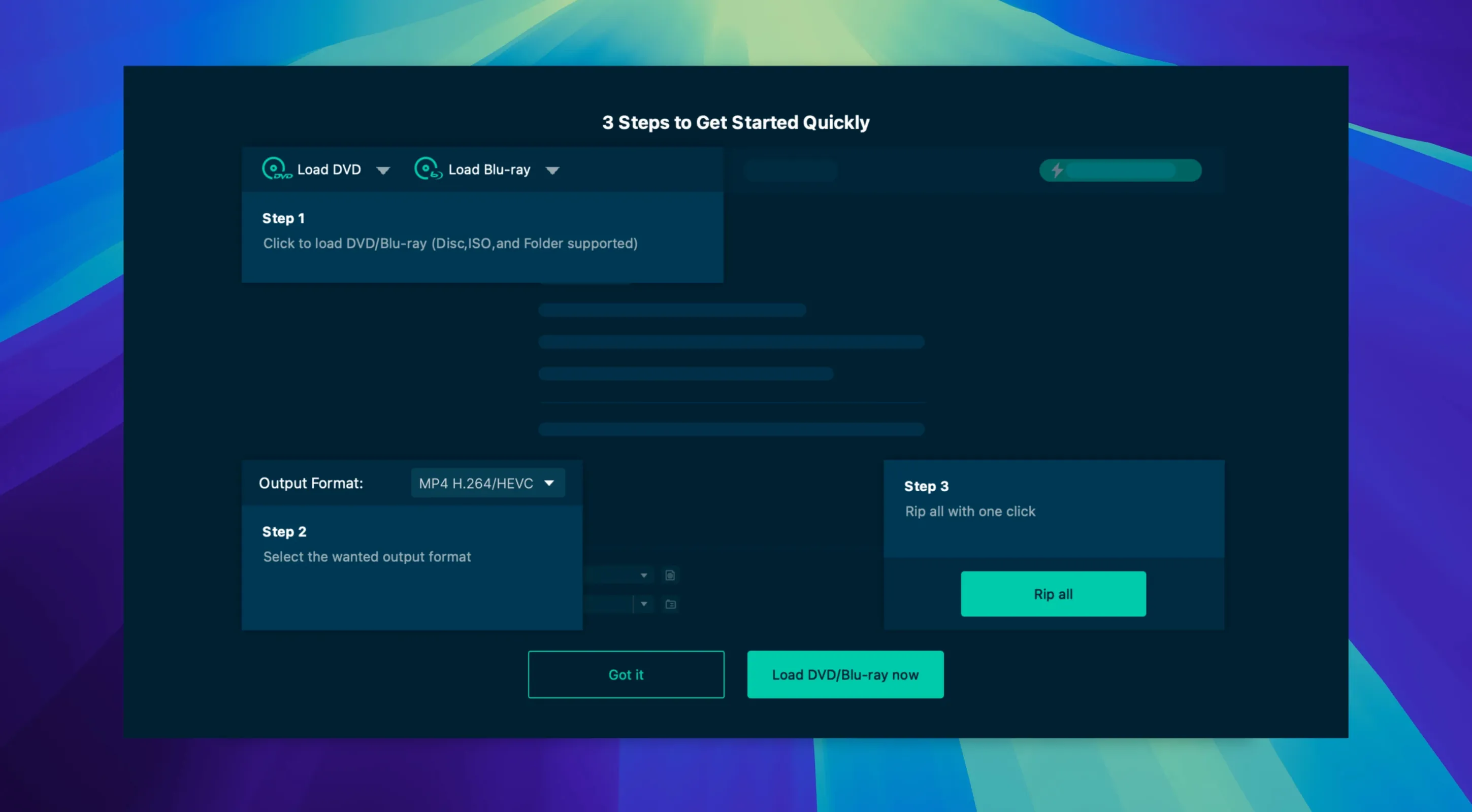
A client hands you a stack of Blu-rays and needs clean, editable MP4s by morning. You pull the footage into a ripper that skips the menus and gives you straightforward file output. That’s the scenario where VideoByte BD-DVD Ripper 2.1.6 plugs in. It reads BD/DVD discs, BDMV/VIDEO_TS folders and ISO files and converts them into more than 300 video and audio formats, keeping original audio tracks and subtitles, so you can start cutting without hunting for raw media.
Still Ripping Discs on an Intel Mac?
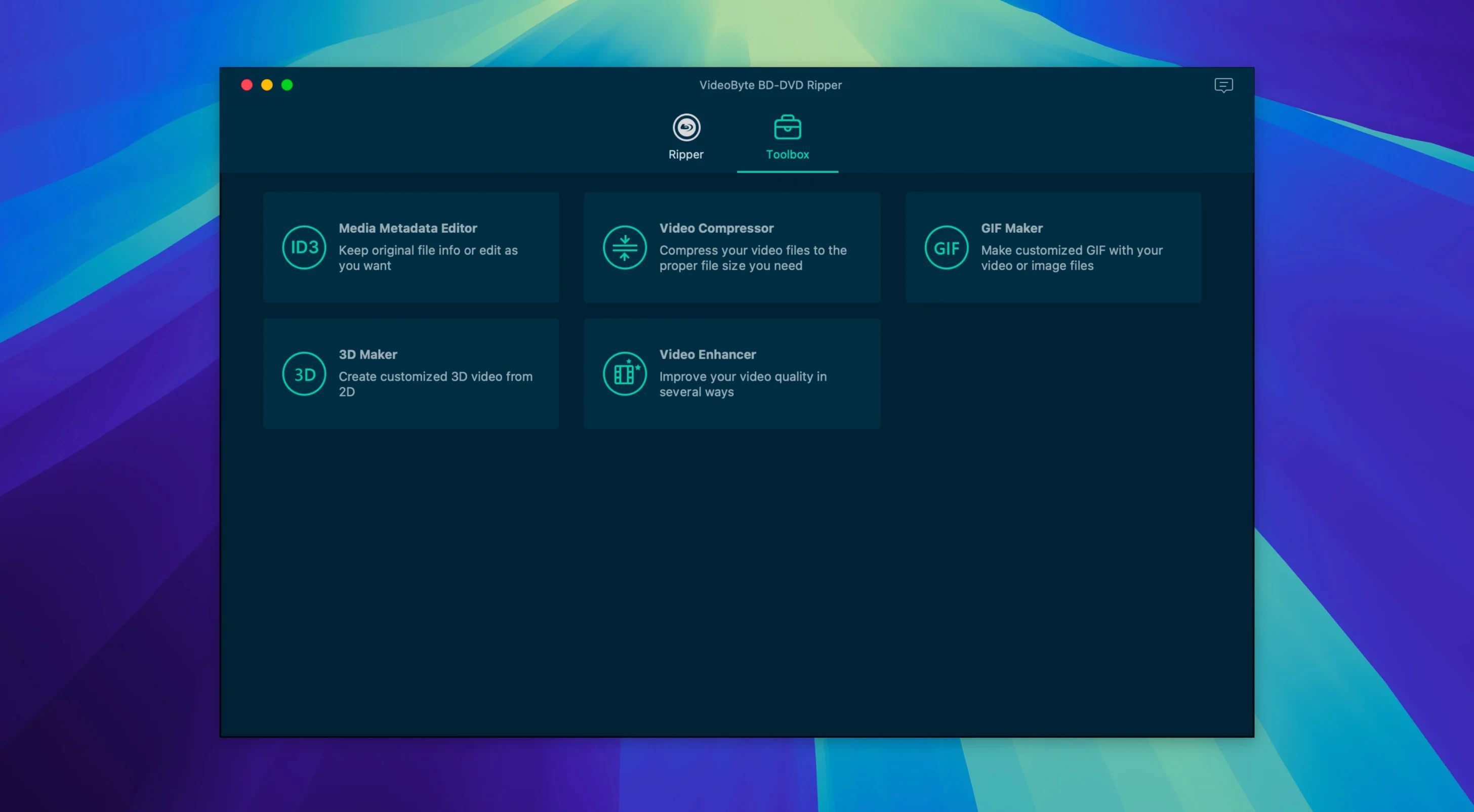
If you’re still working on an Intel Mac and juggling physical media, this app fits a specific gap. It’s built for x86 64-bit machines and stays friendly with OS X 10.10 and later. The interface—available in English, German, French, and Japanese—keeps things blunt: load a disc, pick a preset for an Apple, Samsung, or Sony device, and run the conversion. Hardware acceleration taps into NVIDIA, Intel, and AMD silicon, which matters when renders are piling up. You also get a small suite of edit tools—trim, rotate, crop, watermark, filters, and effects—that can save a round-trip to another app for quick fix-ups before the transcode.
One App for Blu-ray and DVD, Finally
This isn’t the stripped-down DVD-only sibling. The BD-DVD Ripper handles both formats under one roof, so you don’t need two utilities for a mixed disc library. The feature set targets straight-to-file ripping with just enough tweaking to clean up a frame. It’s a deadline tool: no chapters authoring, no menu rebuilding—just a clean digital copy that lands in your edit bin.
A Session That Moves
Tuesday, 10 p.m. A producer drops off three Blu-rays from a live concert—different cameras, different discs, same deadline: rough cut by morning. You mount the first disc, launch VideoByte, and ignore the “Open Disc” button for a moment. The source needs a quick triage. You click Load Blu-ray, point it at the disc, and watch the title list populate. Two titles: the main feature at 1 hour 42 minutes, and a five-minute behind-the-scenes reel. You only need the main show.
You check the audio tracks—a stereo downmix and a PCM 5.1 mix—and keep both. Subtitles? The disc has three languages; you grab the English track and flag it as soft subs so it stays switchable in the edit. The preset dropdown gets set to MP4 H.264, because Final Cut prefers it. Before you hit Convert, you crop 14 pixels off the bottom edge where a sliver of letterboxing creeps in. The trim handles the black frame without sending you to Compressor. One click, and hardware acceleration kicks in. The fan spins up—Intel Quick Sync is doing its thing—and the progress bar moves fast enough that you prep the next disc while it finishes.
By 11:30, all three discs are MP4s on your RAID. No menus, no waiting through trailers, no re-encodes needed.
Quieter Decryption on Newer Blu-ray Pressings
Version 2.1.6 didn’t overhaul the interface, and that’s the point. What it tightened are the disc-reading guts. The biggest shift in daily use is how the protection removal behaves on newer Blu-ray pressings—AACS and BD+ decryption runs quieter, with fewer discs stalling at the title-scanning stage. A disc that previously hung for 45 seconds now resolves in under ten.
The preset library also got a refresh. Profiles for recent Samsung and Sony devices were updated, and a handful of dead presets were pruned. If you’re ripping for playback on a specific TV or tablet, you’re less likely to end up with a file that triggers a “format not supported” message. The audio passthrough logic was tweaked too—DTS-HD Master Audio tracks now survive the rip intact rather than getting silently downmixed, which matters if you’re archiving concert footage or films with complex sound design.
Also fixed: the ISO loader handles large disc images (above 40 GB) without a timeout error that used to appear on older OS X installs, and the watermark tool no longer shifts its position by a few pixels after a crop is applied. Small things, but they cut down on re-renders.
Move the Output Folder Before You Rip Anything
Out of the box, the default output directory dumps everything in a VideoByte folder inside Movies. Move it immediately to a working drive with space—point it at your scratch disk or a project folder. The app remembers the path, so you do this once.
Next, open the Preferences pane and flip the “Use Hardware Acceleration” toggle on if it didn’t engage automatically. On Intel Macs, this shaves anywhere from a third to half off the encode time depending on the codec. While you’re there, set the default subtitle mode to “Remux into file” instead of burning them in. You can always hardcode later; soft subs keep your edit flexible.
Also worth a look: the “After Conversion” dropdown. Set it to “Do nothing” if you’re chain-ripping a stack of discs—the default “Open output folder” gets annoying when Finder windows pile up. And if you regularly pull media from ISO files rather than physical discs, map the “Load ISO” button to a keyboard shortcut through System Preferences. The app doesn’t offer custom shortcuts natively, but a quick mapping through macOS’s App Shortcuts pane works.
- Intel Mac (x86 64-bit)
- OS X 10.10 or later
Notes from the edit bay · 0
Sign in or get an edit-bay pass to leave a note.
No notes from the edit bay yet. They go up after I read them.