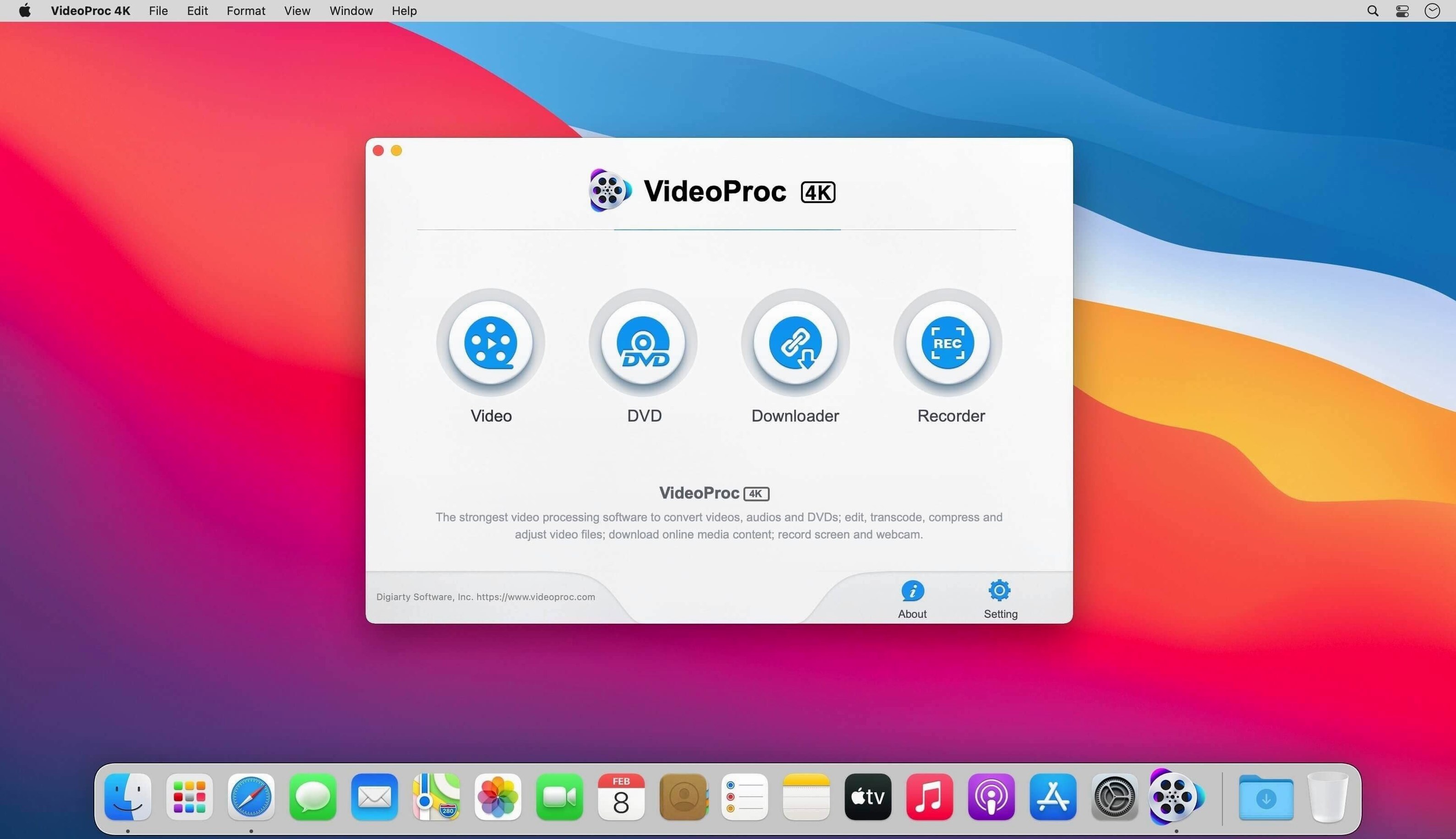
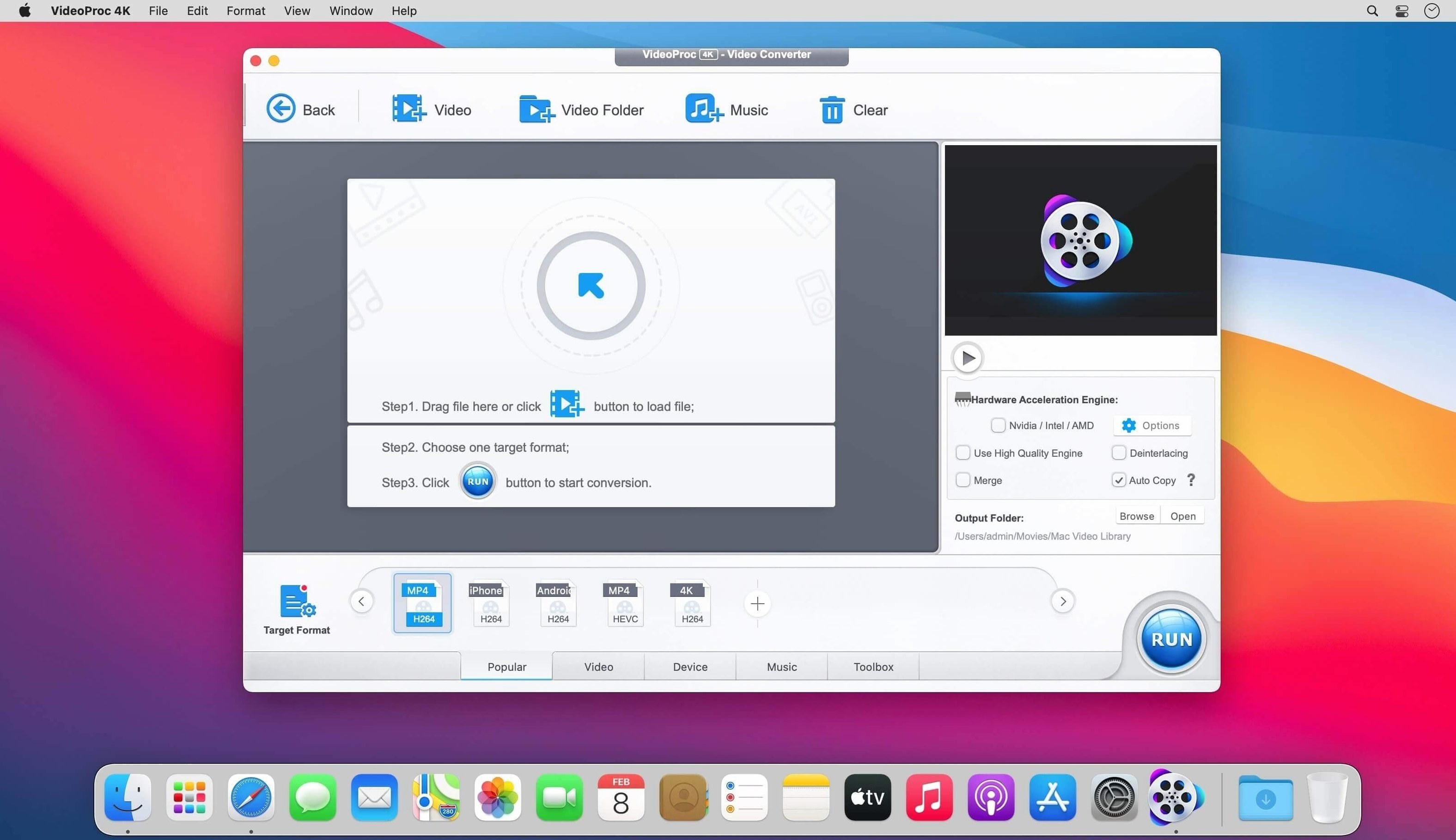
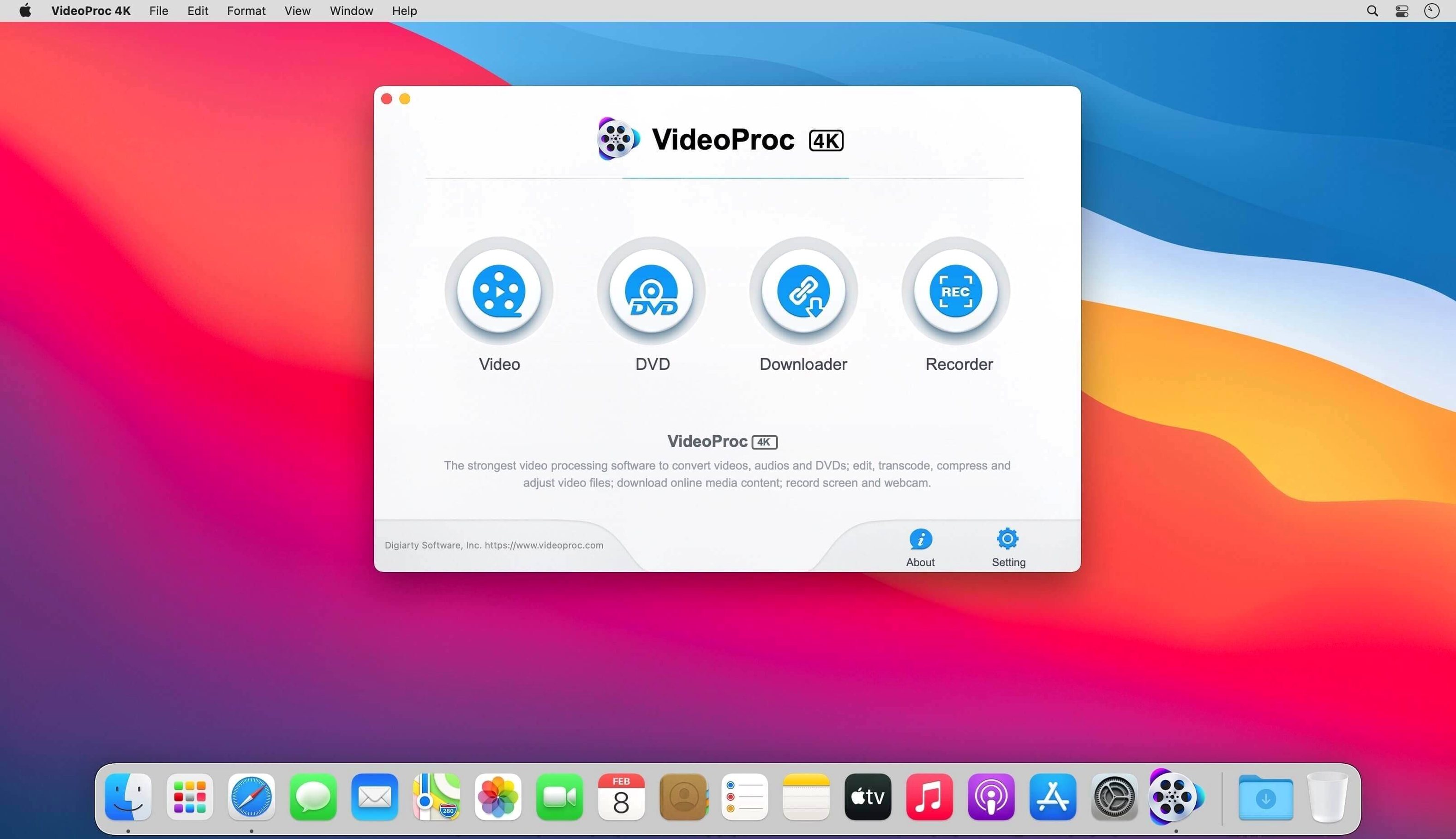
Version 6.6 comes without a changelog worth quoting. The focus stays on the engine underneath: a GPU-accelerated pipeline that chews through 370 codecs and handles footage from iPhones, drones, GoPros, and mirrorless cameras without complaining.
This build runs on Mac OS X 10.10 or later, so an older Intel Mac in the edit bay can still handle conversion, compression and trimming. The AI modules — Video Super Resolution, Frame Interpolation and Image AI — belong to the newer VideoProc Converter AI line, which needs macOS 10.15 or later.
This build is 64-bit Intel, not a universal binary, so an Apple Silicon Mac runs it through Rosetta 2. Hardware acceleration speeds up conversion and editing. For a machine still on Yosemite or El Capitan, you get a straightforward toolbox: batch convert, trim, batch-download UHD and HD video and playlists, and record. You won't get the AI upscaling, but you'll get a reliable converter that doesn't lock up when handed a 4K drone clip.
Interface language support covers English, German, Spanish, Italian, French, Japanese, Korean, and both Simplified and Traditional Chinese. It's a wide net for a tool that wants to be the first thing you launch after pulling footage off an SD card.
Right-Click to Copy Output Path Without Digging Through Finder
Right-click any file in the queue and you get a Copy Output Path command. Sounds trivial. When you’re converting three versions of the same clip for different platforms and need to grab one without digging through Finder, it saves a dozen clicks a day.
The preset search field sits at the top of the format dropdown and barely draws attention to itself. Type “hevc” or “proxy” and it filters instantly — no scrolling through the full list of devices and codecs. I wish more converters stole this.
Dragging a folder onto the window adds every compatible media file inside it, not just the top-level items. Handy when a camera card dumps clips into nested DCIM folders and you can’t be bothered to expand anything.
Under the Toolbox tab, the Merge function accepts images as well as video. You can stitch a sequence of TIFF frames into a single MP4 without touching a timeline. No motion blur, no transitions — just a straight image sequence render. Time-lapse shooters, take note.
Switch Hardware Acceleration from Auto to Your Actual GPU
Open Preferences before you convert anything. The defaults are safe, not fast.
Hardware Acceleration Engine should be on — it usually is — but the dropdown underneath it matters more. Switch it from Auto to your actual GPU if you’re on a Mac with dual graphics. The app sometimes picks the integrated chip when the discrete one is sitting idle.
Output folder behavior: the default dumps everything into a VideoProc folder inside your Movies directory. If you work off an external drive, change this to Same as source file or point it at your media drive now. Nothing worse than filling your boot SSD with ProRes intermediates you didn’t know were landing there.
Turn off Play sound when conversion completes unless you enjoy being startled at 2 a.m. Turn on Shut down computer after conversion for overnight batches. The checkbox is easy to overlook; it’s tucked below the queue panel, not in Preferences at all.
Throw a VFR Screen Recording at It Before You Trust the Workflow
Feed it something awkward early. A 10-bit HEVC file from a drone, a VFR screen recording, an old AVCHD folder structure. VideoProc Converter handles variable framerate better than most tools in this weight class, but you won’t trust that until you see your audio stay in sync after a twenty-minute clip. Test it before deadline pressure shows up.
Build a handful of custom presets on day one. The built-in device profiles are fine, but your delivery specs probably aren’t “iPad Pro 2020.” Make a preset for review h.264 (1080p, 15 Mbps, stereo AAC at 256 kbps), one for archive (ProRes 422 or high-bitrate HEVC, whichever your storage budget allows), and one for social deliverables. Name them clearly. The preset manager sits under the format dropdown — star icon, easy to miss.
The batch downloader deserves a test run with a playlist, not just a single URL. Paste the link, let it parse the list, and pay attention to the format options that appear per-item. You can mix resolutions in one batch, which matters when a playlist contains both 4K and 1080p sources and you want to grab everything at its original quality.
A Real Workflow: Drone Footage to Three Deliverables
Here’s a scenario I’ve run more than once with videoproc converter: a client sends a 4K 10-bit H.265 clip from a DJI drone. They need a trimmed version for social, a compressed archive copy, and a ProRes intermediate for the editor who cuts in Final Cut. All three due by end of day.
Step 1: Drag the clip into VideoProc Converter. The app reads the HEVC file without a stutter — no green frames, no decoder errors.
Step 2: Hit the scissors icon to open the trim window. Mark in and out points. The keyboard shortcuts here aren’t advertised: I sets the in point, O sets the out point. No need to click the tiny buttons. Cut the fat, confirm, and the trimmed range appears as a separate entry in the queue.
Step 3: For the social deliverable, select the trimmed clip and choose MP4 / H.264. Set resolution to 1080p, bitrate to 12 Mbps, audio to AAC 256 kbps. Save this as a custom preset called “Social – 1080p H.264” so step three is one click next time.
Step 4: For the archive, select the original untrimmed clip and choose HEVC. Bump the quality slider to “High Quality” and let the GPU encoder compress it. The file size drops by half versus the source without visible degradation. Label this preset “Archive HEVC.”
Step 5: For the edit-house intermediate, select the trimmed clip again, add it to the queue a second time (right-click, Duplicate), and switch the format to ProRes 422. No resolution change, no frame rate conversion — just a clean mezzanine file the Final Cut editor can drop straight onto a timeline.
Step 6: Hit Run. All three jobs process in sequence. Hardware acceleration keeps the ProRes encode from crawling. By the time you’ve written the email to the editor, the queue is done and all three files sit in the output folder, named sensibly with their codec suffixes appended.
That’s the value of videoproc converter in practice — not the feature count, but the fact that a single drag-and-drop spawns three different deliverables without opening three different apps. The torrent I grabbed handles this workload without a hiccup, and the presets mean the next drone project takes half the time to process.
- Mac OS X 10.10 or later
- 64-bit Intel Mac (Apple Silicon via Rosetta 2)
- Interface in 9 languages
Notes from the edit bay · 0
Sign in or get an edit-bay pass to leave a note.
No notes from the edit bay yet. They go up after I read them.