

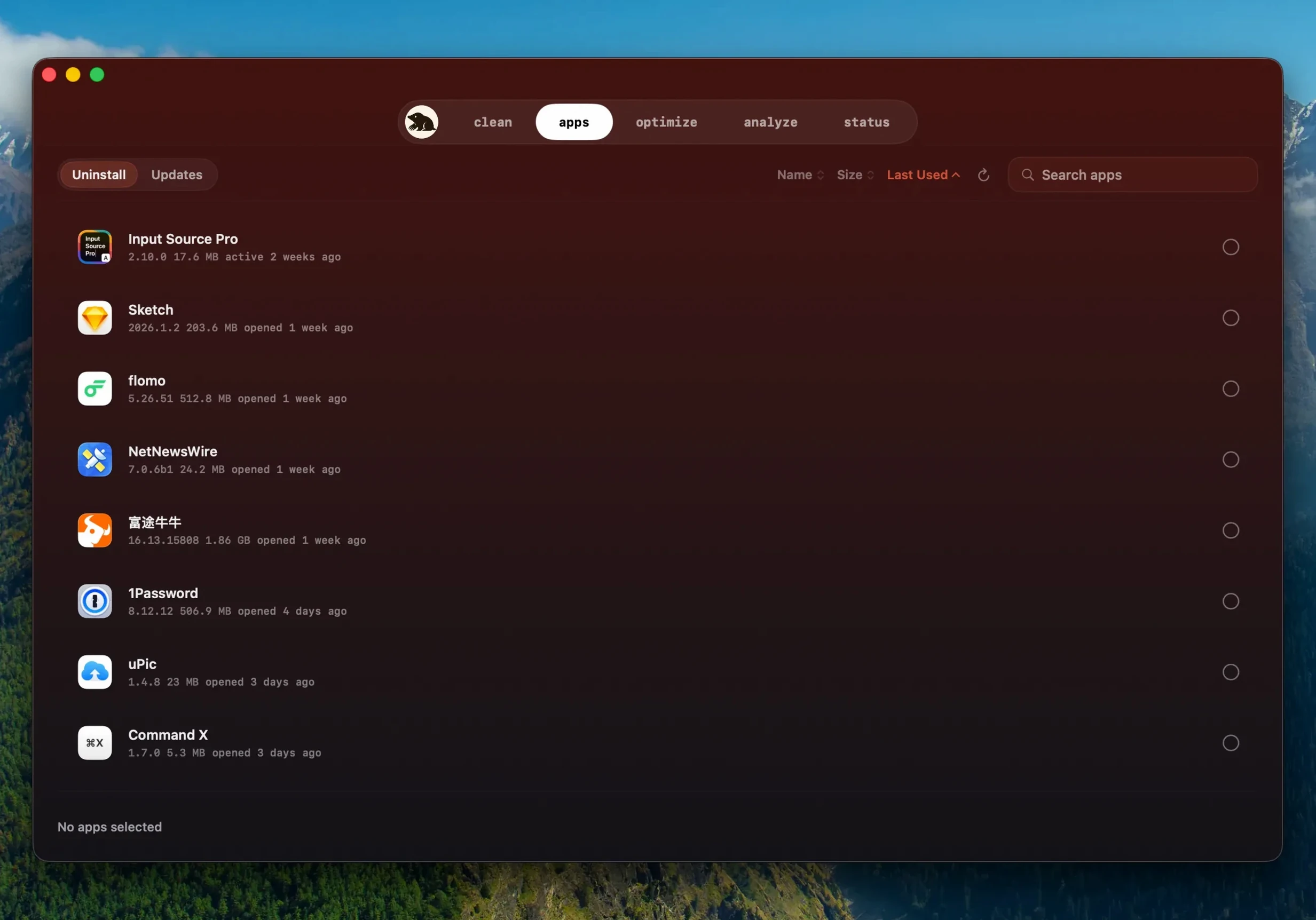
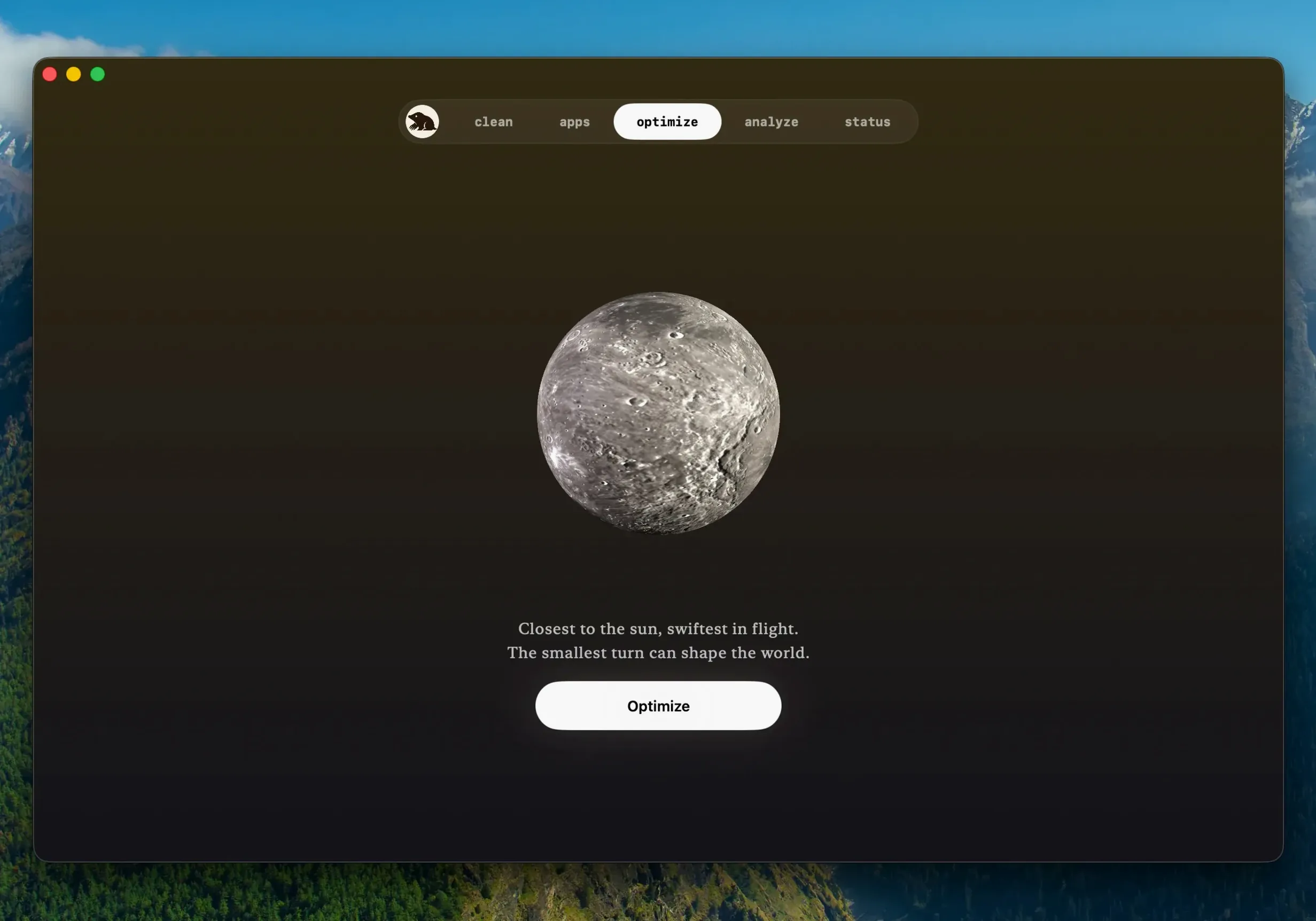
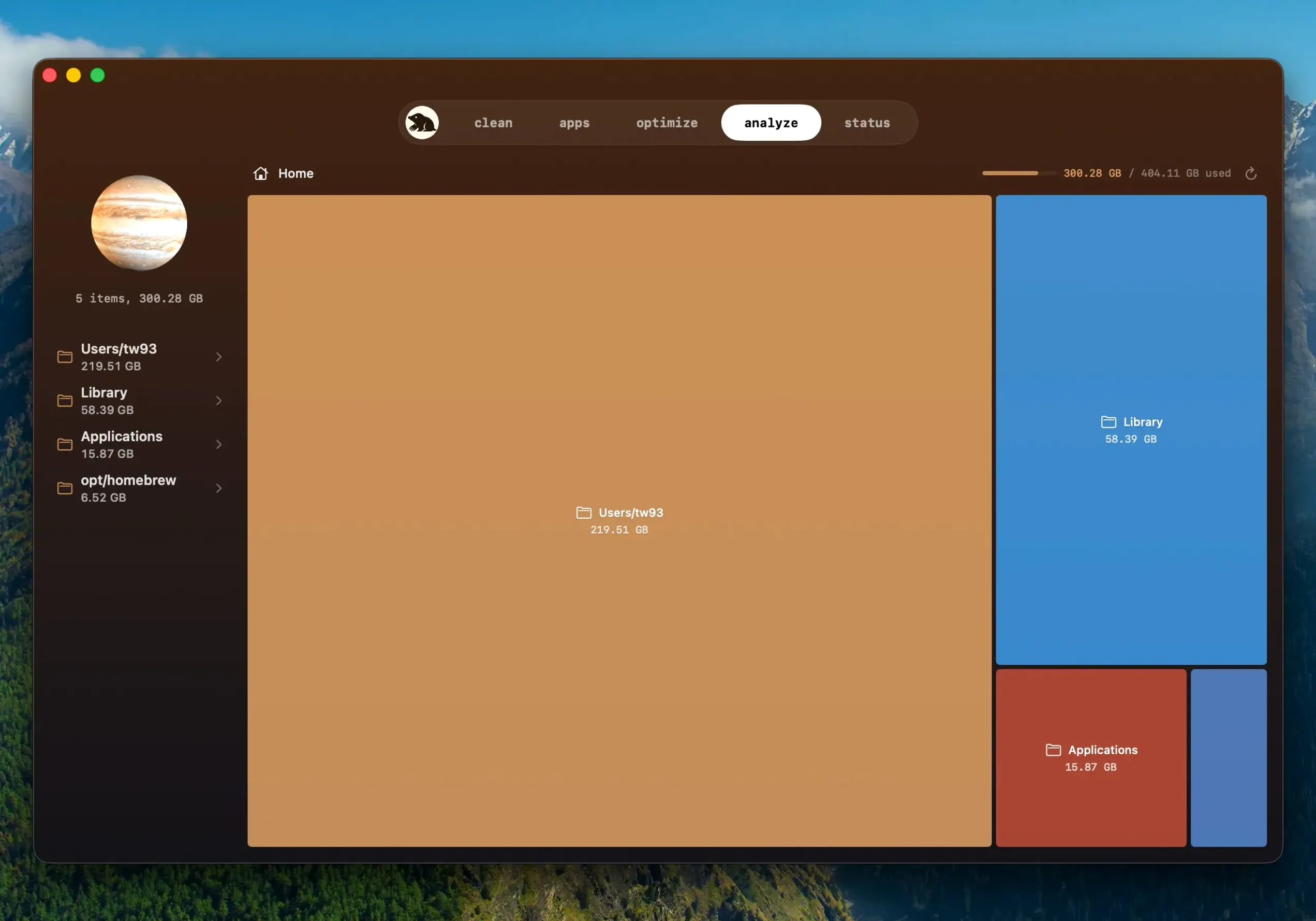
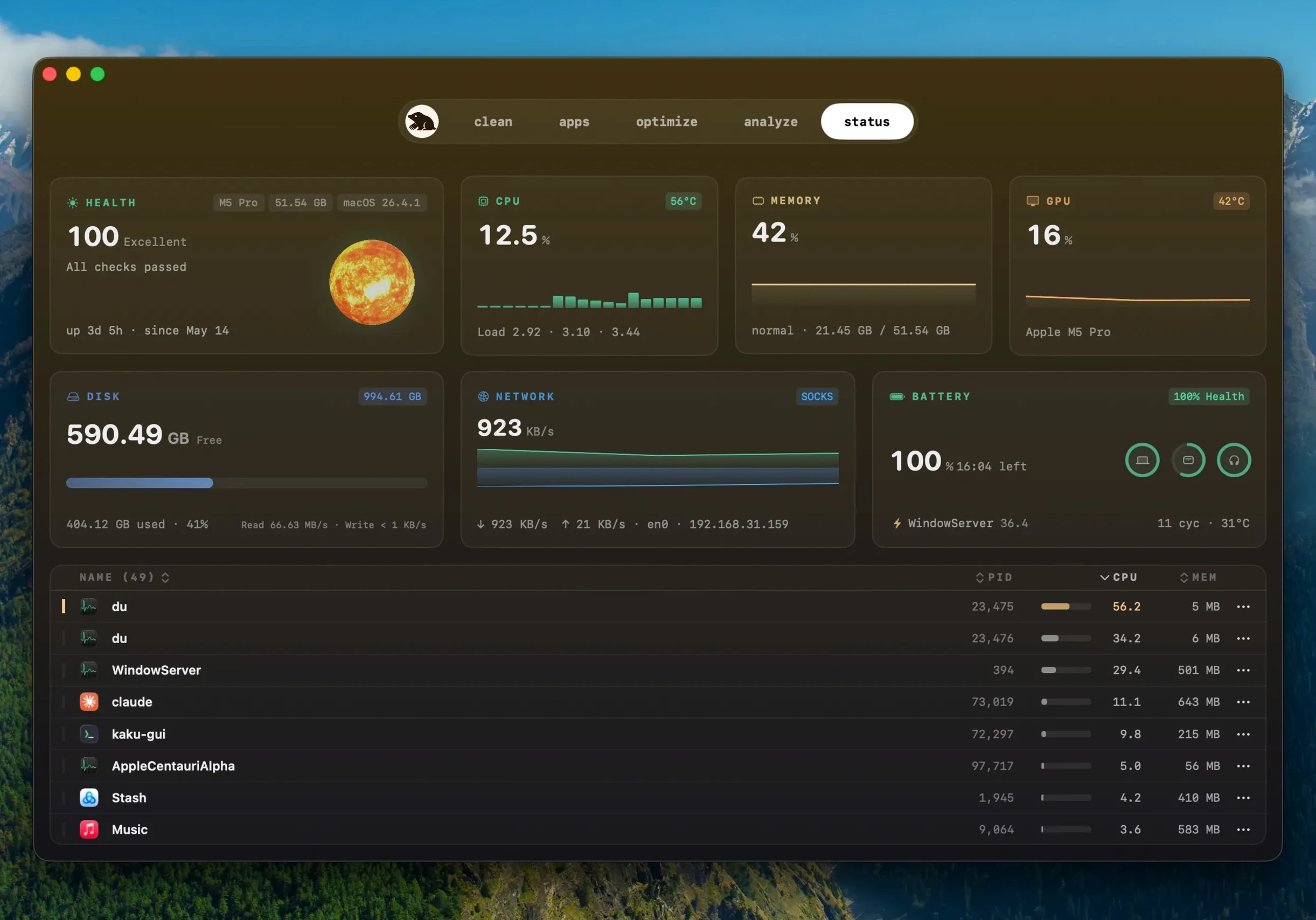
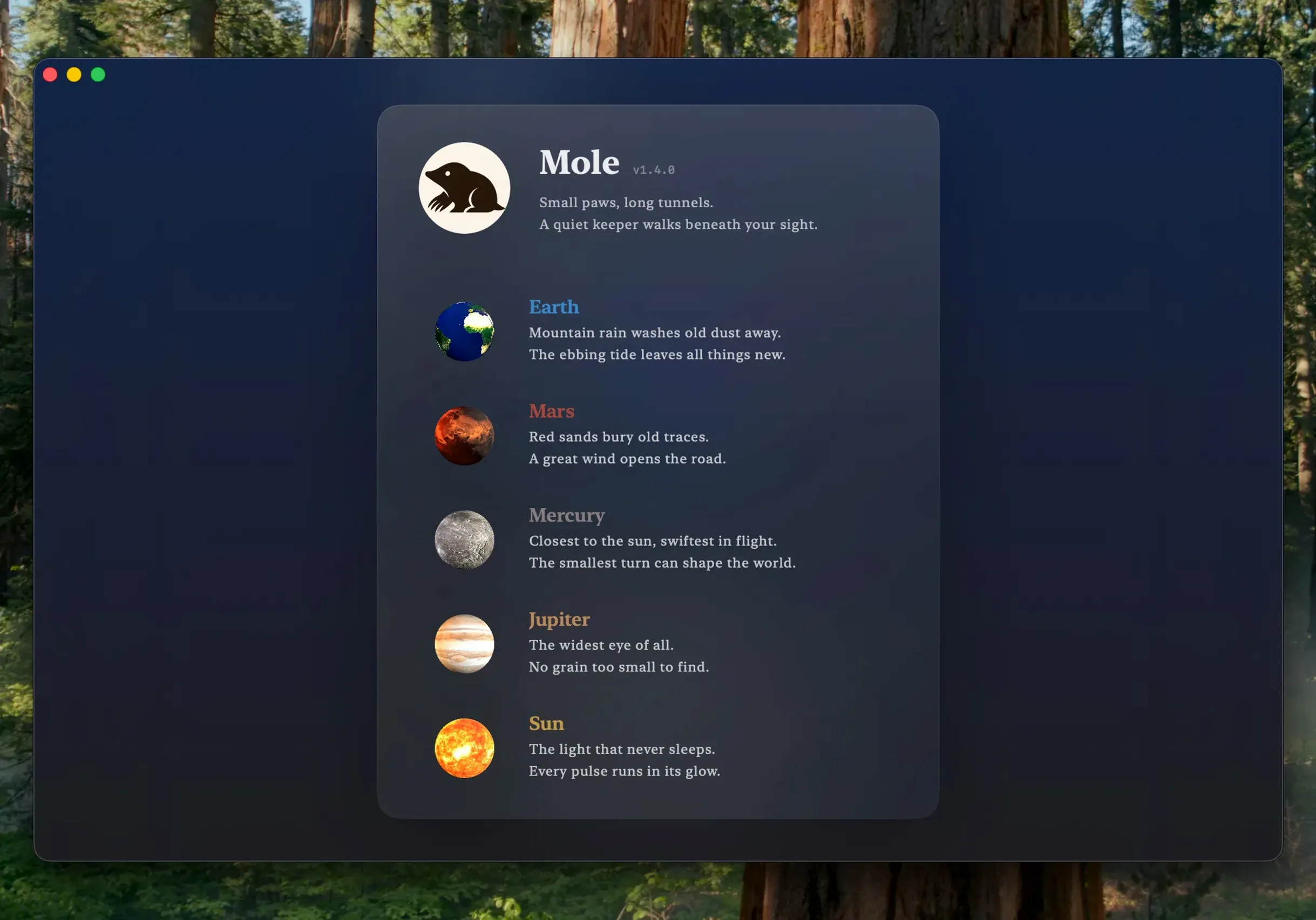
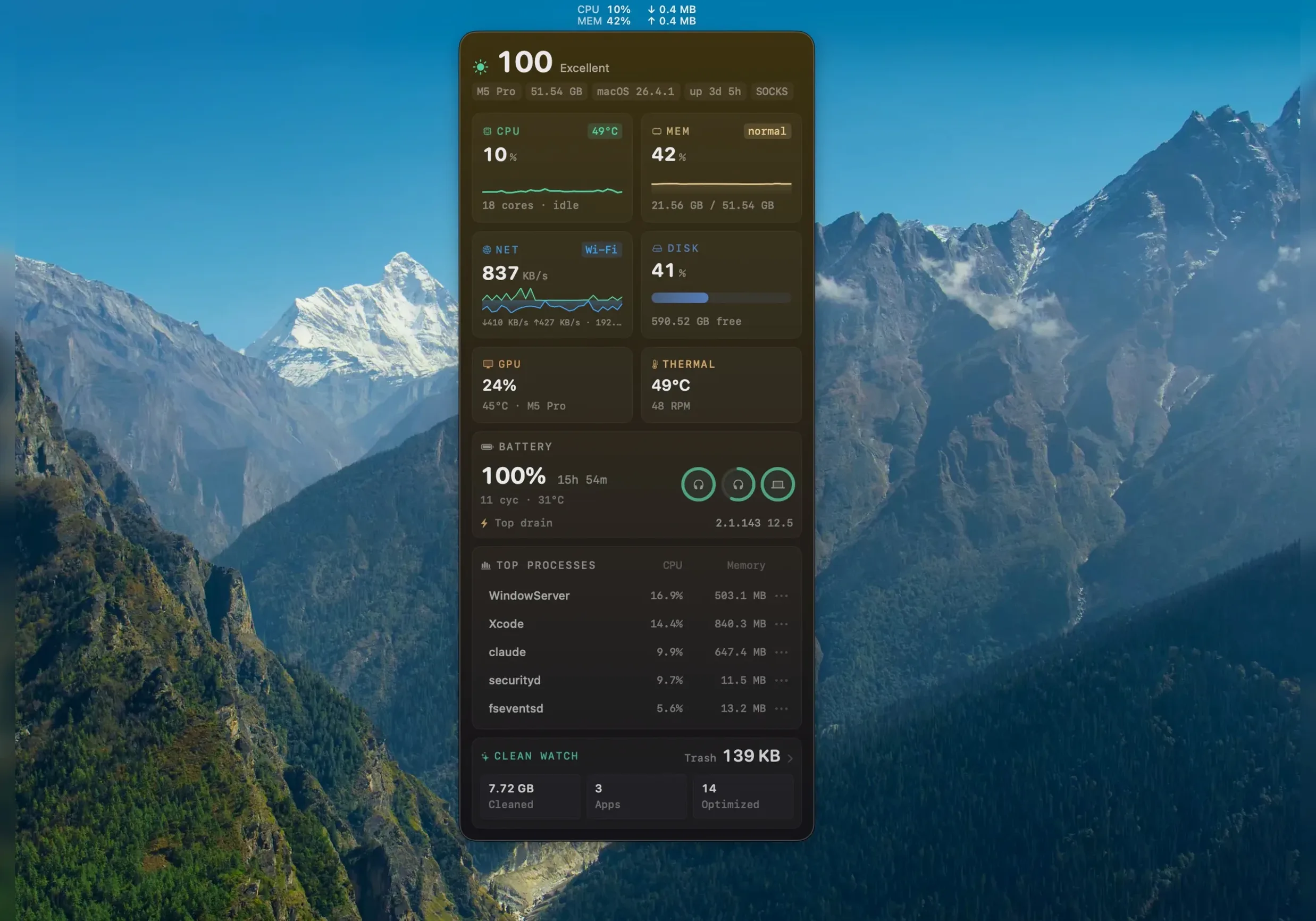
Nine languages, one click, and a tree map that shows you exactly where your gigabytes went. Mole is a Mac system janitor from developer tw93 that skips the fluff and gets straight to the numbers — real-time CPU, memory, GPU, disk throughput, network activity, battery charge, even temperature sensors, all live on screen.
Who Is It Good For?
- Visual disk hunters. The tree map breaks down storage by file and folder size, so forgotten cached renders stand out at a glance.
- One-click maintenance. System tasks that normally live behind half a dozen Terminal commands run from a single button. Mole asks for confirmation before it touches anything, so there are no surprises.
- Hardware nerds. If you like watching your Mac's internals tick, the live sensor panel earns its screen real estate. It runs natively on both Apple Silicon and Intel machines.
What Should You Keep in Mind?
- macOS 14 floor. Anything older than macOS 14 is out. If your edit bay still clings to an older system for a legacy plugin, this tool won't launch.
- Full disk access is the deep scan key. The surface scan works out of the box, but the thorough sweep needs that permission granted in System Settings. Without it, you're only seeing part of the picture.
- Not a background daemon. Mole runs when you open it. Scanning and cleaning happen locally, and file contents and browsing history are not uploaded anywhere.
CleanMyMac Bundles a Subscription; Mole Stays Local
CleanMyMac X is the elephant in the room, and the difference comes down to focus. CleanMyMac bundles malware scanning, privacy tools, an updater for App Store apps, and a subscription-shaped nudge to keep paying. Mole strips that back to local cleaning, disk analysis, and live hardware stats — no background agents, no nag screens, just a tool you open when you need it. For editors who already run security elsewhere, Mole's narrower scope feels lighter.
DaisyDisk is the closest match for the tree map alone. Both draw block diagrams that make oversized folders instantly obvious. DaisyDisk has a more polished visualization and lets you drill into network volumes; Mole gives you that same spatial view plus a system cleaner and a sensor panel in one app, which saves a trip to Activity Monitor. If all you want is the prettiest disk map, DaisyDisk still wins. If you want the map and the cleanup on the same screen, Mole pulls ahead.
Onyx is the veteran free option for maintenance scripts and cache flushing. It does the Terminal-command stuff well and has for years, but its interface looks like a preferences window from 2008, and it has no real-time hardware monitoring. Mole modernizes that maintenance set with a cleaner UI and adds the sensor feed Onyx never attempted.
Launch After a Render Week, Then Inspect the Tree Map
Mole works best as a launch-when-needed sidekick, not something you leave running. After a week of rendering dailies and ingesting footage, I open it, run the system maintenance with one click, then jump to the tree map to see if any cache folders have ballooned. Final Cut Pro and After Effects love to stash render files in spots you forget about — Mole's block view makes those visible in seconds.
It also complements macOS' built-in Storage Management panel. Apple's tool gives you large-file lists and iCloud suggestions; Mole adds the tree-map perspective and the live sensor data, so you can watch disk temperature climb during a long export and decide whether the fan curve needs a tweak elsewhere. It doesn't replace macOS Activity Monitor, but it puts CPU, GPU, memory pressure and network throughput into a more glanceable layout.
For the updater feature introduced in 1.14.0, it fills a gap Homebrew doesn't cover for GUI apps. If you pull apps from project sites rather than the App Store, Mole checks for newer builds and asks before quitting a running app and reopens it after the install. It won't touch your brew casks, but for direct-download tools it's a handy single-checkpoint.
When the Deep Scan Comes Up Empty
The deep scan comes up empty. Almost always, Mole hasn't been granted full disk access. Head to System Settings > Privacy & Security > Full Disk Access, toggle Mole on, then restart the app. Without it, the scan only scratches user-accessible folders and misses system caches that eat the most space.
The tree map shows folders you can't identify. Hover to see the full path — it's often a render cache from an app you uninstalled months ago. Before you delete, double-check the folder name against known application support paths. Mole skips items when there's doubt, so if it flags something as suspicious, leave it alone.
An app update inside Mole fails silently. If a download reuses a finished fetch that's stale, quit Mole, delete the cached download (look in ~/Library/Caches for anything related to the app), and try again. Version 1.14.0 improved this, but a bad cache can still trip the re-use logic.
Startup items won't budge. Dock login items sometimes need a second pass. Remove them in Mole, log out and back in, and if the icon lingers, right-click it in the Dock and choose Options > Remove from Dock. Mole handles the launch agent side; the Dock itself can be stubborn.
Speed, Stability, and Footprint
Mole opens cold in roughly two seconds on an Apple Silicon Mac, and the initial scan of a 1 TB drive finishes before you can pour a coffee. The tree map redraws are smooth even with hundreds of thousands of files — no beach ball, no UI thread lock. On Intel machines the sensor panel sampling adds a barely perceptible CPU bump; on ARM it's negligible. Memory sits around 120 MB during a scan and drops back when idle.
I've thrown it at drives with deeply nested folder structures and at system drives stuffed with old Xcode caches, and it hasn't crashed once. The cleanup confirmation step is genuinely useful — it lists every file and its size before you commit, so you don't accidentally nuke a Premiere auto-save folder you still need. Stability is a non-issue in daily use; it behaves like a utility that knows it shouldn't be the star of your system resources.
Apps you grabbed outside the App Store can now update right inside Mole. The app also spots when a newer build of the same version number lands, and if it needs to quit a running app during an update, it asks first, then relaunches the app when the dust settles.
- macOS 14 or later
- Apple Silicon or Intel (64-bit)
- Full disk access recommended for deep scanning
Notes from the edit bay · 0
Sign in or get an edit-bay pass to leave a note.
No notes from the edit bay yet. They go up after I read them.