If you’ve ever dragged an app to the Trash and suspected macOS just shrugged and left a trail of preference files in its wake, you already get the problem. App Cleaner & Uninstaller exists because the built-in approach is a polite fiction—it removes the main bundle but ignores the caches, logs, and service files that pile up in your Library folders over time.
Orphaned Plugins and Launch Daemons You Can Finally Delete
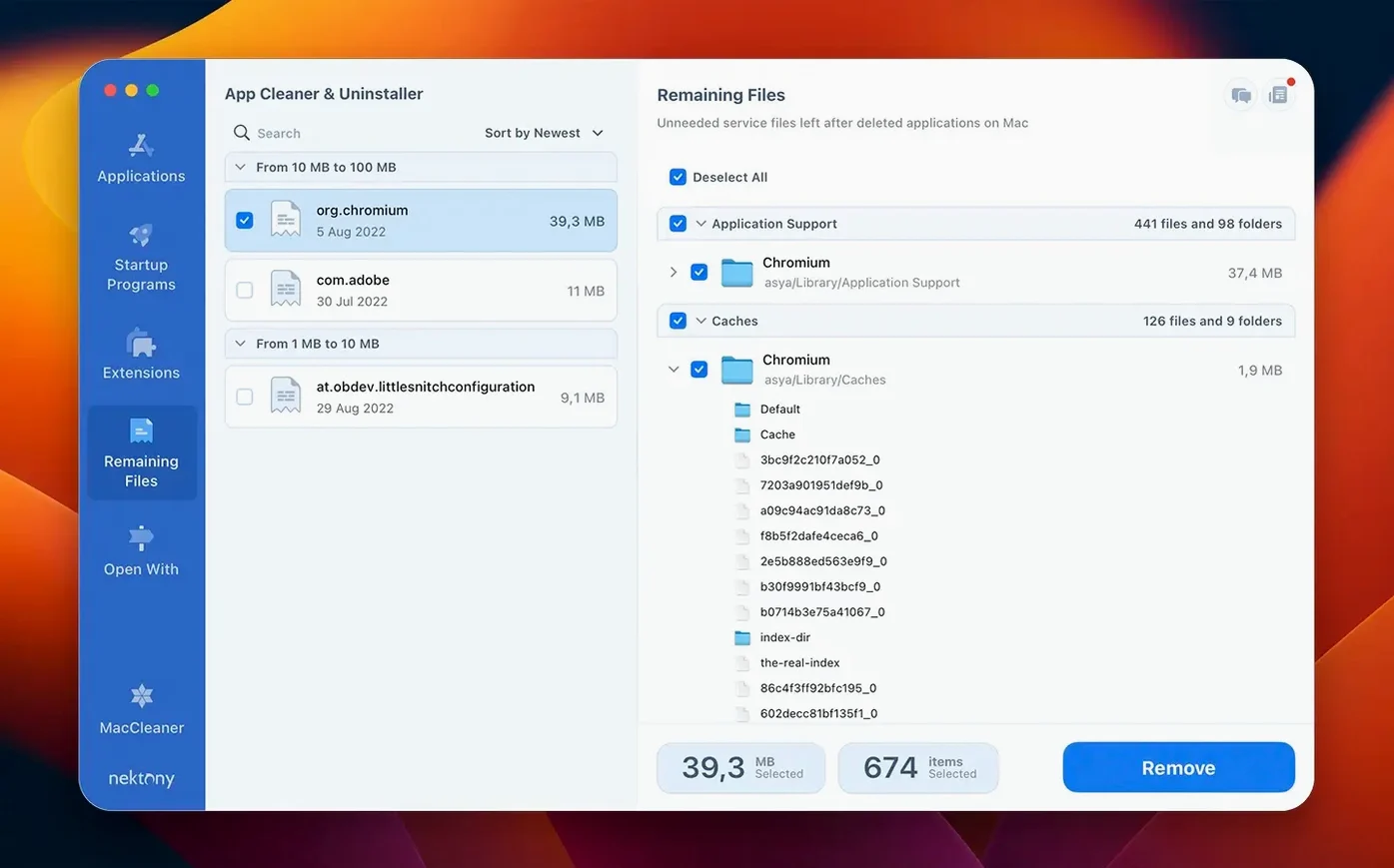
- Clearing out leftover
.plistfiles, caches, and support folders from apps deleted months ago. - Removing stubborn system extensions, widgets, or plugins that don’t offer an uninstaller of their own.
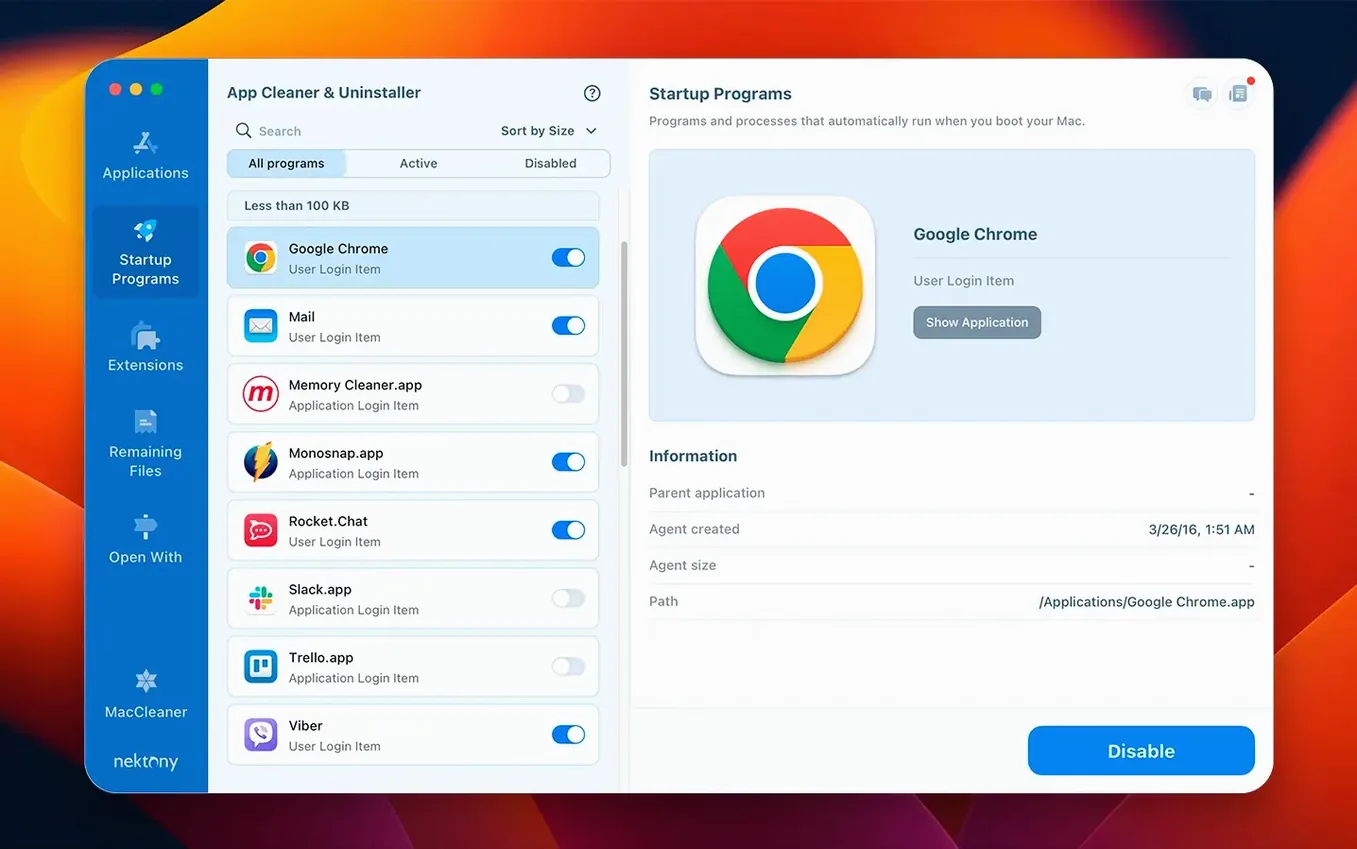
- Managing which launch agents and daemons fire up at boot—useful when something quietly adds itself to startup.
- Skipping the hunt through
~/Librarywhen an audio plugin shipped without a proper removal script.
Why the Deep Scan Surfaces Files You Shouldn’t Always Trust
- The app scans deeply, which means it surfaces files you may not recognize—some judgment is required before hitting delete.
- It’s a dedicated tool, not a background cleaner; you open it when you want to remove something.
Right-Click to Reveal Service Files Without Leaving the Main Window
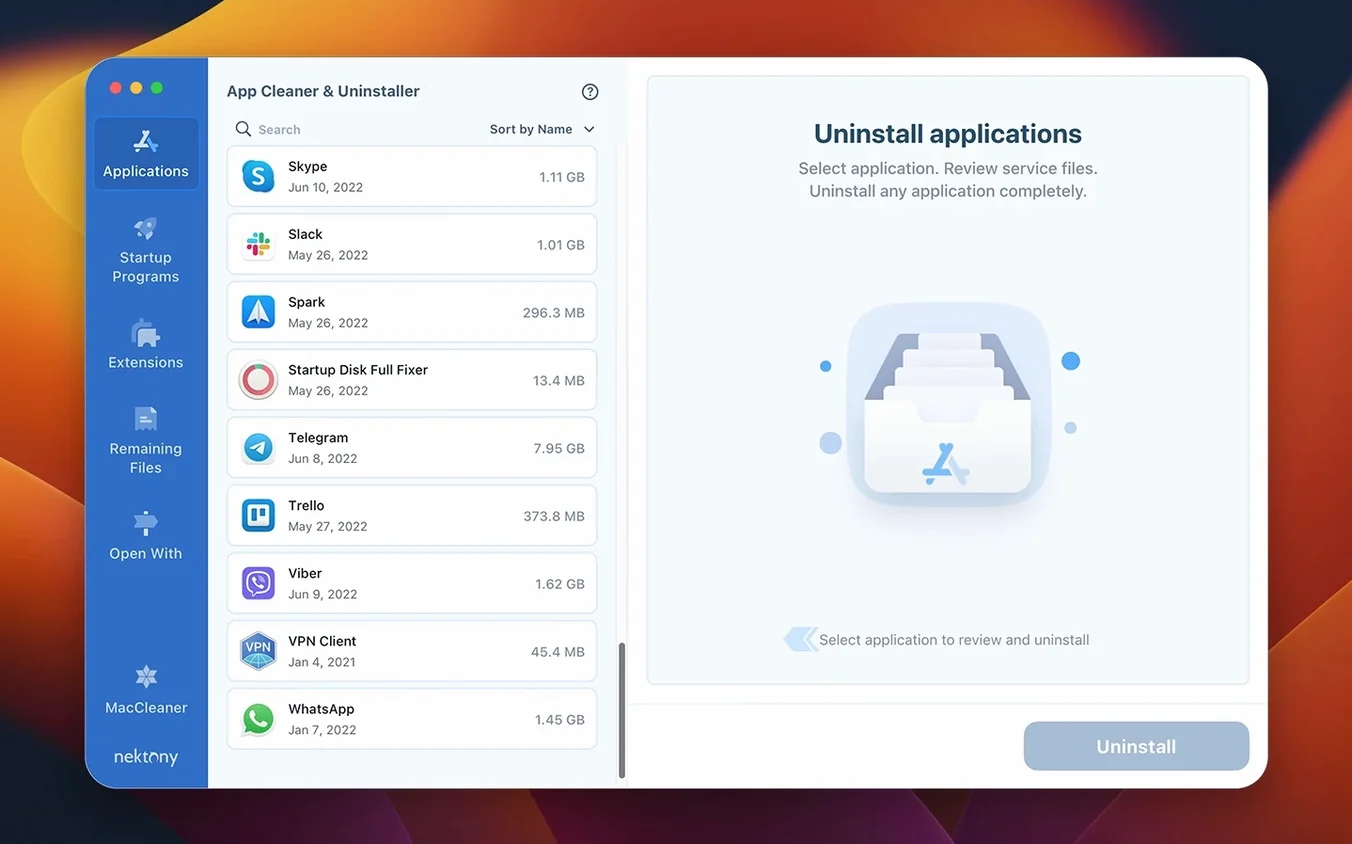
The main window shows a sorted list of apps with their total footprint, but a right-click on any app name reveals a few moves that save real time. You can reveal an app's service files in Finder without committing to deletion first—handy when you just want to check what an app has scattered around. The "Skip Trash" toggle sits in the app preferences and bypasses the Trash entirely for files you're certain about, which shaves seconds off every removal session.
Dragging an app onto the Dock icon works. So does dropping a folder full of old widgets or preference panes. The scan picks them up and treats them the same as a full application bundle. If you have already sent something to the Trash but haven't emptied it yet, the leftover scan still finds the orphaned support files—the Trash itself doesn't interfere with the search.
The search field filters in real time across app names and their associated file paths. Type "plugin" and you'll see every installed extension, not just apps. That's a fast route to the extensions tab without clicking through the sidebar. In the startup section, a small dot next to each item shows whether it's enabled, and a toggle switch lets you flip launch agents on or off without permanently deleting them. That alone beats digging through launchctl commands at the terminal.
When You Only Want an Uninstaller, Not a Full Maintenance Suite
CleanMyMac X bundles an uninstaller inside a larger suite that covers malware scans, system junk, and optimization widgets. Where App Cleaner & Uninstaller narrows its focus, CleanMyMac spreads across a dozen maintenance categories. For someone who only wants to remove applications and their leftovers, the narrower tool gets in and out faster—no extra modules loading, no background daemon humming along. The tradeoff is that you won't get the same system-wide cleanup reports or the animated progress circles.
AppCleaner, the free utility by FreeMacSoft, takes a much simpler approach. You drop an app onto its window, it lists a few related files, and you confirm deletion. It does one thing and exits. App Cleaner & Uninstaller adds the startup manager, extension browser, leftover scanner, and an updating database across a wider range of file types. If all you want is a quick drag-and-drop, AppCleaner handles it. If you want to see every launch daemon, widget, and plugin on your machine under one roof, App Cleaner & Uninstaller covers more ground.
TrashMe 3 lands somewhere in between. It handles app removal, similar leftover detection, and a basic startup manager. The interface leans toward a single-window utility with large icons and fewer tabs. App Cleaner & Uninstaller packs its feature set into a more compact, list-driven layout and surfaces extension files—Safari extensions, Quick Look plugins, Spotlight importers—that TrashMe doesn't always flag. If you regularly install and remove audio plugins or developer tools, that difference matters.
Does It Remove Every Trace from Apps I Trashed Long Ago?
Does it delete apps I got from the App Store?
Yes. App Store apps leave the same kinds of service files as direct downloads—containers, saved states, caches. The app detects them regardless of where the app originated. The removal process covers the app bundle and every associated file it finds, just like any other application.
Can I recover files after deleting them?
Not through the app itself. Files go to the Trash by default, so you have a window to pull them back before emptying it. If you have the "Skip Trash" option enabled, recovery becomes a job for a backup drive or a dedicated file-recovery tool. The app shows a confirmation prompt before deletion in either case, so no single misclick causes a problem.
Does it remove browser extensions?
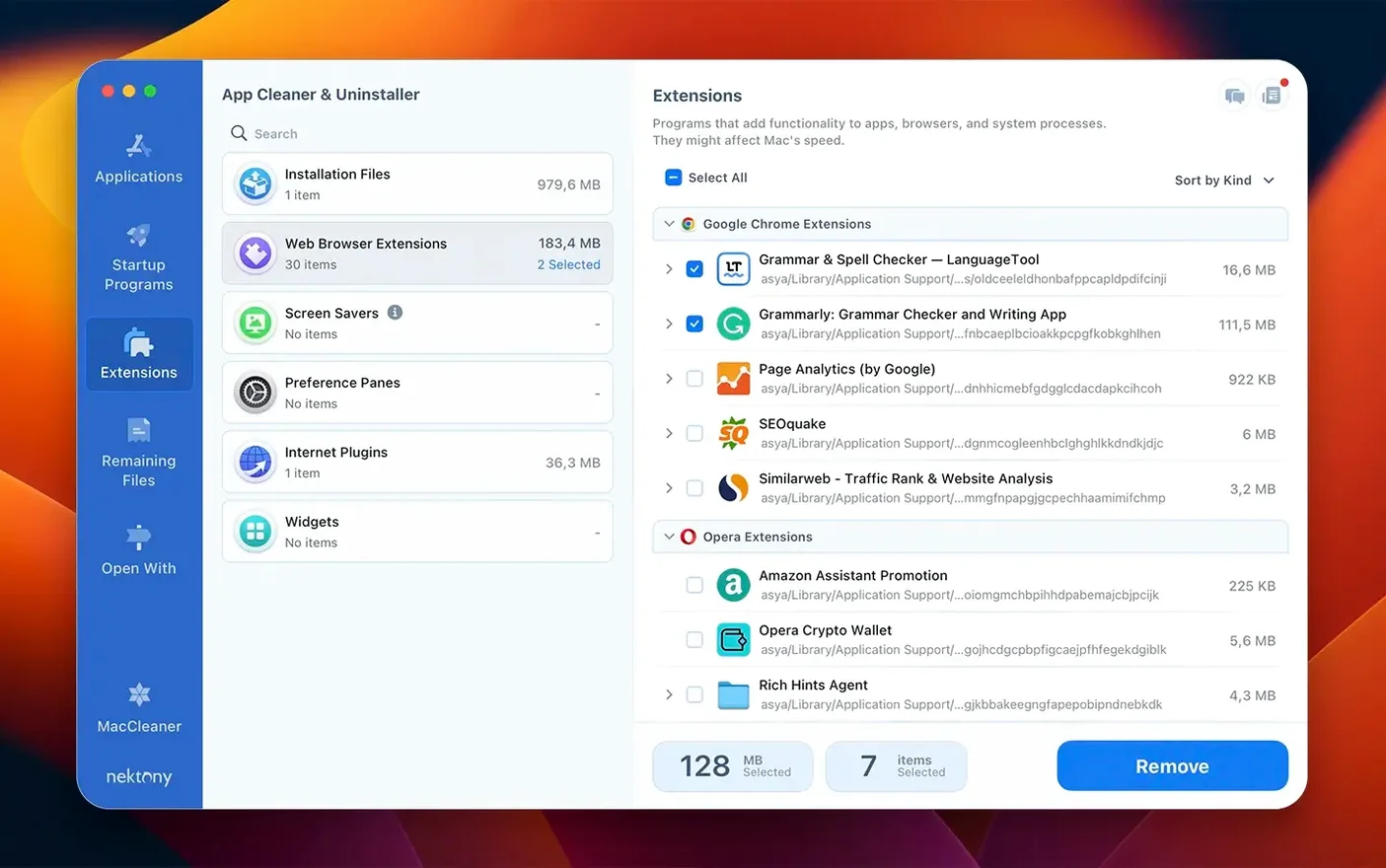
It handles Safari extensions. Third-party browser extensions for Chrome or Firefox live inside those browsers' own profiles, which the app doesn't scan. The extensions tab focuses on macOS-level plugins: Quick Look generators, Spotlight importers, audio unit components, and system-wide preference panes.
Will it interfere with apps I'm still using?
It never touches anything automatically. Every deletion, disabling action, or startup toggle requires a deliberate click. The scan is read-only until you tell it to remove files. You can browse every leftover list without changing anything on disk.
Leftover Scan Finds Nothing for an App You Know Scattered Files
The leftover scan doesn't find anything for an app I know left files behind. The leftover scanner looks for files still on disk from apps no longer present. If you have already emptied the Trash, the feature checks known locations, but some apps store data in unconventional spots. Running a full system search by name in Finder, then dragging those leftover folders onto App Cleaner & Uninstaller's window, often catches what the automated scan missed.
A startup item keeps turning itself back on after I disable it. Some apps reinstall their launch agents when they run again. The toggle in App Cleaner & Uninstaller disables the file, but if you launch the parent app afterward, it may drop a fresh copy into ~/Library/LaunchAgents. The fix is to check the startup tab after the app runs again, or to remove the agent entirely rather than just disabling it.
The app's icon sits in the menu bar and I can't figure out how to close it. Version 10.0 introduced a redesigned menu bar app. Clicking the icon opens a small panel with network traffic controls and quick actions. To quit the menu bar helper entirely, open the main App Cleaner & Uninstaller window, go to preferences, and uncheck "Show in menu bar." Closing the helper won't affect the main application.
Dragging an app onto the window does nothing. This happens most often if the app is open in the background. Quit the app completely, then try the drag again. If it still fails, a permissions hiccup might be blocking the read—head to System Settings > Privacy & Security > Full Disk Access and make sure App Cleaner & Uninstaller is checked.
A Cutdown Day for a Freelance Editor
A freelance video editor in Austin keeps a 2019 Mac Pro alive through sheer stubbornness and a rotating cast of plugins. A client sends a project that requires a specific color-grading toolset, so she installs three new FxPlug bundles and a panel for Resolve. Two weeks later, the job wraps. The plugins never ship with uninstallers. She opens App Cleaner & Uninstaller, clicks the Extensions tab, and filters for the developer's name. The list shows four items: two preference panes, a Quick Look generator, and the FxPlug components she forgot about. She selects all four, checks the file paths to confirm nothing from her daily kit overlaps, and removes them in one pass. The leftover scanner finds two .plist files from a screen recorder she deleted back in March. She trashes those too. Total time from launch to cleaned drive: under three minutes. The Mac Pro boots a little faster the next morning, and she doesn't worry about plugin conflicts on the next job.
Version 10.0 adds a network access tab, giving you per-app control over what’s phoning home—right alongside a redesigned menu bar app that includes network traffic control. The updates database now reaches beyond standard apps to cover Safari extensions and Homebrew command-line tools. An incompatible applications filter rounds things out, flagging software that won’t play nice with your current macOS build.
- macOS 12 or later
- Apple Silicon or Intel Mac
Questions I actually get
Does it only uninstall apps, or can it manage what launches at startup?
It covers both—you can switch off launch agents, daemons, and login items from the same window where you review installed applications.
Will it find leftovers from an app I already dragged to the Trash?
Yes. The scan picks up orphaned files from previously removed apps, so you can wipe the remnants without reinstalling anything first.
Notes from the edit bay · 0
Sign in or get an edit-bay pass to leave a note.
No notes from the edit bay yet. They go up after I read them.