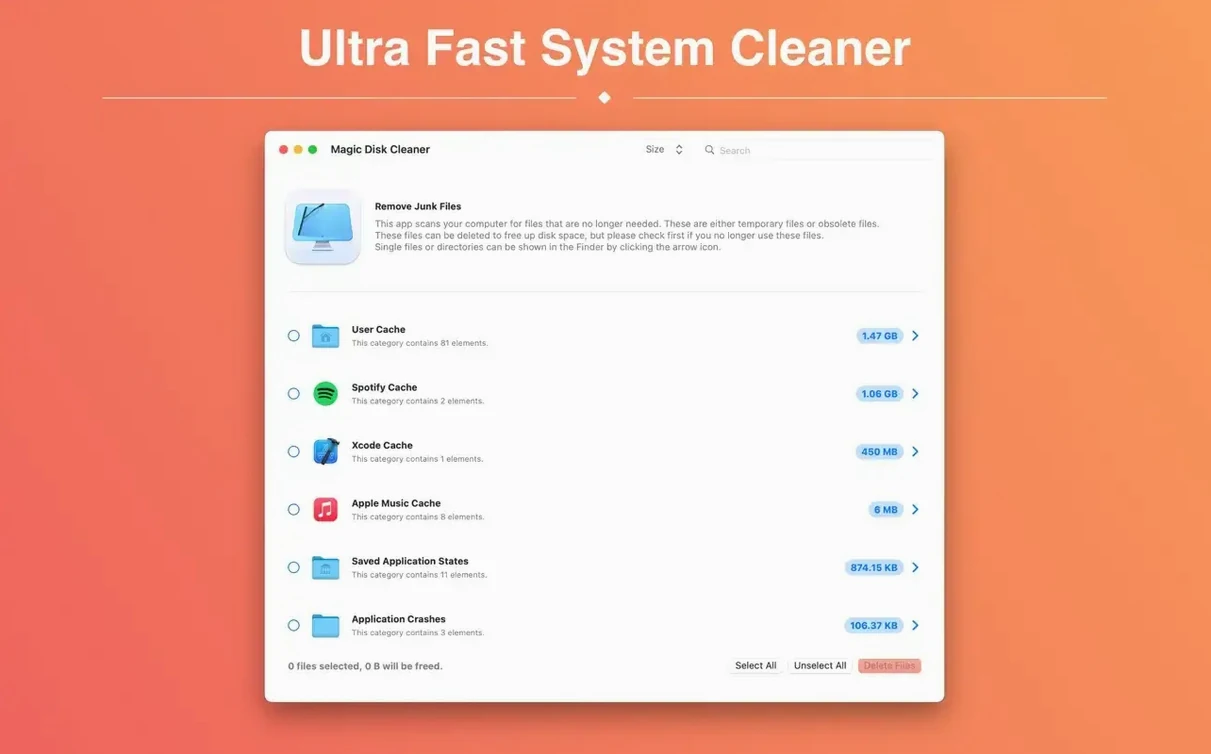
One-click deletion is the whole pitch here, and it works. Magic Disk Cleaner opens, scans for temporary files on the spot, and hands you a single button to clear them out. No categories to second-guess, no scheduled cleanups to babysit.
Where does it fit next to the tools you already have? macOS handles caches and logs on its own schedule, and Final Cut or Logic leave their own render residue behind. Magic Disk Cleaner doesn't replace any of that — it just sweeps the temp folders those apps forget about.
It's the app you run when disk space gets tight before a big export. Launch it, let it search, click once. The interface stays out of your way, which is exactly what a cleaner should do.
Run Only When Free Space Drops Below 15 GB
Don't make it a ritual. The app isn't a system optimizer and it doesn't replace macOS maintenance scripts. Run it when you notice the Finder showing less than 15 GB free. That's the threshold where macOS swap and app caches start fighting each other.
After you clear temp files, restart the apps you depend on. Browsers, video editors, DAWs — they all rebuild temporary data immediately, and a cold start gives them a clean scratch space. You'll feel the difference more in After Effects than in Safari.
Skip running it right before a Time Machine backup. Let the backup complete first. Temporary files are often in use during a backup pass, and clearing them mid-session confuses the snapshot. After the backup finishes? Fair game.
If you share a Mac with family members, run it under each user account separately. The scan scope is per-user by design — it doesn't touch other home folders, and that's the right call. Temp files in another user's Library aren't yours to delete.
Clearing Space Before a Render Queue — Step by Step
Picture this: you've got eight 4K timelines in DaVinci Resolve, a deadline in three hours, and 22 GB free on the internal drive. Resolve's render cache alone can eat half of that. Here's the sequence I've settled on.
- Close everything except Finder. Resolve, Chrome, Photoshop — all of them. Temp files locked by running apps won't scan completely, and you want a full picture.
- Launch Magic Disk Cleaner. It starts scanning immediately. Let it finish — the search usually takes under ten seconds on Apple Silicon, closer to twenty on an Intel Mac with a spinning drive.
- Read the scan result. The total size is the headline, but glance at what it found. If you see a huge number right after a Premiere crash, that's orphaned conformed audio and render previews. Exactly what you want gone.
- Click the delete button. One click. No confirmation dialogs, no "are you sure" — the app respects that you already made the call by opening it.
- Empty the Trash manually. The app moves files to Trash, it doesn't secure-delete them. That's a feature, not a bug — you can recover anything if you acted too fast.
- Launch Resolve and check available space. I've seen gains from 9 GB to over 40 GB on a machine that hadn't been cleaned in months.
The whole process takes under a minute. That's the point. A utility that demands its own workflow isn't a utility — it's a project.
What to Know Before You Download
Does it delete anything I actually need?
It only targets temporary files — caches, logs, and scratch data that apps mark as disposable. It doesn't touch documents, media, preference files, or application support folders. If an app needs a cache it just rebuilt, it rebuilds it on next launch. The one exception: browser caches. You'll lose offline web app data and signed-in sessions. That's temporary by definition, but it still surprises people the first time.
No Recommendations, Just a Scan-and-Delete Button
Apple's storage management (under System Settings > General > Storage) gives you broad categories and recommendations. It's a planning tool. Magic Disk Cleaner is a single-action tool — it doesn't recommend, it scans and deletes. No analysis paralysis, no "you might want to review these large files" nudges. For temp files specifically, Apple's tool often bundles them into "System Data," which you can't clear directly. This app goes straight at them.
A Fast Directory Crawl, Not a Deep File Analysis
The scan is a fast directory crawl, not a deep file analysis. CPU use spikes for a few seconds and settles. On an M1 or later, you won't notice it. On older Intel hardware with a Fusion Drive, the disk I/O might briefly make other apps feel sluggish — but it's over before you reach for Activity Monitor.
How often should I run it?
No schedule needed. Run it when disk space is low, when an app crashes and you suspect orphaned temp files, or when you're about to install a large piece of software and need breathing room. Some people run it weekly; others run it twice a year. Both are correct.
Cold Launch in Under Two Seconds on Apple Silicon
The app launches cold in under two seconds on Apple Silicon. On my M2 MacBook Air, the scan completes in about six seconds for a typical temp load. The delete action is near-instant — it's a move-to-Trash operation, not a secure overwrite, so there's no progress bar theater.
Memory use hovers around 35 MB during scan, dropping to under 20 MB at idle. That's negligible. It doesn't install a background daemon, a menu bar helper, or a launch agent. When you quit the app, it's gone — no lingering processes, no telemetry phoning home.
Stability has been uneventful in the best way. No kernel panics, no permission prompt loops, no mysterious Finder restarts. The fact that it asks for nothing — no full disk access, no accessibility permissions — means there's less to break across macOS updates. Version 5.4.0 runs clean on Sequoia, and that's the bar right now.
The one resource note worth mentioning: if you run a utility like magic disk cleaner mac alongside similar tools, they step on each other. Don't stack it with other temp-file cleaners. They scan the same directories, and running two in quick succession gives diminishing returns — the second one finds nothing because the first already cleared it. Pick one and stick with it. The appeal of magic disk cleaner specifically is that it doesn't pretend to do more than it does. It's not a duplicate finder, not a "privacy scanner," not a startup manager. If you need those, get dedicated tools. If you just need temp files gone, this is the shortest line between two points.
On a machine with heavy Adobe or Autodesk use, I've seen single-session reclaims of 30 GB or more. That's not magic — it's just that those applications are terrible housekeepers. Flame alone can leave 15 GB of cached frames after a single conform. The original magic disk cleaner 4.1.3 earned its reputation on machines exactly like that, and the current version carries the same philosophy forward with Sequoia-native builds and Apple Silicon optimization. No feature bloat, no upsells, no subscription dashboard. It scans, it deletes, it quits.
Nothing flashy — just a round of squashed bugs and tighter performance under the hood. Snappier scans, fewer beach balls. The kind of update you notice when things don't go wrong.
- macOS 15.6 or later
- Apple Silicon & Intel 64-bit
Questions I actually get
Does Magic Disk Cleaner delete files automatically?
No. It finds temporary files and waits for your click — nothing is removed without your consent.
When does Magic Disk Cleaner start scanning?
Right after launch. There is no setup screen before the search begins.
Which languages does the interface support?
Ten: English, Russian, German, Spanish, Italian, Simplified Chinese, Portuguese, Finnish, French and Japanese.
Notes from the edit bay · 0
Sign in or get an edit-bay pass to leave a note.
No notes from the edit bay yet. They go up after I read them.