
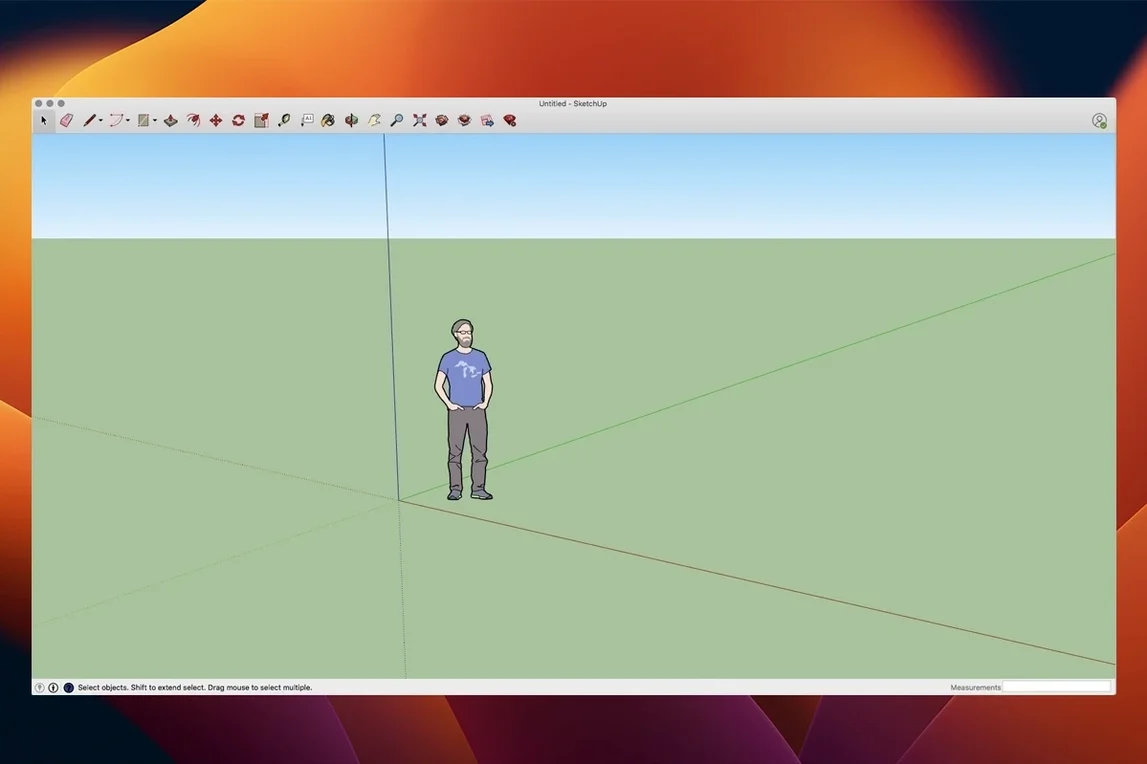
One-thousandth of an inch. That is the precision SketchUp Pro gives you before you even touch a render engine. If you model furniture, millwork, or anything that ends up on a shop floor, that number matters. It also matters that the current 26.2 build runs natively on both Apple Silicon and Intel Macs, so an M3 Max tears through it the same way an old Xeon trash can does—just faster.
Why macOS Ventura Is the Hard Cutoff
macOS 13 Ventura is the floor. Nothing older. You need 8 GB of RAM and at least 6 GB of free disk space for the app, its cache, and the models you will inevitably scatter across your desktop.
Model, Then Document Without Leaving
The core draw is LayOut. You build the 3D model in SketchUp, then switch to LayOut for dimensioned plans, elevations, and title blocks. Vector output stays sharp, and changes to the model update the drawing sheets without a round-trip through another app.
Walk Through It Before It Exists
Animated flythroughs and walkthroughs are built in. You set the camera path, hit export, and send a client a video that explains the space faster than a stack of stills. The interface is localized in twelve languages, which helps when the client is in Seoul or São Paulo.
The Group-Before-Push Rule That Saves Your Model
New users jump straight to the Push/Pull tool and ignore groups. They extrude a wall, click the adjacent face, and suddenly the whole model is a single fused blob they cannot edit. Group geometry first — select it, right-click, Make Group. A model with fifty ungrouped faces is a hostage situation, not a design file.
Another classic: drawing at the wrong scale from the start. Someone opens a fresh template, types 50' thinking feet, but the file is set to inches. Now a living room is half a mile long. The Model Info panel under Window is where you lock in units before the first line hits the canvas.
Then there is the Outliner neglect. Beginners build complex assemblies — a window inside a wall inside a house — and select everything by hand. The Outliner panel lists every group and component in a tree. Learn to name things there. Group#347 teaches you nothing; South Elevation Window Assembly saves you fifteen minutes of hunting later.
Over-reliance on the 3D Warehouse without checking polygon count trips up plenty of new modelers too. A downloaded sofa with 90,000 faces drags a whole scene to a crawl. Right-click a component and check Entity Info before you commit to keeping it.
Rebind P, E, and T Before You Draw a Line
Spend your first hour on keyboard shortcuts, not geometry. The default ones work, but reassign them to match your hand. I put Select on Space, Push/Pull on P, Eraser on E, and Tape Measure on T — muscle memory forms fast when the mapping feels natural. Go to SketchUp > Preferences > Shortcuts and export your setup once it feels right. A preference file you can drop onto a new machine is worth more than any template.
Set up a template file on day one. Open a blank document, set units, add your standard layers — maybe Walls, Structure, Millwork, FF&E — and save it as a template. Every project starts clean and consistent. Ten minutes now avoids forty minutes of layer cleanup per project later.
Do not skip the Instructor panel. When you hover over a tool, it explains what the tool expects. For Follow Me or Rotate, that little text box prevents the "why is this tool doing nothing" frustration. Keep it open for the first week.
Finally, run a small test project end-to-end. Model a simple table, drop it into LayOut, dimension it, and export a PDF. You will discover where your workflow snags — maybe your annotation scale is off, or your section cut needs a named scene — before a real deadline applies pressure.
Analysis Hub Surfaces Every Stray Edge Automatically
The 26.2.242 release brought more than just native 64-bit Mac support. The Analysis Hub arrived and it changes how you interrogate a model. Instead of hunting for stray edges or reversed faces by orbiting endlessly, Analysis Hub surfaces issues — non-manifold edges, internal faces, missing materials — in a single panel. For anyone preparing a model for CNC or import into another package, this shaves off cleanup time immediately.
Extensions migration got smarter. If you carried a library of plugins through several SketchUp versions, the migration process now preserves your Extension Manager layout and preferences more reliably. Fewer reinstalls, less reconfiguration.
LayOut graphics improvements are subtle but practical. Vector rendering on sheets with multiple viewports feels snappier, and text blocks keep their anchoring better when you resize a viewport. The Mac shortcut and UI fixes addressed several long-standing annoyances: the outliner now responds to arrow-key navigation without randomly jumping focus, and the Materials panel stays docked where you left it after a restart.
Push Directly to Twinmotion Without an Export Step
SketchUp Pro sits upstream of a lot of workflows. You model the shell here, then push it. For photorealistic rendering, the model goes into Twinmotion or Enscape — both read the native .skp file directly, no export needed. Materials and cameras transfer intact, so you are not rebuilding scenes from scratch.
For documentation sets, LayOut replaces the Illustrator step. You export dimensioned plans as PDF or DWG and hand them off without ever opening a separate page-layout app. If your structural engineer works in Revit, IFC export from SketchUp Pro keeps the geometry and basic metadata intact enough for coordination, though you will want to simplify the model first — purge unused components and materials to keep the file lean.
On the macOS side, Quick Look integration means you press Space on a .skp file in Finder and see a 3D preview instantly. No launch time, no waiting. When you are digging through a folder of fifty concept models, that alone is a timesaver. The app also respects native macOS text handling, so system-wide spelling, emoji picker, and custom keyboard layouts all work inside text fields and LayOut text boxes without fighting the application.
Save Every 5 Minutes and Enable Fast Feedback
- Autosave interval. Go to SketchUp > Preferences > General and drop it to every 5 minutes. The default is longer than you want to lose when a complex boolean operation freezes the app.
- Fast feedback rendering. Under Preferences > Graphics, enable Use Fast Feedback. On Apple Silicon it keeps navigation fluid even with heavy shadow studies running.
- Inference color. The default magenta inference line disappears on some screens under warm office lighting. Change it to a bright cyan in Preferences > Colors and you will catch midpoint and perpendicular snaps faster.
- Component axes visibility. Turn off View > Component Edit > Show Component Axes unless you are actively adjusting insertion points. Those colored axes clutter the viewport for no daily benefit.
- LayOut auto text scaling. In LayOut, uncheck Preferences > General > Scale text with viewport zoom unless you want 2pt labels when a detail gets scaled down. Manually sized text stays legible.
- File recovery backup. Enable Create backup in Preferences > Files. A
.skbbackup file has rescued more late-night sessions than I can count.
Version 26.2.242 lands as a clean 64-bit build for Apple Silicon and Intel Macs. Analysis Hub arrives for interrogating model data, Extensions migration got smoother, LayOut graphics got a boost, and several Mac-specific shortcut quirks and UI glitches are finally gone.
- macOS 13 Ventura or later
- Apple Silicon or Intel 64-bit processor
- 8 GB RAM minimum
- 6 GB available hard-disk space
Notes from the edit bay · 0
Sign in or get an edit-bay pass to leave a note.
No notes from the edit bay yet. They go up after I read them.