The current version tightens up the menu bar Monitor, folding it directly into the main app for a cleaner glance at your system vitals. No separate helper, just one click to see what’s hot.
Running a focused cleanup
Most days I just want to purge system junk without hunting through Library folders. I launched Sensei and hit the Clean panel. The scan found a thick stack of user cache files and old iOS software updates I had forgotten about. I unchecked the iOS updates—I keep one around for testing—and deleted the rest. The purge freed noticeable space immediately, and the app broke down exactly what it was about to remove before I confirmed.
Where the hardware tools fit
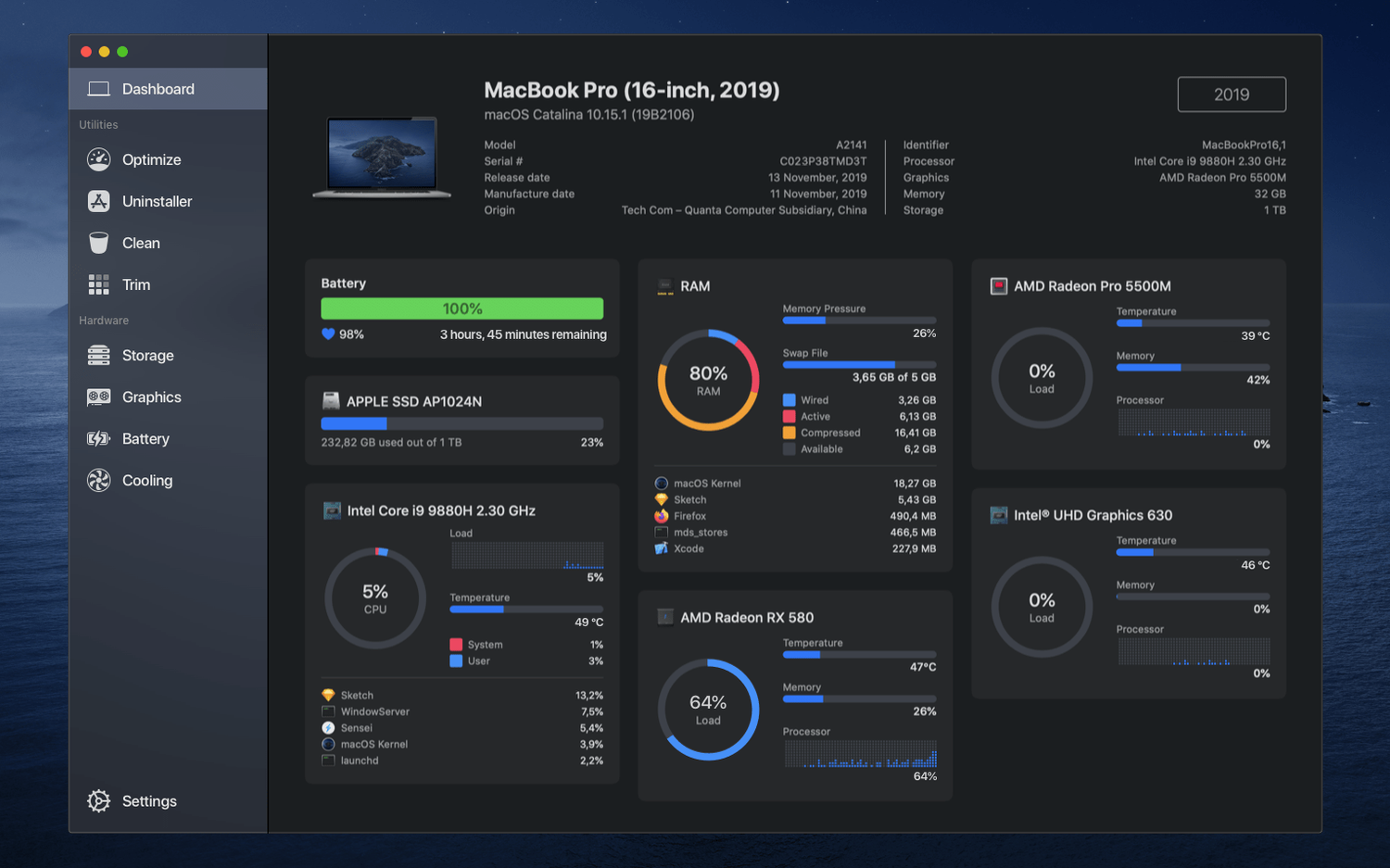
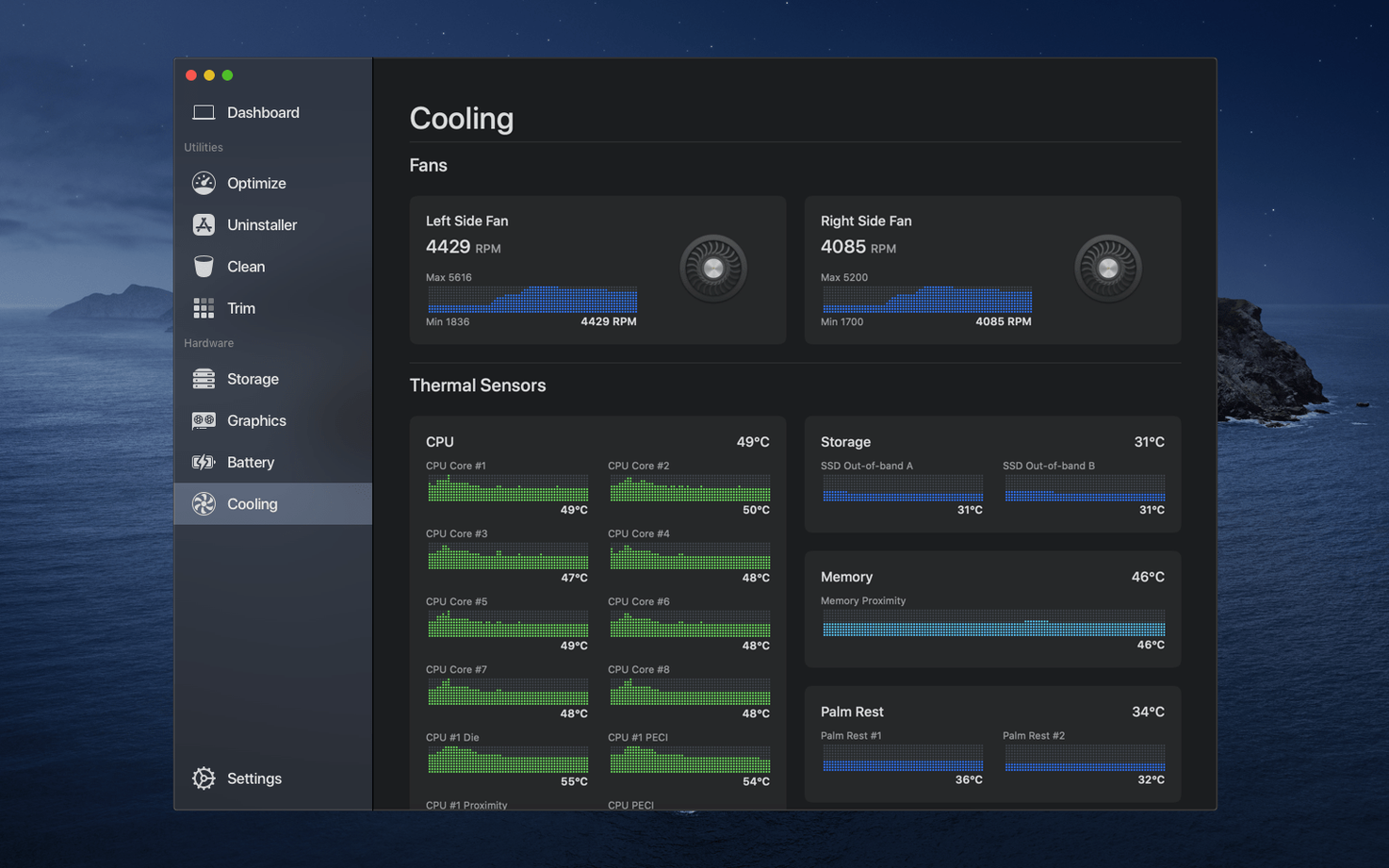
After the cleanup, I flipped to the Dashboard to check the thermal impact. Fans were humming at 3,800 RPM after a render, so I opened the Cooling section and set a custom curve to pull temps down faster. The battery health readout showed 87% capacity, matching what I see in macOS’s own system report. If you still run an older SSD, the TRIM enabler sits right there in the Hardware tab—simple toggle, no terminal commands. It’s a straight shot from freeing disk space to verifying your machine isn’t cooking itself.
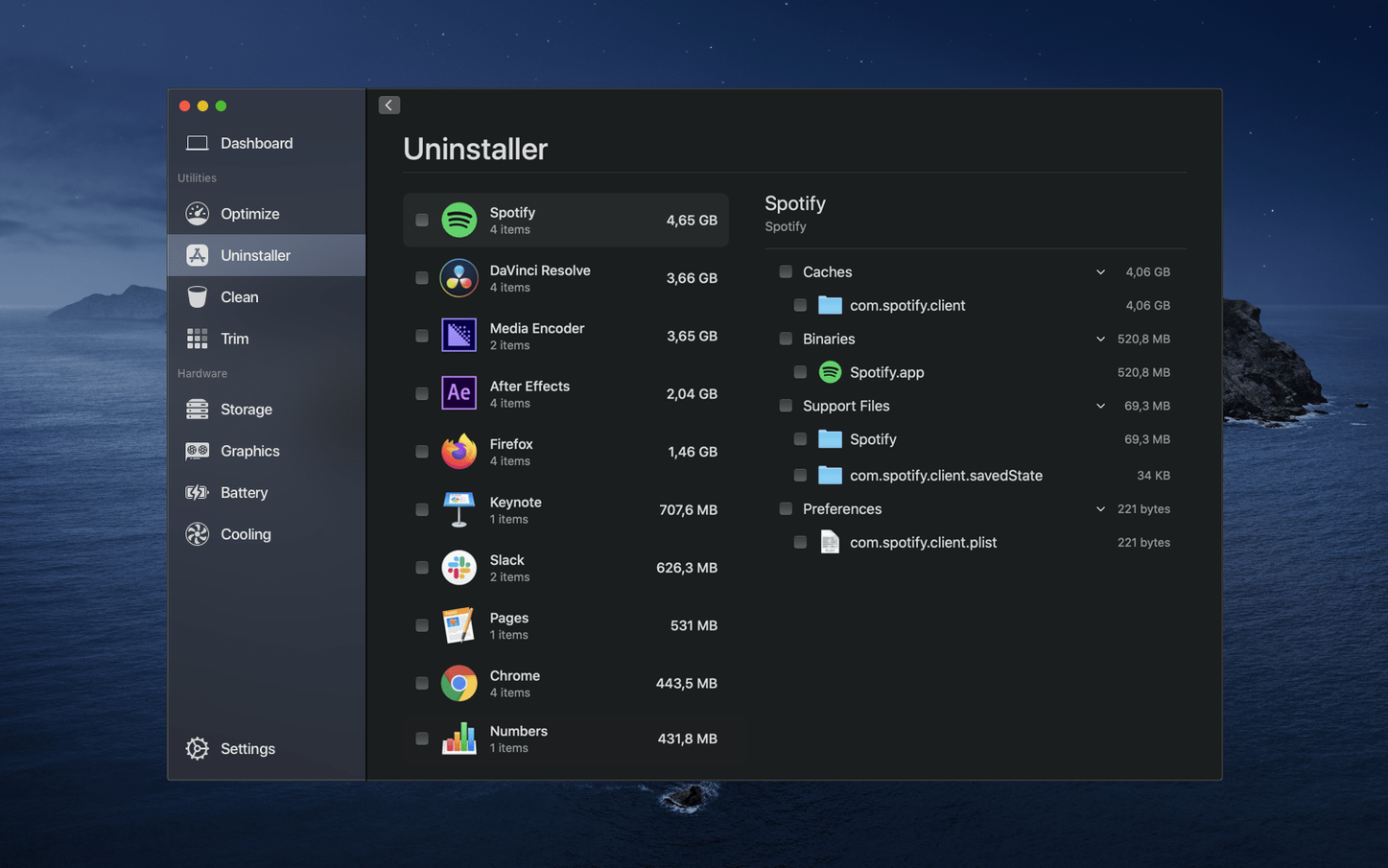
Version 2.1.2 landed quietly, but two changes shifted how I work. The menu bar Monitor now lives inside the main app instead of running as a separate process. That means one less background daemon chewing cycles, and the temperature and memory readouts populate faster after wake. The other fix I noticed immediately: the uninstaller stopped leaving empty preference folders behind. Before this build, I’d occasionally find a stray plist orphaned in ~/Library/Preferences after removing an app through Sensei. Now the sweep is clean on the first pass, which matters when you’re clearing out beta software every few weeks.
Also fixed: the fan control slider no longer jumps to maximum for a split second when switching from automatic to manual mode. Small thing, but if you’ve ever heard a MacBook Pro scream unexpectedly at midnight, you know why it counts.
Blindly Checking Every Clean Category Invites Regret
The most common mistake I see is treating the Clean panel like an all-or-nothing checkbox marathon. Checking every single category—caches, logs, Time Machine snapshots, mail downloads—before understanding what each one holds is a recipe for regret. I watched a colleague delete local Time Machine snapshots thinking they were duplicate system files, then wonder why version history vanished. The preview pane exists for a reason; expand each category first.
Another classic: enabling TRIM on an SSD without checking whether the drive already supports it natively. Third-party NVMe enclosures sometimes negotiate TRIM correctly on Apple Silicon, and forcing it through Sensei’s toggle can cause the controller to stall during heavy writes. The Hardware tab shows current TRIM status before you flip anything—read it first.
Beginners also overlook the temperature sensor labels. The GPU die and the heatsink sensor sit right next to each other in the Dashboard, and mistaking one for the other leads to misplaced panic. A 65°C GPU core under load is normal; a 65°C heatsink reading suggests the fan curve needs attention. The tool gives you the data, but context is on you.
Menu-Bar Thermal Graph Saves Renders Mid-Frame
Video editors and motion designers live inside Sensei’s Dashboard during export sessions. When After Effects pegs the CPU at 100% for twenty minutes straight, watching the thermal graph in the menu bar stops you from cooking a render mid-frame. The Cooling panel’s custom curve gets saved per-profile, so I can switch from a quiet office preset to an aggressive ramp before a client-attended export without digging through settings each time.
IT admins managing fleets of Mac Minis gravitate toward the uninstaller and disk health tools. Dragging an app to the trash leaves Launch Services database cruft that builds up over months; Sensei’s removal catches the tucked-away .ds_store variants and cached entitlements that manual deletion misses. Combined with the SSD lifespan readout, it’s a quick triage station before reimaging a machine.
Mac users who keep machines for four or five years lean hardest on the battery health monitoring. The cycle count and design capacity percentage update live, and macOS’s own battery menu hides those numbers behind an Option-click. Sensei surfaces them without the extra step, which matters when you’re deciding whether to replace a battery before a long travel shoot.
SSD Write Totals and Fan Curves Beyond Activity Monitor
Does Sensei duplicate what Activity Monitor already shows? Only partially. Activity Monitor gives you process-level CPU and memory breakdowns, but it doesn’t track SSD write totals over time, show battery cycle history, or let you set fan curves. Sensei pulls S.M.A.R.T. data and temperature sensor output that Apple’s built-in tools either bury or omit entirely. I keep both open during diagnostics—they answer different questions.
Will the Clean tool delete files I actually need? It’s conservative by default. The scanner targets known cache directories, old log archives, and orphaned installer packages. It stays out of your Documents, Desktop, and media folders. But the responsibility sits with you: expand each section, read the file paths, and uncheck anything that looks ambiguous. No cleaner app is psychic.
Does disk Sensei work on Apple Silicon Macs? Yes. The TRIM toggle and SSD health reporting function on both Intel and M-series machines, though Apple’s internal SSDs handle TRIM automatically. Where disk Sensei earns its keep is with external Thunderbolt enclosures where the operating system sometimes hesitates to pass TRIM commands. Check the Hardware tab before assuming the drive is managing itself.
Is Sensei 2.0.1 still relevant or should I skip straight to 2.1.2? The current build replaces everything 2.0.1 offered and fixes the menu bar process overhead. There’s no reason to run an older version on macOS 14 or later. The monitoring engine got rewritten between those releases, so sensor polling is lighter on the battery.
- macOS 14 or later
- Apple Silicon and Intel Macs
- Interface languages: English, Dutch, French, Japanese, Russian, Simplified Chinese, Spanish, Swedish
Questions I actually get
Can Sensei enable TRIM on third-party SSDs?
Yes, it includes a straightforward toggle in the Hardware section to enable TRIM without using the command line.
Does the menu bar monitor run separately from the main app?
No, the current version integrates the System Monitor directly into the main application for a unified experience.
What kind of files does the cleanup tool remove?
It targets system junk like user caches, old log files, and leftover iOS software updates, and lists everything before deletion.
Notes from the edit bay · 0
Sign in or get an edit-bay pass to leave a note.
No notes from the edit bay yet. They go up after I read them.