It’s for the tutorial maker who needs to zoom into a menu bar item, drop a text callout over a confusing step, and push the result to YouTube without opening three other apps. It’s for the product manager recording a bug report who doesn’t have time for a timeline that fights back. ScreenFlow bundles a crisp screen recorder with a video editor that actually understands the stuff you capture — mouse clicks, window pop-ups, and all.
1. Record What’s on Your Mind
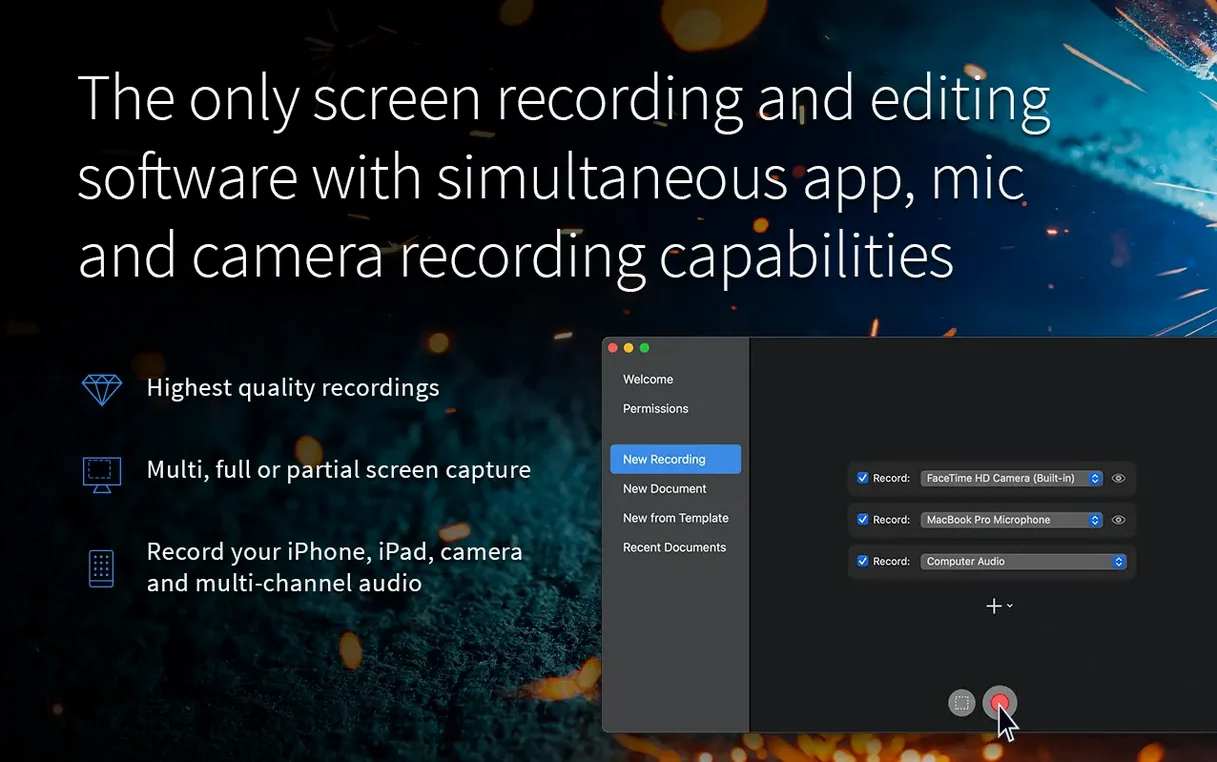
Pick a full monitor or drag a rectangle around part of the screen. Hit record. The capture includes your mic audio, system audio, and webcam overlay if you want it. The recording lands straight on the timeline, not in some importer holding pattern.
2. Edit Without the Friction
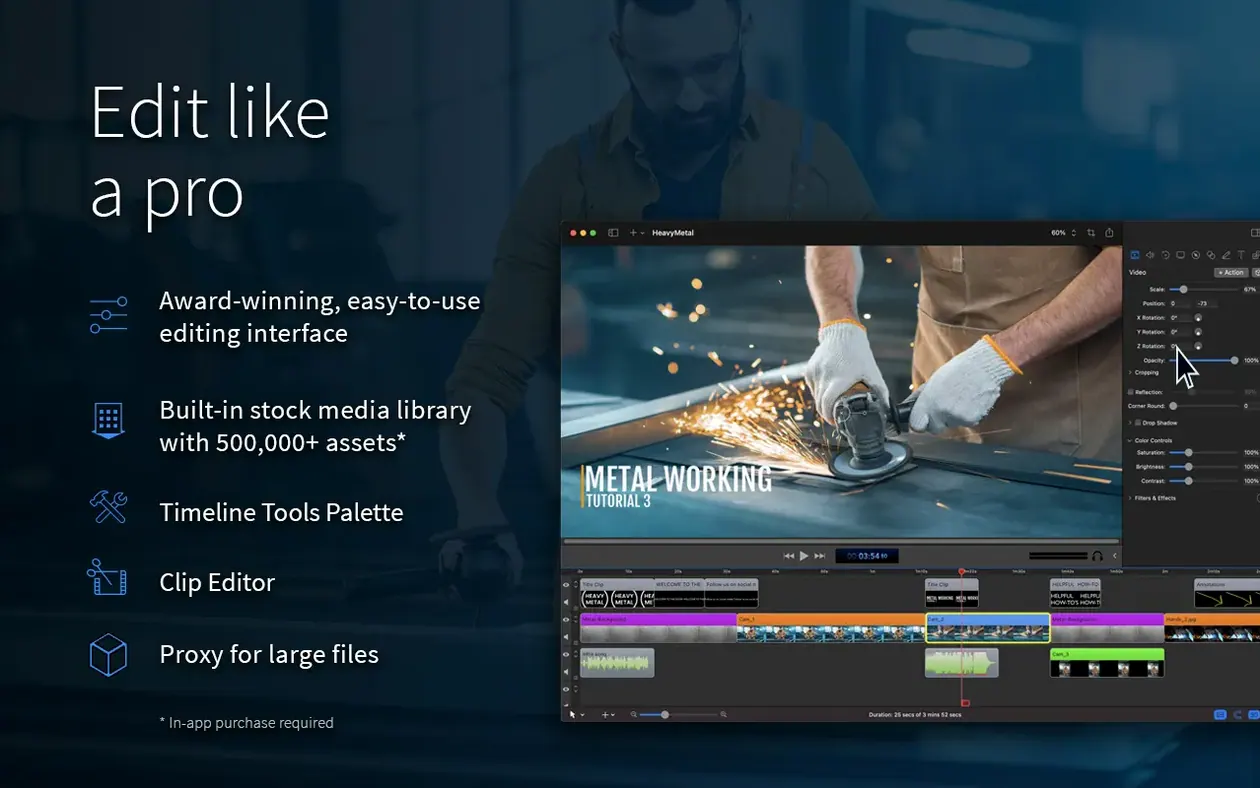
Titles, annotations, and callouts sit in a library you can drop right onto a clip. Need to highlight a button? Add a touch callout that visualizes the click. Chroma key a green screen for a talking-head overlay, or use video motion effects when a static frame won’t cut it. The timeline doesn’t pretend you’re editing a feature film — it’s built for screen content.
3. Share Where the People Are
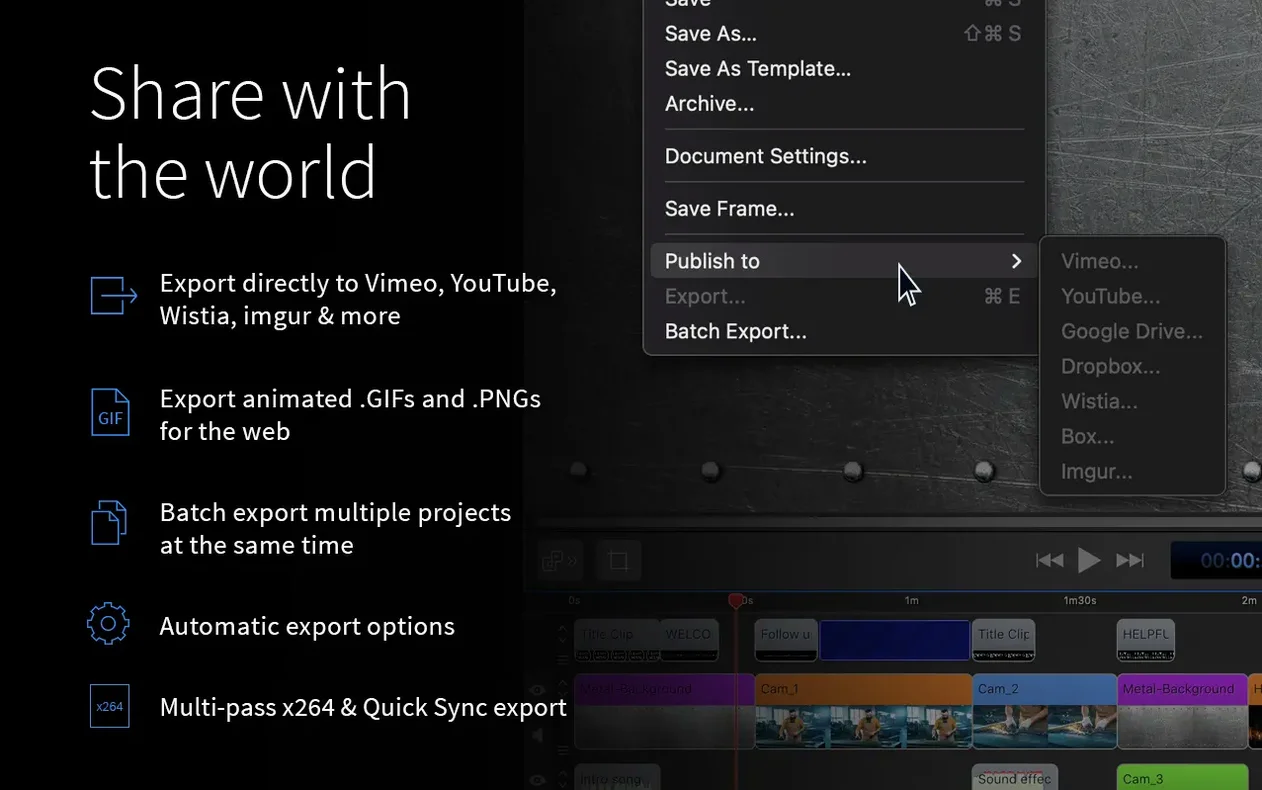
Export a clean MP4 or ProRes file. Or skip the Finder entirely and send the finished video directly to Vimeo, YouTube, Wistia, Google Drive, Dropbox, Box, or Imgur. Animated GIF and APNG exports are also built in for quick previews and documentation.
Where does it fit? It replaces QuickTime Player for recording and iMovie for editing, giving you a single app tuned for software demos, course content, and reaction clips. It runs on Apple Silicon and Intel Macs, and the interface speaks English, German, Spanish, French, or Japanese.
A Screencaster's Morning, Uncut
Picture a UX researcher who needs to ship a five-minute walkthrough of a prototype before a 10 a.m. stakeholder call. She records her iPhone screen via cable, grabs her mic input for voiceover, and captures her Mac's audio so the prototype's click sounds register. With ScreenFlow, the recording lands as separate tracks — iOS video, microphone, system audio — all on the timeline before her coffee gets cold. She isolates a section where a transition stuttered, drops a text annotation that reads "WIP — animation timing TBD," and exports an MP4 straight to a shared Dropbox folder. No transcoding to intermediate formats, no syncing external audio in another tool. That's the difference between a tool built for the capture and one retrofitted for it.
The Crash Fix That Saved macOS 26.2 Upgraders
The jump to 10.5.2 wasn't flashy, but it patched a few cracks that could interrupt a deadline. A crash on macOS 26.2 or later got squashed — important for anyone who updates their OS without checking compatibility charts first. Exports that used Chroma Key on certain screen recordings had a glitch; that's now fixed, so green-screen overlays come through clean instead of leaving a faint halo around your head. The manage button under licenses no longer leads to a dead URL, which is the kind of small papercut that wastes ten minutes on a support forum. Earlier in the 10.5 cycle, stability around timeline scrubbing improved noticeably, especially with 4K recordings. The app still leans on its core strength: recording and editing in one place without round-tripping.
Why Camtasia Wins on Cross-Platform Teams
Three apps tend to come up when someone starts a ScreenFlow torrent search or looks for a ScreenFlow free download alternative. Here's the lay of the land.
Camtasia runs on both Mac and Windows, so it wins for cross-platform teams. Its asset library is larger, with more pre-built intros and music stubs. But on macOS, Camtasia feels like a port. ScreenFlow records iOS devices natively; Camtasia doesn't. ScreenFlow's timeline handles multitrack screen recordings as separate, editable layers from the moment capture stops — Camtasia often bakes them into one stream unless you set things up carefully. For a Mac-only workflow, ScreenFlow feels lighter on its feet.
OBS Studio is the go-to for live streaming, and it's completely free. It captures everything ScreenFlow captures, plus it can mix scenes on the fly. But OBS stops at recording. Editing means exporting to another app. If your work ends when the recording stops, OBS is enough. If you need to trim, annotate, zoom, and export a polished file, you'll stack OBS with DaVinci Resolve or Premiere — and now you're managing two tools. A screenflow 10 download collapses that chain into one.
QuickTime Player plus iMovie is the zero-cost Mac combo. QuickTime records the screen; iMovie edits it. The cracks show fast: QuickTime can't capture system audio without a third-party driver, iMovie chokes on variable frame rate recordings, and neither app handles iOS capture well. ScreenFlow doesn't need a driver for system audio, and its timeline digests whatever frame rate your screen throws at it.
A Full Walkthrough: Tutorial With Talking Head
Here's a workflow, end to end, for someone who searched screenflow 10.5.1 hoping to nail a polished software tutorial.
- Set up the capture. Choose "New Recording" and configure three sources: your Mac's display (set to 1920×1080, 30 fps), your USB microphone, and your webcam. Check "Record Computer Audio" so app sound effects register. Connect an iPad via Lightning if you need to show a mobile view.
- Record a segment. Hit record and walk through the feature you're teaching. Don't worry about flubs — you'll cut them. The webcam feed records as a separate track above the screen capture, not baked in.
- Trim the fat. Drag the playhead to your first pause, press
Tto split, and delete the dead air. Repeat for every "um" and misclick. The timeline stays responsive even with a 15-minute recording at 4K. - Add a callout. From the callout library, drag a "Touch Callout" onto the point where you clicked a menu. It renders a visual ring that pulses, so even viewers on mobile see where the action happened.
- Zoom and pan. Click the video track, open the Video Properties tab, and set a keyframe for scale and position at the start of a UI detail. Move the playhead, adjust the frame to zoom closer, and set a second keyframe. ScreenFlow animates the move smoothly.
- Chroma key the webcam. If you recorded against a green screen, apply the Chroma Key filter to the webcam track. Sample the green, tweak the smoothing slider until edges look natural, and position the talking head in a corner so it doesn't cover the UI.
- Export for YouTube. Choose "Export," pick H.264 MP4 at 1080p, and check "Share to YouTube." Title the video, set it to unlisted, and upload. The file lands on your channel without ever touching the Finder.
That pipeline — record, edit, annotate, publish — stays inside one app. For a tutorial creator who releases two videos a week, cutting out the back-and-forth between tools saves real hours.
Version 10.5.2 squashes a crash that appeared on macOS 26.2 or later, and sorts out exports where Chroma Key glitched on specific screen recordings. Also fixed: the manage button under licenses no longer points to a dead URL.
- macOS 10.15 or later
- Apple Silicon or Intel 64-bit Mac
Questions I actually get
Can ScreenFlow export videos with a transparent background?
Not as a standard video file, but you can export animated GIF and APNG files which support transparency.
Notes from the edit bay · 0
Sign in or get an edit-bay pass to leave a note.
No notes from the edit bay yet. They go up after I read them.