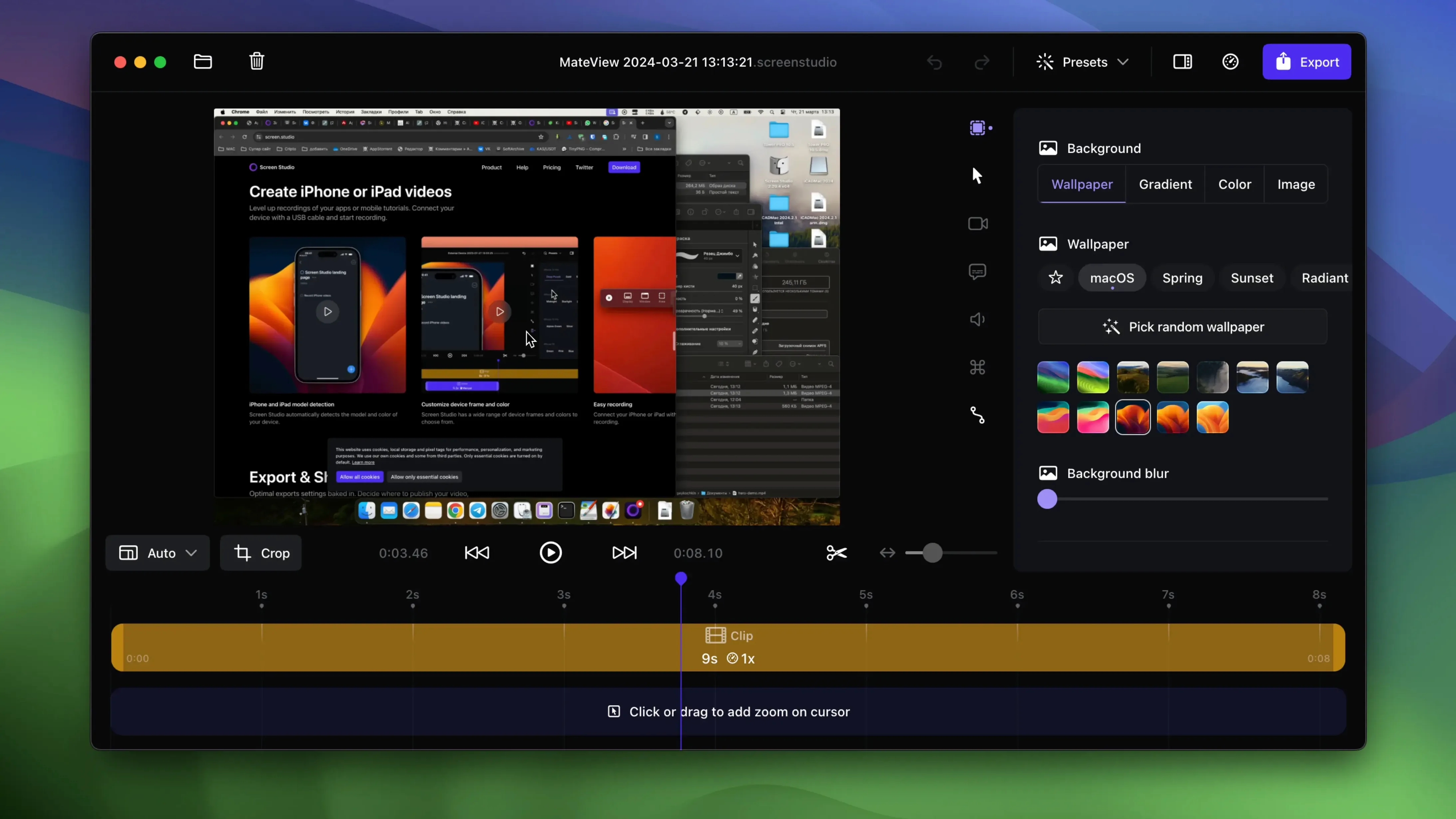
Nobody sits down to record a tutorial and thinks, "I can't wait to spend an hour keyframing zooms." Screen Studio cuts that step out entirely. It's a macOS screen recorder that watches your cursor, listens to your clicks, and builds the motion graphics on the fly. Hit stop, and you've already got a video with smooth cursor tracking, automatic zooms, and clean framing—no timeline wrestling required. Version 3.7.5-4595 keeps that engine running as tightly as before.
- Hides desktop clutter automatically so your Dock and messy folders never make it to the final render.
- Records system audio from every app at once, or only the ones you pick.
- Detects your connected iPhone or iPad model and color, framing it correctly without manual tweaking.
- Lets you change cursor size after the recording is done, which is a lifesaver when you realize the pointer was lost on a 4K timeline.
- Smooths raw cursor movement so viewers follow your clicks instead of getting motion sickness.
- Generates a shareable link straight from the app when the export finishes.
Webcam, mic, and keyboard shortcut overlays all feed into the same recording session. The Mac-only focus means it isn't splitting attention across platforms—it hooks into macOS 13 frameworks and stays there. What you got in the previous build is what you get here: a specialized tool that handles the zooms, the motion, and the polish while you just walk through the demo.
Let It Learn Your Screen Before You Record
Install it on macOS 13 or later, open it, and resist the urge to record a seventeen-minute walkthrough immediately. Let the app learn your screen first. Run a thirty-second test—open a Finder window, click through a few folders, type a sentence in Notes—then stop and watch what the automatic zoom engine did. That tiny test teaches you more than the preferences window ever will.
Three things worth adjusting on day one:
- Cursor size and smoothing. Record something with small pointer movements, then drag the cursor size slider up in the editor. You'll spot exactly how far you can push it before it looks cartoonish. The smoothing slider lives right next to it; pull it left for raw precision, right for that glide-heavy demo style.
- System audio routing. The "all apps" default works, but the real control is in the per-app toggle. Record a browser tab playing a video while muting Slack. Test it once so you're not troubleshooting audio bleed five minutes before a client deadline.
- Desktop icon hiding. It's on by default for a reason. Leave it there. The one time you turn it off to "just quickly record something," your Downloads folder full of oddly-named ZIP files will end up in the background of a video you send to a Fortune 500 client. Ask me how I know.
After that test recording, export a ten-second clip at 4K/60, another at 1080/30, and one vertical version. Check the scaling on the vertical export—Screen Studio adjusts the framing automatically, but seeing it once early on means you're not surprised later when a square-ish UI element gets cropped differently than you expected.
Will It Run Natively on Your Mac?
People eyeing the screen studio mac download page usually have the same handful of worries. Here's the straight answer to each.
Does it work with an M1/M2/M3 Mac? Yes. It runs natively on Apple Silicon and Intel, no Rosetta translation layer in sight. The app ships a universal binary, and the automatic zoom analysis isn't noticeably slower on an M1 MacBook Air than on an M3 Max—I've watched renders on both, and the difference is in seconds, not minutes.
Will it choke on a 4K display? It records at up to 4K/60, and the motion smoothing happens in real time. On a base-model M1 with 8GB of RAM, recording a full 4K desktop while also running a webcam overlay will push the memory pressure into the yellow. Close Chrome first. On any M-series chip with 16GB or more, it's comfortable.
Can I use it for livestreaming? No. Screen Studio is a recorder and post-processor, not a streaming tool. It builds the polished video after you stop recording. If you need to go live, you're pairing this with something else—or you're recording, polishing, and uploading later, which is what the app was built for.
Does the automatic zoom ever get it wrong? Occasionally. When it does, you drag the zoom keyframe left or right on the timeline and it snaps to the new position. The manual override isn't buried in a submenu—it's right there on the edit screen, and once you adjust one zoom point, the surrounding automatic ones stay intact. You're not redoing the whole sequence.
Skipping the Timeline Entirely
The obvious crowd is tutorial makers and SaaS product demo folks—and yes, they'll live inside this app. But the less obvious users are the ones who benefit most from skipping timeline keyframing entirely.
Designers sharing prototypes. Figma links work until a client opens them on a phone and the layout breaks. A sixty-second screen recording with automatic zooms on the interaction points—button taps, hover states, transition moments—says more than a prototype link ever could. Export a vertical version, paste the shareable link into Slack, done.
QA testers filing bug reports. Typing "the button flickers when you click it three times fast" into Jira is useless. A ten-second clip where Screen Studio automatically zoomed in on the flickering button, with the cursor visibly triple-clicking, gets the bug fixed in half the time. The GIF export option makes this even faster for dropping inline in tickets.
Remote educators grading assignments. Opening twenty student submissions means twenty opportunities for "wait, which file am I looking at?" Record a walkthrough of the grading rubric once, with zooms on each section of the document, and send the link. The voice normalization cleans up the audio from a laptop mic well enough that you won't need to re-record because the air conditioner kicked on.
Marketers shipping social clips. Record a horizontal product demo once, export it vertical for Stories, horizontal for YouTube, and square for LinkedIn. The automatic reframing handles the composition shift, and the cursor stays visible in every aspect ratio. That's three exports from one recording session, no layout rebuilds.
From Blank Canvas to Shareable Link: A Demo Workflow
Here's a walkthrough tied to a specific task: recording a product feature demo that ends up on a team Slack channel by lunch.
You've got a new feature in a web app—let's say a search filter that narrows results as you type. Open Screen Studio, plug in your iPhone via USB if you need a mobile view recording, and check that the device detection picked up the model and color correctly. If it shows a silver iPhone when yours is space gray, that's a one-click fix in the device preview.
Hit record. The app hides your desktop icons automatically. Walk through the feature at a normal pace: type a search term, watch the results narrow, click into one, point out the filter badge. Don't slow down for the camera—the cursor smoothing will clean up any jitter, and the auto-zoom will punch in on each click point after you stop. When you finish, hit stop and catch your breath. The hard part is over.
In the editor, scan the zoom points the app generated. It likely zoomed in on the search field, the typing, and the result click. If it missed the filter badge, grab the nearest zoom keyframe and drag it onto the badge's position. Takes about four seconds. Trim the front and back by dragging the handles on the timeline—no point leaving three seconds of you reaching for the trackpad at the start.
Turn on the webcam overlay if you recorded your face, and shrink it to roughly 15% of the frame so it sits in a corner without blocking the UI. The selfie reduction slider does this in one motion. Hit the voice normalization toggle to even out the levels between your quiet typing narration and the louder "and here's the filter" moment.
Export at 1080p/30 for Slack—4K is overkill for a team channel—and choose the shareable link option instead of a local file. The app uploads it and puts the link on your clipboard. Paste it into the #product channel with a two-sentence description. The whole process from record to paste should clock in under eight minutes. That's the metric that matters.
- macOS 13 or later
- Works on Intel and Apple Silicon Macs
Notes from the edit bay · 0
Sign in or get an edit-bay pass to leave a note.
No notes from the edit bay yet. They go up after I read them.