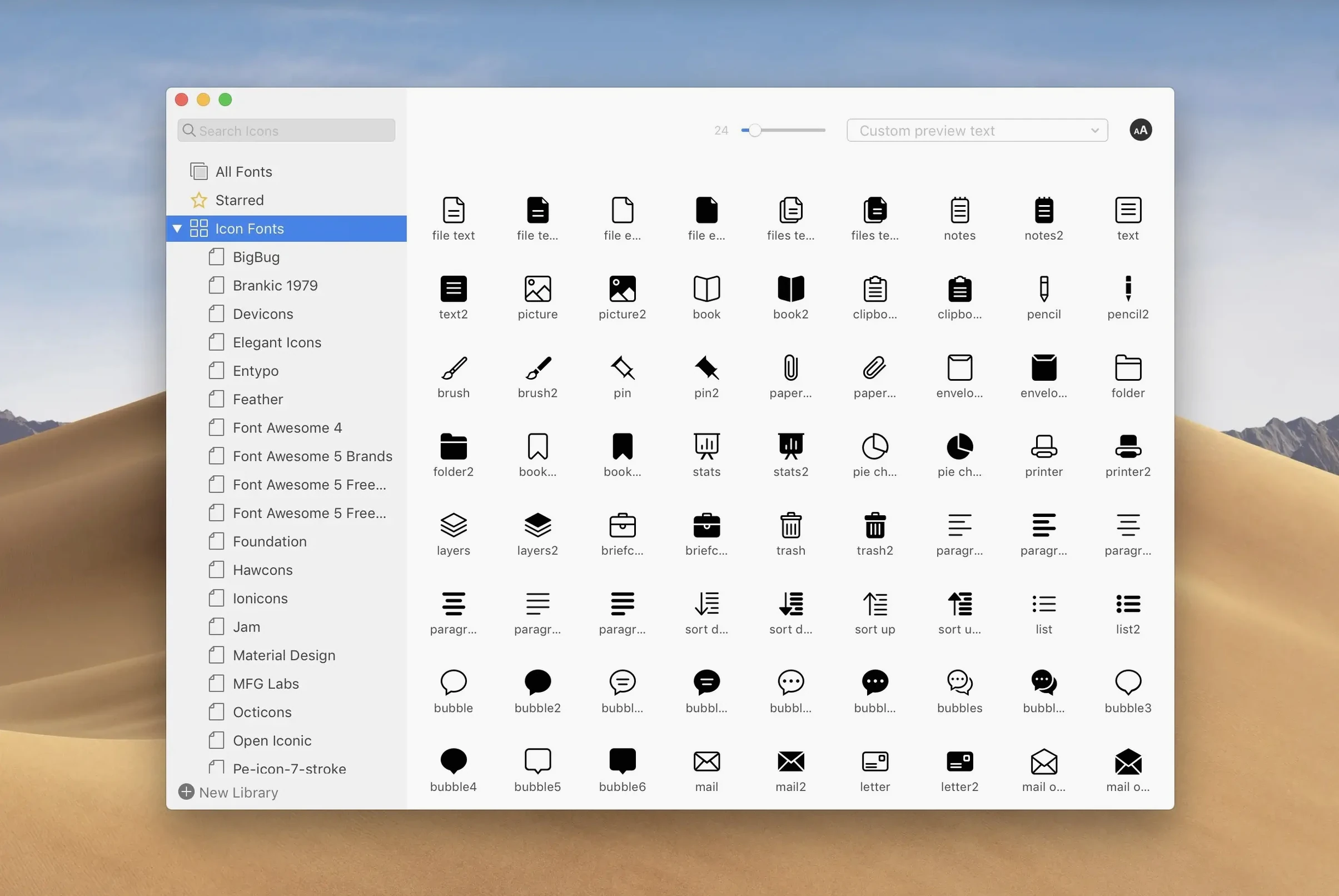
Dragging a subtag back to the main Tags section is the kind of small fix that signals a release worth paying attention to. Version 10.2.1 of this lightweight font manager doesn't reinvent the wheel—it sands down the rough edges that slow you down on a tight deadline.
Instant Filtering by Classification and Weight
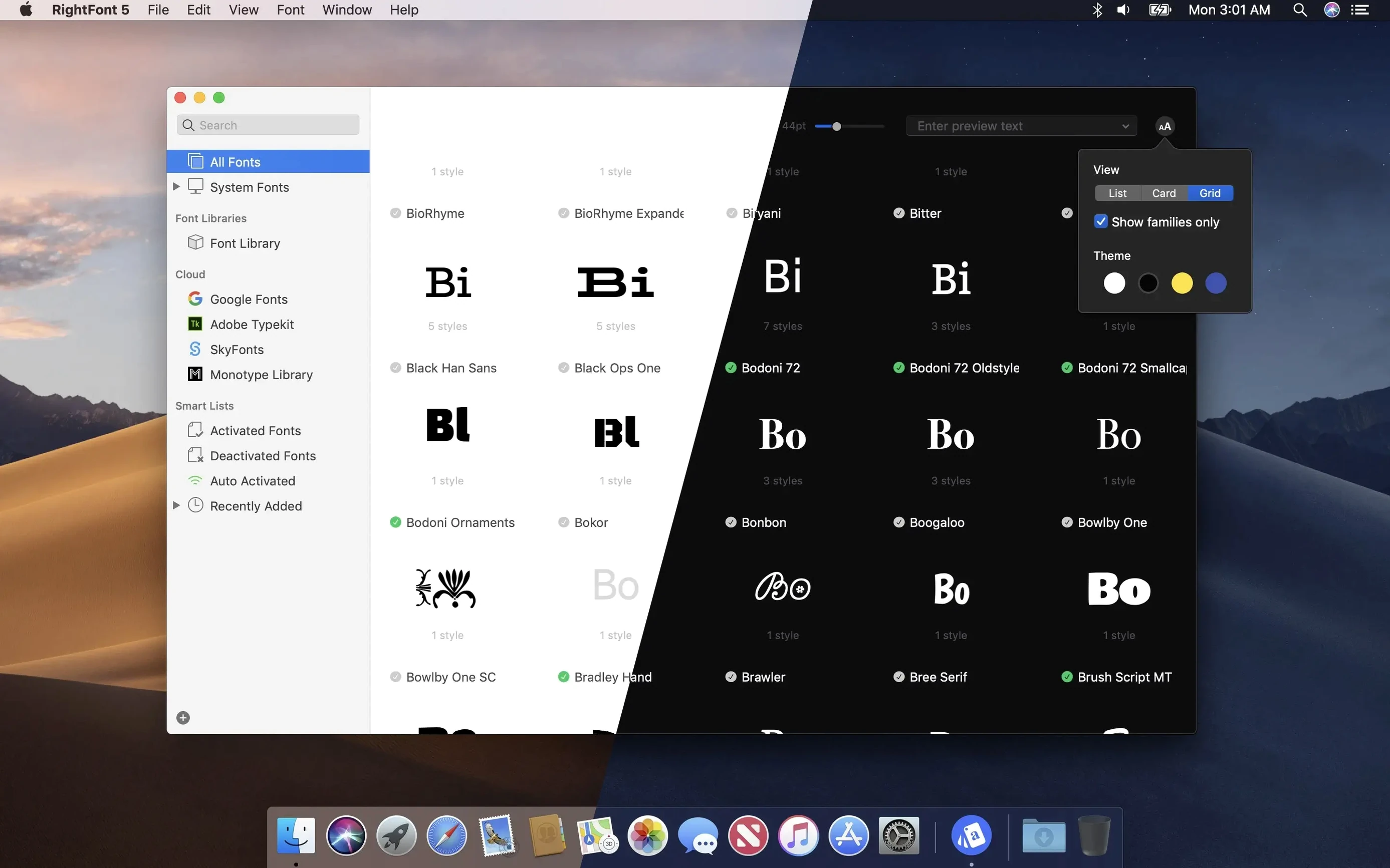
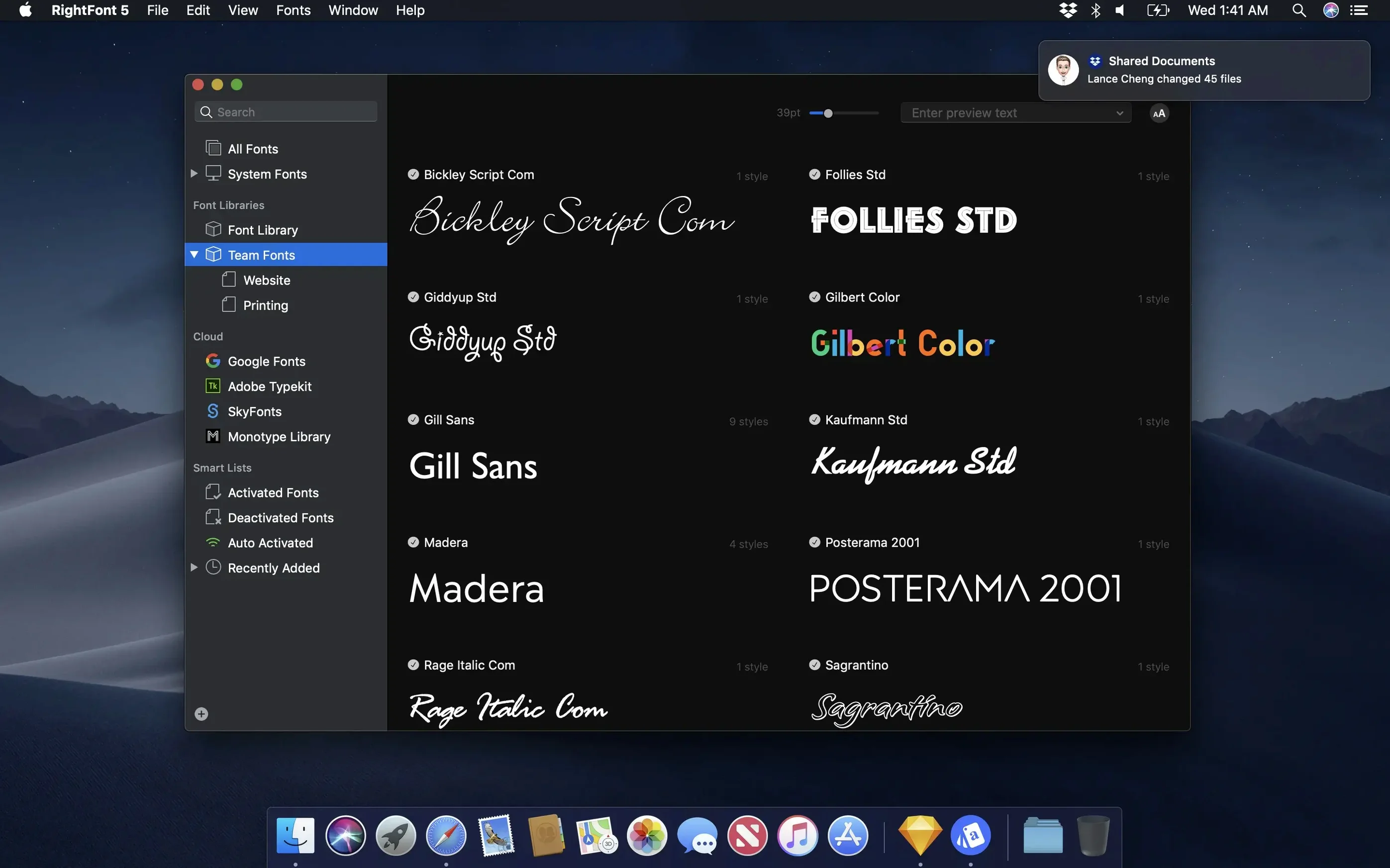
The core of RightFont remains exactly what you need: a fast, native Mac font library that stays out of your way. It still filters by classification, width, and weight. Live search results appear as you type, so zeroing in on the right sans-serif takes seconds. The menu bar access keeps font activation a click away, and double-clicking to change a text layer inside your design app is still the most satisfying way to work. Built exclusively for macOS, it runs natively on both Intel and Apple silicon machines without a hiccup.
Where the Polish Landed
This update tightens the import pipeline. A clearer progress bar now shows a finalization stage and a count of files it couldn't process, so you're not left staring at a stalled render bar. Font imports themselves are more reliable, and tag management got a meaningful lift—those subtags now move freely, making organization feel less like filing and more like a part of the creative process. The team also ironed out specific glitches in Adobe Illustrator and QuarkXPress, so your font activations stick when you switch back to the canvas.
Small Conveniences You Shouldn't Sleep On
A few features hide in plain sight—easy to overlook when you're racing toward a cut. The auto-activation plug-in for Creative Cloud is one of them. Once it's installed, opening a Photoshop or Illustrator file that calls for a font you don't have active triggers RightFont to turn it on silently. No dialog boxes, no manual hunting. That alone saves me from the "missing fonts" panic when a client sends a last-minute revision.
The font preview panel deserves a second look too. You can type any sample text right there—paste in a line of dialogue, a lower third, a logo treatment—and scroll through your library seeing exactly how each weight renders your actual content. It beats the generic "The quick brown fox" every time. Hold Option while clicking a font to preview it in a floating Quick Look window without leaving your list. And if you deal with large libraries, the right-click "Reveal in Finder" command makes grabbing font files for a project folder or a collaborator quick and painless.
What Font Book Can’t Touch
Next to the built-in Font Book, RightFont feels like trading a pocket knife for a proper toolkit. Font Book activates and deactivates fonts, but organizing beyond the default collections is clunky. There's no auto-activation, no direct integration with design software, and filtering is limited. RightFont turns font management into something you can do without leaving your layout app, which is the whole point.
When you put it beside Typeface, the differences sharpen. Typeface leans hard into visual browsing with a gorgeous grid of preview cards—great for exploring and moodboarding. RightFont is more utilitarian. Its list view, live search, and tight Creative Cloud integration make it faster for precision work. Typeface wants you to browse; RightFont wants you to find the font and get back to the timeline. Neither approach is wrong, but if your day revolves around opening third-party files and matching fonts across Adobe apps, RightFont fits the workflow better.
Compared to Suitcase Fusion, RightFont trades some enterprise muscle for simplicity. Suitcase offers server-based font sharing and deeper admin controls for large teams. RightFont keeps things local and direct—lighter on system resources and far less intimidating to set up. For a solo editor or a small post house, that's usually the right trade.
A Real Workflow: Prepping a Music Video
Here's a scenario I hit regularly. A director sends over a Premiere project and an Illustrator file for the title card, plus a few reference stills from a motion designer. The fonts are scattered across three sources and most aren't active on my machine.
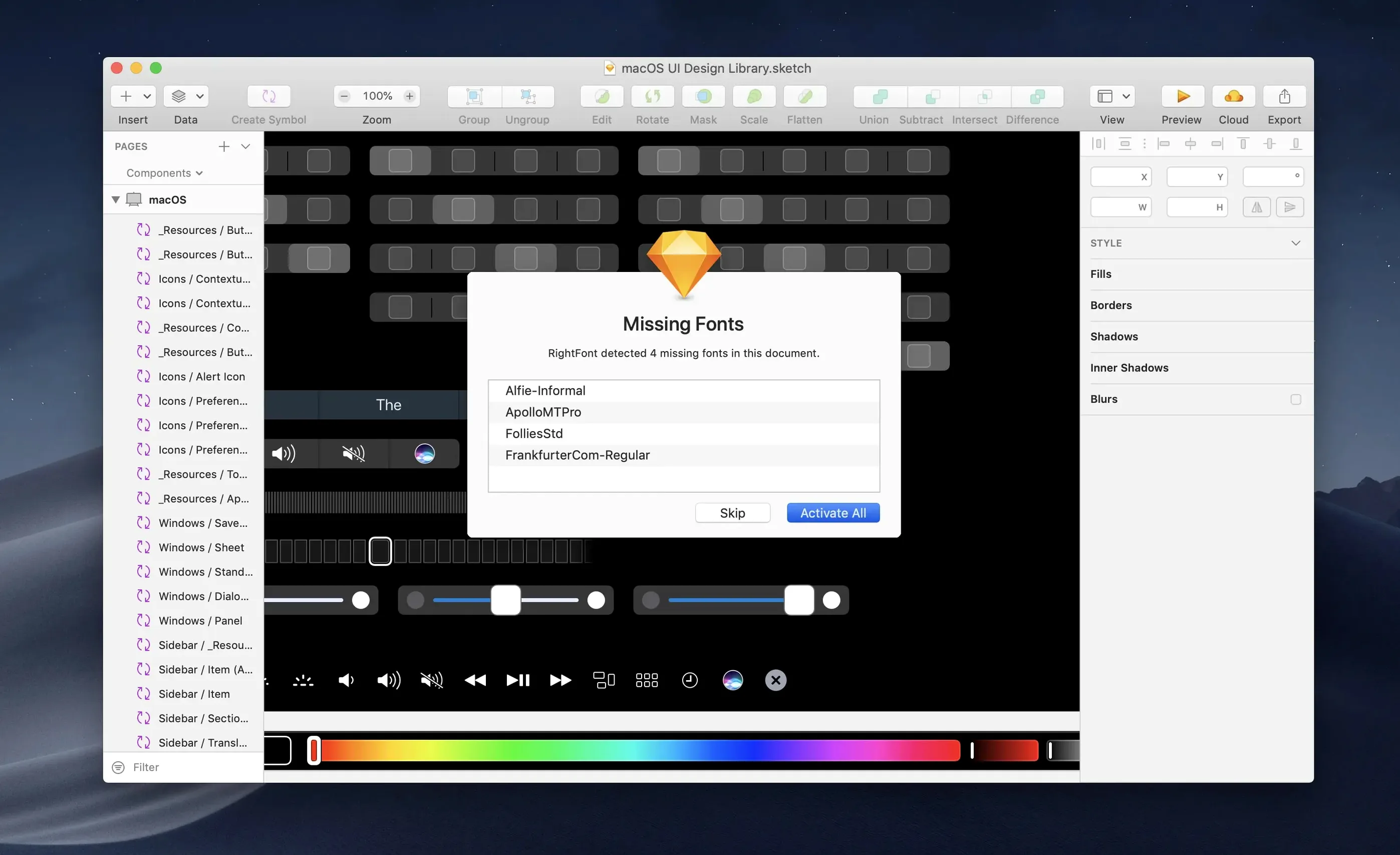
I start by dropping the Illustrator file onto the RightFont dock icon. It scans the document, lists every font used, and marks the ones I'm missing. I select them, hit Activate, and they're live. Then I open the motion designer's stills in Preview and use RightFont's auto-match to identify typefaces I don't recognize—drag the image into the app and it suggests close matches from my library. I activate a couple of candidates and toggle between them in the preview panel using the actual title text. Once I've settled, I double-click the font in RightFont while the text layer is selected in Illustrator, and it swaps instantly. The whole process takes maybe three minutes, and I never opened Font Book or dug through a downloads folder.
Imports got a reliability boost and clearer progress feedback, including a finalization stage and a count of unsupported files. Tag management is smarter—you can now drag subtags back to the main Tags section without a workaround. Also fixed: crashes in Adobe Illustrator and QuarkXPress, plus a macOS compatibility issue.
- macOS 11 or later
- Intel or Apple silicon Mac
Questions I actually get
Does RightFont work on Apple silicon Macs?
Yes, RightFont supports both Intel-based Macs and Apple silicon Macs natively.
Notes from the edit bay · 0
Sign in or get an edit-bay pass to leave a note.
No notes from the edit bay yet. They go up after I read them.