
You just unzipped a massive folder of client assets and the default Finder window feels like it's working against you. A dual-pane view would solve the split right now, but you also need to rename a hundred clips before the offline edit.
Set Up a Saved Workspace
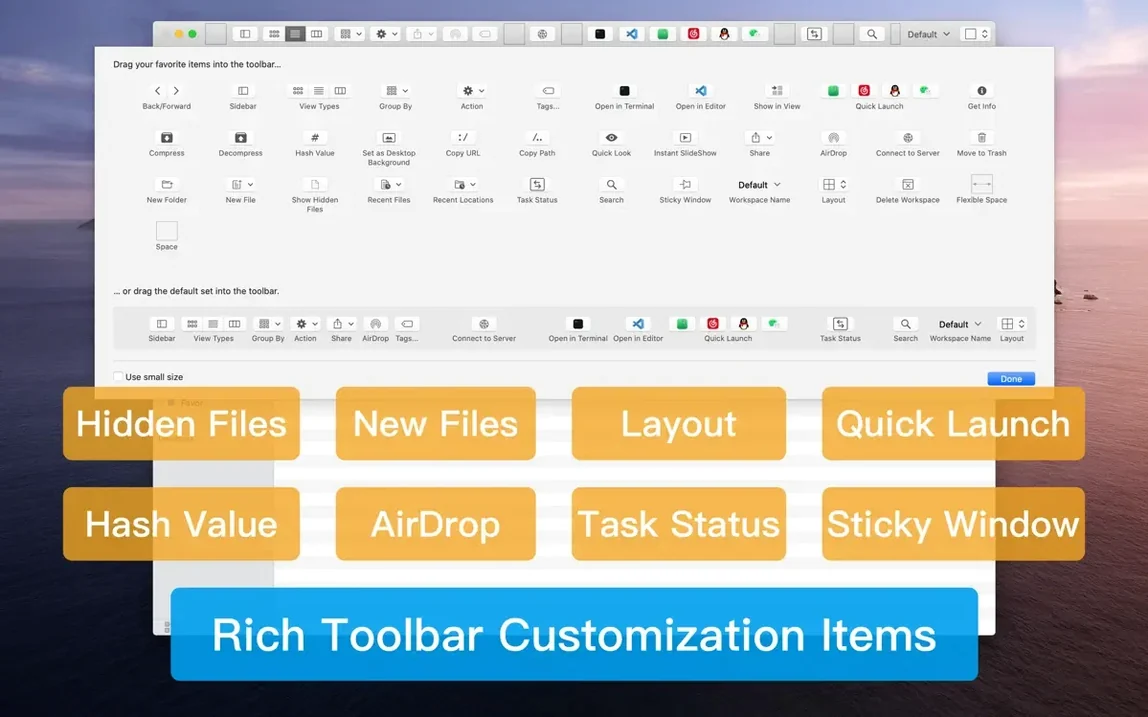
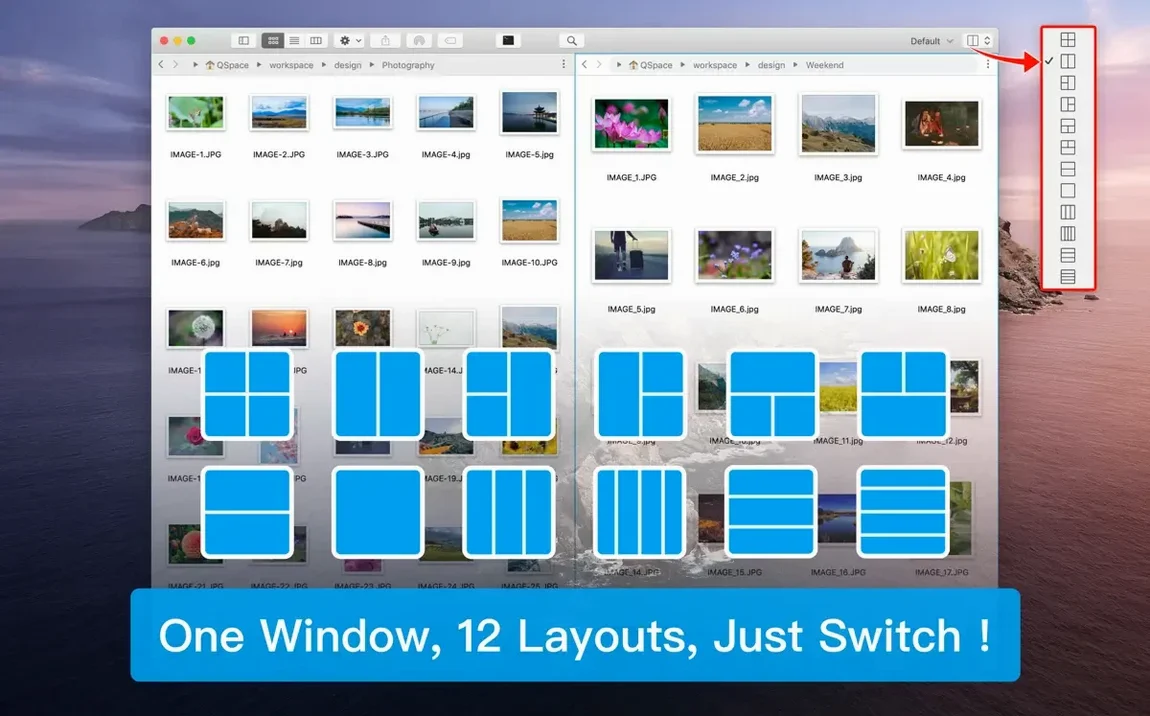
Open a few panes, place them where you want them, then save the state. QSpace Pro restores the exact layout, tabs, and server connections when you relaunch, so a multi-folder project picks up exactly where you left off.
Run a Batch Rename With Live Preview
Select a messy group of files and open the batch renamer. The live preview updates as you tweak the pattern, letting you catch a numbering gap or a bad substitution before you commit — no undo panic.
Calculate a File Hash From the Interface
Right-click any file and pick a checksum. You can grab an MD5, SHA256, or CRC32 without opening Terminal, which turns a manual verification step into a two-second sanity check.
Retraining Finder Muscle Memory for Move vs. Copy
Dragging files between panes with the default modifier held down copies them, but holding Command moves them instead. Muscle memory from Finder works against you here until you retrain it — the first week I lost a few files to the wrong side of a split because I assumed the behavior was identical.
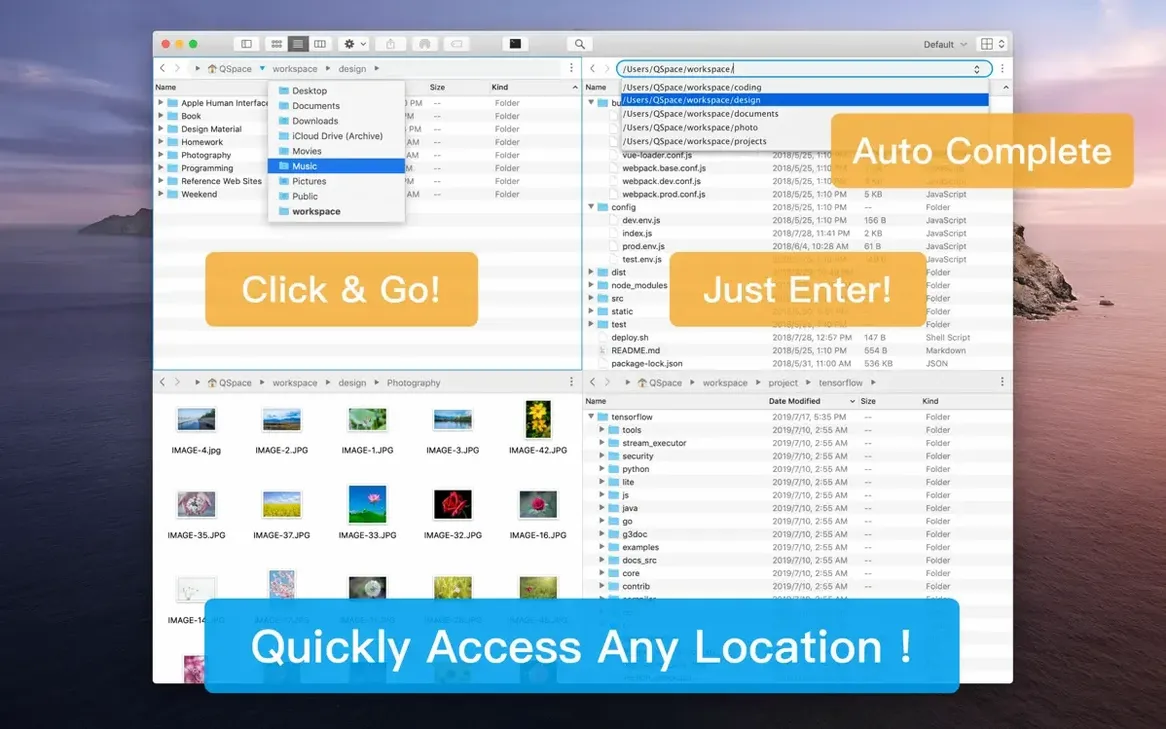
The address bar accepts direct path input, but typing a tilde shortcut like ~/Documents does nothing unless you enable Unix path support in preferences first. Skip that checkbox and the bar treats it as a literal folder name.
Workspace auto-save is on by default. That sounds helpful until you close a pane during a quick one-off task, relaunch the app, and all those temporary tabs come roaring back. Turn it off if you treat workspaces as disposable — save only the layouts you intend to keep.
The stash shelf collects dragged items, but new users often forget it exists entirely. Items pile up there for weeks, eating a slice of memory, until the shelf icon catches their eye and they realize they've been dragging the same reference folder around manually.
4,000-Photo Scrolling Put to the Test
On an Apple Silicon machine, cold-launching six panes spread across three tabs takes under two seconds. Scrolling through a directory with 4,000 raw photos is smooth — not quite Finder-smooth, but the slight stutter only appears when QuickLook previews generate on the fly. Disabling icon previews for that folder flattens the thumbnailing hit and keeps panes responsive.
The app idles around 180 MB of RAM with four panes open and no remote connections. Add an active SFTP session and it climbs past 220 MB, which is modest for a tool keeping a persistent connection alive. Closing remote tabs drops the allocation back down within seconds, no lingering socket processes. CPU stays near zero when the window is in the background.
Stability in version 6.3.2.023 holds up through long sessions. I've left it running across a sleep-wake cycle with three FTP connections active and it reconnected without a beach ball. The only crash I've seen was triggered by editing a custom quick-launch command while a server transfer was finishing — the patch note suggests that exact bug got squashed here.
A Full Workflow: Ingestion to Rough Stringout
Picture a morning where a producer drops a drive full of interview footage, music stems, and a Google Drive link to the graphics folder. Here's how QSpace Pro turns that chaos into a sorted bin.
Step 1 — Mount everything at once. Open a three-pane layout. Left pane connects to the external SSD over the local filesystem. Middle pane hits the Google Drive remote via the built-in connector — authenticate once and it mounts like a local volume. Right pane points to a local project folder where the sorted media will live.
Step 2 — Filter the junk. In the left pane, sort by file extension and delete the sidecar thumbnails and cache folders the camera dumped alongside the clips. You can do this across panes without losing context on what the graphics folder looks like.
Step 3 — Drag graphics into place. Pull the approved lower-thirds and logo plates from the Google Drive pane into the right pane's Graphics subfolder. Because both panes are visible, there's no spring-loaded folder dance — just drag and drop.
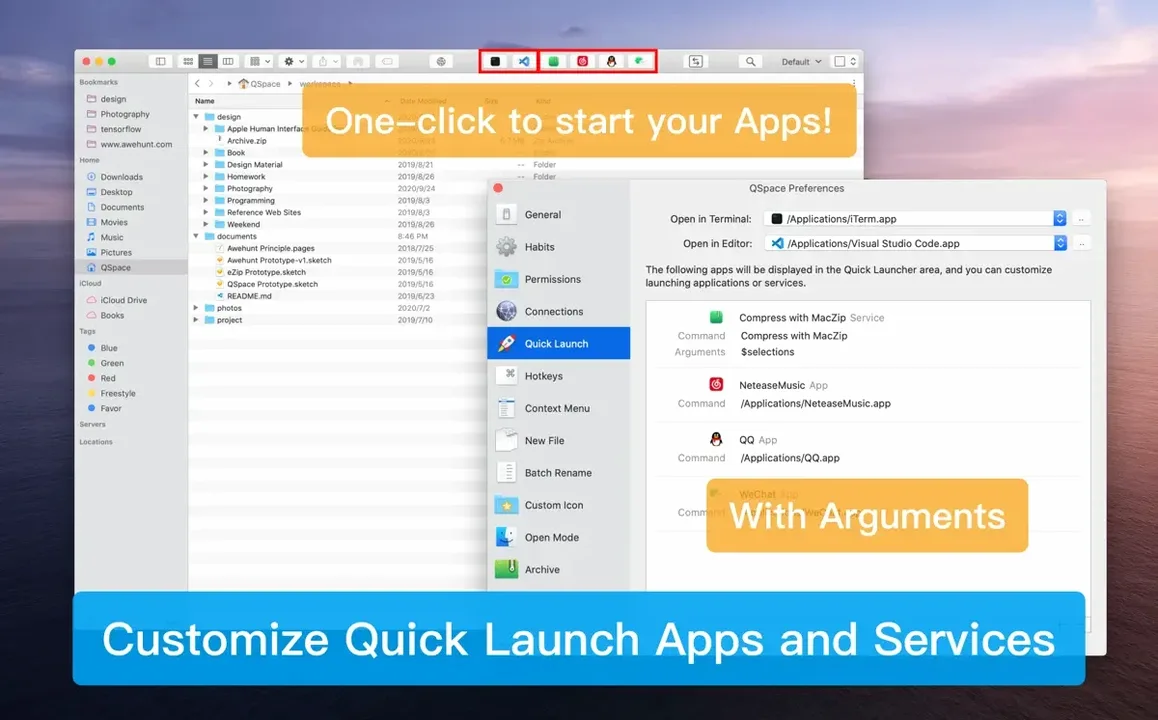
Step 4 — Batch rename the interviews. The camera named everything CLIP0001.MOV through CLIP0047.MOV. Select all 47 clips in the left pane, open batch rename, and set a pattern like Interview_SubjectA_###. The live preview shows exactly how the three-digit padding lands. Commit it, and the right pane already reflects the sorted folder because it's watching the same disk.
Step 5 — Verify and archive. Hash one of the copied graphics files with SHA256 from the context menu, compare it against the Google Drive original to confirm the transfer didn't corrupt anything, then compress the entire project folder as a 7Z archive using the enhanced archive manager — all without leaving the window.
The whole process keeps your hands on the keyboard and your eyes on one interface. No Finder tabs, no separate SFTP client, no renaming utility bouncing in the Dock. For anyone searching for a qspace pro macos free workflow that actually matches a working editor's pace, this is the shape of it.
The latest QSpace Pro release lands with under-the-hood fixes that keep the multi-pane file manager feeling snappier day to day.
- macOS 10.13 or later
- Apple Silicon or Intel 64-bit
Questions I actually get
Does QSpace Pro replace the Finder?
It acts as a Finder-like file manager that can fully replace the default experience, and you can set it as the default file viewer in its preferences to handle folder opens system-wide.
Notes from the edit bay · 0
Sign in or get an edit-bay pass to leave a note.
No notes from the edit bay yet. They go up after I read them.