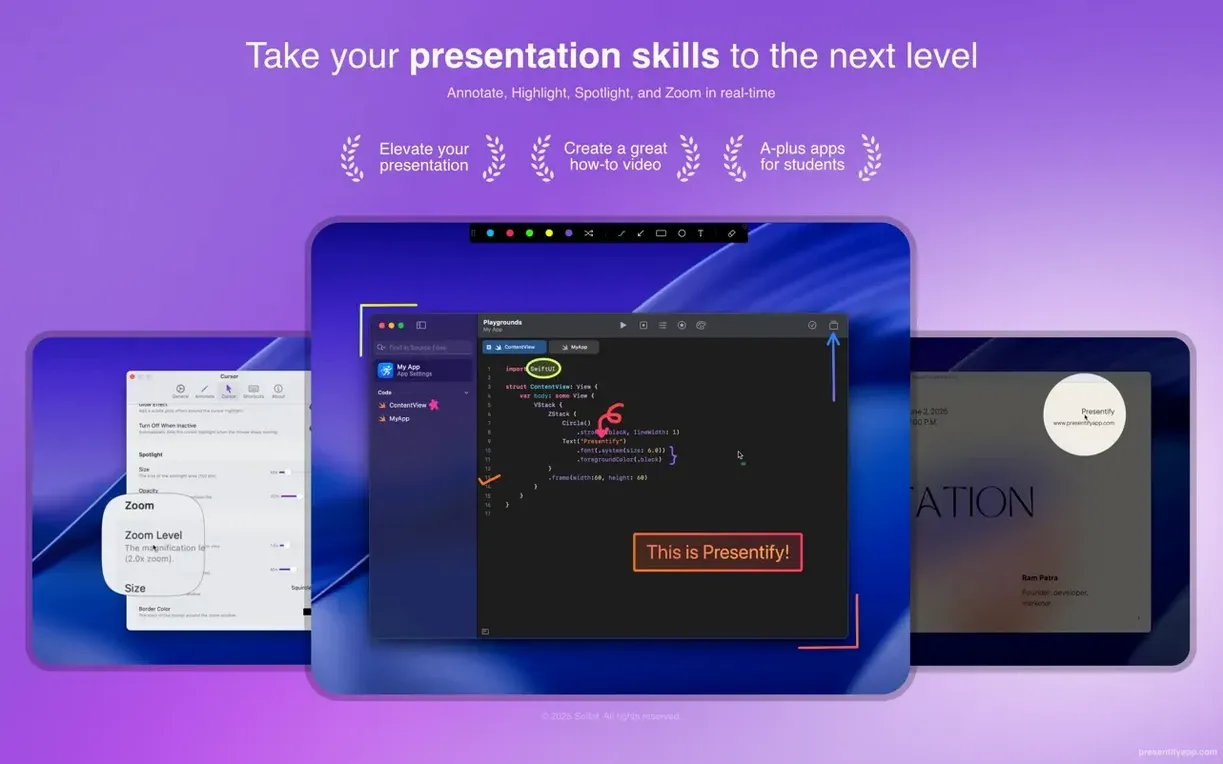
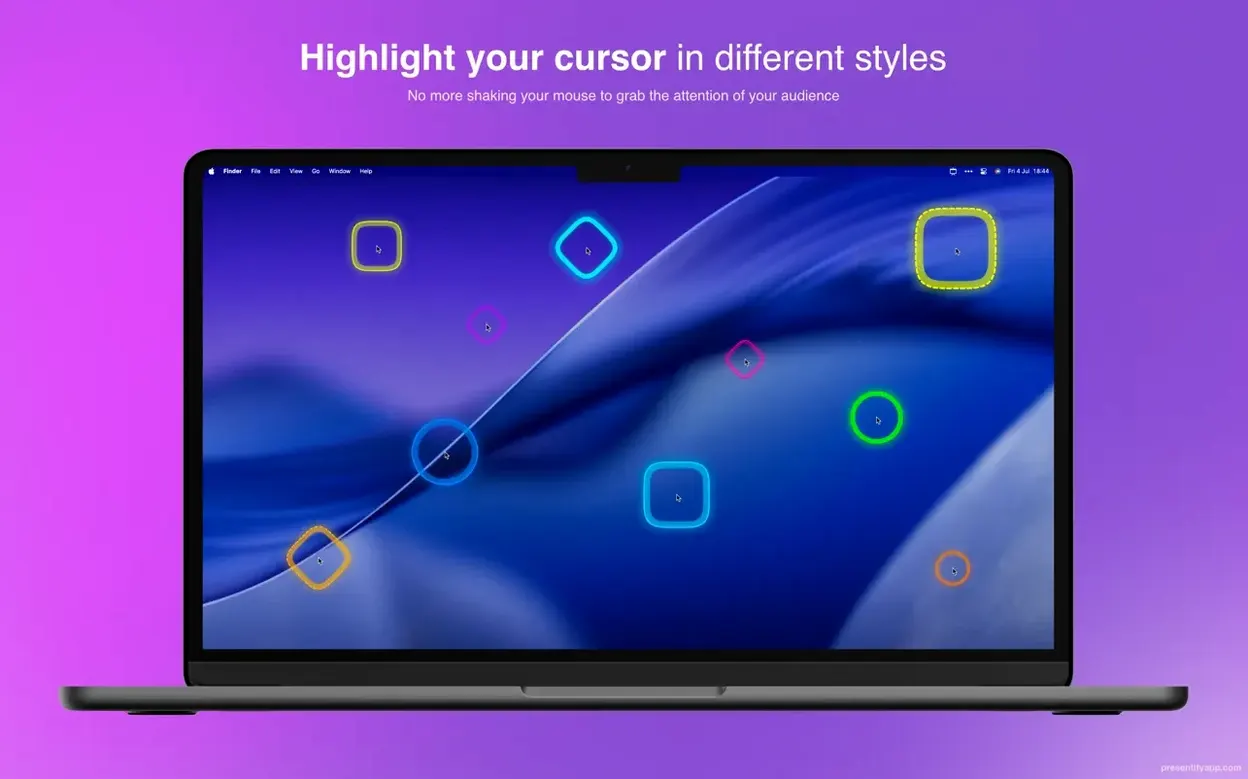
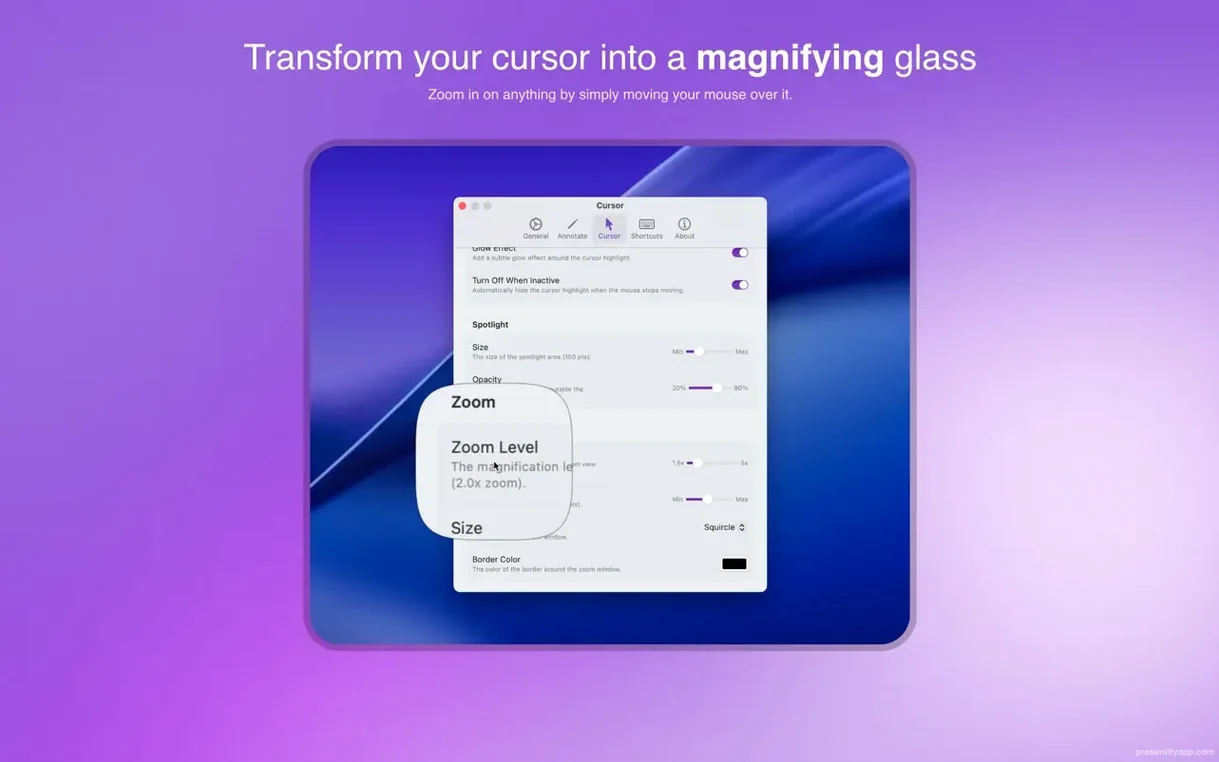
Presentify is a menu bar app that layers annotation, cursor highlighting, and spotlighting tools over any screen so you can sketch out ideas or guide attention without switching windows. It sits quietly until you need it, then gets out of the way the moment you don't — which is exactly what a deadline-driven editor or presenter needs from a utility.
- Fn key passthrough for app interaction. The default mode treats clicks as drawings, but holding Fn lets you interact with the underlying app. Adjust a timeline marker or tweak a value without toggling Presentify off mid-sentence.
- Auto-erasing annotations. Set a timer and drawings vanish a few seconds after you lift the pen. No cleanup step, no stray marks on the next slide.
- Random gradient colors. Switch on the random mode and each stroke picks a fresh gradient. It keeps brainstorming sessions legible with less fiddling in the color picker.
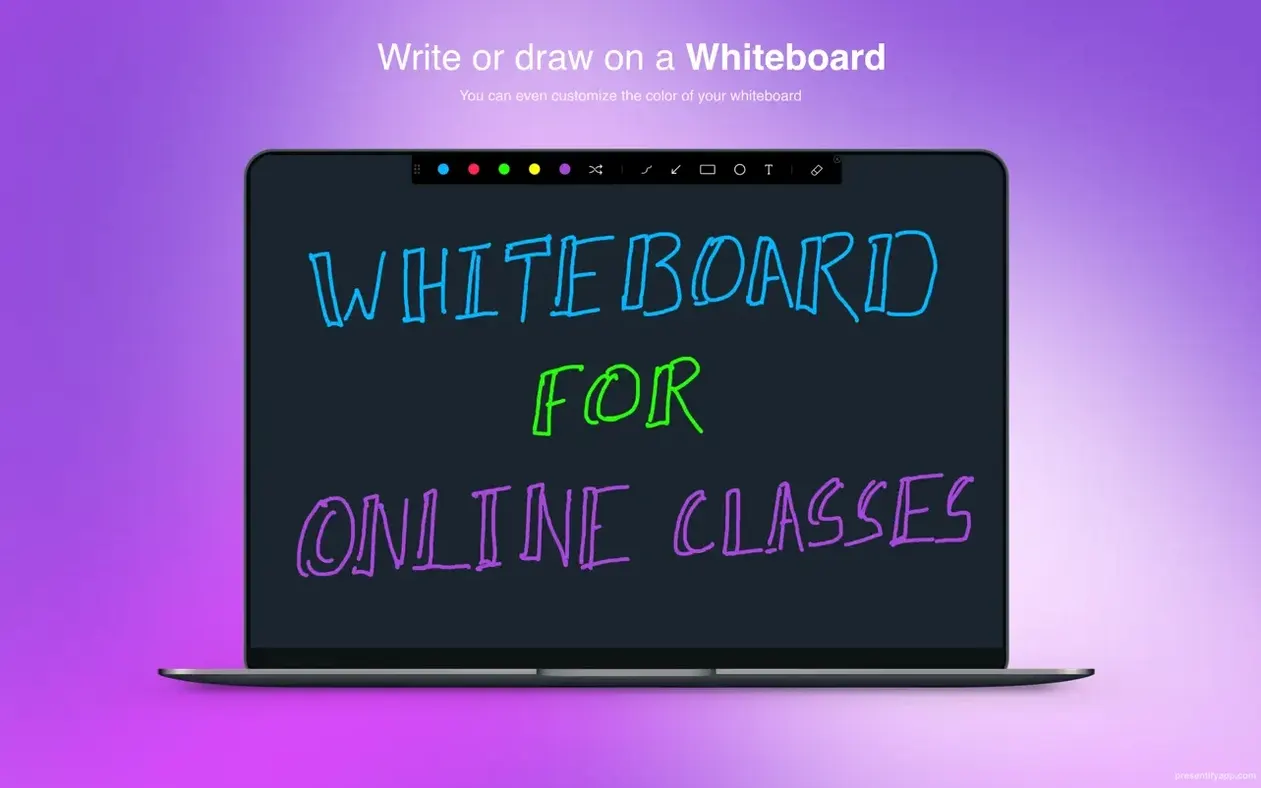
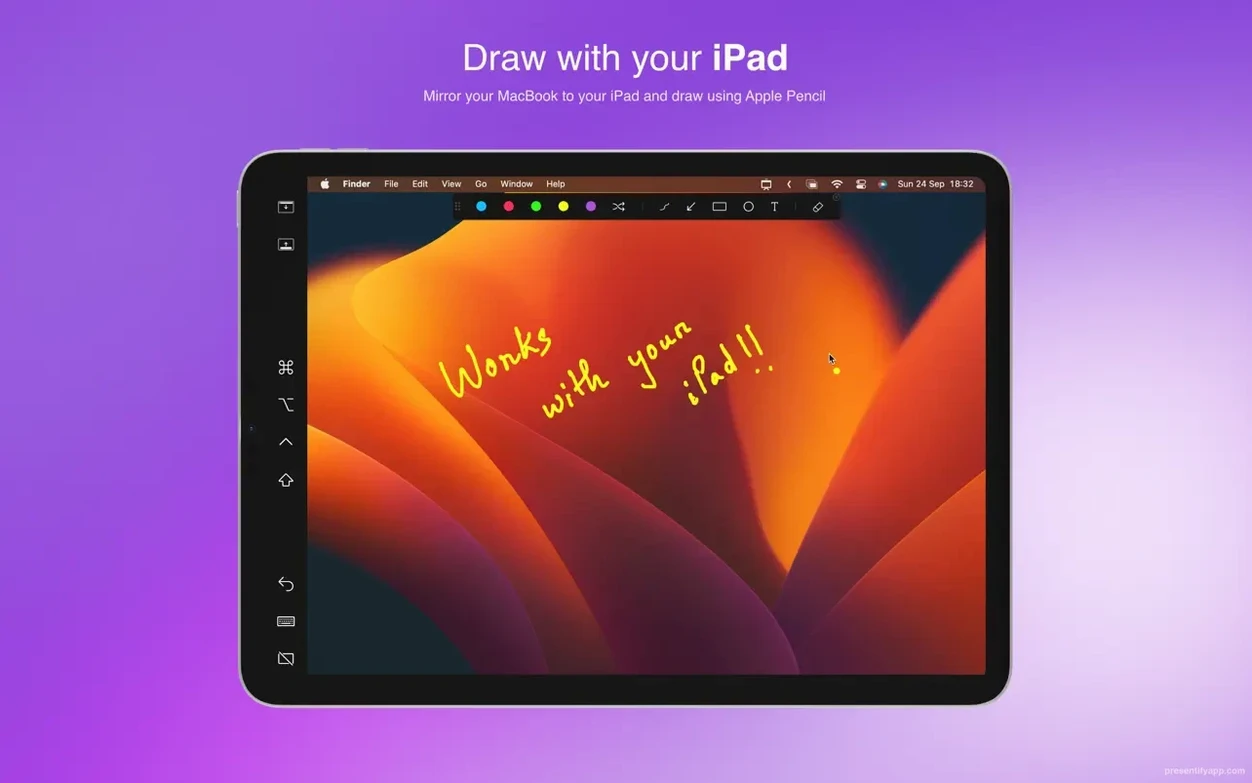
- Text annotation and multiple shapes. Type directly onto the screen or drop rectangles, circles, and lines. The text tool respects bounding boxes, so notes stay tidy when you're marking up a rough cut for a client.
- Tablet-ready from the first stroke. Pressure sensitivity maps cleanly to XP-Pen and Wacom tablets. Line weight changes feel natural, which matters when you're circling a frame in DaVinci Resolve.
The real power is how little Presentify assumes about your workflow. It doesn't hijack your keyboard shortcuts, it steps aside when you need to click through an interface, and the annotations erase themselves when you move on. Annotate, explain, keep rolling.
First Days: Dial It In Before You Need It
Spend fifteen minutes after installing and you'll skip the fumbling when someone's watching. Open preferences from the menu bar icon and work through the General tab first. The auto-erase timer ships at three seconds — bump it to six or eight if you draw slowly, or kill it entirely for static markup you want to keep across slides. Then flip to the Drawing tab, pick a shape size that matches your screen resolution, and actually draw a few strokes on your desktop. The app feels different on a 4K display than a 1080p laptop panel, and you want that muscle memory before the meeting starts.
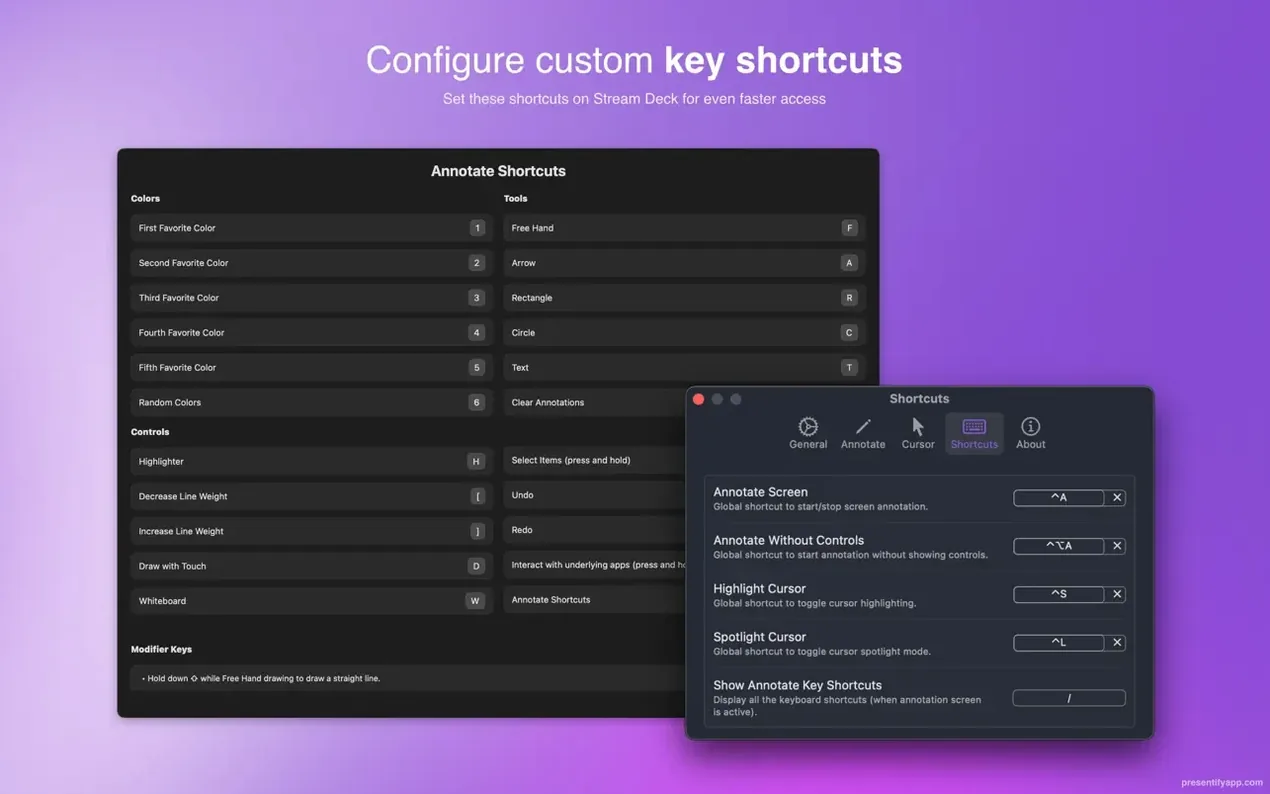
Next, set up a keyboard shortcut. The default ⌃⌥P works, but I map it to ⌃⌥⌘A because that cluster is under my left hand and I'm not hunting for it mid-sentence. Practice toggling annotations on, drawing a quick underline, and toggling off. Do it five times in a row. It sounds trivial until you're sharing a screen with a client who just asked "can you circle the part where the audio drops?" and you're fumbling through a menu bar icon.
If you use a tablet, open System Settings > Displays and confirm your Wacom or XP-Pen is mapped to the same display you're sharing. Presentify draws wherever your cursor lives, and a mis-mapped tablet means annotations land on the wrong monitor. Fix that now, not during a live class.
Bypassing the Unidentified Developer Block on First Launch
The most common hiccup hits right after install: the app won't open because macOS flags an unidentified developer. The fix is a quick trip to System Settings > Privacy & Security, where you'll find an "Open Anyway" button waiting. Click it once and you're done — Presentify won't ask again.
If annotations feel sluggish on an Apple Silicon Mac, check whether you're running the Intel build under Rosetta. The universal binary should pick the native slice automatically, but a few users report the Finder opening the wrong one after a drag-and-drop install. Right-click the app in Applications, choose Get Info, and confirm "Kind" says "Application (Apple Silicon)." If it says "Intel," re-download and re-drag — the disk image contains both architectures and Finder can get confused.
Full-screen apps occasionally hide the annotation layer. This isn't a Presentify bug; it's macOS compositing rules. If annotations don't draw over Keynote in full-screen mode, toggle Presentify's drawing off and on again with your shortcut. That refreshes the overlay. Same trick works in Google Meet when you switch between a shared tab and your desktop.
The Fn passthrough trips people up because it's easy to forget you're holding it. You're drawing arrows furiously, then try to click a Zoom control and nothing happens. Train yourself: no Fn means draw, Fn held means click through. After a day it's automatic.
Annotating Over Keynote Transitions Without Interruption
Presentify slides into a presentation stack without displacing anything. In Keynote, run your deck as usual and activate annotations only when a slide needs ad-lib markup. The overlay sits above Keynote's rendering, so transitions still animate underneath while your circles stay put. When you advance to the next slide, auto-erase clears the board — or hit your toggle shortcut to wipe everything manually.
For recorded tutorials, pair it with ScreenFlow or OBS. Start recording, toggle Presentify on during the sections that need visual emphasis, and toggle off when you're just talking. The annotations become part of the video capture without any post-production step. Editors who cut in Final Cut will find this cleaner than adding motion-tracked callouts later — it's faster to draw live and re-record a take than to keyframe a highlight ring for three minutes.
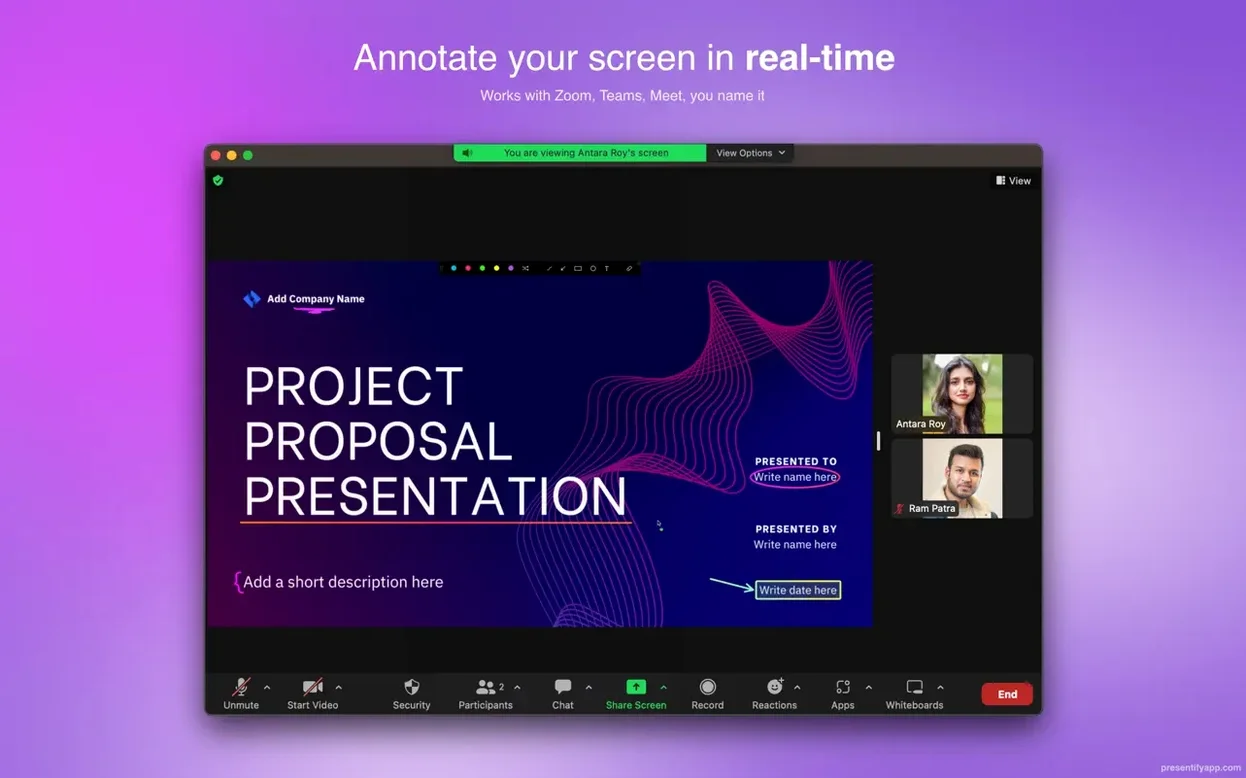
With Zoom and Google Meet, Presentify treats the shared screen as a canvas. Annotate a PDF, mark up code during a code review, or underline a spreadsheet cell. Participants see your drawings in real time with almost no latency on a decent connection. One caveat: Zoom's "Remote Control" feature doesn't play well with the annotation layer. If you hand off control to someone else, toggle Presentify off first to avoid confusion about who's drawing what.
macOS's native screenshot and Quick Look tools coexist fine. You can annotate a Quick Look preview window without closing it, then snap a screenshot with ⌘⇧4 while your markup is still visible. The screenshot captures the annotation layer. That's handy for bug reports where you want to circle something and save it in one motion.
A Workflow: Live Code Review Over Zoom
Here's how a thirty-minute code review runs with Presentify in the mix.
1. Prep the screen. Open your editor and Zoom side by side. Start the Zoom call and share only the editor window — not the whole desktop. This keeps Presentify's menu bar icon out of the recording and avoids accidental shares of Slack notifications.
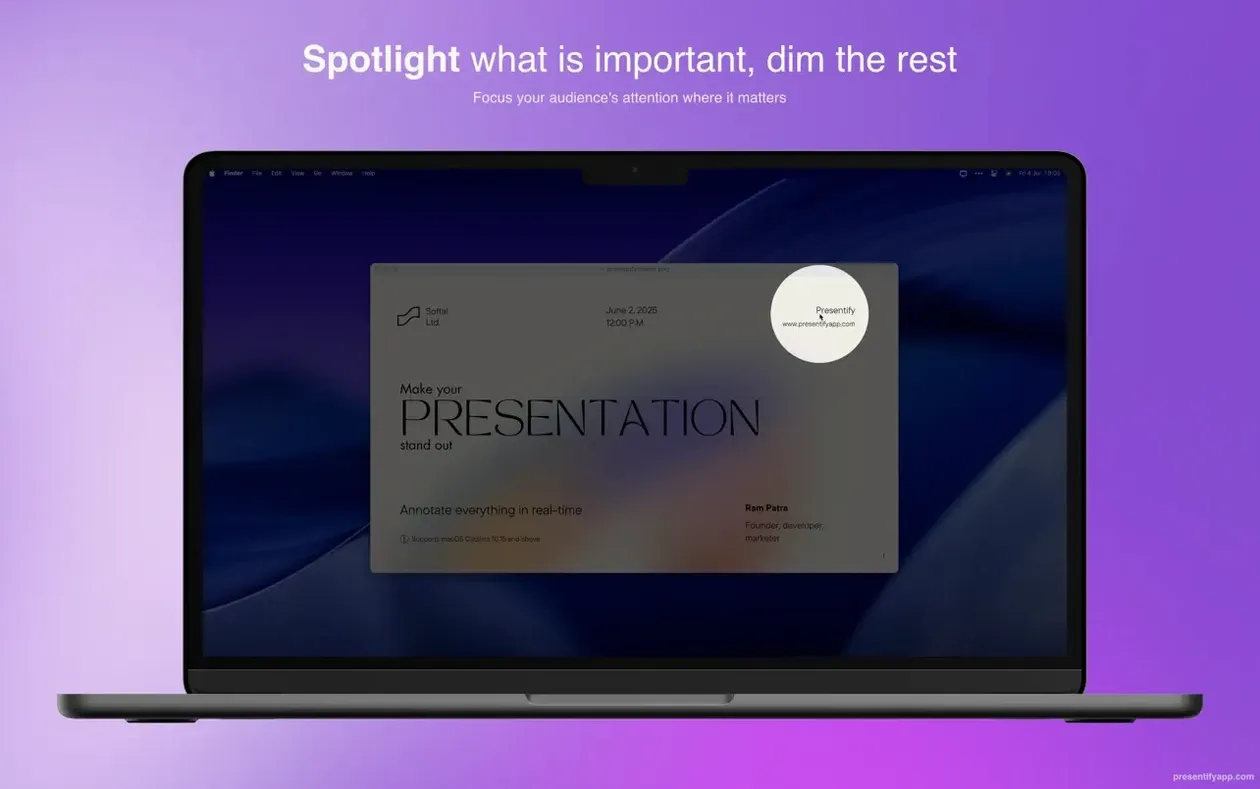
2. Warm up the tools. Turn on the spotlight effect and set it to a soft oval that dims everything outside a 400-pixel radius. Set auto-erase to five seconds. Pick a yellow highlighter with medium transparency — it'll tint code without hiding syntax coloring underneath.
3. Walk through the PR. Share your screen in Zoom. Read the code aloud. When you reach a line that needs attention, toggle Presentify on and hold Fn to place the cursor exactly on the line. Release Fn, draw a quick underline, then let go. Auto-erase cleans it in five seconds while you talk.
4. Flag a logic error. Spot a condition that's backwards. Switch to the rectangle tool, draw a red box around the offending block, and type "order reversed" next to it with the text tool. The text sits on screen until you toggle off or the timer fires. Your teammate sees the feedback live, nods, and takes a note.
5. Compare two files. Open both files in split view. Toggle Presentify on and use the spotlight to isolate one pane, then the other, as you explain the difference. The dimmed-out areas keep focus tight — no one's eyes wander to the sidebar.
6. Wrap up. Toggle Presentify off. Stop sharing. The whole session is annotated, explained, and done — no exported files, no marked-up screenshots to email afterward. If you recorded the call, the annotations are already baked into the video for anyone who missed it.
- macOS 13 Ventura or later
- Apple Silicon or Intel 64-bit Mac
Notes from the edit bay · 0
Sign in or get an edit-bay pass to leave a note.
No notes from the edit bay yet. They go up after I read them.