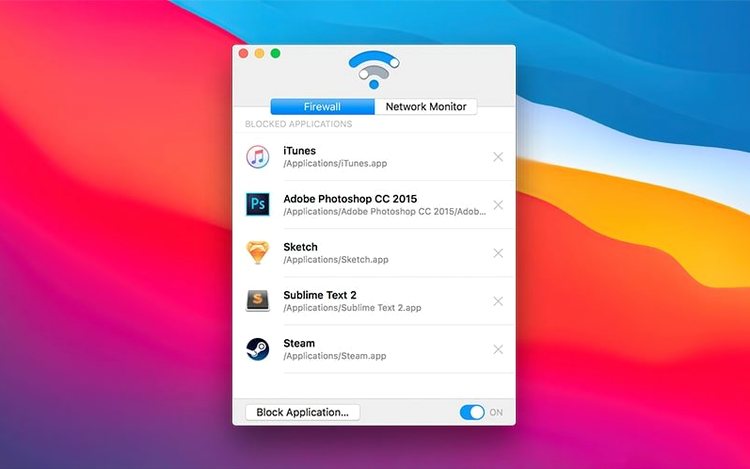
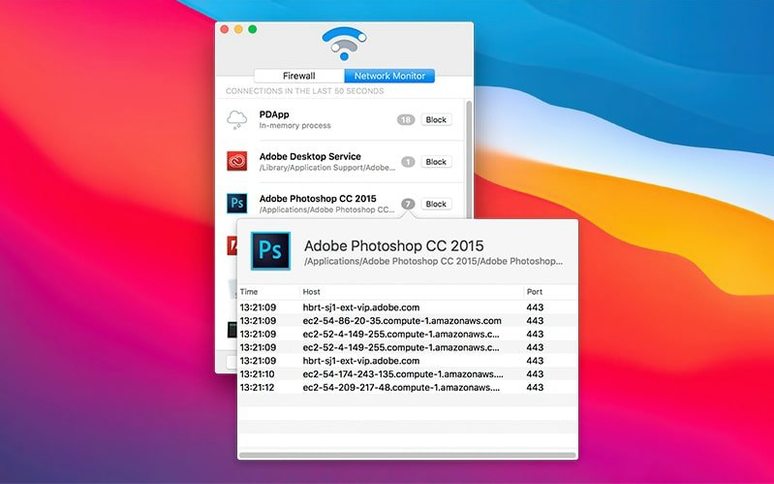
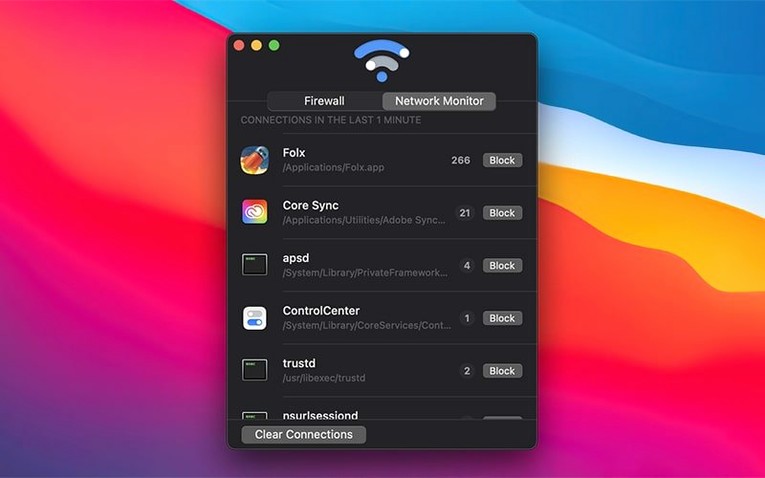
If you've ever stared at Activity Monitor's Network tab and wished you could just flip a switch to cut a process off, Radio Silence is that switch. It's not a massive security suite—it's a tiny firewall that shows you which apps are talking to the internet and lets you block them with one click. No packet signatures, no complicated rules. Just a list of live connections and a block button.
| What | The Deal |
|---|---|
| Version | 3.4 |
| Runs on | macOS 10.15 and later, Apple Silicon & Intel |
| Main job | Block any app's network access instantly |
The first thing to try after installing is just watching the main window for a minute. You'll see every active connection pop up in real time—browsers, updaters, background daemons you forgot about. When something looks chatty, hit the block button next to it. That app moves to the Firewall tab and goes silent. If you change your mind, remove it from the block list and it's free again. The whole firewall can be paused temporarily too, which is handy when you're troubleshooting a connection issue and don't want to undo your whole setup.
Building a Silent Writing Environment, Step by Step
A focused writing session deserves a quiet machine. Here's how I lock down a MacBook with Radio Silence in about three minutes flat.
Open the app and leave the connection monitor visible. Launch your writing tool—let's say Ulysses or iA Writer. Watch the list for a few seconds. The app itself probably won't phone home, but you'll spot its built-in browser preview firing off requests, or a spell-checker pinging a cloud service. Block each one as it appears.
Next, fire up Safari to grab a reference article, then immediately block it in Radio Silence once the page loads. You've got your research material; the browser doesn't need to keep chatting. Switch to the Firewall tab and confirm Safari sits in the blocked column. If any media player, notes app, or menu bar widget tries to sneak a connection while you work, it'll show up in the monitor—one click and it joins the silent list.
When the session wraps, pause the firewall from the Firewall tab. Everything snaps back to normal. No unblocking one by one, no hunting through a rule set. The whole routine adds maybe a minute to starting and ending a writing block.
The Quick-Reaction Companion to macOS Firewall
Radio Silence doesn't replace Little Snitch or LuLu—it sits at the opposite end of the complexity scale. Think of it as the quick-reaction tool you use alongside macOS's built-in firewall rather than instead of it. The system firewall handles port-level rules and stealth mode; Radio Silence handles app-level decisions in the moment.
It plays especially well with apps that generate unpredictable background traffic. Creative Cloud updaters, Chrome's keystone agent, Zoom's pre-meeting chatter—things that slip through a static rule set because you don't realize they're connecting until you see it happen. I keep Radio Silence running alongside a content blocker in Safari. The browser extension cleans up web cruft; the firewall catches everything outside the browser.
For video editors, pairing it with Final Cut Pro makes sense during export sessions. FCPX itself works offline, but Motion templates and third-party plugins sometimes reach out for license checks or content updates. Blocking everything except the render engine keeps the export from stalling on a timeout. The connection monitor shows you which plugin tried to call home—useful ammunition when you're deciding which ones to keep installed.
When Blocked Apps Beachball at Launch
Some apps don't take kindly to being blocked. A few will beachball on launch while they wait for a connection that never comes. If an app hangs after you add it to the Firewall tab, remove it temporarily, let it finish whatever handshake it needs, then re-block it. Photo editors and DAWs are the usual suspects here—they often phone home once on launch and then stay quiet.
Another common trip-up: blocking a background process you didn't mean to. The main window shows process names, not friendly app labels, so it's easy to block identityservicesd thinking it's some ad tracker when it's actually the daemon that handles iMessage delivery. If Messages suddenly can't send, check the Firewall tab for anything with a cryptic name. The fix is instant—remove it and the connection resumes.
Installation can occasionally fight back, particularly on a fresh macOS Tahoe setup. Version 3.4 added explicit guidance for this: if the app refuses to launch, a help view appears with troubleshooting steps. The most frequent culprit is a missing network extension permission. Head to System Settings > Privacy & Security > Network Extensions and make sure Radio Silence is ticked. If the installer throws an error about permissions, a quick restart of the Mac usually clears it—the system just needs to re-read the security policy.
Start with the Obvious Noise-Makers
Don't try to build a perfect block list on day one. The instinct is to block everything that appears, but you'll end up with a messy Firewall tab full of processes you can't identify. Start with the obvious noise-makers: apps you installed yourself that have no business being online. A calculator that wants network access? Block it. A font manager phoning home every hour? Gone.
Let the monitor run in the background for a full workday. Glance at it between tasks. You'll notice patterns—the same three processes lighting up every twenty minutes, or a helper tool that only connects when you plug in a specific peripheral. Those are the candidates worth blocking. The ones that pop up once during login and never again can stay.
If you use a VPN, test the firewall with it active. Some VPN clients route traffic at a level Radio Silence's extension sits above, meaning blocked apps might still leak through the tunnel. The connection monitor will show double entries for the same app—one direct, one via the VPN interface. Block both entries and you're covered. It's a quick check that saves discovering a leak later.
One last habit worth forming: whenever you install something new, keep the Radio Silence window open during the first launch. You'll catch its initial network behavior before it settles into a routine. Three clicks and the new app is either trusted or silenced, before it has a chance to build a connection history you'd rather it didn't have.
Version 3.4 adds installation guidance for macOS Tahoe and smarter handling when permissions or installation steps go sideways. Also fixed: a new help view now shows troubleshooting info right when the app fails to launch, so you're not left guessing.
- macOS 10.15 or later
- Apple Silicon or Intel Mac
- English interface
Questions I actually get
Can I temporarily disable the blocking?
Yes, the firewall can be paused entirely from the app without removing your blocked apps list, so you can test a connection and restore your blocks afterward.
How do I unblock an app I've blocked?
Open the Firewall tab, find the app in your blocked list, and remove it. It will immediately regain network access.
Does Radio Silence show live network activity?
Yes, the main window displays network connections in real time, so you can see which apps are active before you decide to block them.
Notes from the edit bay · 0
Sign in or get an edit-bay pass to leave a note.
No notes from the edit bay yet. They go up after I read them.