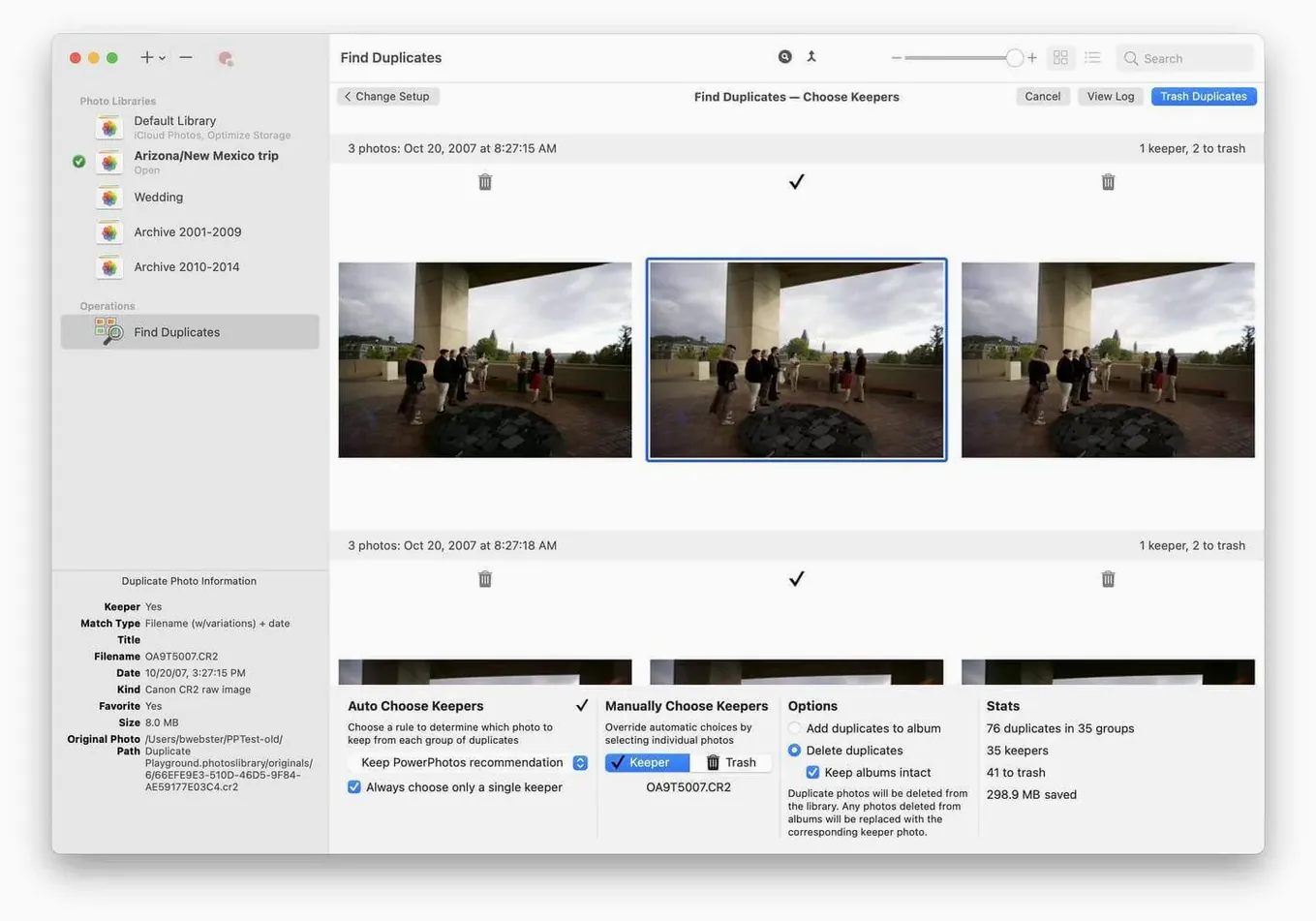
PowerPhotos is the control panel Apple forgot to build for the Photos app, letting you split, search, and deduplicate across as many libraries as you want.
Three Moves to Make Right After Launch
- List every library you own. Hit the plus button and point PowerPhotos at each .photoslibrary file scattered across your drives. Suddenly you have a single dashboard instead of a treasure hunt.
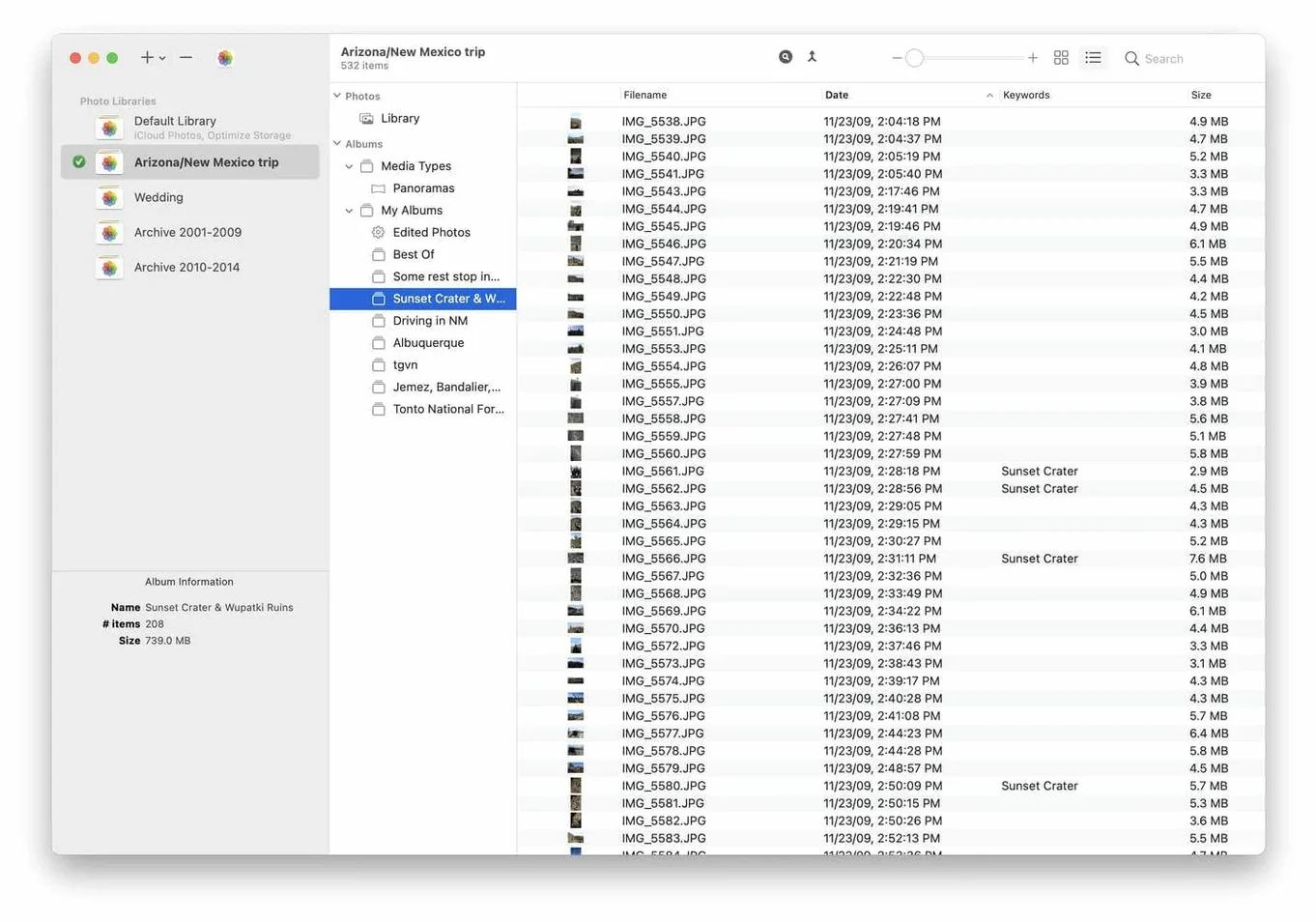
- Run a cross-library search. Type a name, a date range, or even a camera model into the search field with "All Libraries" selected. It digs through every library at once — way faster than opening each one manually.
- Let it hunt duplicates. Pick a library, click the Duplicates button, and choose a match mode. It shows the culprits side by side so you decide what stays and what goes. No guessing.
Peek Inside Any Library Without Launching Photos
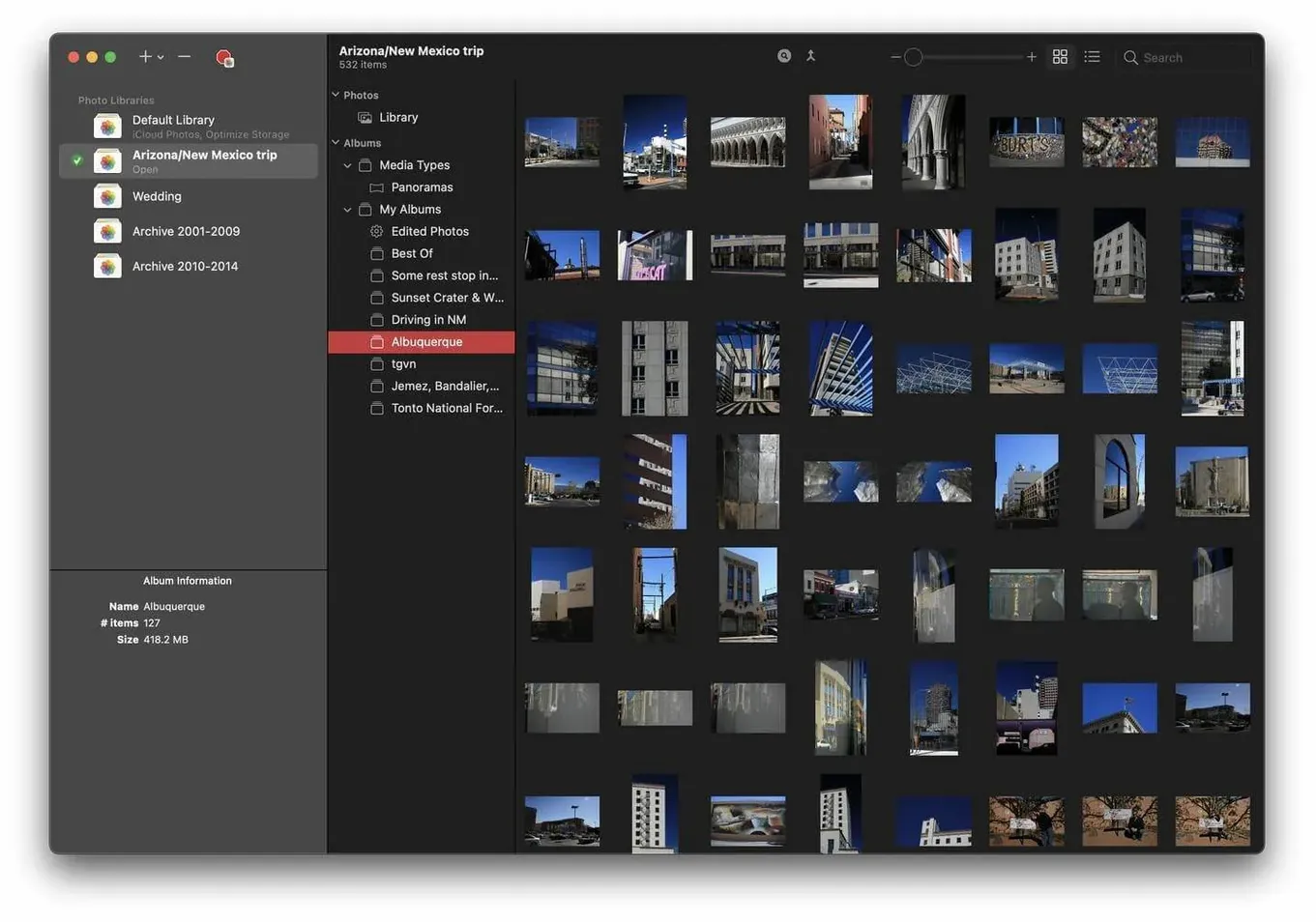
PowerPhotos is a browser and a librarian rolled into one. You can peek inside any library without launching Photos, then drag batches of images between them to carve one massive library into sensible chunks — projects, family years, or client jobs. The duplicate analysis works as a cleanup pass after merging or importing. It is not a photo editor; it is the tool you use the day you realize keeping everything in a single System Library is no longer tenable.
Scanning a 1.2 TB Library Stays Under Control
Version 3.4.8 runs like a utility should — quiet, direct, and rarely in your way. I've thrown a 1.2 TB library spread across four separate .photoslibrary containers at it on an M1 Max machine, and the initial scan stayed under two minutes. Memory pressure barely twitched above 400 MB even while the duplicate engine was grinding through 90,000 images. That matters when you're also rendering in the background and don't want to close everything just to clean up photos.
Stability-wise, PowerPhotos doesn't try to be clever about live syncing. It works on libraries at rest, so there's no wrestling with iCloud processes or database locks mid-scan. I've left it chewing on a library comparison overnight three times now — zero crashes, zero beachballs the next morning. The only real CPU spike hits during the byte-level duplicate check, and even that settles back to idle the moment it finishes.
One thing worth knowing: the app doesn't auto-refresh when you modify a library in Photos. You need to close and reopen the library inside PowerPhotos to see the latest state. It's not a bug, just a deliberate safety rail that keeps the database from getting confused. Once you learn the rhythm, it's predictable.
Switch Duplicate Matching to Catch Renamed Visual Clones
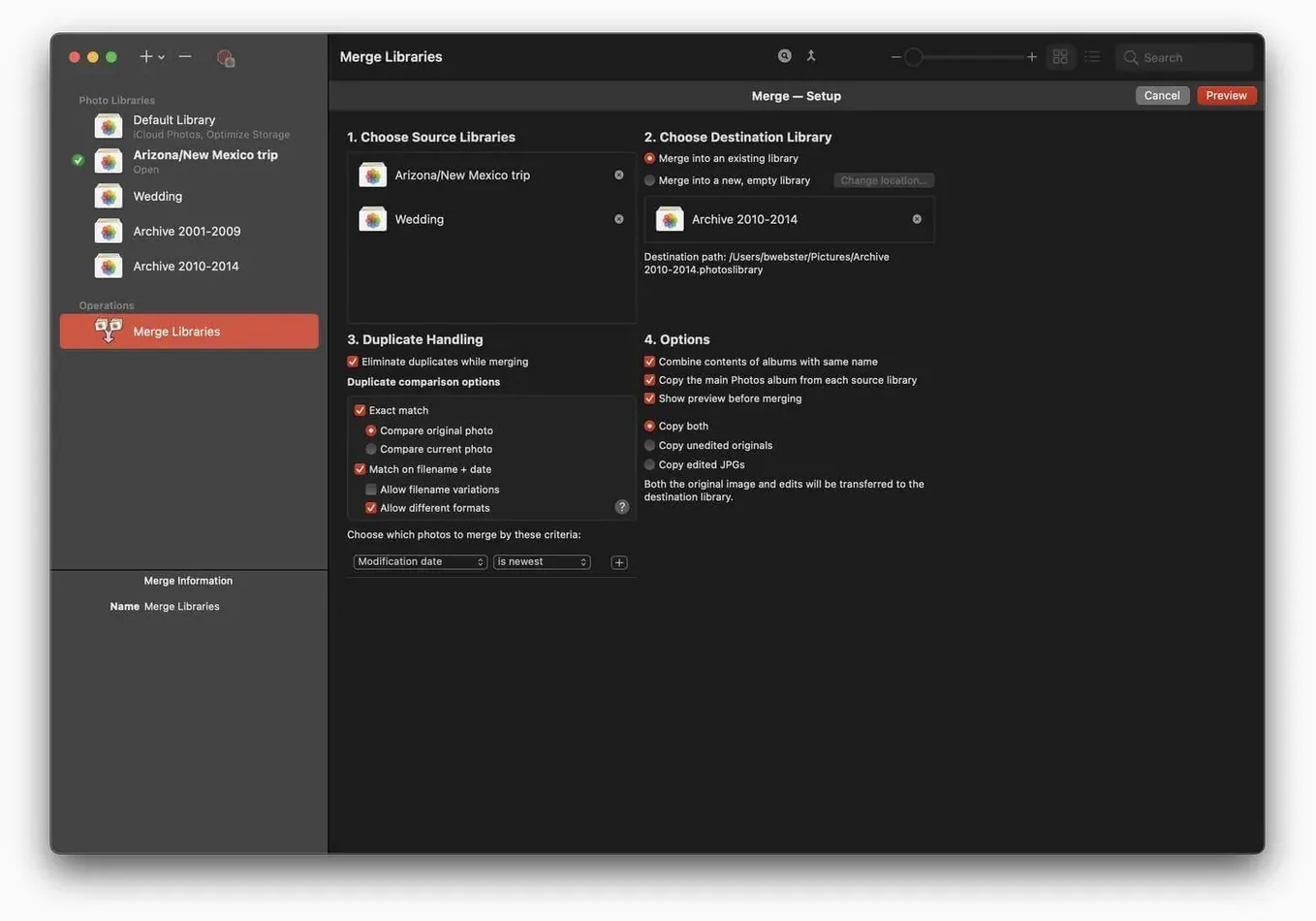
- Duplicate matching mode. Open Preferences and look at the duplicate options. The default is a filename and date match, which is safe but misses visually identical exports that got renamed. Switch to a perceptual hash or "Exact Match" if you've re-exported shots from Lightroom — it catches way more garbage.
- Trash behavior. By default, deleting duplicates sends them to a "Recently Deleted" album inside the library, not the Finder Trash. That's safer for undoing mistakes, but if you're confident, change it to permanent deletion and reclaim space immediately. Nothing worse than cleaning a library and still seeing the same storage number in iCloud.
- Library backup location. PowerPhotos can create a clone of a library before any destructive merge or duplicate purge. Set a dedicated folder on an external drive for these snapshots — don't let them pile up in your Documents folder alongside video scratch and cache files.
Drag a Full-Resolution File Straight to Your Timeline
You can drag a photo from the browser straight to the desktop or into a Final Cut Pro timeline without ever opening Photos. It extracts the full-resolution file behind the scenes — no export dialog, no waiting on a library to mount. I use this constantly when pulling B-roll stills into a project.
Right-click any library in the sidebar and choose "Reveal in Finder." Sounds trivial, but if you're managing six libraries across two externals and an archive volume, that one click saves a dozen Finder dives a week.
Hold Option while clicking the Duplicates button and PowerPhotos compares between two selected libraries instead of within one. That's how you catch the same wedding album scattered across a work library and a personal one — a scenario that happens more than anyone admits.
And a tiny thing: the library list supports emoji in names. Sounds silly, but a 📁 for archives, 🔴 for active, and ✅ for cleaned libraries makes the sidebar scannable at a glance. When you're switching between projects and personal sets, every visual cue helps.
- macOS 14 or later
- Apple Silicon or Intel Mac
- Works alongside Apple Photos
Questions I actually get
Can PowerPhotos copy photos between libraries?
Yes. You can browse photos directly inside PowerPhotos and drag them from one library to another, making it easy to split a large library into smaller, organized ones.
How does PowerPhotos handle duplicate photos?
It analyzes a library and presents potential duplicates side by side. You review them and choose which copies to delete, rather than the app deleting anything automatically.
Does PowerPhotos work on Apple Silicon Macs?
Yes, it runs natively on both Intel and Apple Silicon Macs and requires macOS 14 or later.
Notes from the edit bay · 0
Sign in or get an edit-bay pass to leave a note.
No notes from the edit bay yet. They go up after I read them.