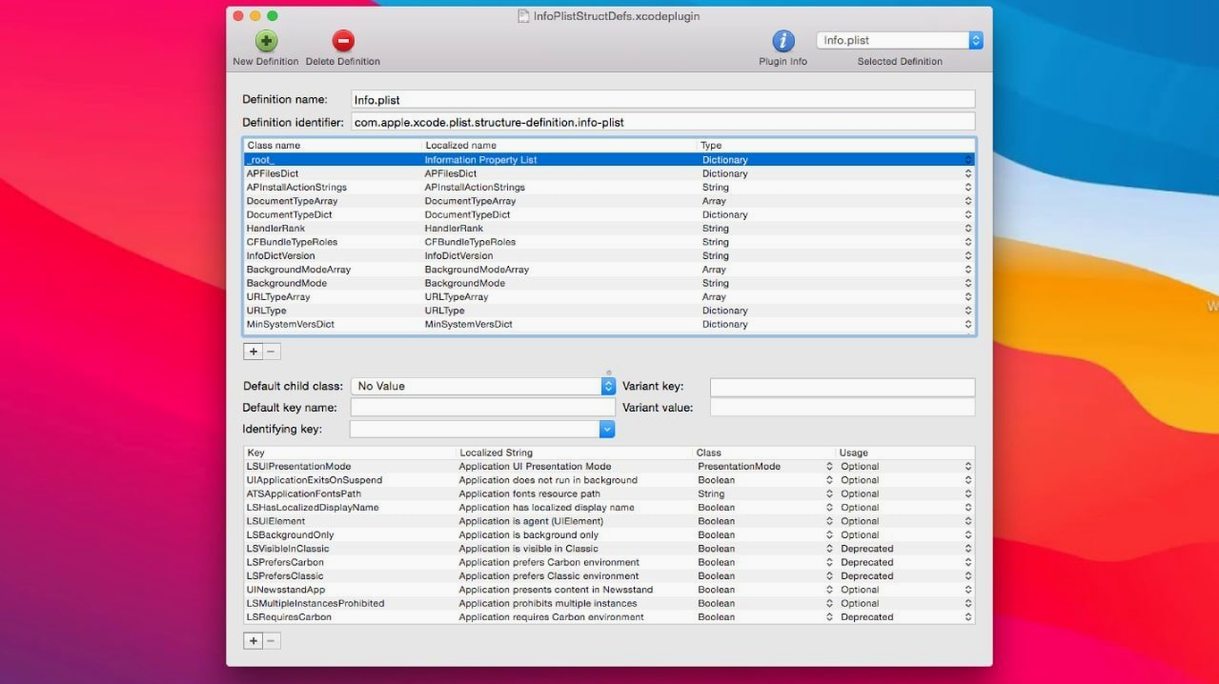
The preferences browser is where I live most days. Instead of digging through ~/Library blind, you get a structured tree of every preference domain on your Mac. Click one, and the plist opens for editing — no hunting for the file path, no accidental damage to the wrong thing.
Here's how a typical tweak session flows:
- Open the browser. Hit Command-Option-B and the whole domain list appears. Scroll or type to filter — keyboard navigation works the whole way down.
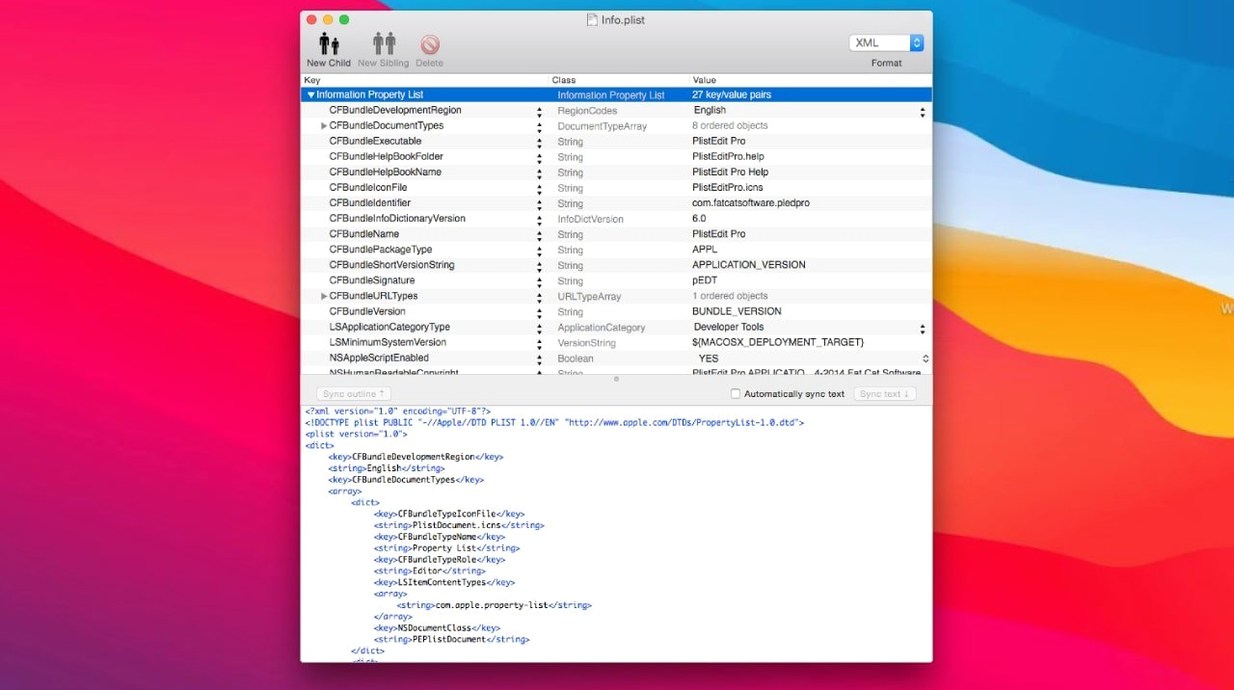
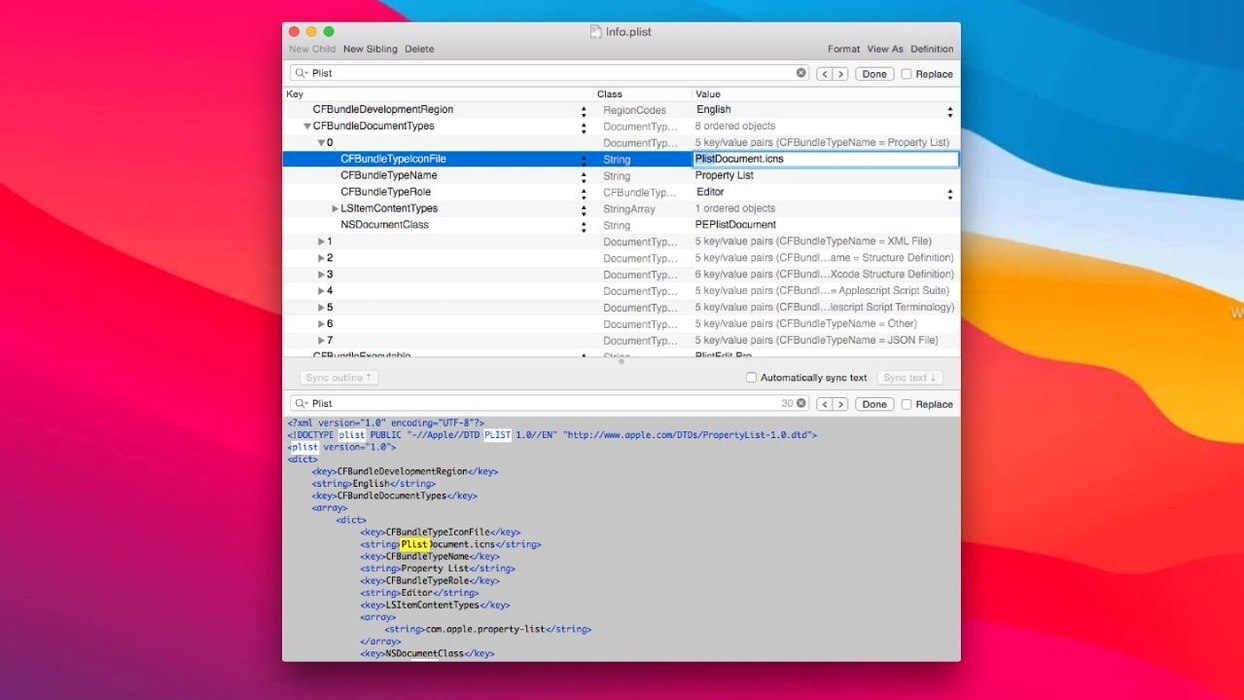
- Pick your view. The outline view breaks keys and values into a collapsible hierarchy. If you need to see raw XML, switch to plain text mode. JSON files get the same dual-view treatment, which saves me from opening yet another app.
- Make your changes. Structure definitions mean standard plist keys show their expected value types — booleans get checkboxes, arrays show proper child types. Copy and paste entire subtrees between files. Multi-level undo has your back when an edit goes sideways.
- Automate the repeat stuff. AppleScript support means you can script bulk changes across preference files. Not something I do daily, but when a fleet of Macs needs the same hidden setting, it's the difference between ten minutes and an afternoon.
Plenty of people already have a text editor and a diff tool they trust. PlistEdit Pro doesn't try to replace those — it slots in between them, handling the structured editing they fumble with. I keep BBEdit open for scripts and raw text, but the moment a plist or JSON file needs actual data manipulation, I switch over. The clipboard integration means I can copy a subtree here, paste it there, and never worry about breaking XML syntax with a stray bracket.
The pledit command-line tool ties it into shell workflows cleanly. Need to open a specific key in a launch daemon plist from Terminal? pledit /path/to/file.plist launches the GUI with that file ready. It's not a replacement for defaults — it's for when you need visual navigation instead of squinting at defaults read output. I've strung it together with find and grep more than once to track down which preference file holds a rogue setting.
AppleScript hooks let the app talk to Automator and Shortcuts. If you maintain Macs for a team, you can build a droplet that opens a batch of plists, applies the same structure definition filter, and leaves them open for review. Not glamorous, but when IT asks for a consistent Safari homepage across twenty machines, you'll be done before coffee.
The preferences browser integrates with macOS at a level most tools ignore. It reads the same domains defaults does, so the lists match. You can spot user-level versus system-level domains at a glance, and editing a managed preference shows the correct nesting without flattening it into dotted keys. That matters when you're debugging a configuration profile that nested a dict three levels deep.
Start by Browsing Finder, Dock, and Safari in the Preferences Browser
Don't try to learn every feature at once. PlistEdit Pro rewards a focused start.
Day one: open the preferences browser and just browse. Click through domains you recognize — com.apple.finder, com.apple.dock, com.apple.safari. Watch how the outline view presents nested dictionaries versus arrays. Change a boolean, undo it, change it back. Get comfortable with the value-type indicators so you stop guessing whether a key wants a string or a number.
Day two: load a JSON file you already understand. Maybe a package.json from a web project or a VS Code settings file. Switch between outline and plain text views a few times. Try find and replace — the scoping options let you search just keys, just values, or both, which keeps you from accidentally renaming a value that happens to match a key name.
Day three: pick a real task. Duplicate a Safari plist, open the copy, and modify a subtree. Use drag-and-drop to reorder array items. Copy a subsection and paste it into a text document to see the XML representation. By day three, the keyboard shortcuts should be settling into muscle memory — Tab to move between key and value, Space to toggle booleans, Return to edit inline.
Hold off on AppleScript until you know what repetitive task actually hurts. The automation makes sense when the pain is clear, not before.
A developer's morning fix
Here's something I've seen play out more than once. An iOS developer launches Xcode, opens a project, and gets a build error pointing to a malformed Info.plist. The key that worked yesterday now throws a type mismatch — turns out a merge conflict left a string where an array belongs.
Opening that plist in Xcode's built-in editor shows the raw XML, but navigating a 400-line file to find one wrong type is tedious. They drag it into PlistEdit Pro instead. The outline view immediately flags the problem: the key expecting an array shows a string child. A right-click changes the type, structure definitions suggest valid children, and the value gets corrected in under a minute. Build succeeds. Morning saved.
The same developer later needs to check why a user default isn't sticking. They open the preferences browser, filter to the app's bundle ID, and spot the key — it's in the wrong domain entirely, probably left over from a testing build. They copy the subtree, paste it into the correct plist, delete the stale entry, and push the fix. No grep, no guessing file paths, no corrupting an XML structure by hand.
Can It Edit JSON Without Schema Validation or Linting?
Does it handle JSON as well as a dedicated JSON editor? For most workflows, yes. It won't do schema validation or linting, but it parses nested objects and arrays cleanly, presents them in the same outline view, and lets you switch to raw text for copy-paste operations. If you're editing JSON configurations or API responses, it does the job without adding another app to your dock. If you need schema-based validation, pair it with a command-line linter — the pledit tool makes that handoff painless.
Can I break something system-wide by editing the wrong plist? You can, but the app doesn't make it easy by accident. The preferences browser clearly separates user domains from system domains. Multi-level undo works across sessions for files you haven't closed. And the structure definitions steer you toward valid value types — you won't accidentally set a boolean where macOS expects a dictionary. That said, I'd still back up anything in /System/Library before touching it. The app is a tool, not a safety net.
What's the real difference between this and Xcode's plist editor? Xcode edits plists fine, but only inside a project context. PlistEdit Pro doesn't care where the file lives — it opens standalone plists, JSON files, and preference domains with equal comfort. The find-and-replace scoping, folder-wide search, drag-and-drop restructuring, and AppleScript support go beyond anything Xcode offers for plist work. It's the difference between a utility that ships with an IDE and a tool built for one purpose.
Is the command-line tool worth learning? If you ever touch plists outside the GUI, yes. pledit isn't a full automation suite — it's a launcher that opens files in the app, optionally targeting a specific key path. But combined with shell scripting, it bridges the gap between Terminal and visual editing better than any open -a invocation ever could.
The editor itself stays out of your way. No panels fighting for dock space. Just a focused tool that understands the data it's handling.
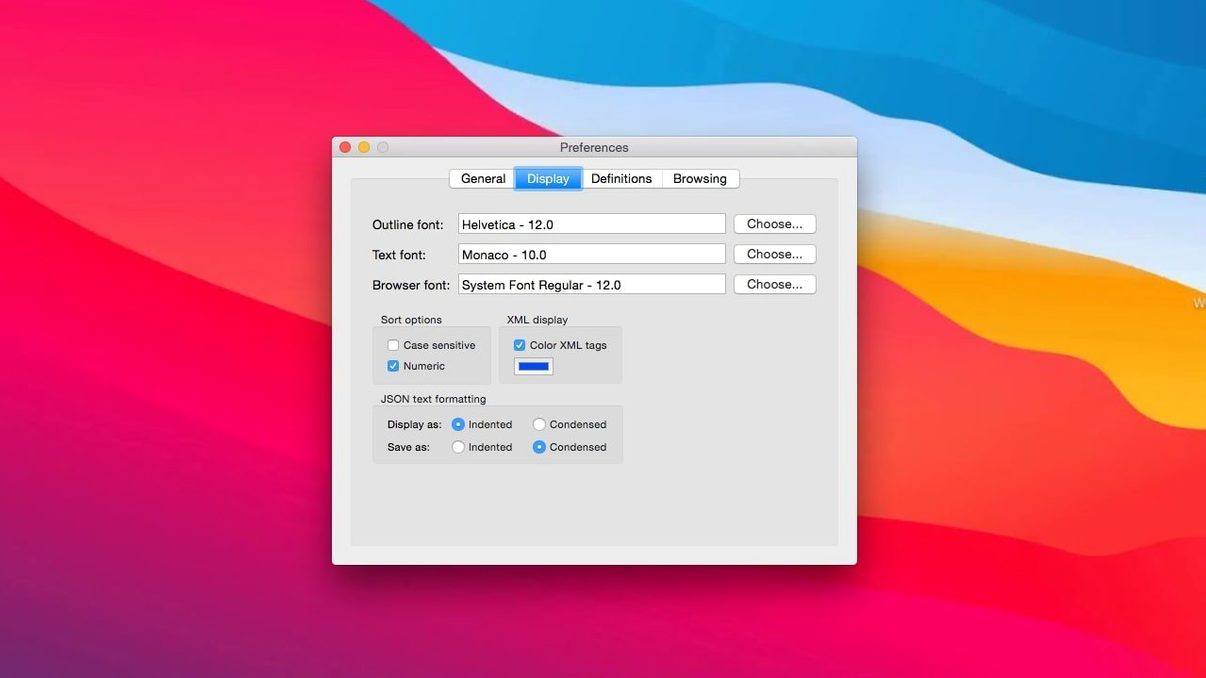
The preferences browser options got a tidy-up. Checkboxes that used to clutter the window now live in a toolbar menu, and the 'Ask to revert when file changes on disk' setting shrank into a compact popover. Also fixed: UI elements updated for macOS Tahoe compatibility.
- macOS 14 or later
- Apple Silicon or Intel Mac
Questions I actually get
Does PlistEdit Pro handle JSON files too?
Yes, it supports editing JSON files in the same outline or plain text views it offers for property lists, with full copy and paste between formats.
Notes from the edit bay · 0
Sign in or get an edit-bay pass to leave a note.
No notes from the edit bay yet. They go up after I read them.