
You need a bottle opener for a render, so you pull a cylinder, slice the top, and boolean out the mouth in three moves instead of hunting through a timeline. That’s the Plasticity pitch.
Direct modeling — Push and pull geometry on the fly. No history tree to break when you change your mind.
Solid and surface toolkit — Precise fillets, watertight booleans, and the surface control that comes with the Studio tier for PolySplines conversion and expanded CAD translation.
Apple Silicon native — Built for the Macs most editors and artists carry now, back to macOS 10.14.
SVG line output — The Export Hidden Line command in the 2026.1 cycle spits out clean technical drawings without a separate app.
Updates land the old-fashioned way: you download and install them manually. The interface switches between Russian, English, German, Spanish, Italian, Traditional Chinese, Simplified Chinese, and Japanese.
A Morning With an Industrial Designer
A freelancer prototyping a handheld medical scanner opens Plasticity at 8 a.m. The client sent a rough sketch last night, and the first SLA print needs to ship by noon. She blocks out the grip with a few extrusions, dials in a live dimension for the finger rest, and watches the geometry update instantly. A boolean cut carves the sensor housing. Twenty minutes in, the base form reads correctly. She exports an STL, slices it, and starts the print before her second coffee. No sketches, no constraints, no timeline to babysit — just the shape evolving under her hands.
Later that afternoon she pulls the same file back up, adds a few fillets to soften the parting line, and runs Export Hidden Line for a clean SVG to drop into the presentation deck. One file, two outputs, no round-tripping through a separate drawing app.
Switch Navigation Style Before Your First Model
Out of the box Plasticity works, but a few tweaks make the first hours feel less like wrestling and more like modeling. Head to the preferences before you build anything serious.
Navigation style. Switch from the default to something your muscle memory already knows — SolidWorks, Blender, or Rhino camera modes are all in there. If you spend half your day in Fusion 360, pick the matching preset and stop fighting the orbit direction.
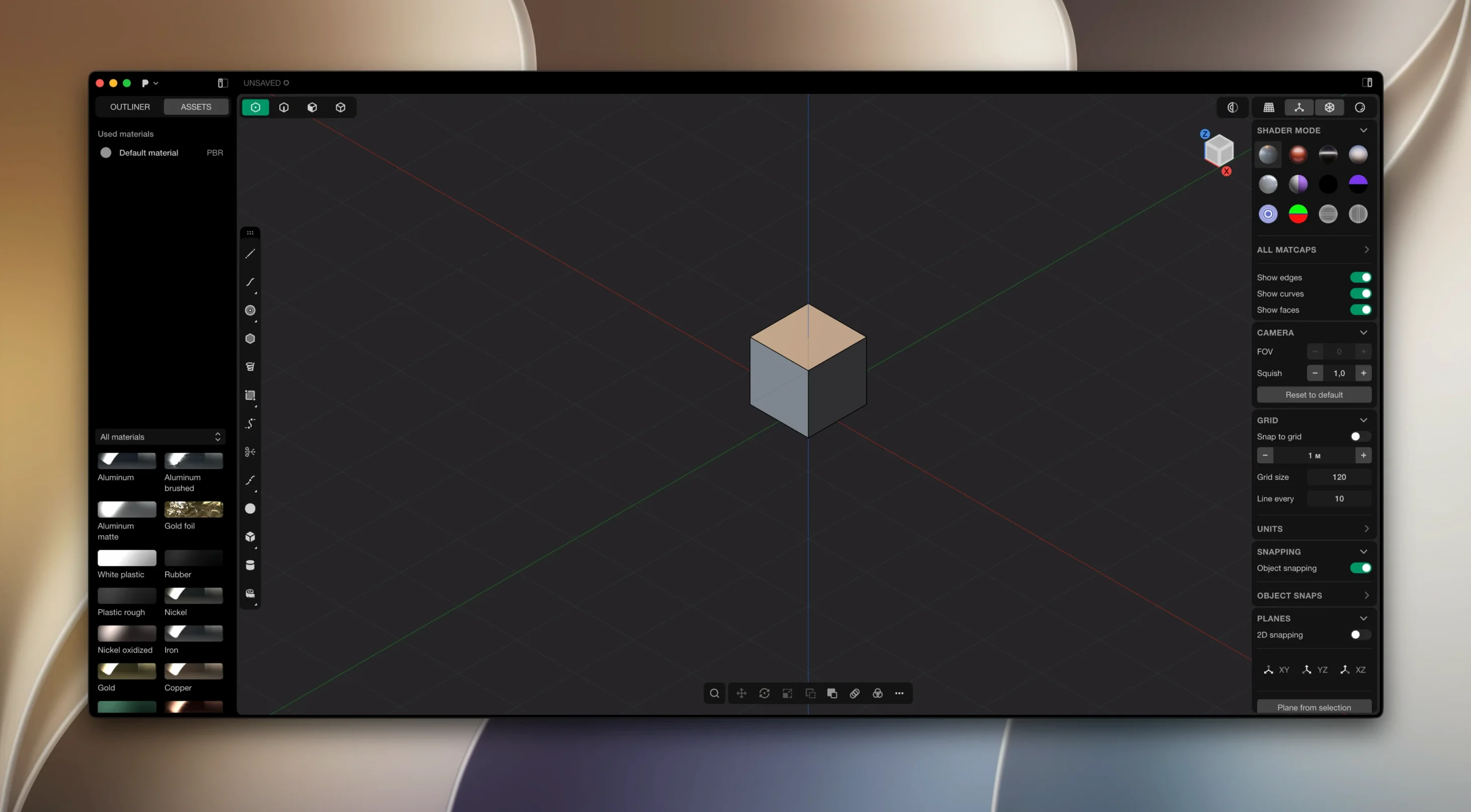
Units and grid. Set millimeters or inches immediately. The grid spacing defaults to something too coarse for product work. Drop it to 1 mm or 0.5 mm and turn off "snap to grid" unless you actually need it. Most direct modelers work cleaner with snap-to-geometry only.
Theme. The dark UI ships as standard. Light mode sits in the same panel for bright rooms. Pick one, then ignore it for six months.
Auto-save interval. Default is conservative. Push it to 5 minutes. Plasticity crashes are rare on Apple Silicon, but a fast-save habit costs nothing.
Command Search Over Toolbar, Live Dimensions as You Drag
Learn the G key. It brings up a command search that works like Spotlight. You can type "fillet" or "boolean" faster than you can find the icon. Treat the toolbar as a backup, not the primary interface.
Live dimensions are your friend. Click a face, press D, and pull a dimension line. Click the number, type a value, and the geometry follows. This replaces about half the sketch constraints you would build in a history-based CAD tool, but it happens after the shape exists, not before.
Booleans don't fail quietly. If a union or subtract acts strange, check for coincident faces. Offset one body by 0.001 mm. The Parasolid kernel wants a tiny gap to do clean math. This single habit prevents most early frustration.
Fillet order matters. Run the big fillets first, then the small ones. A 0.5 mm edge blend can fail if the surrounding 5 mm round hasn't been applied yet. Undo and reorder if the preview flickers.
Studio features wait until you need them. PolySplines conversion and the expanded CAD translators sit in the Studio tier. If you are blocking out forms for rendering or 3D printing, you won't touch them on day one. They matter when a client sends a STEP file with surface data that needs rework, or when you want to convert SubD cage meshes into proper NURBS patches.
Blank Screen to Watertight STL at Prototyping Speed
Industrial designers doing quick-turn prototyping. The speed from blank screen to watertight STL beats any history-based modeler. When the deliverable is a physical print, not a parametric family of parts, the direct approach wins.
3D artists who need hard-surface models with clean topology. SubD modelers can fight edge flow for hours on a mechanical part. Plasticity's booleans and fillets produce the same shapes in minutes, and the mesh export settings give you quad-dominant output that subdivisions handle well.
Engineers who already use SolidWorks or Fusion for documentation but want a fast concepting tool. Block out the form in Plasticity, then import the STEP file into the main CAD package for drawings and BOMs. The two apps coexist without friction.
Mac users who felt ignored by the CAD world. Plasticity runs native on Apple Silicon. No Windows VM, no cloud streaming, no Rosetta translation. The interface respects macOS conventions enough that keyboard shortcuts feel familiar, and the render viewport stays fluid on an M1 MacBook Air.
- macOS 10.14 or later
- Apple Silicon native
Questions I actually get
What’s the difference between Plasticity and the Studio version?
Studio adds advanced surface modeling, PolySplines conversion, broader CAD format translation, and a commercial production license.
Does Plasticity update itself automatically?
No, its documentation states updates must be downloaded and installed by hand each time.
Notes from the edit bay · 0
Sign in or get an edit-bay pass to leave a note.
No notes from the edit bay yet. They go up after I read them.