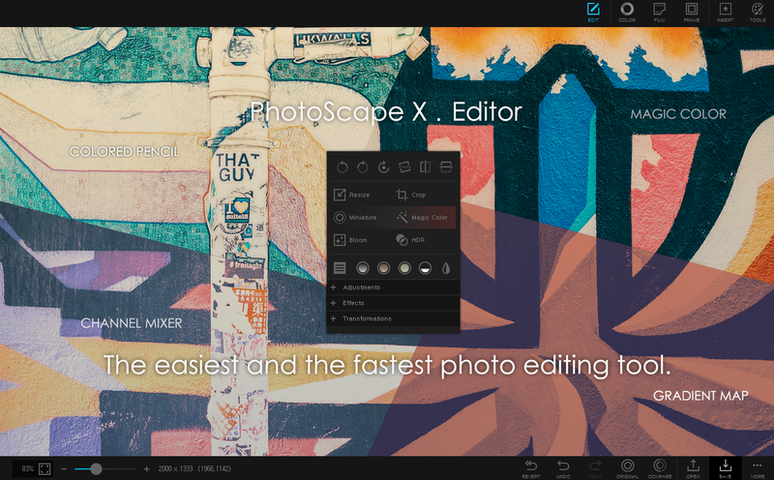
The Magic Eraser isn't a standalone tool — it lives inside a full editor that also packs lasso and brush cutouts, so you can pull a clean background removal three different ways depending on the edge you're dealing with. What matters before any of that is whether the app launches on your machine at all. PhotoScape X Pro 4.3 requires macOS 13 Ventura and an Apple Silicon chip; there's no Intel build, no Rosetta fallback.
Cut, Merge, Stack
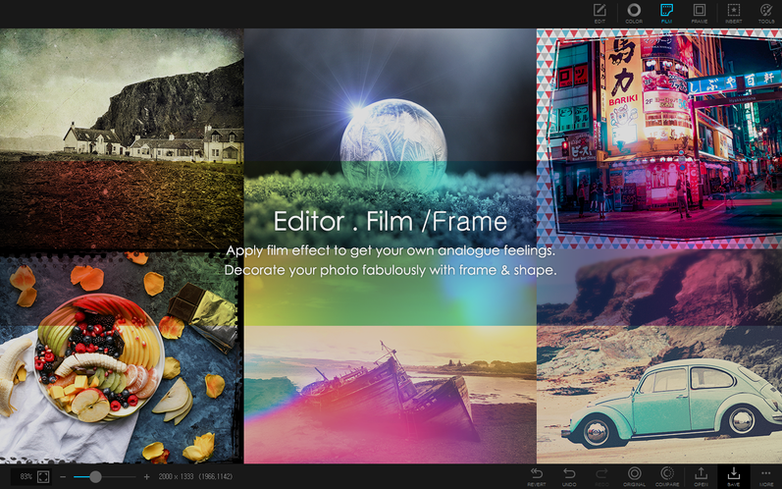
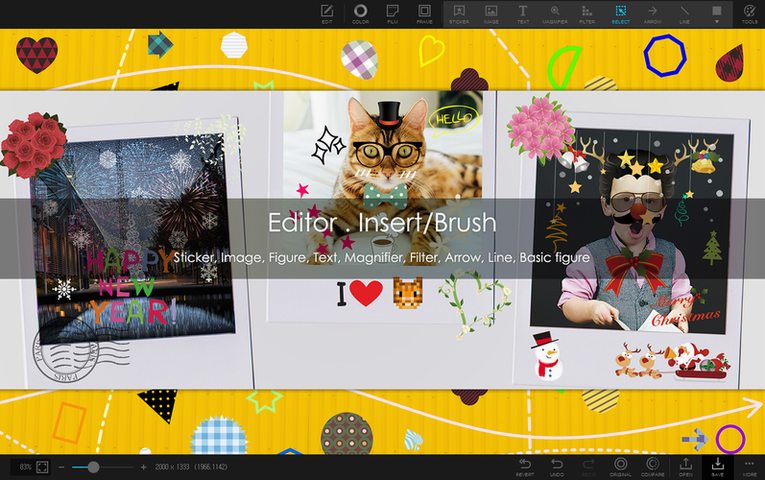
Beyond the cutout tools, the editor stacks over a thousand filters and effects, plus frames and brush overlays. The HDR merge and focus stacking tools pull multiple exposures or focal planes into a single corrected image without sending you to a separate utility.
Batch and Combine
Batch processing handles the repetitive stuff — rename, resize, apply a filter across a folder — while the Combine tool stitches shots vertically or horizontally into one file. Splitting a photo into parts works the same panel, just in reverse.
Browse and Print
The browser handles photos, video, and audio with star ratings, flags, lossless rotation, and a loupe view for checking focus. When you need physical copies, the print module sends layouts straight to paper without bouncing you to another app.
Workflow: Clean Product Shots for a Listing
Let’s say you have a dozen product photos on a white table, lighting’s uneven, and a couple of them need the background stripped entirely. The browsing panel flags the keepers — tap 1 through 5 for star ratings as you arrow-key through the thumbnails. That alone saves a Finder clean-up later.
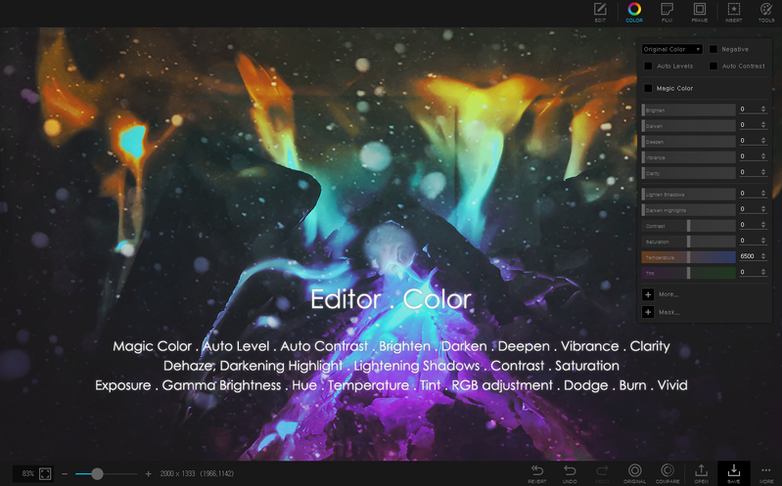
Pick your first shot and hit the Editor tab. The lens correction filter lives under the same filter panel everyone uses for vintage looks, but it’s the real workhorse here: a quick nudge on the distortion slider straightens out that slight barrel curve from the kit lens. Adjust exposure next — the histogram in the corner updates live, so you see when the whites clip before you commit.
For the two shots where the background has to go, the Magic Eraser does the heavy lifting with a single click on the table surface. Switch to the brush cutout mode to clean the edge around the product’s shadow, zooming in with Cmd + scroll. Nobody talks about the feather slider, but pulling it from zero to two pixels softens that hard selection line enough that the result doesn’t scream “cutout.” Export those as PNGs, then batch the rest: select the flagged files in the browser, set a resize to 2000px wide and a mild sharpen in the batch panel, and walk away while it churns through the folder.
Small Conveniences That Stick
The color picker isn’t tucked in a toolbar flyout — it’s a dedicated tool that grabs hex or RGB values from anywhere on screen, not just inside the app. If you’re matching a brand color from a webpage or a Slack message, leave the picker window floating and click outside PhotoScape X’s own window.
In the collage module, dragging a photo between cells swaps them rather than overwriting. Right-click any thumbnail in the browser and “Open in Editor” bypasses whatever tab you’re currently sitting in. The loupe view works in fullscreen mode too — hold the mouse button down over a thumbnail and the magnified preview appears without leaving the grid. For GIF makers, the frame delay field accepts decimal values like 0.07, so you’re not locked into whole-number timing.
Overwriting Originals by Confusing Save vs. Save As
Ignoring the difference between the “Save” and “Save As” dialogs in the editor is the fastest way to overwrite an original. The app doesn’t enforce a safeguard here — if you hit save on a flattened file, the layers are gone. Duplicate the image from the browser before editing, or get religious about “Save As” on the first pass.
Another trap: applying batch operations on a folder that contains RAW files alongside JPEGs. The batch panel processes everything in the selection indiscriminately, so a resize-and-sharpen pipeline that looks great on JPEGs will crush a RAW’s dynamic range if you haven’t developed it first. Filter the browser by file type before you select-all.
And the Magic Eraser’s tolerance slider defaults to a middle value; if you’re removing a background that’s close in tone to the subject, drop it to 15 or lower before clicking. Beginners click at 50, erase part of the subject’s edge, and assume the tool is sloppy — it’s not, the slider just needs a lighter touch for tricky contrast.
Version 4.3 ships as a maintenance fix build, squashing bugs from the previous release. No new feature flags in this one — just a stability pass.
- macOS 13 Ventura or later
- Apple Silicon chip (M1, M2, M3, M4)
Questions I actually get
Does PhotoScape X Pro run on Intel Macs?
No. Version 4.3 is built for Apple Silicon only and requires macOS 13 Ventura or later.
What languages does the interface support?
It ships in 12 languages including English, German, Spanish, French, Japanese, Korean, and both Simplified and Traditional Chinese.
Can I create an animated GIF with it?
Yes. The GIF creator is one of the core modules alongside the editor, collage maker, and batch tools.
Notes from the edit bay · 0
Sign in or get an edit-bay pass to leave a note.
No notes from the edit bay yet. They go up after I read them.