
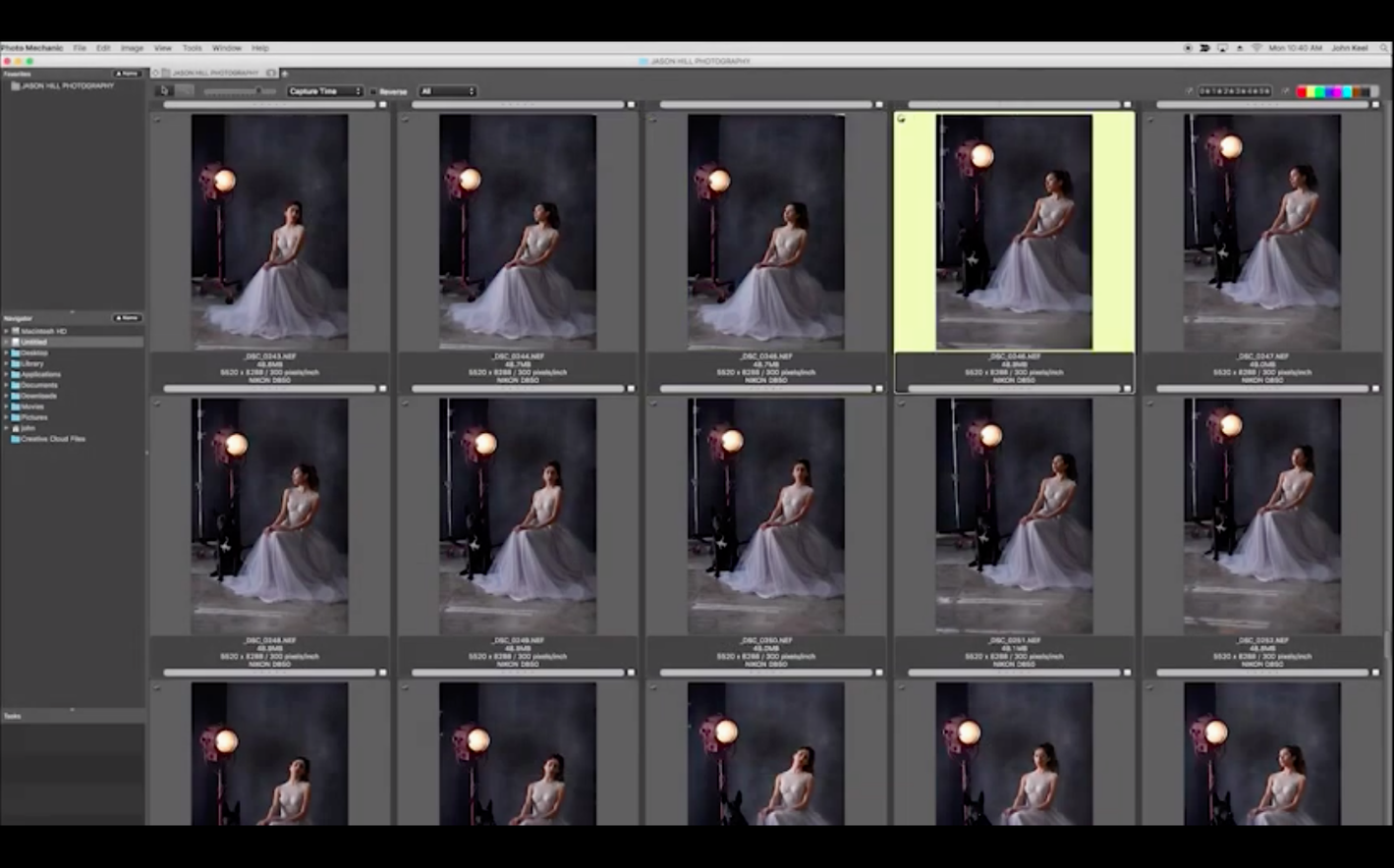
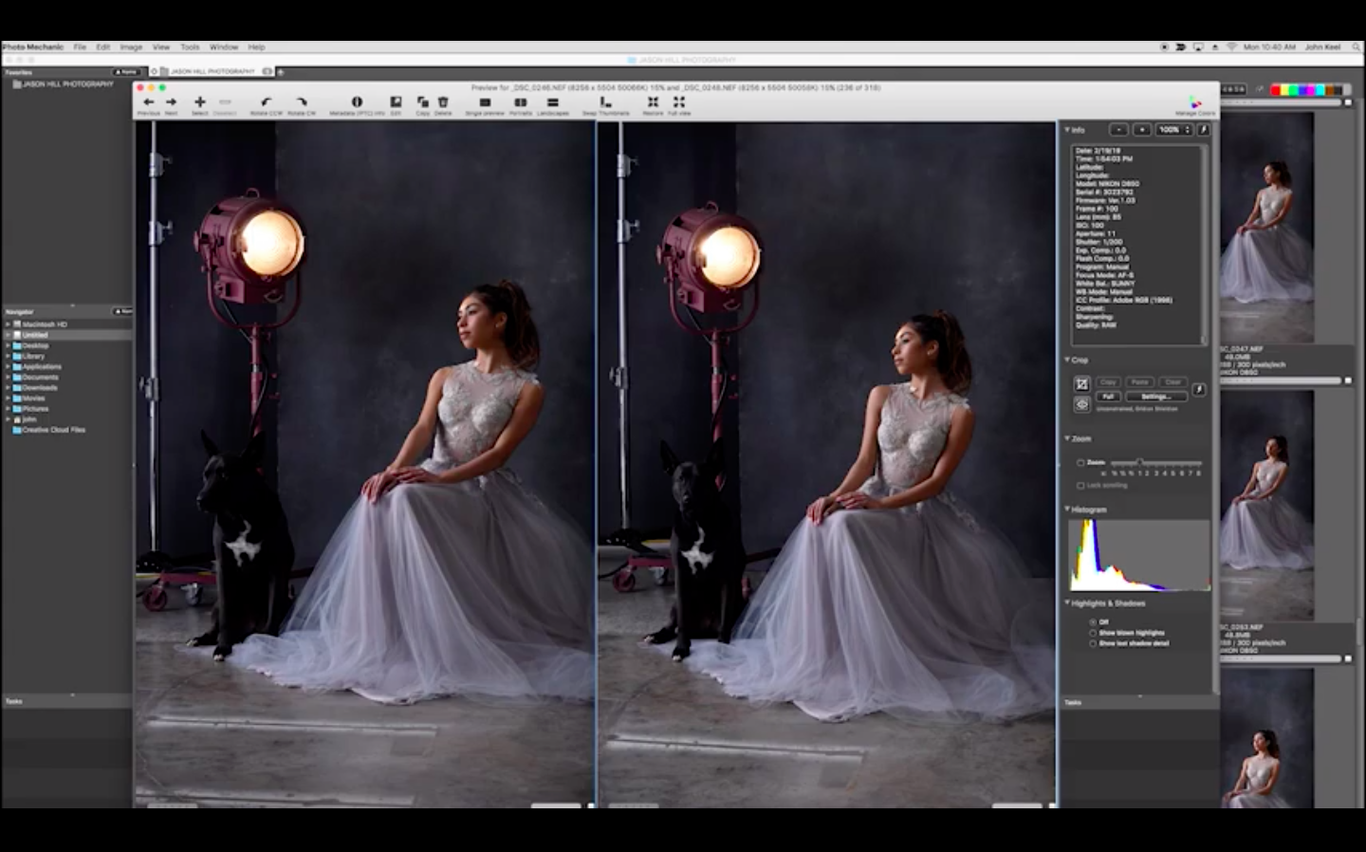
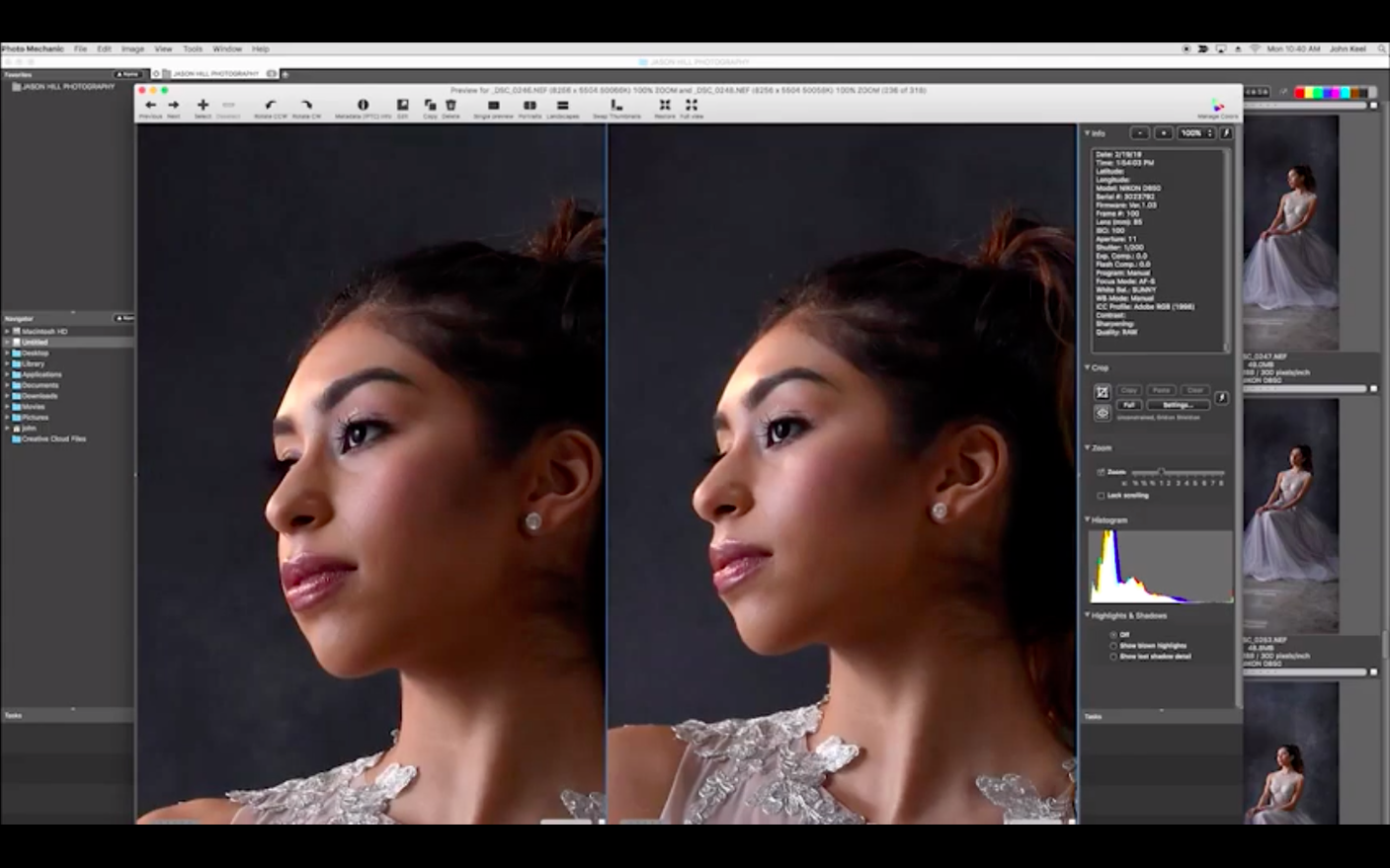
The current build of Photo Mechanic brings full Apple Silicon support, making an already fast browser feel like it's reading your mind. If you're handling card after card of RAW files, that native performance alone changes your ingest workflow. This isn't an editor—it's the tool you use before the edit, where sorting and metadata happen at the speed of keystrokes.
Zero‑Lag Culling Through Thousands of RAWs
- Zero-lag culling. The app renders RAW previews using the embedded JPEG, so you can scroll through thousands of shots without a beach ball. Rate and tag on the fly.
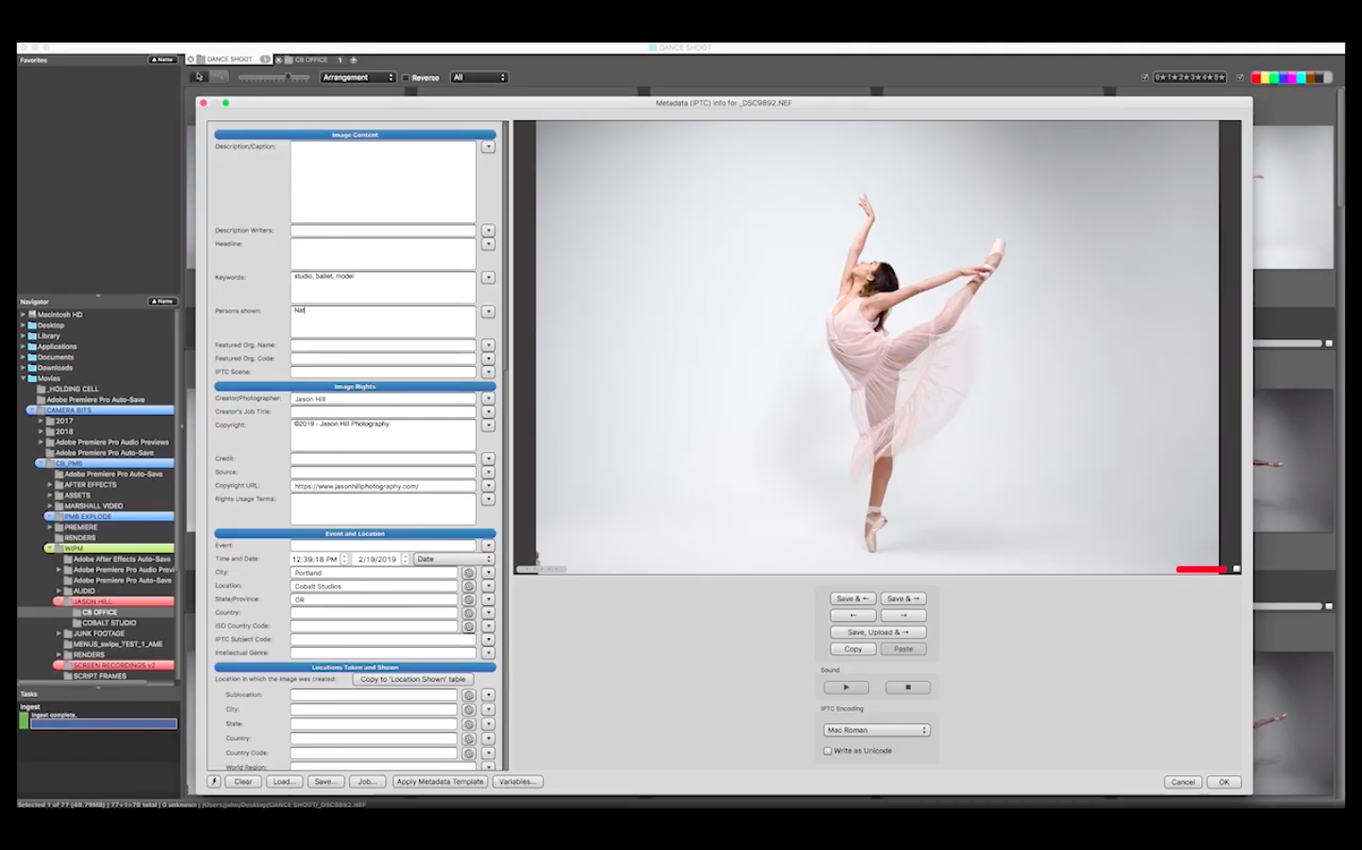
- Batch metadata work. Rename entire folders, apply IPTC templates, and adjust capture times across a shoot in seconds. The variables system lets you build complex renaming strings that actually make sense.
- Technical triage. Check focus mode, lens data, and white balance right in the contact sheet before the files ever land in a catalog or an NLE timeline.
- File delivery prep. Resize images and attach them to an email directly from the contact sheet. You can also burn selections to disc or print contact sheets without opening another app.
It Browsers Files Where They Live—No Managed Library
- Photo Mechanic browses files where they live; it does not create a managed library like Lightroom or Apple Photos.
- It is not a RAW processor or pixel editor—adjustments you make here are strictly metadata and IPTC fields.
- The cataloging features live in the separate Photo Mechanic Plus application, not in this release.
Small Touches You’ll Kick Yourself for Missing
Photo Mechanic buries a handful of shortcuts that feel like cheat codes once you know them. The Snapshot button next to the keyword field doesn’t just save a list of keywords—it saves the entire state of the IPTC Stationery Pad, including contact info, location fields, and rights usage terms. Tap it before a location shoot, and you’re back to that exact metadata template with one click for the rest of the day.
The Live Slideshow is hiding in plain sight under the View menu, and it’s not the static presentation tool the name suggests. Fire it up during a client review and you can still apply ratings and color classes with the keyboard while images advance automatically. Clients see a clean, full-screen feed; you see the metadata piling up behind the scenes. Hit Cmd+Shift+U to toggle the slideshow toolbar for interval control without breaking the flow.
Contact sheet tabs are more capable than they look. Drag a tab off the window and it becomes its own independent contact sheet. Need to cross-reference two folders? Open both, tear one off, and arrange the windows side by side. The Tab key jumps between the IPTC fields in the order you actually use them, and you can customize that order in Preferences under Accessibility—put the fields you fill first at the top of the rotation.
Friction Points and How to Smooth Them Out
The most common head-scratcher is the missing thumbnail for a RAW file you know is fine. Photo Mechanic leans on the camera’s embedded JPEG preview, and if that preview is tiny or missing—hello, some medium-format backs and oddball RAW variants—you’ll see a generic icon instead. The fix is in Preferences under Render Cache: bump the RAW rendering to use the Adobe DNG Converter path if you have it installed, or switch to Apple’s Core Image RAW for broader format support. Neither is a perfect silver bullet, but one usually gets the job done for your particular camera.
Another classic stumble: you apply an IPTC template to a batch, watch the progress bar zip by, then open the files elsewhere and find blank fields. Nine times out of ten, the template’s “Apply to” checkboxes at the bottom of the Stationery Pad aren’t ticked for the specific fields you thought you were filling. The dialog shows filled-in text regardless of whether the corresponding checkbox is active, which is a design choice that bites newcomers regularly. Open the Stationery Pad with Cmd+I, glance at the checkboxes before you hit OK, and the problem disappears.
GPS import trips people up when they drag a GPX file onto a contact sheet and nothing happens. You need to select the images first, then apply the GPX data via the Import GPS Coordinates command under the Image menu—or set a time offset in the dialog that opens, because your camera’s clock is probably off by a few minutes relative to the GPS logger. The offset field accepts negative values, which is easy to overlook.
Kill the Delete Confirmation Dialog First
Out of the box, Photo Mechanic assumes you want a confirmation dialog every time you delete an image. That’s fine for day one, but by day three it’s a speed bump. Head to Preferences > General and switch “When deleting files” to Send to Trash silently. If you’re culling thousands of frames, the confirmation dialog adds minutes to your session that you’ll never get back.
The Preview background color defaults to a medium gray that doesn’t do you any favors when you’re judging shadow detail. Set it to white or near-black in Preferences > Preview, depending on whether you’re editing for screen or print. The shortcut Shift+W toggles through backgrounds on the fly, but the default set starts with gray—swap it so your first tap lands on the background you actually use.
Turn on “Synchronize single-click selection in Contact Sheet” in the Preview preferences. Without it, clicking a thumbnail in the contact sheet doesn’t update the Preview window if it’s already open on a secondary display—you have to double-click every time. With it enabled, your Preview window becomes a live loupe that tracks whatever you highlight, which is how the app should have shipped.
Bridge Wants to Be a Hub; This Ignores That Entirely
Put Photo Mechanic next to Adobe Bridge and the philosophical gap is immediate. Bridge wants to be a hub—it talks to every Adobe app, builds previews slowly but thoroughly, and nudges you toward a Creative Cloud-shaped workflow. Photo Mechanic doesn’t care what you do with the files afterward. It ingests cards and renders contact sheets so fast that Bridge feels like it’s wading through molasses on the same folder of a thousand RAWs. Bridge can open a RAW in Camera Raw directly, but for pure triage speed, Photo Mechanic runs laps around it.
XnView MP covers similar browsing ground and throws in basic editing tools that Photo Mechanic deliberately avoids. It’s a Swiss Army knife for image formats—handles obscure file types well and runs on three platforms. But its IPTC support is shallower, the variable-based renaming isn’t as flexible, and the interface feels like a port rather than a native Mac app. If you need to open a 15-year-old camera’s proprietary RAW just to see what’s there, XnView MP has the edge. If you need to deliver a shoot with structured metadata to an editor in the next twenty minutes, Photo Mechanic is the sharper tool.
Then there’s FastRawViewer, which is the only app here that reads actual RAW data rather than the embedded JPEG preview. That makes it indispensable for checking true exposure and highlight clipping before ingest. FastRawViewer is a technical analysis tool first and a workflow organizer second. Photo Mechanic flips the priority: it’s built to move you from card to sorted, captioned selects as fast as humanly possible. A few working pros run both in sequence—FastRawViewer for the critical exposure check, Photo Mechanic for everything else. For everyone else, the embedded JPEG preview in Photo Mechanic is accurate enough for culling and a whole lot quicker to scroll through.
- macOS 13 or newer
- Apple Silicon Mac
Questions I actually get
Can Photo Mechanic run on Apple Silicon Macs?
Yes, Camera Bits has released an Apple Silicon-native version that runs without Rosetta translation.
What kind of camera data can I view in the app?
You can inspect shooting parameters like lens, camera model, focus mode, white balance, and other EXIF fields directly in the contact sheet.
Does Photo Mechanic edit the pixels in my photos?
No, it works with metadata only—ratings, tags, IPTC fields, and file renaming. It does not adjust exposure, color, or crop images.
Notes from the edit bay · 0
Sign in or get an edit-bay pass to leave a note.
No notes from the edit bay yet. They go up after I read them.