
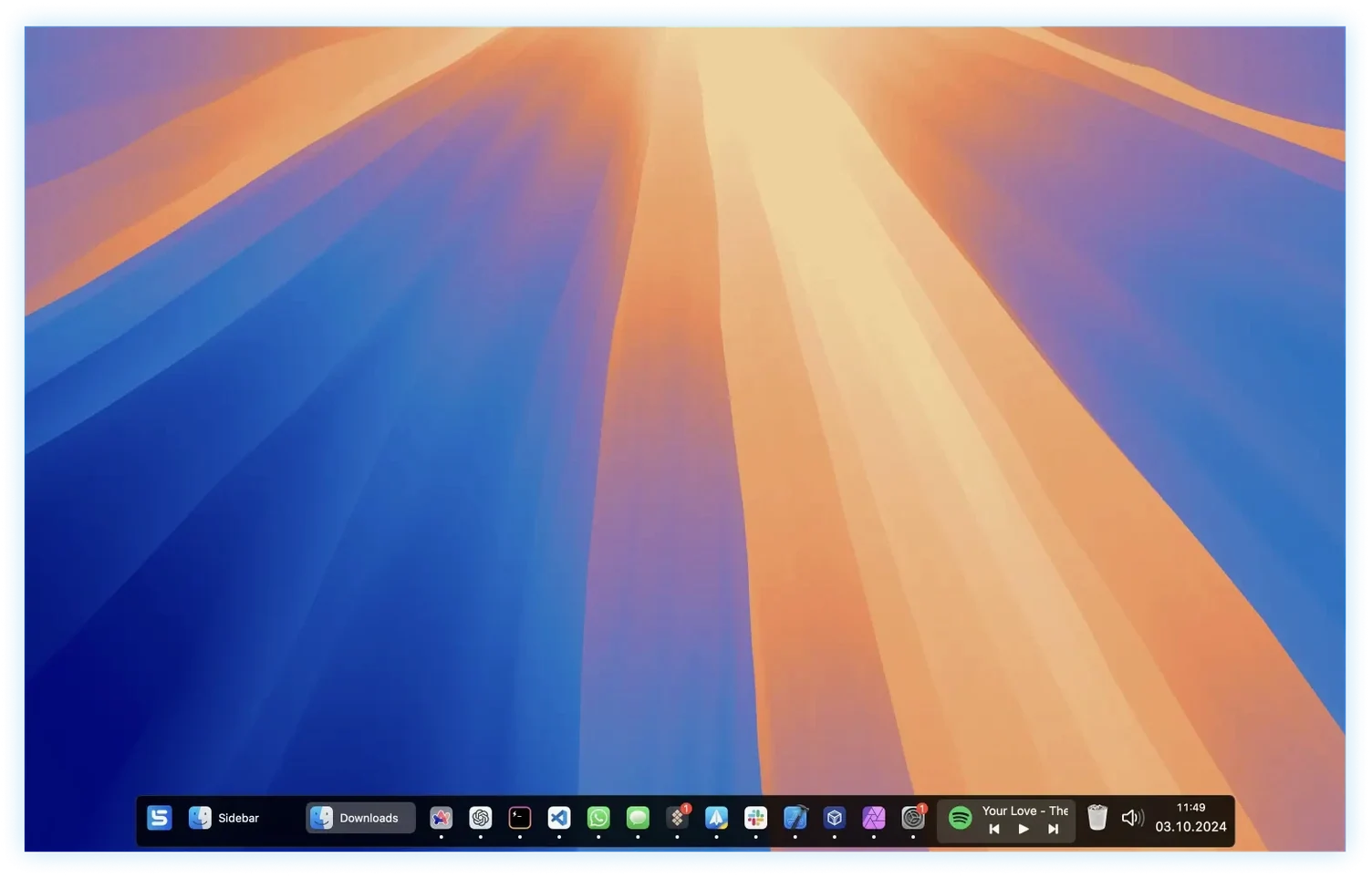
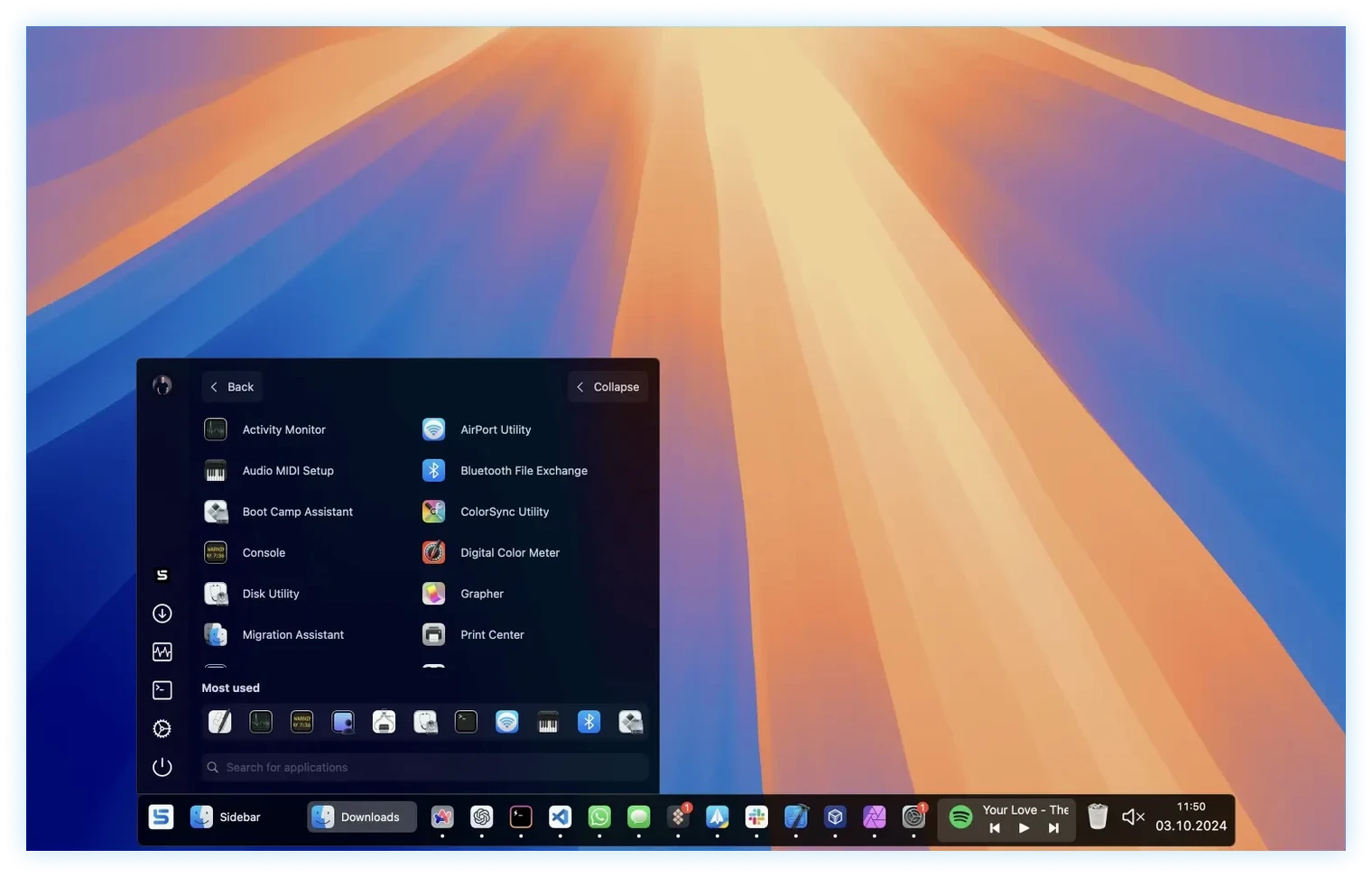
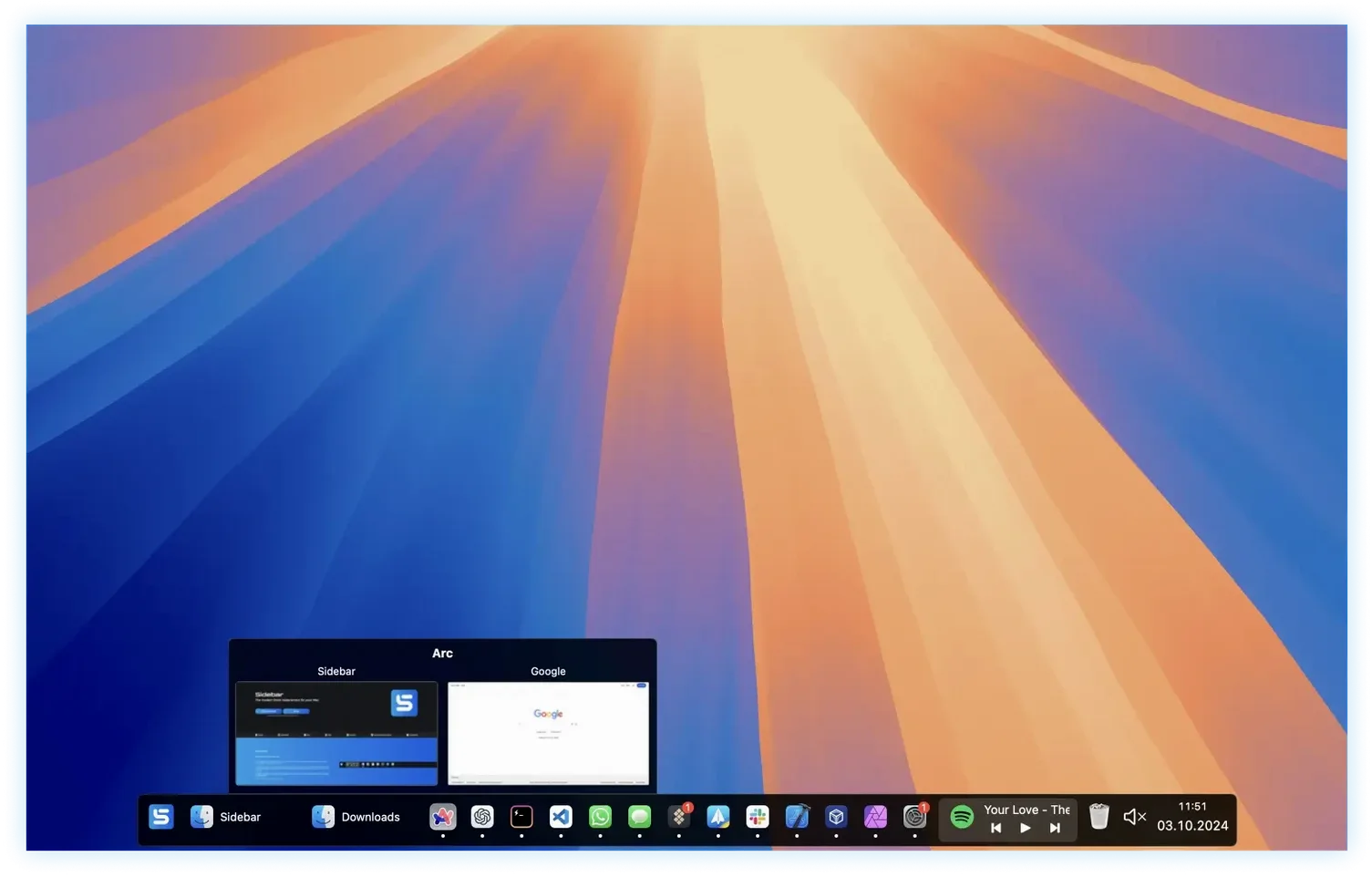
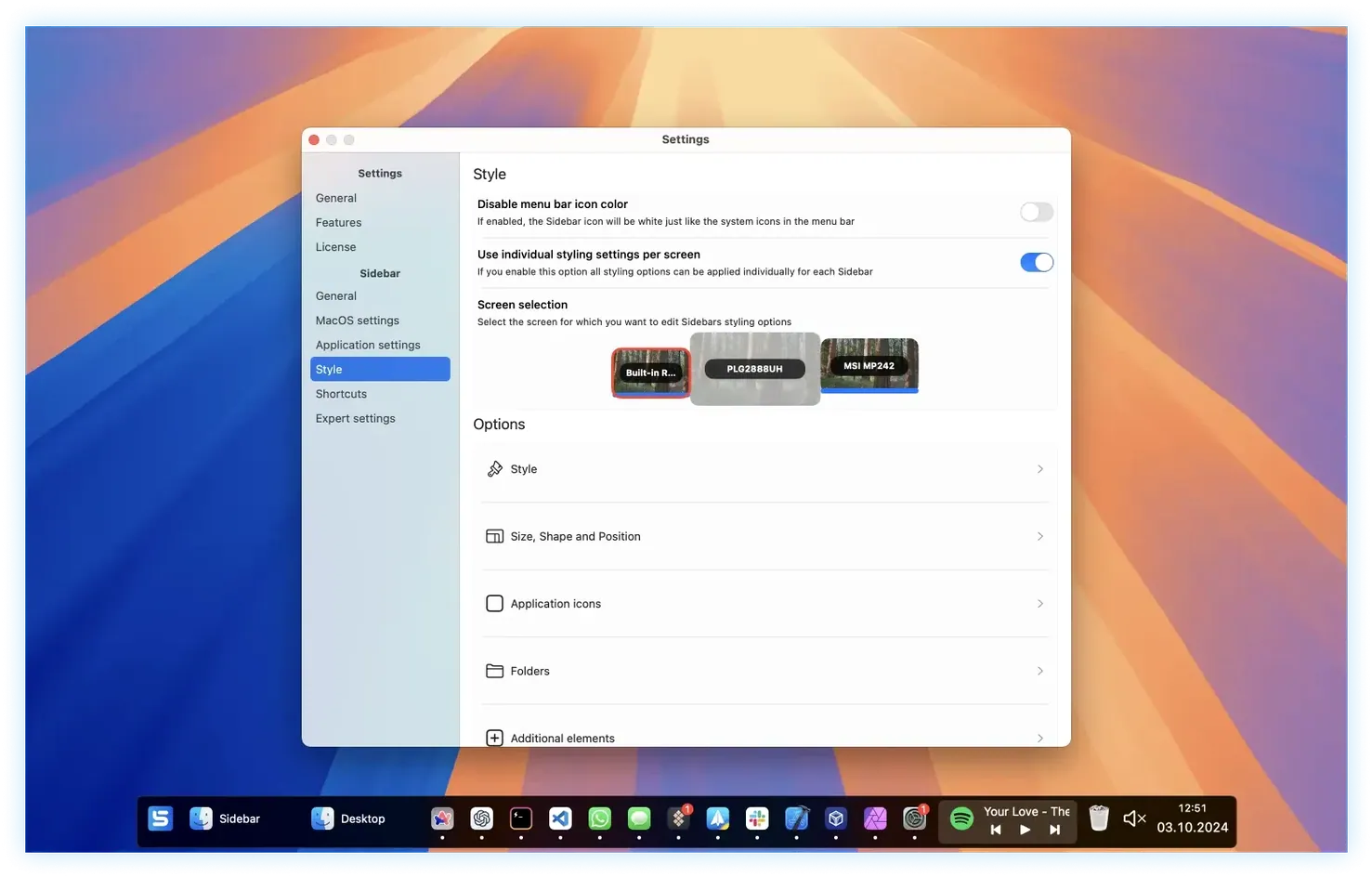
Screen space is the one thing every editor never has enough of. Sidebar 2.2.5 for Mac treats each display as its own workspace. You can add the sidebar to one monitor and leave the other completely clear, or let it span the full width of an ultrawide. It will reserve screen real estate so Final Cut Pro or Logic timelines never slide underneath it, no matter how many windows you throw around.
- Per-screen configuration — set it up on your reference monitor and leave the timeline display untouched.
- Screen reservation that actually holds. App windows bump up against the sidebar edge instead of hiding behind it.
- Quick access to Trash, system volume, and playback controls without reaching for the keyboard.
- Runs natively on both Apple Silicon and older Intel machines, macOS 12 onward.
- Open any app directly from the sidebar, no Dock hunting required.
The version sits at 2.2.5, but the changelog already teases a System Controls widget in 2.2.6. For now, the playback and volume sliders in the current build keep music and call monitoring within one click. If you have ever dragged a window aside just to see the Dock, this is the fix that stays put.
Three Tweaks to Reclaim Your Left Edge
Out of the box, Sidebar grabs the entire left edge of your main screen. That’s a solid default, but three tweaks make it fit tighter into an editor’s day.
First, kill the animation. The sliding reveal looks polished, yet it adds a half-second of lag every time you bump the screen edge with your cursor. Dig into the Appearance tab and switch the reveal style to Instant. Your muscle memory will thank you when you’re scrubbing a timeline at midnight.
Second, set screen reservation per display immediately. On a multi-monitor rig, you probably want the sidebar pinned to your email-and-notes screen while the grading monitor stays completely clean. Uncheck “Reserve screen space” on the monitor where you do color or full-screen playback. Otherwise Premiere’s toolbar will scoot over when you least expect it.
Third, assign a keyboard shortcut for the app launcher. The launcher lives inside Sidebar by default, but a global hotkey means you can summon it even when the sidebar itself is hidden. I map it to ⌥Space. Feels like Spotlight, but it only lists apps and folder stacks — less noise, fewer accidental web searches.
The Real Estate-First Dock Rethink
Sidebar isn’t the only Dock rethink on macOS, but it’s the one that cares about screen real estate. uBar takes a Windows-taskbar approach and lives at the bottom of the screen. It’s fine for window management, yet it doesn’t offer per-monitor setups or edge reservation. If you run three displays, uBar clones itself everywhere with the same layout. Sidebar lets each screen breathe differently.
DockMate is closer in spirit — it adds window previews and controls — but it layers on top of the existing Dock rather than replacing it. You still lose that strip of pixels. Sidebar pulls the Dock out entirely and reclaims the space. For laptop-only users, DockMate’s overlay style might feel lighter. For anyone on an external monitor, Sidebar’s screen reservation is the real win.
The built-in Dock, meanwhile, can auto-hide and that’s about it. No per-display logic, no volume slider, no Trash access unless you’ve pinned it. Sidebar collapses all of that into one strip you actually control.
A Post-Production Scenario
A DIT on a commercial shoot has a MacBook Pro plugged into a 27-inch client monitor and a 5K reference display. The client monitor runs Sidebar along its right edge, set to show folder stacks for the day’s media cards, a volume slider for the tent speakers, and one-click Trash for rejected takes. The reference display has no sidebar at all — pure pixel-for-pixel image.
When the DP asks to see the last three takes back-to-back, the DIT hovers over Resolve in the sidebar, grabs the window preview for the timeline, and drags it to the client screen. No Dock peeking out, no window accidentally spilling onto the reference monitor. Between takes, a quick flick to the sidebar mutes the speakers so the director can give notes without feedback bleed. The whole setup holds because Sidebar reserved its edge — zero window juggling.
- macOS 12 (Monterey) or later
- Works natively on Apple Silicon and Intel 64-bit Macs
Notes from the edit bay · 0
Sign in or get an edit-bay pass to leave a note.
No notes from the edit bay yet. They go up after I read them.