OmniGraffle Pro 7.26 is a native app for both Apple Silicon and Intel processors, but it draws a hard line at macOS 14. If your Mac is running anything older, it won't launch.
Apple Silicon — Runs natively, no Rosetta needed.
Intel — Full support on compatible macOS releases.
macOS 14 minimum — Non-negotiable; the installer rejects earlier versions.
Pro edition — Unlocks advanced layer controls, shared keyboard shortcut sets, and Visio VDX export alongside Photoshop file support.
Workflow fit — Sits between rough whiteboarding and final UI comps. I use it for sitemaps and network rack diagrams where a pixel-perfect app would slow me down.
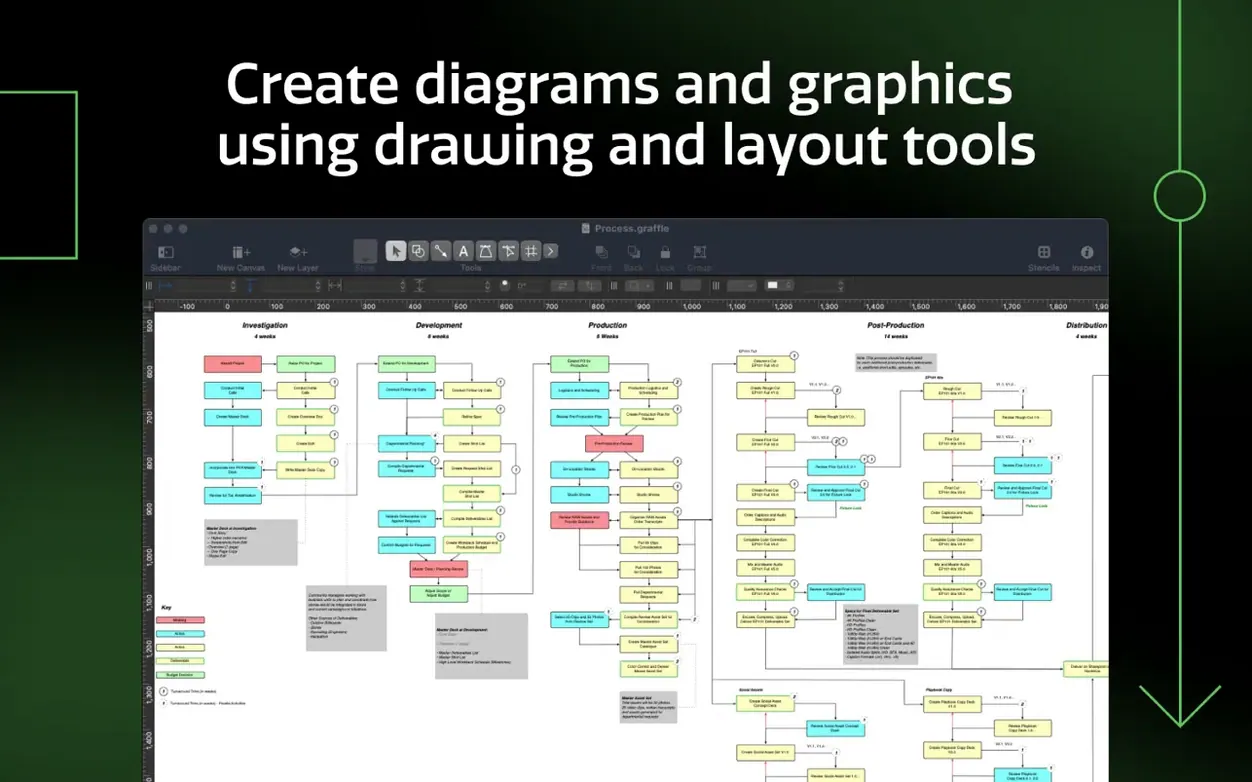
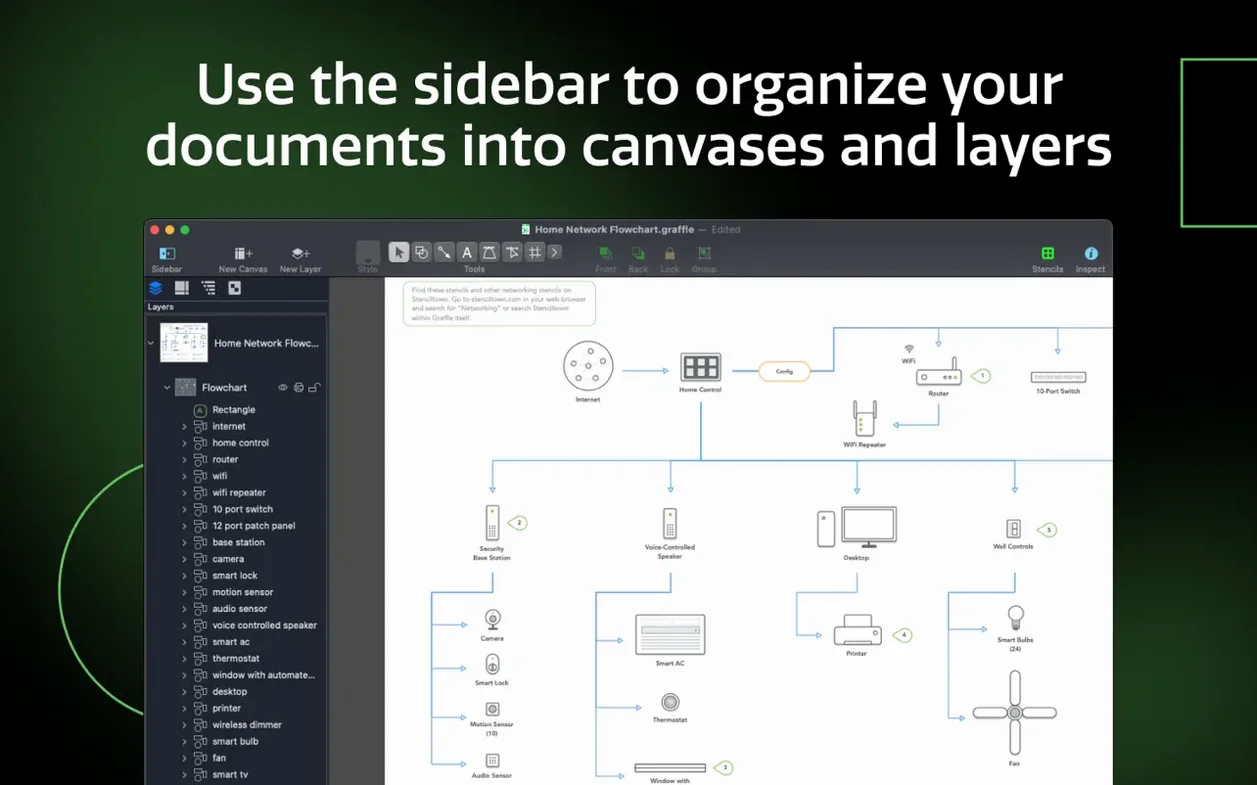
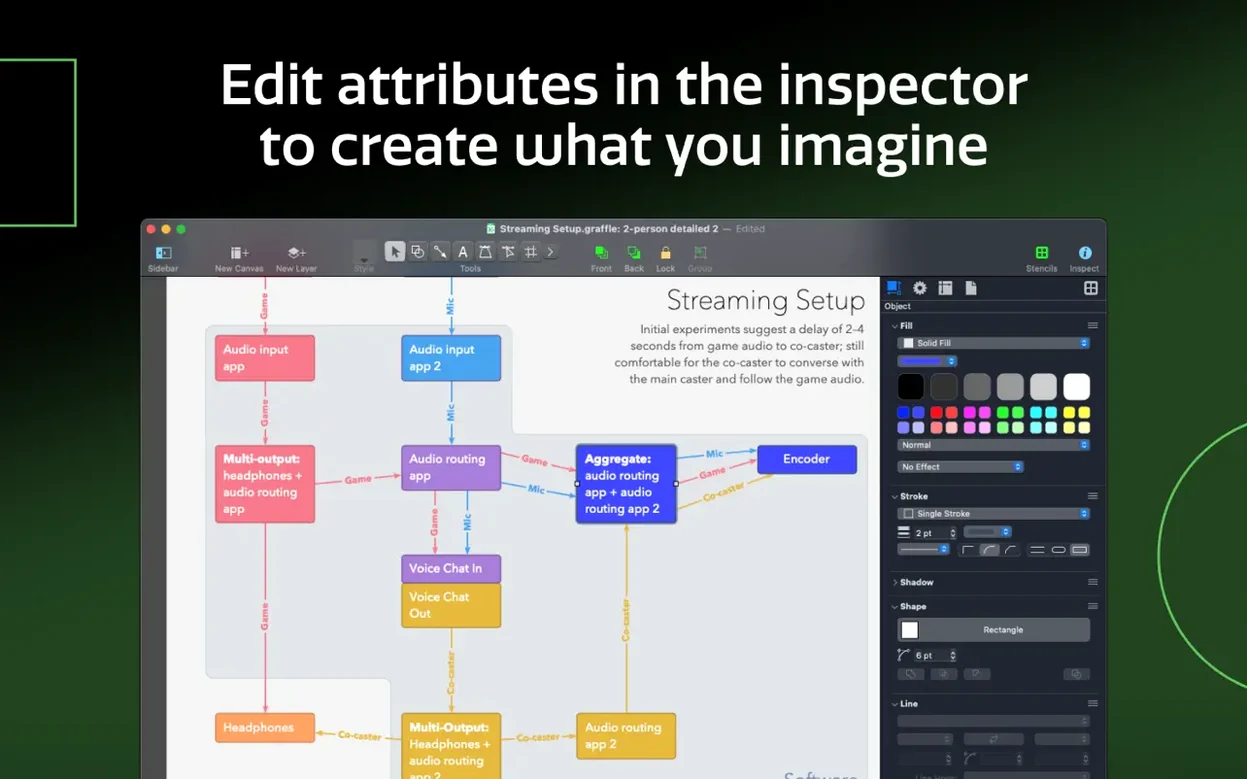
It handles automatic Xcode project diagrams, line-to-shape conversion, and deep text handling that the standard edition omits. The sidebar and inspectors keep multi-canvas projects from turning into chaos. If you need to hand off a diagram to a Visio user, the VDX export actually holds up—fonts and connectors stay intact more often than not.
Snap to Grid and Two Other Defaults You’ll Want on Day One
Out of the box, OmniGraffle Pro makes a few assumptions about how you work. Three tweaks in the preferences panel change the daily experience immediately.
Turn on snap to grid by default. It lives under the Canvas inspector, not the main preferences—easy to miss. Set it to 10 px or whatever matches your typical line weight. Without it, connectors drift by a pixel or two and you notice only after exporting a PDF.
Switch the stencil search behavior. The default sidebar shows stencils in a flat list. Open Preferences > General and check "Search stencils by name." Now typing "router" or "button" jumps straight to the matching object instead of scrolling through folders. Saves real minutes on a tight deadline.
Customize the toolbar for your output format. Right-click the toolbar and add the Export button for your most-used format—VDX if you collaborate with Visio shops, PDF for client approvals. I also pull the Shared Layers toggle onto the toolbar because I switch between master page elements and canvas-specific work constantly.
A Wireframe Workflow, Start to Finish
Say a developer needs a wireframe for a settings panel before the sprint starts Monday. Here is how I move from blank canvas to handoff in OmniGraffle Pro.
1. Set up shared layers first. Create a new document, open the Layers sidebar, and designate one layer as shared. Drag your navigation bar, status indicators, and any repeating chrome onto it. Every new artboard inherits those elements without duplication.
2. Rough out the artboards. Use the Artboard tool to block in three screens: main settings, a sub-panel, and a confirmation dialog. Name them in the sidebar immediately—nothing worse than hunting through "Canvas 4" later.
3. Pull stencils for speed. Open the wireframe stencil set and drop in form fields, toggles, and buttons. Hold Option while dragging to duplicate aligned copies. The smart guides handle spacing, so you spend zero time nudging with arrow keys.
4. Convert text to shapes for custom elements. The settings panel needs a segmented control that the built-in stencils do not cover. Type the labels, select the text block, and hit Format > Convert Text to Shape. Now each segment is an independent bezier path you can style, group, and reuse.
5. Add interaction notes with the Notes inspector. Click a button, open the Notes panel, and type "Taps to Security sub-panel, slide transition." Developers actually read these when they appear next to the relevant element instead of in a separate document.
6. Export for review. Export a multi-page PDF with one artboard per page, then export the same file as VDX for the Windows-based back-end team. The VDX keeps connectors and grouping intact, so nobody has to rebuild the diagram on the other side.
Shared Layers Save UI Designers Hours on Multi-Screen Mockups
Wireframing designers who iterate fast. The shared layers and artboard system eliminate the busywork of updating repeated chrome across twenty screens. Change the tab bar once, it propagates everywhere. That alone saves hours on a multi-screen app mockup.
Technical illustrators straddling platforms. If you send diagrams to colleagues locked into Visio, the VDX import-export round-trip is the reason to pick Pro over Standard. Stencils, templates, and connectors survive translation well enough that you stop dreading the "can you send that as a Visio file?" email.
Developers documenting architecture. The automatic Xcode project diagram feature pulls class hierarchies and dependencies straight from a project folder. It is not a replacement for dedicated UML tools, but for a quick sprint overview or onboarding document, it produces a readable diagram in under a minute.
Network and infrastructure planners. Tables for grouping shapes let you build rack elevations where each row is a U-slot. Add rows as equipment changes, and the table handles alignment for you. Combine that with line-to-shape conversion for custom cable paths and you have a rack diagram that updates without a full rebuild.
Casual users who draw a flowchart twice a year probably feel fine in the Standard edition or even a web-based tool. The Pro features start paying off when you touch the app at least weekly and your diagrams have to travel outside the Mac ecosystem.
The macOS 14 Requirement That Might Block Your Update
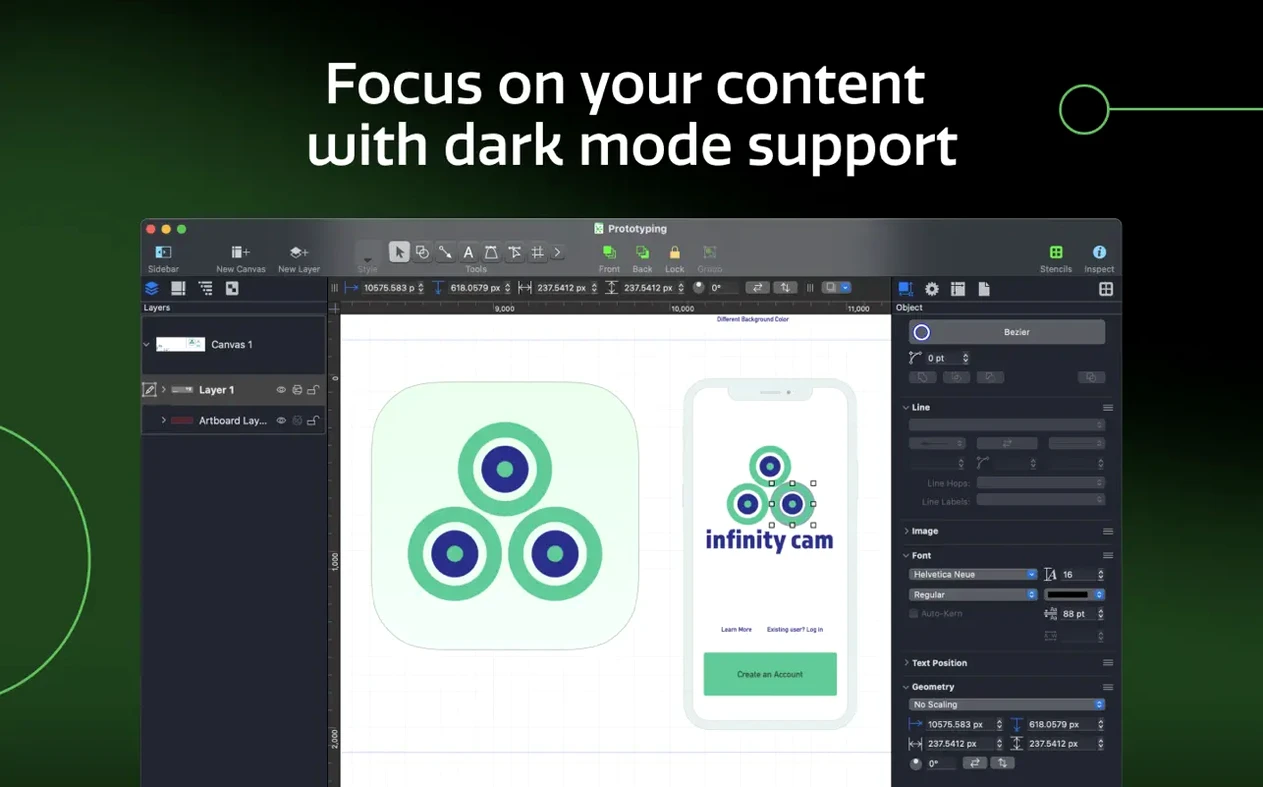
Version 7.26 tightened the macOS compatibility floor to macOS 14, dropping support for Ventura and earlier. In practical terms, that means anyone on an older Mac Studio or Intel MacBook Pro needs to weigh the upgrade before grabbing this release. The app itself did not change visually—no new inspectors, no redesigned toolbar—but the underlying frameworks now align with Apple's latest graphics stack.
The macOS Golden Gate 27 compatibility improvements mostly affect rendering consistency. Before the update, complex documents with heavy use of shared layers and bezier text-to-shape conversions could show minor redraw artifacts when scrolling quickly. Those are gone now. Export fidelity to Visio VDX also tightened up; connector routing that sometimes drifted by a point or two on previous builds now lands where you placed it.
For anyone working across multiple Macs, the keyboard shortcut sharing feature became more reliable around version 7.24 and carries forward here. Custom shortcut sets export as a single file you drop onto a new machine, and OmniGraffle Pro loads them without overwriting the factory defaults. Small thing, but on a clean install it cuts setup time to about ninety seconds.
The shift to a macOS 14 minimum means OmniGraffle Pro now expects Metal 3-capable hardware, which covers any Apple Silicon Mac and most Intel Macs with a discrete GPU from 2017 forward. If you are still on an older Intel machine with integrated graphics, that is the cutoff—version 7.26 simply will not run.
Compatibility with macOS Golden Gate 27 got a tune-up, and the minimum requirement is now macOS 14. Also fixed: minor stability nips and tucks typical of a point release.
- macOS 14 or newer
- Apple Silicon or Intel Mac
Questions I actually get
What's the difference between OmniGraffle and OmniGraffle Pro?
The Pro edition adds advanced export options like Visio VDX and Photoshop support, deeper layer and drawing tools, and features like shared keyboard shortcut sets.
Can OmniGraffle Pro open Microsoft Visio files?
It exports Visio VDX documents. Importing Visio's newer VSDX format is not directly supported; you may need to convert the file first.
Does OmniGraffle 7.26 work on macOS Ventura?
No. Version 7.26 requires macOS 14 or newer and will not launch on macOS Ventura or earlier releases.
Notes from the edit bay · 0
Sign in or get an edit-bay pass to leave a note.
No notes from the edit bay yet. They go up after I read them.