
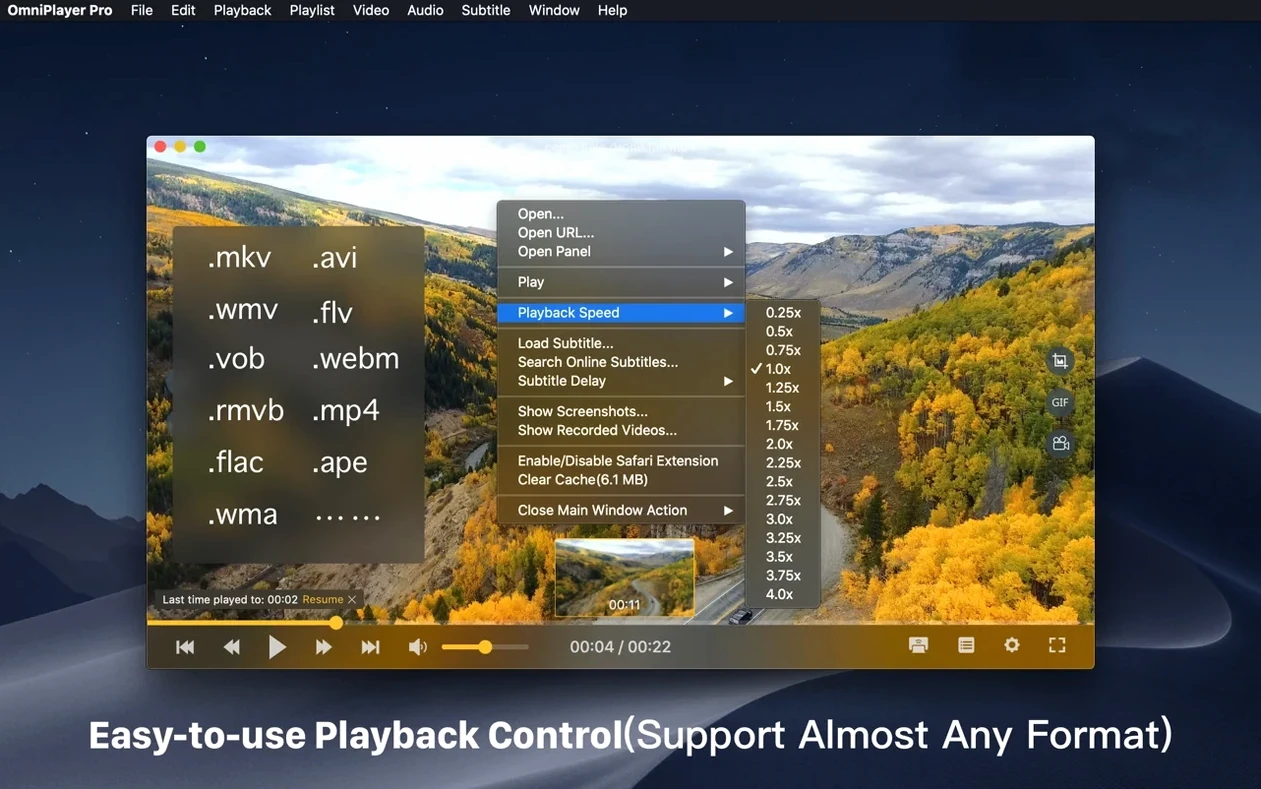
The real-time subtitle sizing is the first thing that catches your eye. While a 30GB MKV file loads without a hiccup in version 2.1.22, the ability to pinch and drag subtitle text larger mid-scene—without diving into a preferences dungeon—keeps you in the cut. OmniPlayer Pro for Mac still feels like a playback lab for people who hate waiting for renders.
| What It Handles | How You Watch |
|---|---|
| Local files, SAMBA, FTP | Audio track switching, delay sync |
| Online subtitle search by hash | DLNA, Chromecast, Roku casting |
| Subtitle encoding shift | Rotation, aspect-ratio tweaks |
The bug fix for chunky MKV files is the headline item this round, but the workflow stays grounded. Auto-hide controls keep the frame clean. You can still pull a screenshot in the format you actually need and rotate a clip in any direction—handy when a phone-shot vertical lands on a horizontal timeline. Audio sync correction via delay adjustment means you don’t have to remux a file just to watch a rough cut with the director. It’s a player built for the edge cases editors hit every day.
Workflow: Screening a Rough Cut With Remote Notes
Picture a Friday deadline: a director sends a 22GB 3D MKV export of a music video to your SAMBA share, and two revision notes arrive before lunch. You’re not about to import this beast into Final Cut just to spot-check a sync drift at bar 47.
- Launch OmniPlayer Pro and point it at the network share. The file loads without the stutter that version 2.1.21 choked on—the 2.1.22 fix for large MKV payloads does its job.
- Immediately hit the jump-to-time control and punch in the timecode from the director’s email. The preview thumbnail on the progress bar confirms you’re at the right downbeat before you even release the slider.
- Audio feels a frame early. Open the audio delay slider and nudge it by 80ms while the clip plays. You hear the transient lock into the kick drum. No remux, no round-trip.
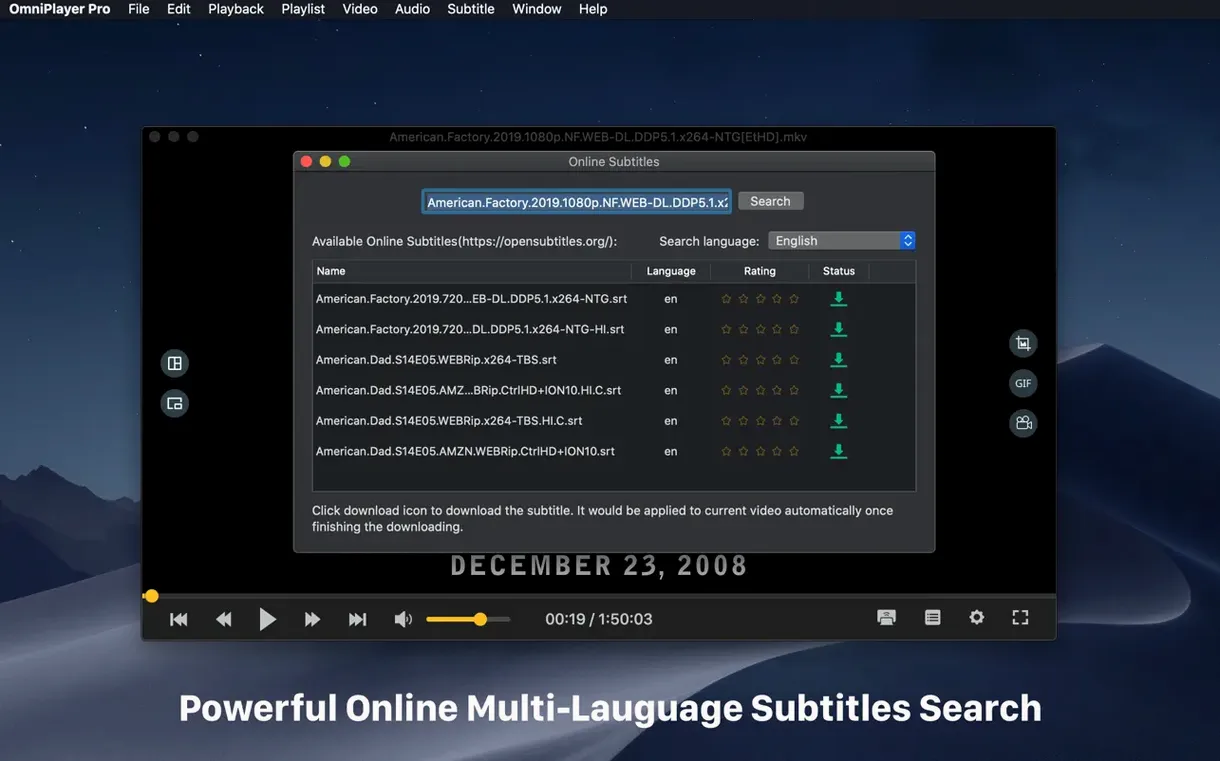
- The second note is about a subtitle burn candidate. Search subtitles online by the file hash—OmniPlayer pulls a matching *.srt. Load it, bump the font size two notches, and toggle the encoding to UTF-8 so the accent marks render clean. Screenshot the frame as a PNG for the client Slack channel.
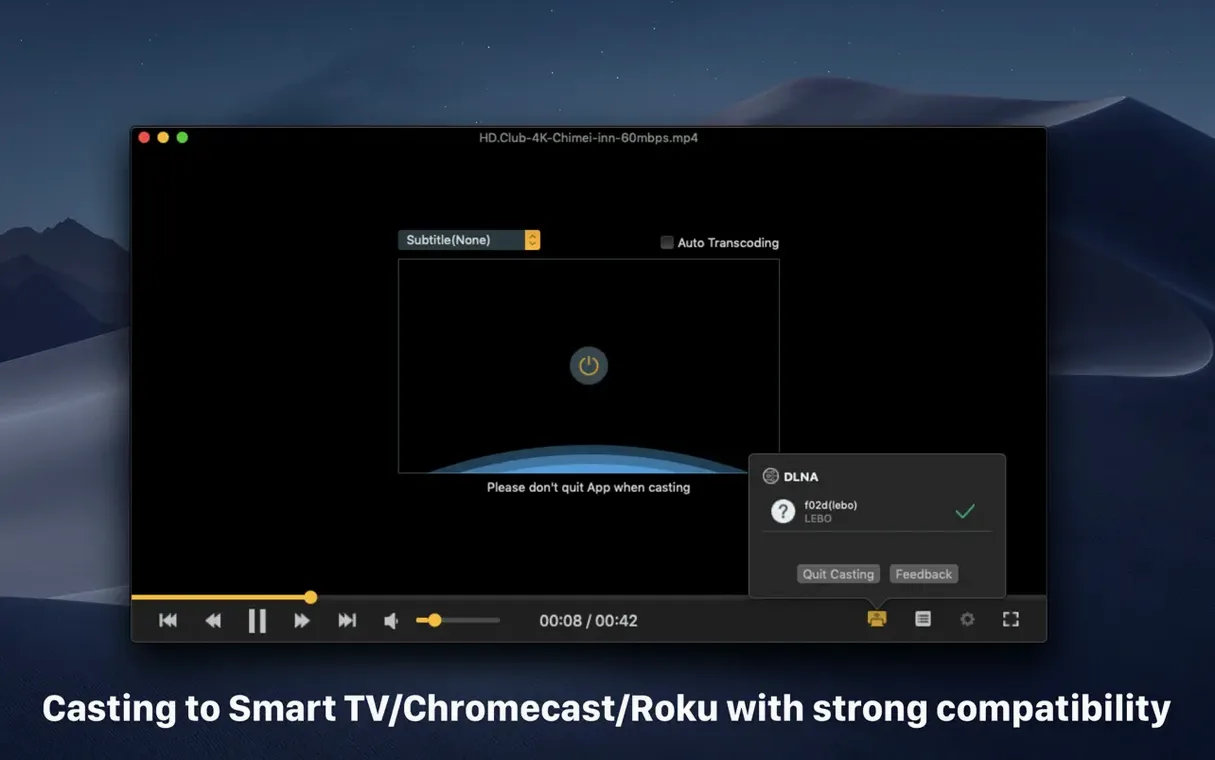
- Director wants to see it on the living-room screen. Cast the playback to the office Chromecast via the wireless display panel. The stream holds sync while you scrub back to bar 47 one more time.
The whole loop—file mount, sync check, subtitle grab, screenshot, cast—clocks under four minutes. That’s the difference between a player and a review tool.
Who Fills the Gap Between QuickTime’s Limits and NLE Overkill?
OmniPlayer Pro slots into the gap between QuickTime’s format pickiness and a full NLE import. QuickTime won’t touch a *.mkv container, let alone a 3D MKV with multiple audio streams. VLC plays it but buries audio track selection and subtitle encoding swaps behind nested menus. OmniPlayer surfaces those controls in the playback overlay, which matters when a client is watching over your shoulder and you need to fix a subtitle encoding mismatch in real time.
It also talks to the Finder in ways that speed up triage. Drag a folder of rushes onto the dock icon and every clip lands in a playlist, sorted. The playlist auto-clears on exit—no stale queue of last week’s dailies haunting your session. For editors who shuttle media between a Mac and a NAS, the SAMBA and FTP support means you preview directly from the server without copying a 50GB folder locally. Combine that with macOS Quick Look (which still ignores MKV thumbnails) and you finally have a preview pipeline for raw camera files that doesn’t involve launching Resolve just to check a take.
When Subtitle Search Comes Up Empty
Subtitle search returns nothing. The online lookup works by file hash or video title, but a renamed file with stripped metadata will break the hash match. Try the title-based search instead, or drop a local SRT file into the same folder—OmniPlayer loads it in real time without a restart.
3D MKV plays as two side-by-side frames. The player doesn’t auto-detect the stereo mode. Use the aspect-ratio control to squish the frame horizontally, or rotate the view if the left/right streams are stacked. It’s a manual fix, but it keeps the file playable without transcoding.
Playback stutter on Intel Macs with large files. If a file over 25GB still hesitates after the 2.1.22 bug fix, check that it’s streaming from a local SSD and not a spinning drive over FTP. The decode pipeline leans on CPU more than GPU, so closing background renders or browser tabs with hardware-accelerated video frees up headroom.
Chromecast doesn’t show up in the device list. OmniPlayer discovers cast targets over the local network, but a VPN split tunnel can hide them. Disconnect the VPN briefly, let the player refresh the list, then reconnect once the stream is active.
GIF export trims early. The 60-second limit is firm, and the capture starts when you click, not when the clip hits an in-point. Set playback speed to 0.5x for a tighter loop range, then speed the GIF back up in a quick Preview export if the timing needs to land on a beat.
The big fix is reliability under weight: a crash when loading 30GB MKV files is gone. Also fixed: a handful of smaller bugs that smoothed out playback quirks.
- macOS 11 or later
- Intel 64-bit
Questions I actually get
Can OmniPlayer Pro download subtitles automatically?
Yes, it can search and download subtitles online using the video title or file hash, and you can adjust their encoding, color, and size in real time.
Notes from the edit bay · 0
Sign in or get an edit-bay pass to leave a note.
No notes from the edit bay yet. They go up after I read them.