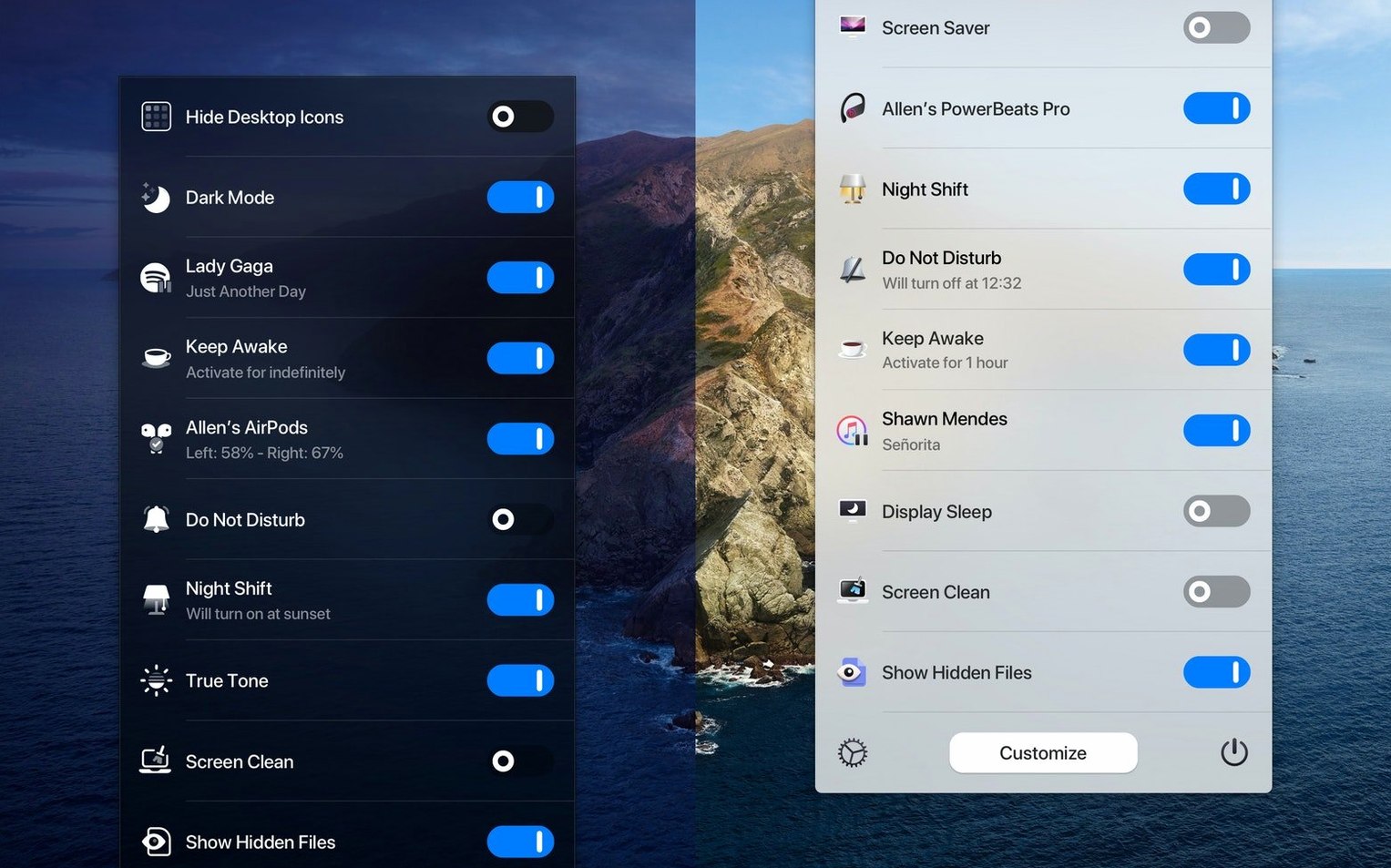
If you've ever used a Stream Deck to fire off a string of system actions, One Switch aims to bring that same logic—squeeze it, actually—into a single menu bar dropdown.
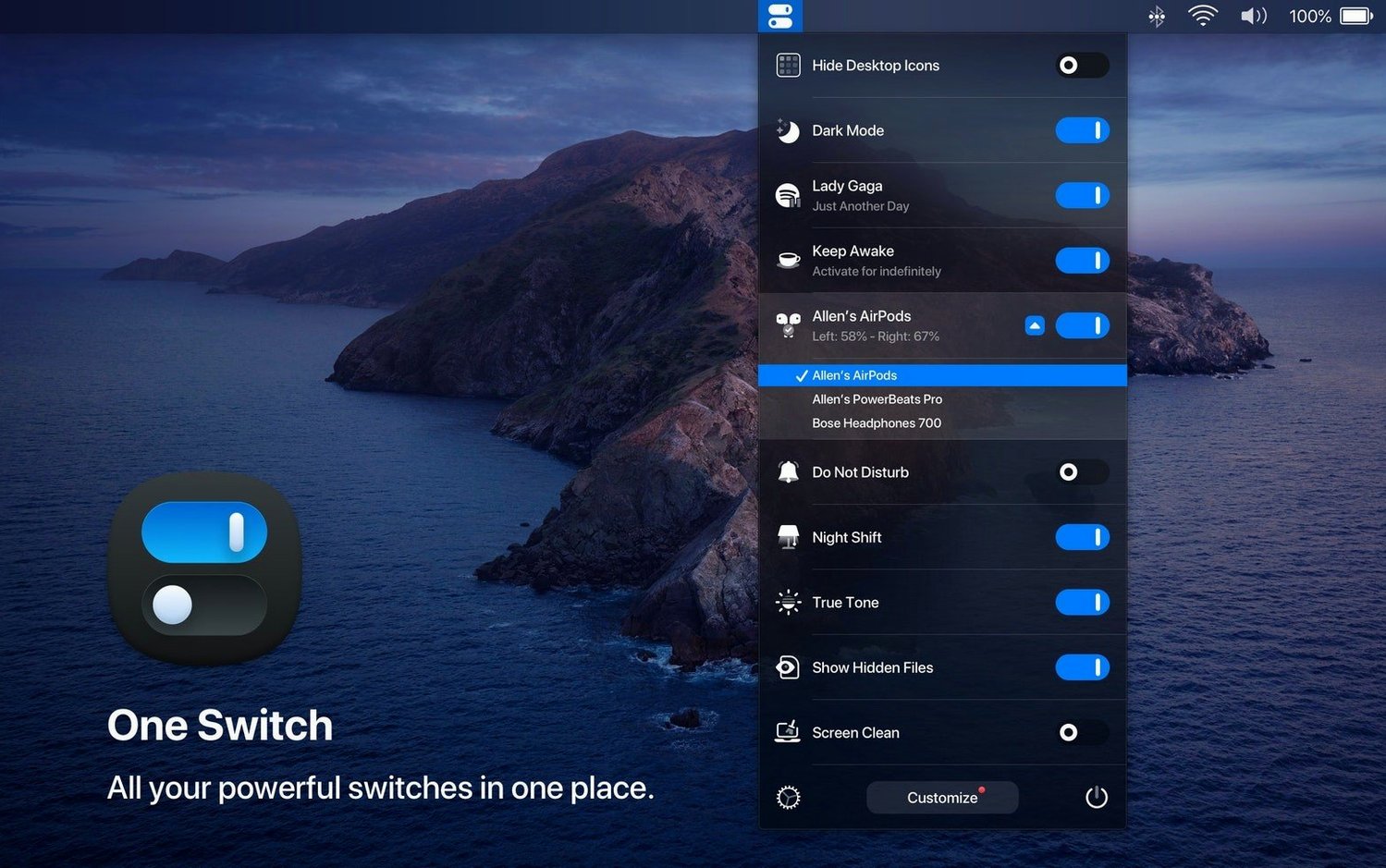
Dark Mode toggle — flips Light and Dark appearance instantly, no trip to System Settings required.
Do Not Disturb — silences notifications on command. Great right before a screen share.
Screen Saver trigger — starts the screen saver manually, useful when you step away from a Mac that doesn't lock on its own schedule.
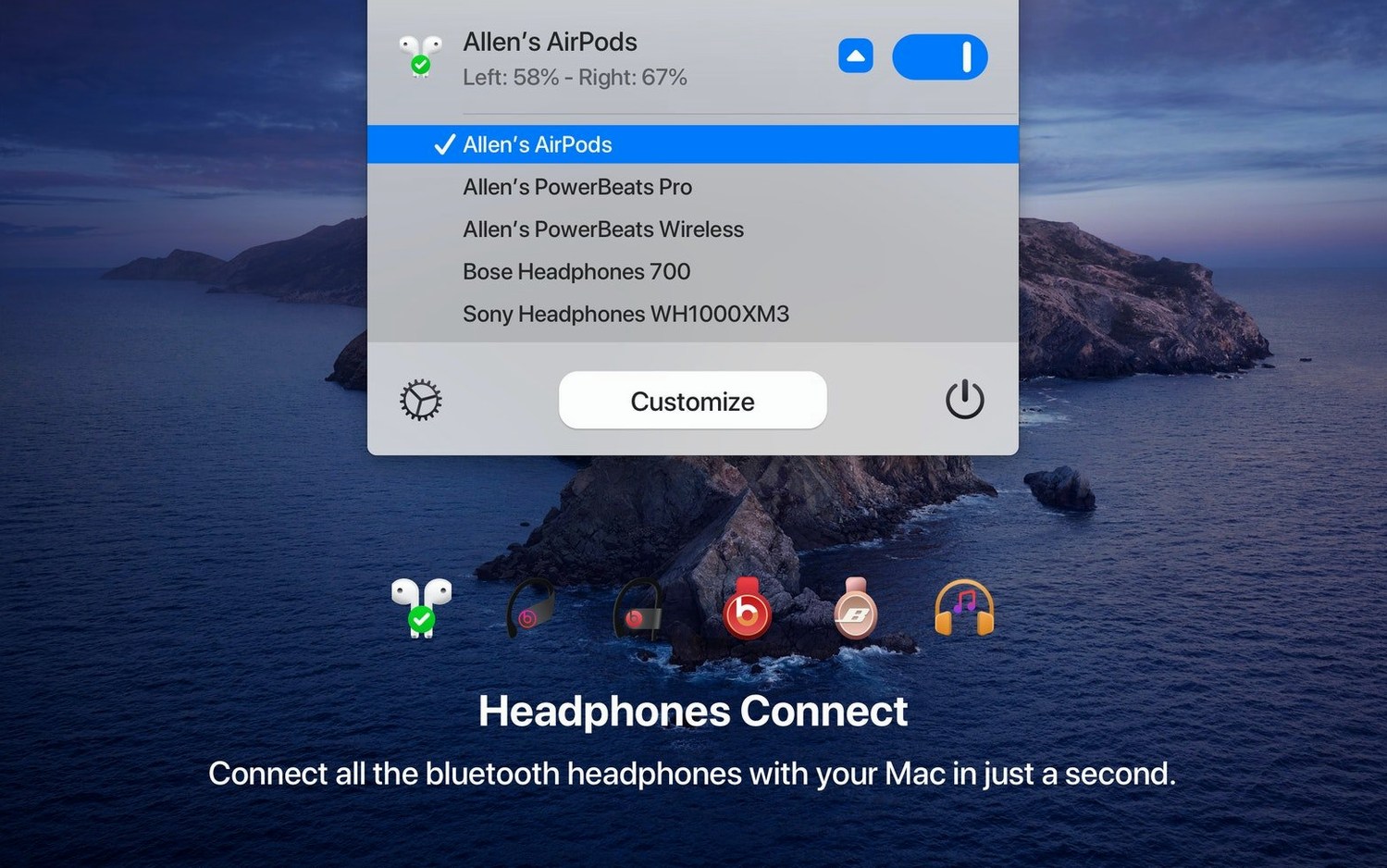
AirPods connection — connects your AirPods with one click instead of digging through Bluetooth menus or the Control Center.
Desktop icons hide — clears the clutter for a presentation or a clean screen recording without moving files.
Switch curation — you decide which toggles appear in the menu bar. Disable the ones you never touch so the list stays short and fast to scan.
It’s a Trigger, Not a Settings Panel
The most common one is treating it like a settings panel that saves state. It doesn't. One Switch flips a condition right now — it's a trigger, not a persistent profile. A beginner will toggle Desktop Icons off, close their MacBook, open it tomorrow and wonder why the icons are still hidden. That's the switch doing exactly what you told it. Hit it again to bring them back. No memory, no schedule-awareness unless you set the scheduler in Dark Mode's automatic switching.
Another is cramming all seven slots with switches they barely touch. The menu gets tall, the muscle memory degrades, and the whole thing feels like a second Control Center. Curate ruthlessly. Three to four switches that match your actual daily friction points will beat a full deck you scan every time.
People also overlook that the 2 position rotary switch style of Dark Mode toggle can be set to follow sunrise and sunset automatically. It's a checkbox inside the switch's settings — not the global preferences. If you don't dig into that switch's own gear icon, you'll keep flipping it manually and assume the app lacks scheduling.
Finally, the AirPods switch connects to the last paired device. It doesn't pull up a picker. If you alternate between AirPods Max at your desk and AirPods Pro in your bag, you'll occasionally connect to the wrong pair. That's not a bug, it's a design trade-off for speed.
35 MB of RAM and Zero CPU at Idle
Does it run constantly in the background? It sits in the menu bar and draws a negligible footprint. On an M1 Mac it idles around 35 MB of RAM and zero CPU when no switch is active. The only time it wakes up is when you click the menu icon or when a scheduled event fires — and even then, it's a blip.
Will it conflict with my existing menu bar apps? Not in any way I've run into. Bartender hides it fine, it plays well with BetterTouchTool, and it doesn't hijack any system-level shortcuts. If you already use a utility that toggles Dark Mode on a schedule, pick one and disable the other's schedule; two apps fighting over appearance at 7:02 PM creates a flicker that's annoying to debug.
Can it replace the Control Center entirely? For the specific toggles it offers — yes, and with fewer clicks. But it's not a one switch app mac replacement for the whole Control Center. It doesn't do Wi-Fi, Bluetooth device selection, or display brightness. Think of it as a curated top-shelf drawer, not the full toolbox.
Is the one switch download a single file or does it spread components everywhere? It's a self-contained app bundle. No kernel extensions, no background daemons, no launch agents littering your Library folders. Drag it to Applications, launch it, done.
Two Clicks to a Clean Recording Desktop
Screen-recording creators top the list. Hiding desktop icons and silencing notifications with two clicks before hitting record saves the ritual of manually cleaning up and flipping Focus modes. The Screen Saver trigger is a bonus for cold-starting the recording environment when the Mac has been idle.
Presenters and anyone who shares their screen daily — designers on Zoom calls, developers walking stakeholders through builds — live in the Do Not Disturb and Desktop Icons switches. The menu bar dropdown becomes a pre-call checklist that takes three seconds instead of poking through System Settings while people are waiting.
Headphone-swappers get real value if they use one set of AirPods consistently with their Mac. The 3 position rotary switch concept doesn't apply here literally, but the mental model fits: you're rotating between states — connected, disconnected, moving to another device — and one click handles the Mac side of that transition.
Mac users who work late into the night benefit from the Dark Mode scheduler specifically because it's detached from Night Shift. You can run Light appearance during the day, Dark at sundown, and keep Night Shift on its own warmer schedule. That granularity is something the built-in Auto switcher doesn't expose.
Dark Mode Feels Instant on Any Mac
There's no perceptible lag between clicking a switch and the action happening. Dark Mode toggles feel instantaneous on both Apple Silicon and Intel — it's a system call, not a render operation. The AirPods connection switch takes about a second and a half on my Mac, which is consistent with Bluetooth pairing handshakes and not something the app can accelerate.
Stability has been uneventful, and that's the highest compliment for a utility like this. It doesn't crash. It doesn't cause system freezes. Over weeks of uptime it just sits there, responding when clicked. The only oddity I've noticed is that after a macOS point update, the Desktop Icons switch sometimes needs a second click the first time — like the system is re-registering the Finder hook. After that, solid.
Resource use in daily work is practically invisible. Memory stays flat even with all seven switches active and Dark Mode scheduling running. No energy impact warnings in Activity Monitor, no battery drain to speak of. It's one of those tools you forget is running until you sit down at a Mac without it and suddenly every little toggle requires a journey through System Settings or the Bluetooth menu. That's where the real value of a one switch download like this clicks — not in a benchmark chart, but in friction removed.
Version 1.35.4 adds multilingual support. The interface now speaks German, Italian, Japanese, Korean, Portuguese, Russian, and Spanish.
- macOS 10.15 or later
- Intel and Apple Silicon Macs
- Interface: English (plus German, Italian, Japanese, Korean, Portuguese, Russian, Spanish)
Notes from the edit bay · 0
Sign in or get an edit-bay pass to leave a note.
No notes from the edit bay yet. They go up after I read them.