
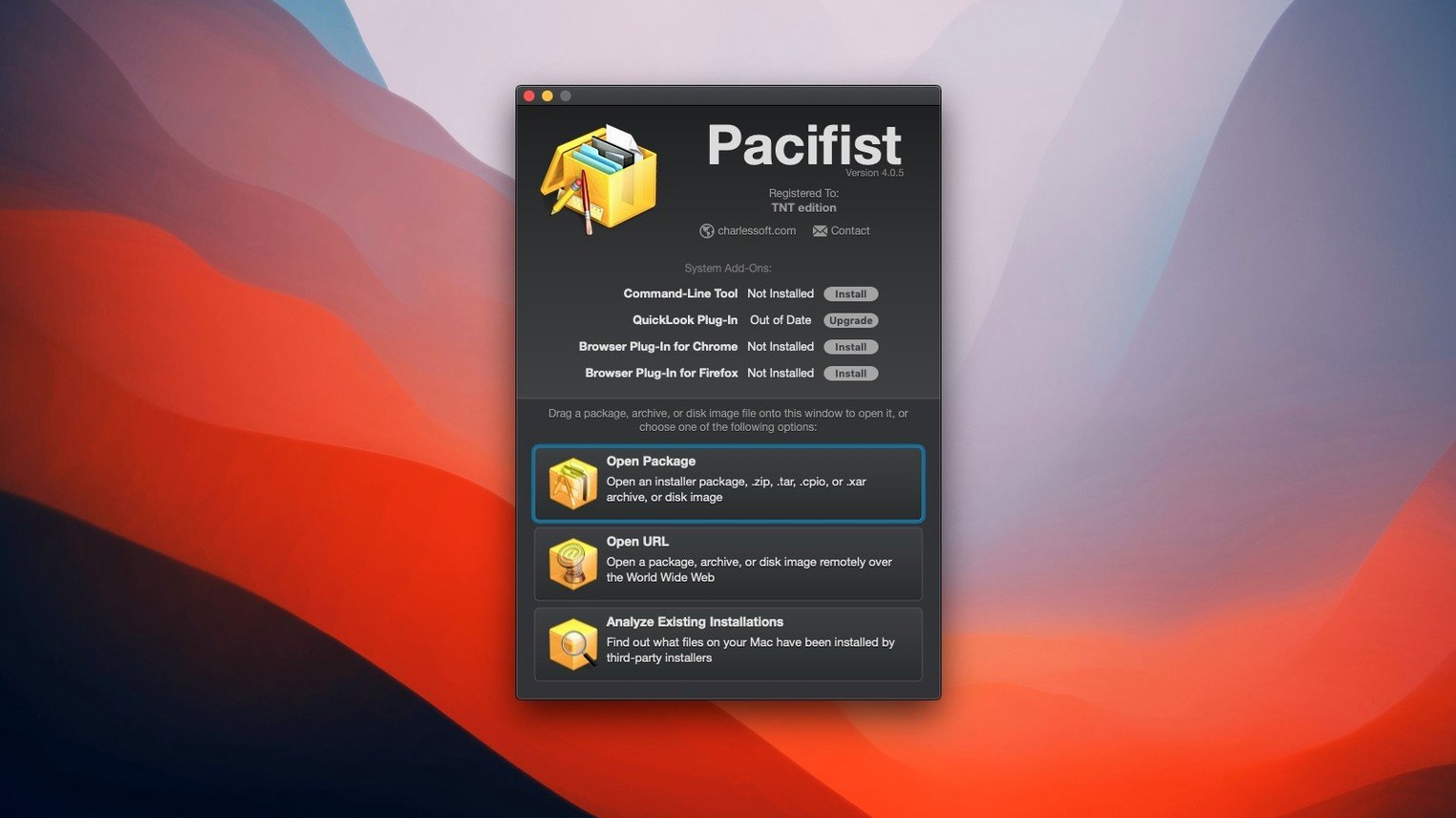
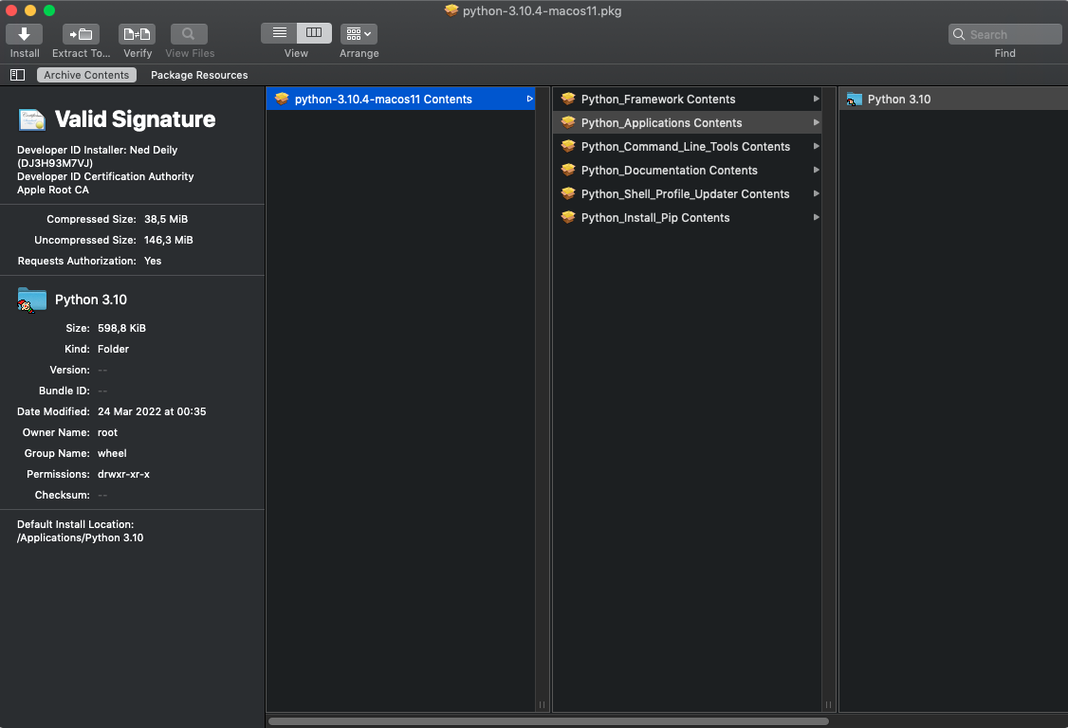
A client sent over a .pkg installer, but you only need a single plug-in buried inside. Running the full installer would scatter files across the system and demand a cleanup you don't have time for. So you drop the package onto Pacifist 4.1.4 instead.
Package file — A .pkg installer you can browse like a folder.
Disk image — A .dmg you can open without mounting it first.
Archive — .zip, .tar, .tar.gz, .tar.bz2, .xar formats, all readable.
Selective extraction — Grab one file, one folder, or the whole thing.
Asset catalogs — Improved parsing in this version pulls images out cleanly.
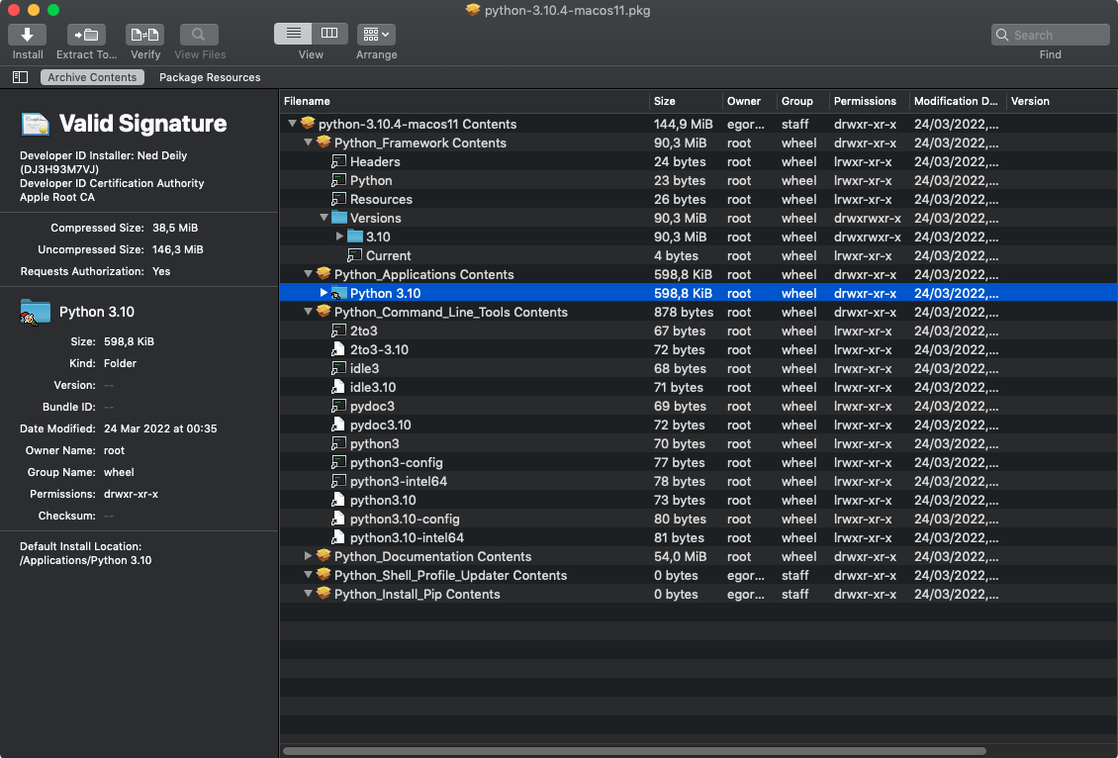
Pacifist loads the package structure immediately. You expand the payload, find the component you need, and drag it to the desktop. Ten seconds, no installer launched, no mystery files to hunt down later. It's the same drill with a .dmg or a tarball—get in, grab what you need, get back to the timeline.
When a Package “Could Not Open” (and the Real Culprit)
The most frequent headache is a package that refuses to open at all. Pacifist flashes a "Could not open file" message and you're stuck. Nine times out of ten, the package itself is fine — what's actually happening is that your system sees it as unverified and quarantines it. Right-click the .pkg in Finder, choose Open With > Pacifist rather than double-clicking, and macOS usually lets it through. If that fails, move the package to a folder without spaces in the path — some archive handling gets tripped up by raw paths handed off to system routines.
Extracting files from an installer that requires a system restart can also throw people. The app will show the payload contents but greys out the extract button for items that depend on post-install scripts. The workaround is to switch from the default Package Contents tab to Files view (the tab at the top), which bypasses script dependencies and shows you the raw file tree. You lose script-driven placement logic, but you get the files.
Large .pkg files — think Xcode or Logic sound libraries — can time out during extraction on older Macs. Pacifist isn't crashing; it's chewing through thousands of small files and the progress bar stalls. Give it time. If you genuinely need to abort, force-quitting won't corrupt anything on disk since extractions copy out rather than modifying the source. For repeat use with massive packages, bump up the temporary file cache in Preferences to a folder on a fast external SSD rather than letting it default to your boot drive.
Resurrecting a Dante Network Without the Original Installer
A live-sound engineer is rebuilding a Mac Mini that runs a Dante audio network. The original installer for an older Dante Controller version is long gone from Audinate's site, but she has the .pkg archived on a backup drive. The problem: the installer normally places a kernel extension in /Library/Extensions and a preference pane — and she only needs to verify which kext version was bundled, not actually install anything. She opens pacifist for mac, loads the .pkg, and navigates to the Extensions folder inside the payload. The file list shows the kext's version string right in the name, and with a quick right-click she grabs just the Info.plist to compare against what's currently loaded. No kernel panic risk, no reboot, and she confirms the archive's version is older than what's running — so she moves on without touching the system. This kind of surgical inspection is exactly where pacifist pkg handling shines over the built-in Installer app's all-or-nothing approach.
Ditch the Squint-Inducing Text Viewer for Your Own Editor
Out of the box, Pacifist uses a built-in file viewer for text and plist files. It works, but the monospace font is tiny. Head to Preferences > Viewer and check Use external editor for text files, then point it at BBEdit or VS Code. Now double-clicking any script or property list inside an archive opens it in your actual working editor, not the preview window.
The default extraction behavior writes files with their original modification dates preserved. That's usually what you want, but when you're dropping a single component back into a live application bundle to replace a corrupted file, you need the date to match the surrounding files or code-signing validation can fail. Toggle Preserve file dates on extraction off in Preferences when you're doing surgical replacements, then switch it back on after.
Turn on Show invisible files in the View menu immediately. Packages and disk images routinely stash scripts and receipts in dot-prefixed folders, and you'll miss them entirely with the default visibility settings — especially when you're chasing down what an installer actually did after the fact.
Workflow: Salvaging a Single Font from a Design Suite Package
A motion designer needs the exact version of a typeface that shipped with an older Creative Suite installer — the foundry's current release has different metrics, and matching a previous project's titles depends on it. The suite's .pkg weighs in at several gigabytes, but the font itself is under 200 KB. Here's the path from start to finish using pacifist macos.
- Load without mounting. Launch Pacifist and drag the .pkg from Finder into the window. Let the file list populate — on large packages this takes maybe fifteen seconds as it parses the bill of materials.
- Skip the default view. Switch to the Files tab rather than browsing by package scripts. The hierarchy is flat and predictable here: you'll see the full destination path tree that the installer would have written to disk.
- Narrow the search. Type the font name — or just
.otf— into the filter field at the top-right. The list collapses to matching entries immediately, showing you every font file inside the package regardless of how deeply nested it is. - Verify before extracting. Click the font file once to preview its metadata in the bottom pane. Confirm the version number and foundry name match what the project expects.
- Extract to a working folder. Right-click the file, choose Extract to Custom Folder, and point it at your project's type directory. The file lands with its original name and no surrounding cruft.
- Validate outside Pacifist. Open the extracted .otf in Font Book to confirm it activates cleanly, then switch to After Effects and point the text layer at it. Titles snap back to their original line breaks and kerning.
The whole operation takes under a minute. The alternative — running the full multi-gigabyte installer into a sandboxed environment just to grab one font — is the kind of time-sink that kills momentum on a tight deadline. When you keep pacifist 4.1.4 in the dock, this kind of targeted recovery becomes muscle memory rather than a research project.
Updated for macOS Tahoe, with noticeably smoother parsing of images from asset catalogs.
Also fixed: the usual round of miscellaneous bug fixes that keep things stable.
- macOS 10.14.6 or later
- Intel Mac
- English interface
Questions I actually get
Can Pacifist check if an app I already installed has missing or damaged files?
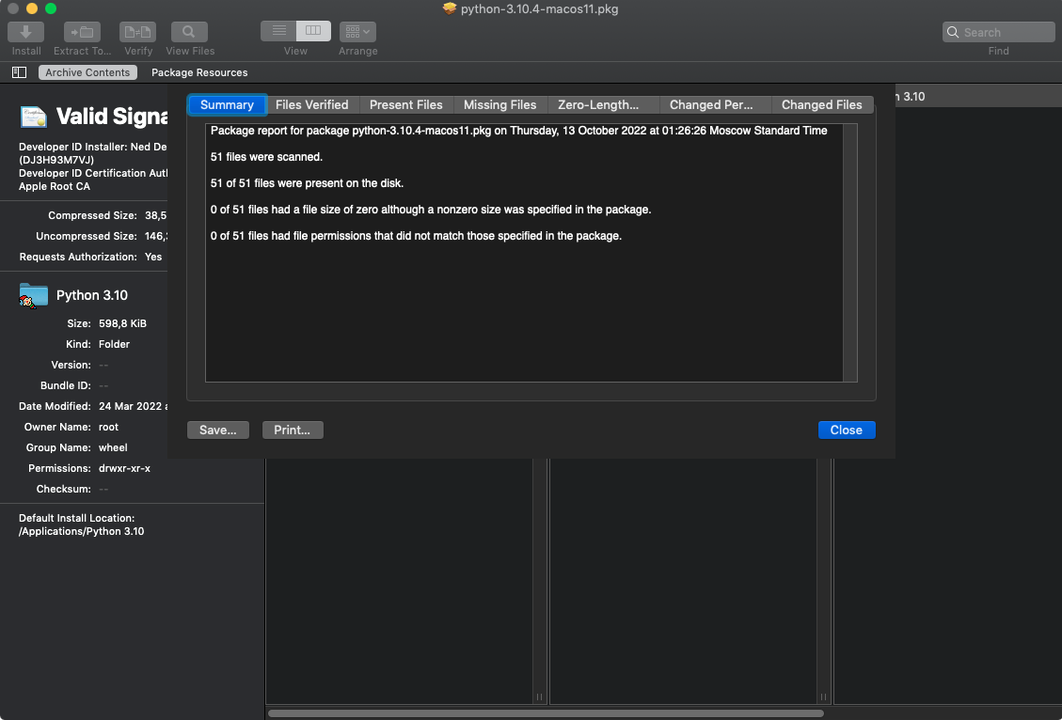
Yes. Pacifist can scan installed applications and compare them against their original packages to flag missing or outdated files.
Notes from the edit bay · 0
Sign in or get an edit-bay pass to leave a note.
No notes from the edit bay yet. They go up after I read them.