Version 1.6.2 shipped a handful of under-the-hood fixes that keep the widgets refreshing reliably—exactly what you want when the notch stops being dead space and starts pulling its weight. That reliability matters during a real morning bounce between apps. I drop a render, glance up, and the notch shows me my next calendar block without touching the menu bar clock.
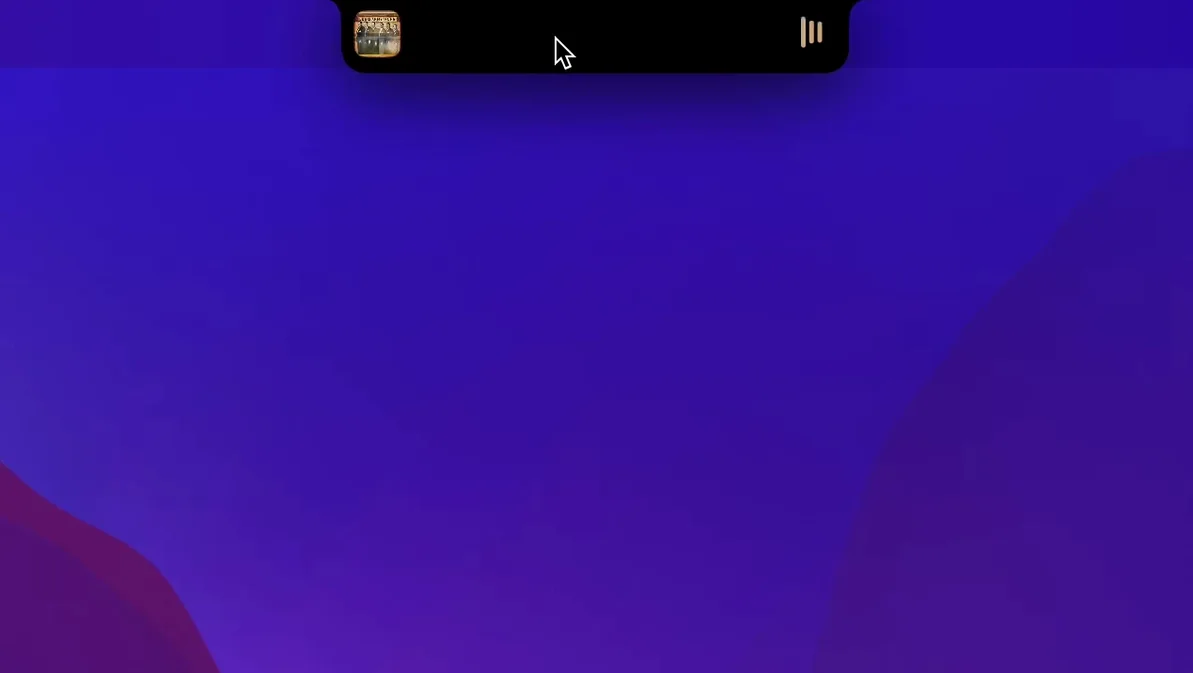
A downward swipe or click on the notch pulls out a compact panel. The calendar widget pushes the 2:30 call to the front, and the file shelf sits right below it with the client’s latest cut waiting. No Finder dig, no Dock clutter. Dragging that file into my timeline from the shelf feels like muscle memory after a couple of sessions.
Music controls live in the same tray. When the export finishes, I tap the notch, skip the track that’s been playing on repeat, and land on something with more drive—all without switching away from FCP’s project pane. It’s a small motion that cuts out the usual Command-Tab dance.
NotchNook works on both Apple Silicon and Intel Macs running macOS 14.6 or later, so older rigs get the same interactive tray. The shelf, calendar, and media controls turn the hardware notch into a workflow shortcut that feels oddly absent once you’ve used it for a day.
Snags You’ll Probably Run Into (and How to Clear Them)
After a few days with NotchNook, a couple of quirks tend to surface. Nothing deal-breaking, but worth knowing before you wonder why something’s off.
The panel won’t open on the first click. This one crops up when macOS is juggling a lot of window focus events—especially if you’re switching between full-screen apps. The notch area sometimes needs a deliberate, slightly longer press rather than a quick tap. If it still ignores you, click anywhere on the desktop first to shift focus away from the current app, then try the notch again. That focus handoff is usually the culprit.
Widgets show stale data. The 1.6.2 fix addressed the main refresh hiccup, but if your calendar widget still clings to yesterday’s meeting, swipe the panel closed and reopen it. NotchNook refreshes widgets on panel open, so a quick close-reopen cycle forces a fresh pull. If you’ve got Live Activities running and they’re not updating, check that the relevant app has notification permissions intact—NotchNook reads those directly.
The file shelf eats a drag but won’t let go. Dragging from the shelf into certain apps (older versions of Premiere, some third-party file managers) can occasionally stall. The shelf hands off a file reference, and if the target app doesn’t respond to the pasteboard request quickly enough, the drag indicator freezes. Workaround: drop the file onto the Desktop first, then drag from there. It’s an extra step, but it takes half a second.
Music controls lose connection after sleep. When your Mac wakes, the media widget sometimes shows a blank track. Tapping play usually reconnects to the last active audio source, but if it doesn’t, open the panel and click the tiny source icon next to the track title. That forces a rescan of available players. Works every time.
The Audio-Only Cousin and the All-in-One Rival
NotchNook isn’t alone in trying to make the notch do something. A couple of other tools have taken swings at the same problem—each with a different philosophy.
NotchNook vs. MediaMate. MediaMate focuses almost entirely on audio: it puts a slim HUD in the notch area that shows volume and brightness changes, plus a neat now-playing bubble. It’s laser-focused and very light. What it doesn’t do is widgets, calendar, a file shelf, or Live Activities. If all you want is prettier media overlays, MediaMate is the more refined pick. NotchNook is broader—it turns the notch into a general-purpose utility drawer, which means it pulls ahead when you want quick access to files and appointments alongside your music controls.
NotchNook vs. Dropover. Dropover doesn’t touch the notch at all, but the file-shelf behavior overlaps. Dropover creates a floating shelf anywhere on screen when you shake a dragged file. NotchNook’s shelf is fixed to the notch panel—less flexible for positioning, but it’s always in the same spot, and you don’t need to shake anything to reach it. For users who want a shelf that follows their cursor around the screen, Dropover wins. For users who want files tucked behind a single gesture at the top of the display, NotchNook’s approach feels more integrated.
NotchNook vs. bartender-style menu bar tools. Bartender and Hidden Bar manage the menu bar itself—they hide icons, not add interactive panels. NotchNook lives above that, in the notch real estate. The two can coexist perfectly; NotchNook doesn’t touch your menu bar layout. If your goal is cleaning up the right side of the screen, bartender-style apps are the right call. If you want the top center to do something productive, NotchNook is the play.
Won’t Hijack Your Full-Screen Layout
Does it mess with full-screen apps? The notch panel overlays the screen rather than shifting your window layout, so full-screen apps stay full-screen. The panel appears on top when summoned, then dismisses. No persistent bar eating into your workspace. If you’re in a full-screen game, you might want to disable the notch gesture temporarily—there’s a toggle in settings to turn off the trigger without quitting the app.
Does it work on Macs without a notch? Yes, but the behavior changes. On notchless Macs (external displays, older MacBook Pro models, Mac mini), NotchNook places a small touch zone along the top center of the screen. It’s narrower, and the panel drops from that spot. It works fine, but it doesn’t have the same physical landmark that the hardware notch provides on MacBook screens.
Does it drain battery? The widgets refresh on panel open, not continuously, so the background footprint is small. Media controls poll for track changes every few seconds when the panel is closed—barely a blip on the energy graph. If you leave the panel open for long stretches, the calendar and Live Activities widgets will update more often, but even then it’s not a heavy lift. On an M1 Air I notice no difference in day-to-day battery life.
Can I pick which widgets appear? Absolutely. Right-click the notch when the panel is open and you’ll see a customize option. You can reorder, hide, or add widgets from the available set. The file shelf can be collapsed entirely if you never use it. Same goes for the calendar—turn it off and the panel shrinks to just media controls and whatever else you keep active.
Option-Click Straight to Calendar View
Some of NotchNook’s best bits don’t announce themselves. A few I’ve stumbled into:
- Option-click the notch to open the panel directly to the calendar view instead of the default media screen. Saves a swipe when you’re appointment-chasing.
- The shelf remembers your last folder. Drop a file in from Finder, and the next time you open the shelf it’ll be sitting in the same directory. Great when you’re pulling assets from a project folder across a long editing session.
- Drag a file onto the notch itself (not the open panel) and it lands straight on the shelf without opening the panel at all. Quickest way to park something mid-flow.
- Media controls work with Safari audio. If you’re playing a YouTube track or a web-based podcast, the controls recognize the browser as the source and show the page title as the track name. Not every media widget handles that gracefully; this one does.
- Live Activities arrive silently. When a supported app pushes a Live Activity—say a delivery tracker or a sports score—it appears in the notch area with a subtle animation and then collapses back. You don’t get a banner interrupting your work. It’s the most restrained notification implementation I’ve seen on macOS.
If you’ve been hunting around for the NotchNook 1.6.2 release, this version’s fix list makes it the most stable build yet for daily use. Anyone grabbing NotchNook for Mac free through the usual channels will want to skip older versions—the widget refresh bug in earlier builds was genuinely annoying during long work blocks. The NotchNook Mac torrent route often still carries those older versions, so double-check what you’re installing. If you’re searching NotchNook for free, make sure it’s the 1.6.2 fix that lands on your drive.
- macOS 14.6 or later
- Apple Silicon or Intel (64-bit) Mac
Notes from the edit bay · 0
Sign in or get an edit-bay pass to leave a note.
No notes from the edit bay yet. They go up after I read them.