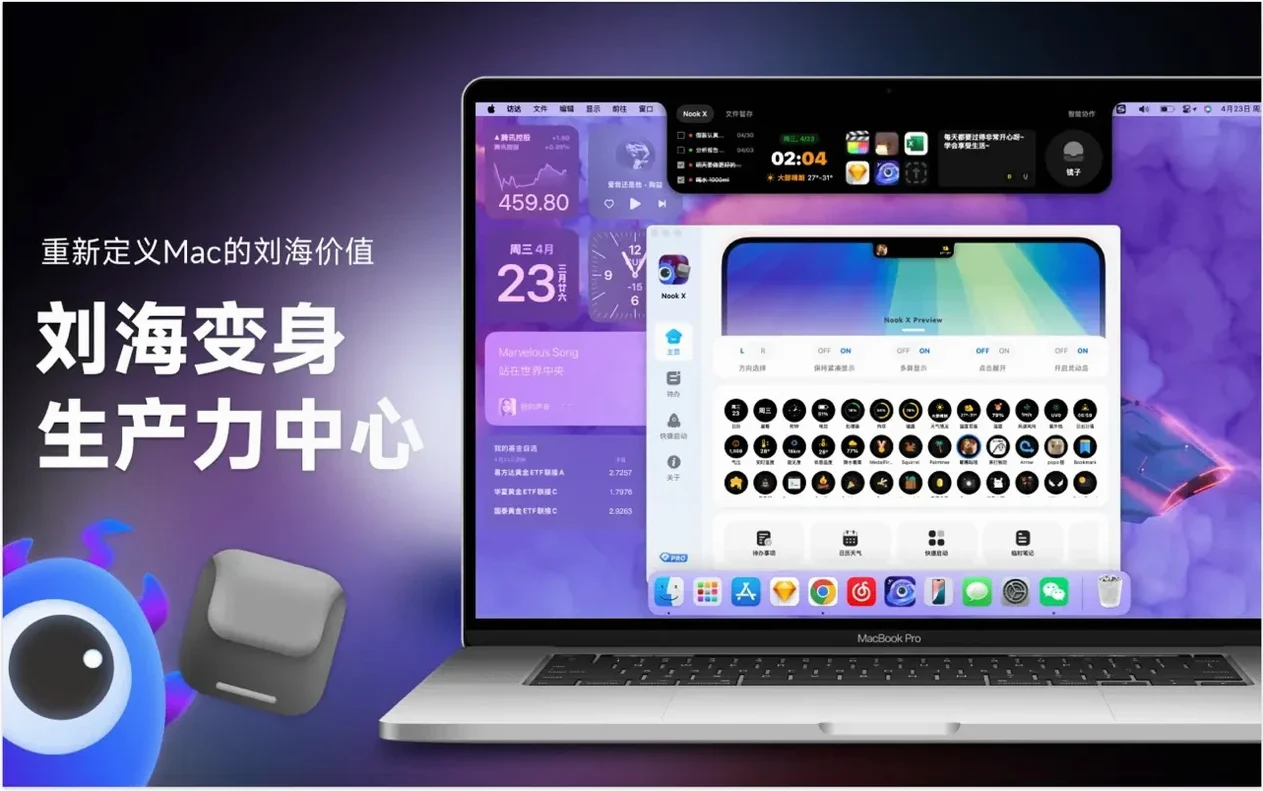

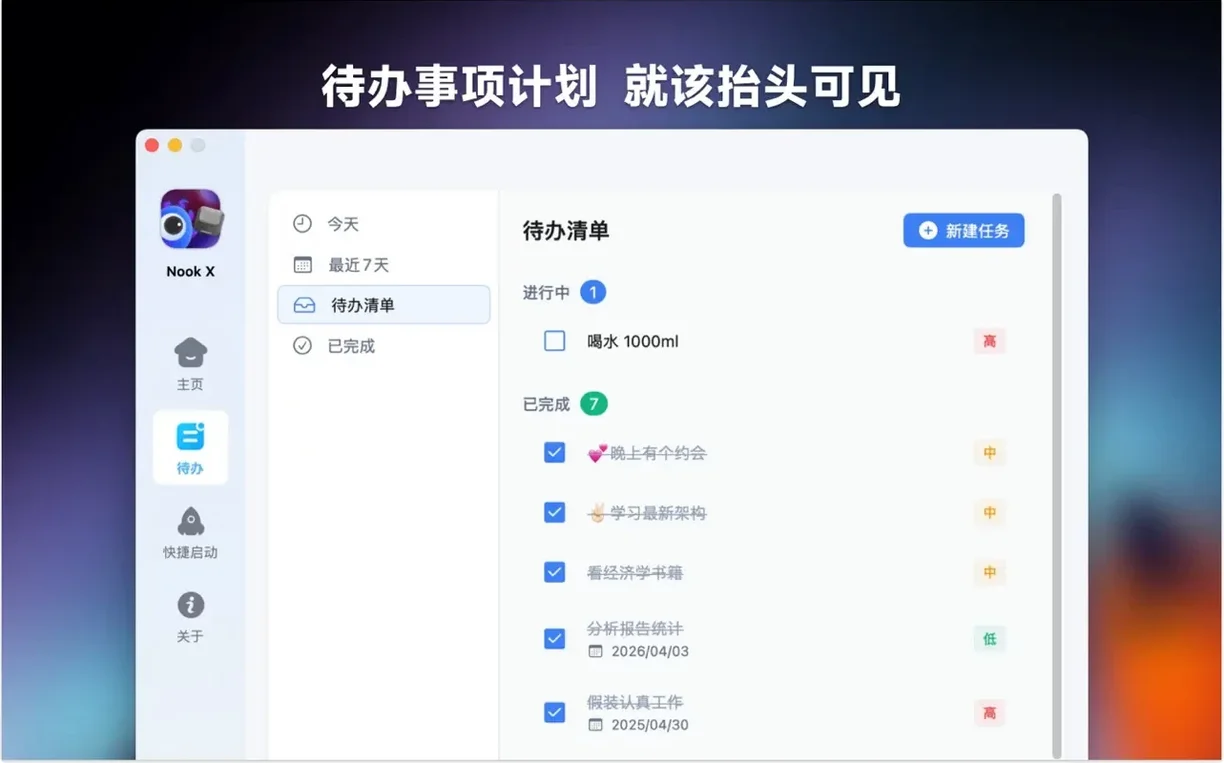
Freelancers, students, and anyone who lives with a pair of headphones will get the appeal. Nook X puts a task list, a karaoke-style lyric display, and an AI chat window into a single Mac app so you don't have to juggle three separate tools.
Native on Apple Silicon Without Rosetta
You need macOS 13 or later. The app ships as a universal binary, so it runs natively on both Apple Silicon and Intel 64-bit Macs—no Rosetta translation layer required.
What Exactly Is It?
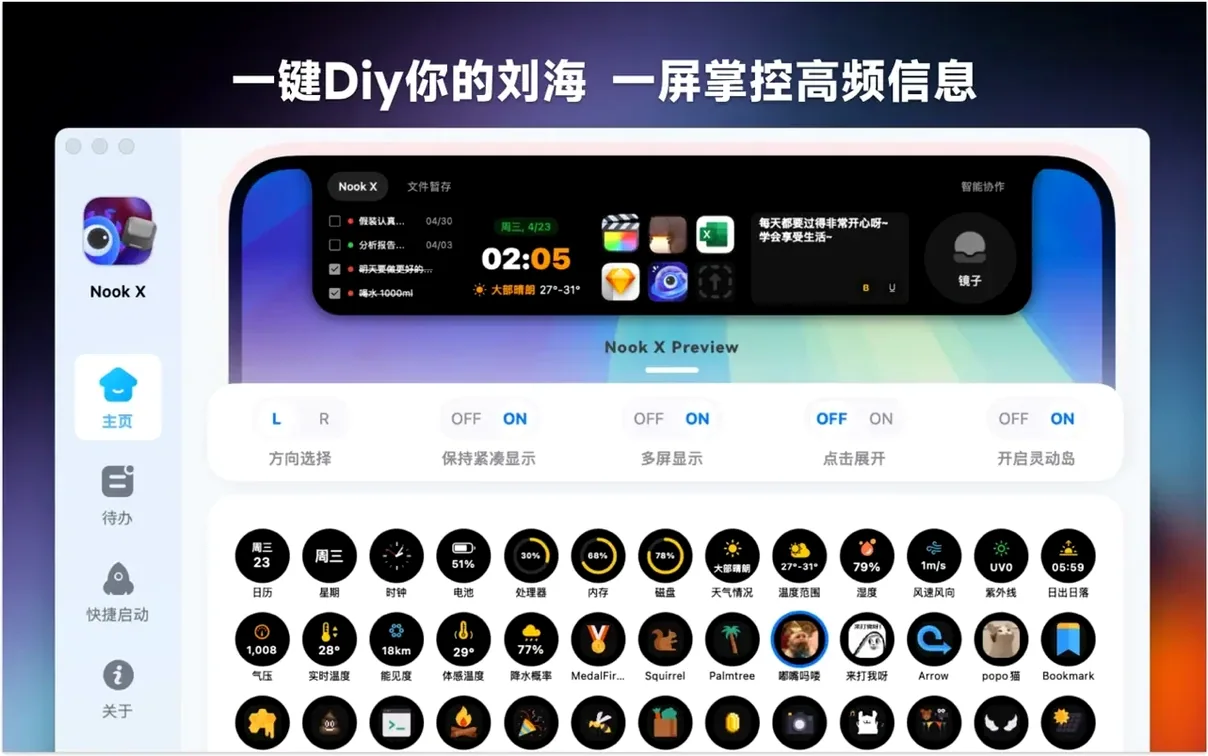
It's a three-panel utility. One panel grabs song lyrics automatically and scrolls them in time with the music. Another is a straightforward task list that can generate to-dos directly from a chat conversation. The third is an AI chat client with voice input support.
Where Does the Music Fit In?
A built-in player handles popular audio formats without sending you to another app. The lyric panel syncs with whatever you're playing, turning the interface into a personal karaoke machine while you work through your task backlog.
Competes with Three App Categories at Once
Most Mac utilities pick a lane. Nook X doesn't, and that makes comparisons a little odd—you end up lining it up against three different categories at once.
For the task panel alone, Apple Reminders and Things 3 come to mind. Reminders is free and deeply tied into iCloud, but it won't show you song lyrics or answer questions. Things 3 has a far richer project structure and keyboard workflow than the to-do side of Nook X, yet it's purely a task manager. The advantage here is speed: creating a reminder from a chat message with one click beats switching apps and typing it out manually. If you live inside a conversation—with an AI or with yourself—that shortcut adds up.
On the music front, the built-in player isn't aiming at Audirvāna or Vox. It handles common formats and syncs lyrics automatically, which those dedicated players don't always do without plug-ins. The karaoke-style scrolling lyric view feels closer to what you'd get from a specialized app like LyricFever, but LyricFever doesn't include a task list or an AI. The trade-off is library management: Nook X gives you a file-based player, not a full music librarian with smart playlists and bit-perfect output.
The AI chat panel invites comparisons with standalone clients and the ChatGPT web app. It's lighter than running a full Electron wrapper, and it sits in the same window as your other panels instead of occupying a browser tab you'll lose among twenty others. Voice input makes it more flexible than typing into a web form when your hands are busy. The feature that sets it apart is the ability to spin a chat reply into a task with a tap—no copy, no paste, no context switch.
Where Nook X carves its own space is the combination. Nobody else bundles these three functions into one window on macOS. You give up depth in each category, but you gain a workspace where music, tasks, and AI queries don't compete for screen real estate.
Lyrics Won’t Sync Without Artist and Title Tags
A few hiccups pop up regularly when people first install nookx mac.
Lyrics won't sync or show up. The lyric panel depends on metadata. If your audio file is missing artist or title tags, the app has nothing to search against. Open the file in Music or a tag editor, fill in those fields, and reload the track. Also check that the app has network access—macOS's firewall can block it silently after the first launch.
Voice input doesn't respond. Nook X needs microphone permission. Head to System Settings > Privacy & Security > Microphone and confirm the toggle is on. If it's already enabled, toggle it off, quit the app, relaunch, and re-enable. That forces macOS to refresh the permission grant, which clears up a surprising number of cases.
The AI panel feels sluggish. This is typically a connectivity issue, not a local performance problem. The chat panel relies on an internet connection, so spotty Wi-Fi or a VPN routing through a distant server can add latency. Try switching to a closer VPN endpoint or disabling it momentarily to see if response times improve.
Tasks created from chat don't appear. The task list has its own internal scope—it's not syncing with Apple Reminders or a third-party service. If you've dismissed the task panel or collapsed it, the new item lands there but you won't see a notification. Expand the task column and it should be waiting.
Coexists Peacefully with Apple Music and Spotify
nook x mac behaves like a good utility citizen without demanding to become the center of your system.
It coexists with Apple Music and Spotify without conflict. You can keep your streaming library in one app and use the built-in player for local files you've collected—ripped CDs, rehearsal recordings, downloaded tracks—while the lyric panel still functions as a readout for whatever's playing internally. The audio output routes through whatever device you've selected in macOS Sound settings, so it works with AirPods, a USB interface, or a multi-output device you've configured in Audio MIDI Setup.
Because the task panel is self-contained, it doesn't fight with Reminders or Things if you use those for your main system. A practical pattern: keep Nook X for short-session to-dos that come out of a working session—lyric ideas, notes from an AI brainstorming chat, quick errands—and let your heavier task manager handle projects with deadlines and delegation. Copy and paste between them works fine; there's just no automated bridge.
Voice input taps into macOS's speech recognition pipeline, so the same mic that works for Dictation or Siri will feed the AI panel. If you've trained your Mac's voice profile for better accuracy, Nook X benefits from that calibration without any extra setup.
Songwriters Using the Lyric Panel as a Scratchpad
This isn't a tool for everyone, and that's fine. The people who click with nook x tend to share a few traits.
Musicians and songwriters use the lyric panel as a scratchpad while listening to reference tracks. The karaoke scroll keeps their eyes on the words without a web search, and the AI panel can brainstorm rhyme suggestions or translate a phrase when they're working in a second language. Creating a task from a lyric idea keeps a working log inside the same window.
Language learners gravitate toward the combination of lyrics playback and AI translation. Playing a song in the target language while the text scrolls in time is a listening exercise that textbooks can't replicate. When a line doesn't parse, the chat panel can break it down grammatically without leaving the app.
Freelancers who work with audio or video find the three-panel setup practical during review passes. Music plays in one column, revision notes land in the task column, and the AI panel handles quick research—frame size conversions, codec questions, client email drafts—without a browser tab avalanche.
People who miss Dashboard widgets will recognize the spirit. Nook X's panels feel like the kind of lightweight, always-available utilities macOS used to encourage, back before everything became a separate full-screen app.
Treating Connected Panels as Separate Programs
Most early friction comes from treating the app like it's three separate programs instead of one workspace with connected panels.
Overloading the task panel. The built-in to-do list isn't a project manager. Throwing fifty items with nested subtasks into it gets unwieldy fast. Keep it to the session at hand—tasks you'll finish before you close the app—and leave long-term planning to a dedicated tool.
Ignoring voice input entirely. People type into the AI panel by habit and never try the mic. Voice input shines for quick, messy questions when you're listening to music and don't want to stop. It's also faster for generating task items: speak the to-do, get a draft, tap to add it.
Expecting every audio file to fetch lyrics. Obscure tracks, live recordings, and untagged files will come up blank. That's not a bug—the search needs enough metadata to find a match. Tag your files properly before you expect results.
Running the music player without looking at the lyric panel. It sounds obvious, but some users treat the player as a background source and never expand the lyric column. The whole point of the karaoke mode is the simultaneous experience—music on the ears, words on the screen, tasks and chat nearby. Collapse a panel only when you're done with it for the session, not by default.
Treating the AI panel like a full ChatGPT replacement. It handles questions, translations, and idea generation well. It's not built for long, branching research conversations or file analysis. Use it as a quick-lookup layer that feeds your task list, and switch to a dedicated AI workspace when you need depth.
- macOS 13 or later
- Apple Silicon or Intel 64-bit Mac
Notes from the edit bay · 0
Sign in or get an edit-bay pass to leave a note.
No notes from the edit bay yet. They go up after I read them.