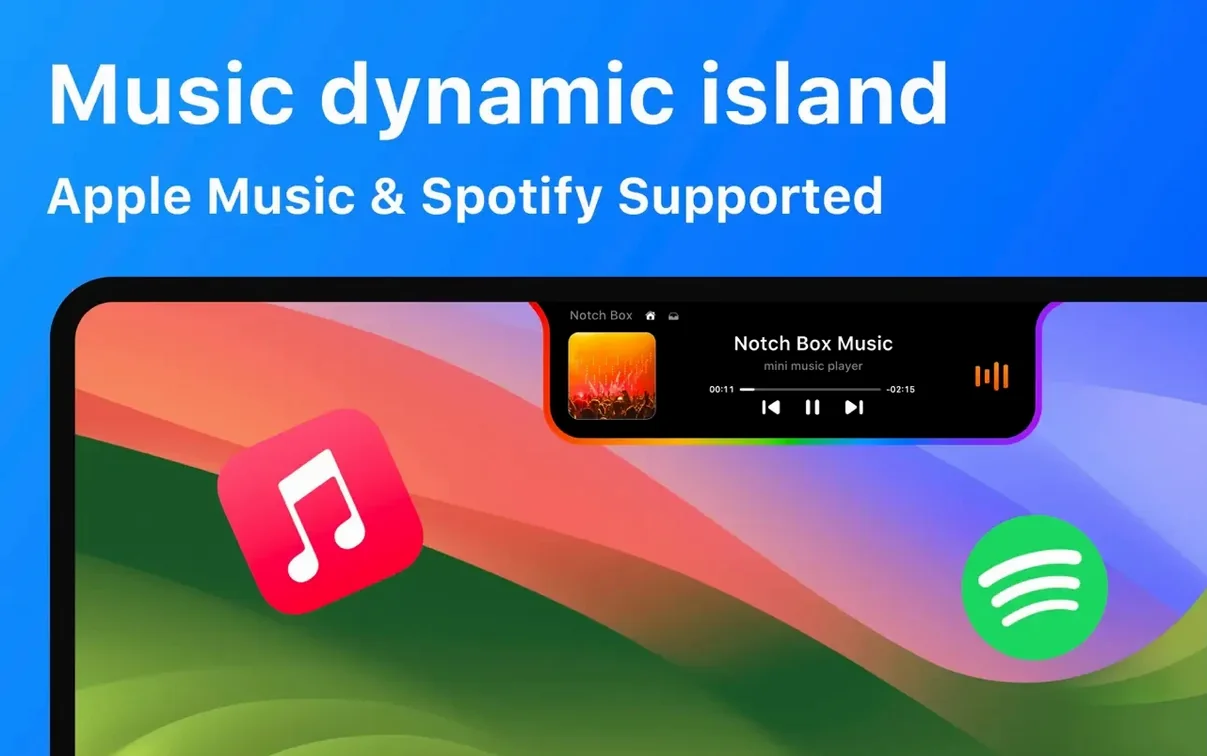
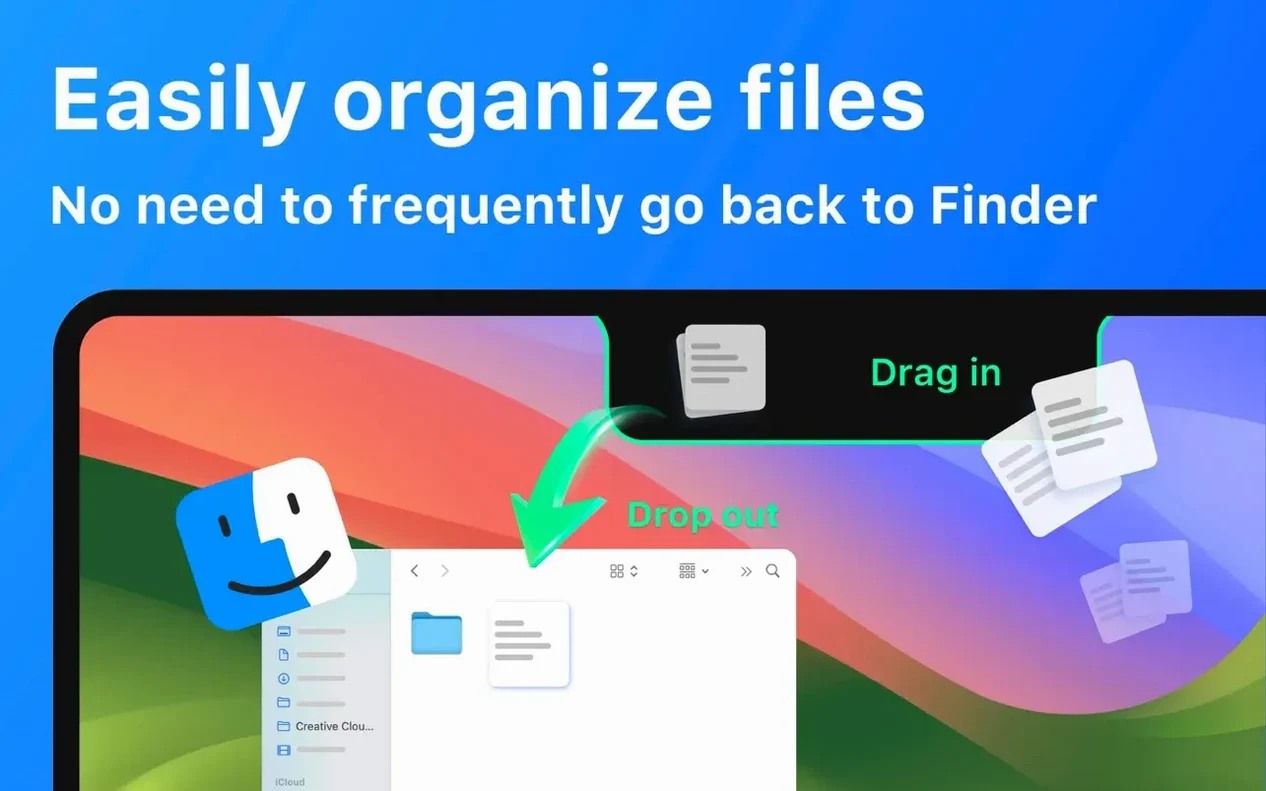

You drop a mix reference onto your screen, and instead of hunting for it in Finder, it lives right in the notch. A click pulls up the file, your music controls are a glance away, and a countdown timer is ticking for the render. NotchBox takes that unused strip of screen and turns it into a quick-access shelf.
One-Click Reference Files in the Notch
- Quick file access: Keep reference images, scratch tracks, or a shot list pinned to the notch for one-click access.
- Music control without context-switching: Apple Music playback lives in the notch, so you skip tracks without leaving the timeline.
- At-a-glance info: Date, time, Wi‑Fi speed, and signal strength sit in a compact panel you summon with a gesture.
- Focus timers: A built-in countdown timer runs from the notch — handy for Pomodoro-style editing sprints.
Runs on Any Notched Mac with macOS 13+
- Requires macOS 13 or later and a Mac with a notch.
- Runs on both Apple Silicon and Intel 64‑bit machines.
- Interface is translated into 16 languages including English, Spanish, German, French, Japanese, and Korean.
Forgetting Files Vanish on Restart
Dragging files into the notch and forgetting they're there is the big one. NotchBox acts as a temporary shelf, not permanent storage — files sit there until you restart the app or clear them manually. I've seen editors stash a graded reference clip, close the laptop, and wonder where it went the next morning.
Another common misstep: treating the notch panel as a full Finder replacement. It won't show nested folders or let you browse directory trees. Drop items you need right now — the current export preset, a client's font file, the VO scratch track. Anything deeper belongs in Finder tags or a dedicated folder.
People also miss that the music controls need permission granted in System Settings. If the play button does nothing, check Privacy & Security → Automation and confirm NotchBox can control Apple Music or Spotify. Without that toggle, the widget sits mute.
Last one: enabling every widget at once turns the notch into a cluttered mess. The Wi‑Fi meter, calendar events, clipboard history, and file shelf all compete for space. Pick two or three you'll actually glance at during a session. You can always swap them later.
Start with a Four-File Shelf
After dragging NotchBox into Applications and launching it, resist the urge to configure everything. Start with the file shelf and nothing else. Drop three or four files you know you'll need today — a LUT, a watermark PNG, a reference edit — and use only that for a full work session. You'll learn the click-and-reveal rhythm before adding distractions.
On day two, enable one music widget. If you cut with Spotify, link it; if you use Apple Music, set that instead. The notch controls skip, play/pause, and a scrubber that's surprisingly accurate for quick jumps. Notice how you stop alt-tabbing to the music app — that's the workflow win.
By day three, try the countdown timer. Set a 25-minute block directly from the notch, minimize it, and edit until the chime. This becomes muscle memory fast, and it's more reliable than a phone timer buried under papers.
Hold off on the camera mirror and Wi‑Fi meter unless you have a specific need. Camera mirror is useful if you record talking-head explanations for clients, but it eats a notch slot. The network speed readout helps when you're uploading cuts and want to know if the connection tanked — but it's visual noise otherwise.
From Raw Footage to Client Review: A Notch Workflow
Here's how I'd run a short edit session with NotchBox doing the heavy lifting on quick access.
- Prep the shelf: Drag the project's brief PDF, the color grade LUT, and a folder of music stems straight into the notch. They sit there, out of the timeline but always reachable.
- Start a timer: Set the notch countdown for 45 minutes. The first pass — selects, rough cut — gets full attention.
- Pull references mid-cut: Click the notch, grab the brief PDF, check the client's shot list, drop it back. No Finder window, no Dock click. Two seconds total.
- Switch music: When a track doesn't match the pacing, hit the notch music control, skip through the stems folder, and land on the next cue without minimizing the timeline.
- Clipboard grab: You copied a timecode note from Frame.io earlier. The notch clipboard holds it — expand the panel, tap the entry, paste it into the project notes field.
- AirDrop the review cut: Export the draft, drag the .mov onto the notch file shelf, then drag it from the notch onto an AirDrop target. The panel recognizes nearby devices when you hover.
The whole session stays in one screen. That's the point — NotchBox removes the mini-expeditions to Finder, Music, and Clock that fragment an edit.
Media Keys vs. a File Shelf
If you've looked at a notchbox download mac solution, you've probably seen MediaMate in the same conversation. MediaMate focuses purely on media keys and a HUD — volume overlay, brightness slider, now-playing popup. It polishes macOS controls beautifully, but it doesn't touch file management, timers, or clipboard. NotchBox casts a wider net; MediaMate refines one thing deeply.
Dropover overlaps with the file-shelf idea. You shake a file, a floating shelf appears, and you collect items before moving or sharing them. It's excellent for batch file operations — way better than NotchBox for juggling fifteen assets at once. But Dropover lives as a floating window, not in the notch, and it won't show you a timer or control Spotify. NotchBox does less with files but more with everything else.
Then there's Bartender — or its newer alternatives — which manage the menu bar, not the notch. Some people assume a notchbox for mac utility competes with menu bar organizers. It doesn't. Bartender hides icons; NotchBox adds interactive widgets to dead space. They solve different problems, and plenty of editors run both.
Where NotchBox carves its own space is combining a file shelf, music controls, and utility widgets in the strip Apple left blank. No other single tool does that particular mix. If the file shelf and AirDrop drag-and-drop matter to you, the notchbox download path makes sense. If you only want prettier volume sliders, go elsewhere.
- macOS 13 or later
- Apple Silicon or Intel 64-bit Mac
Notes from the edit bay · 0
Sign in or get an edit-bay pass to leave a note.
No notes from the edit bay yet. They go up after I read them.