
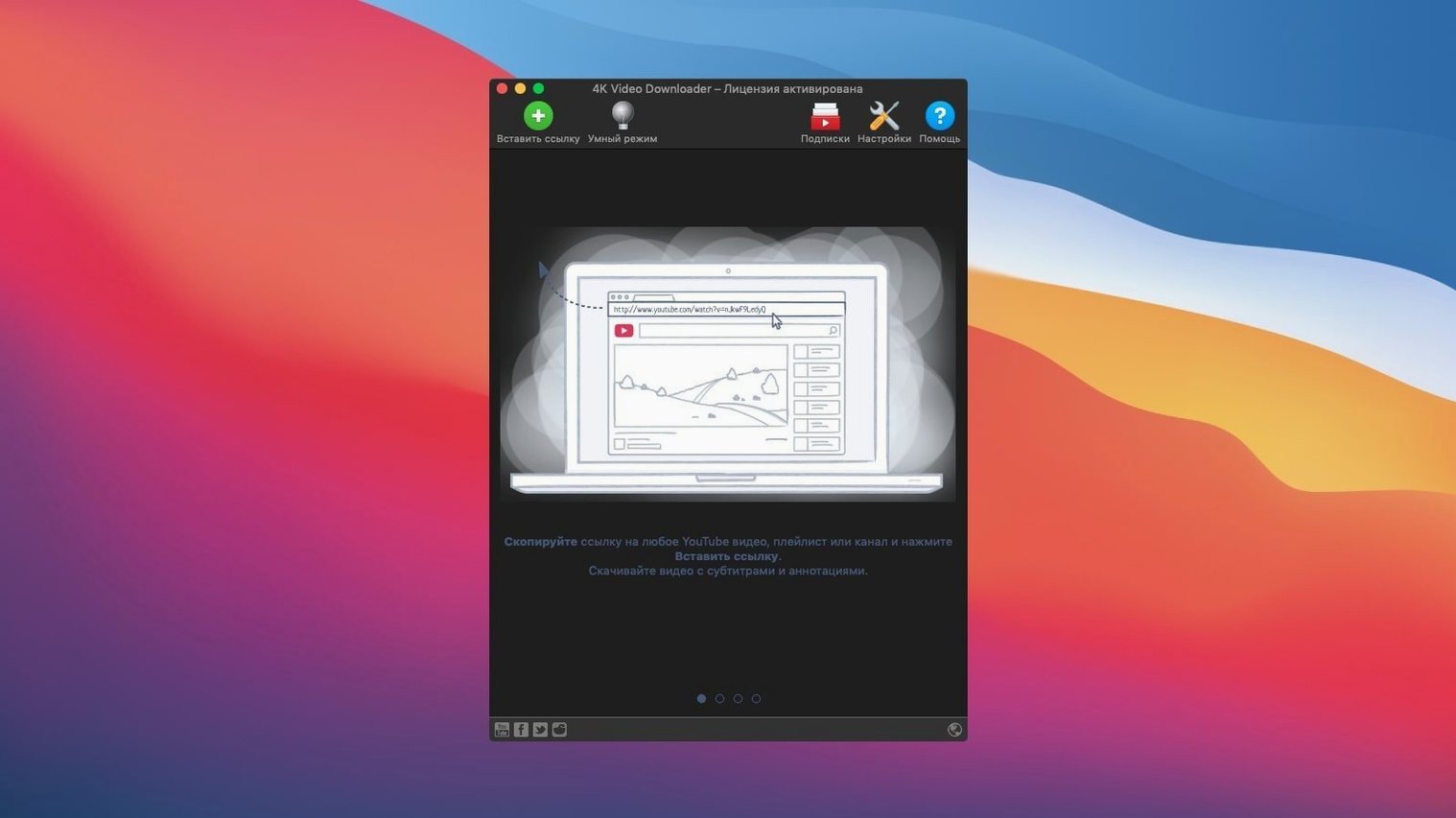
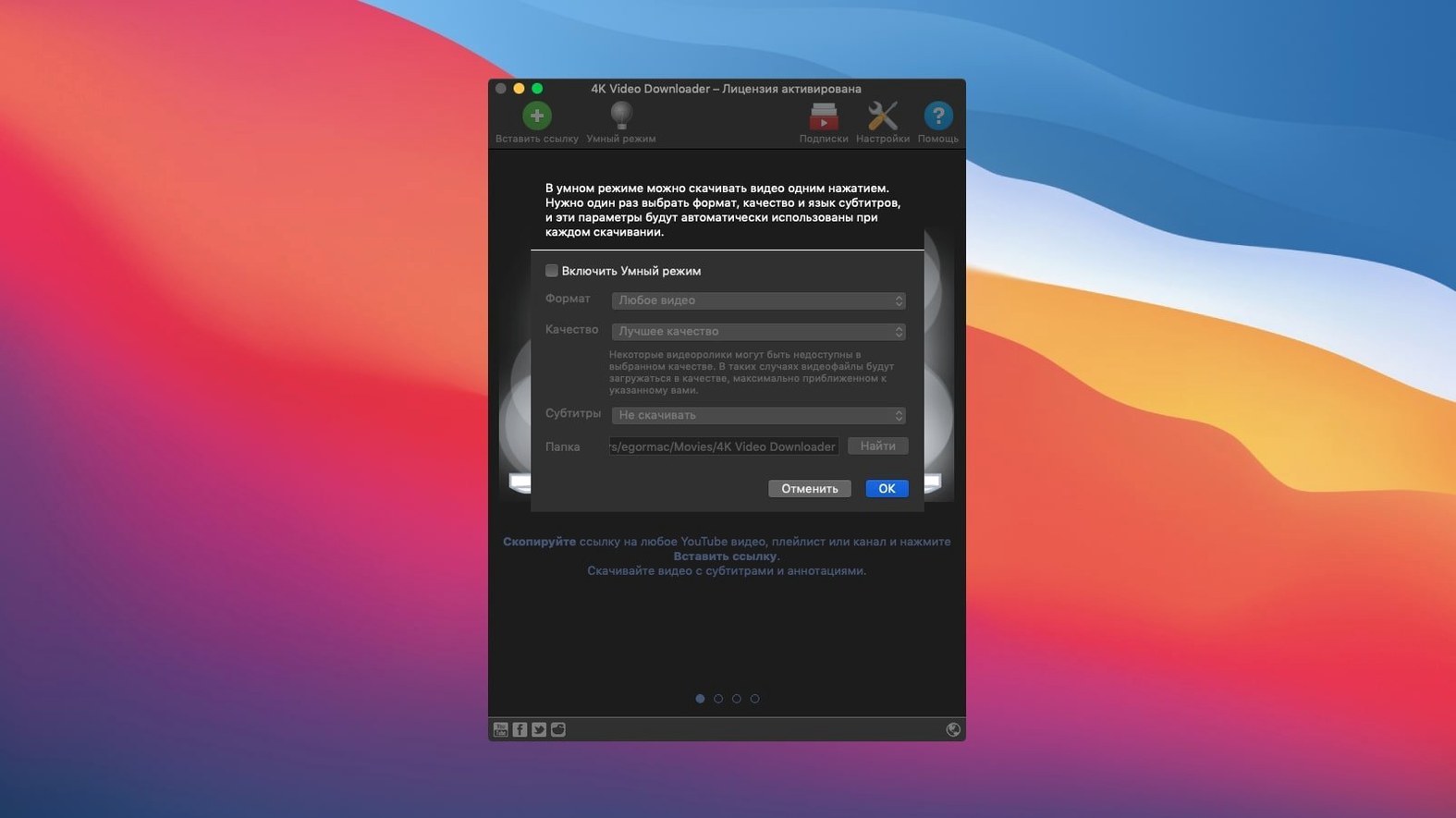
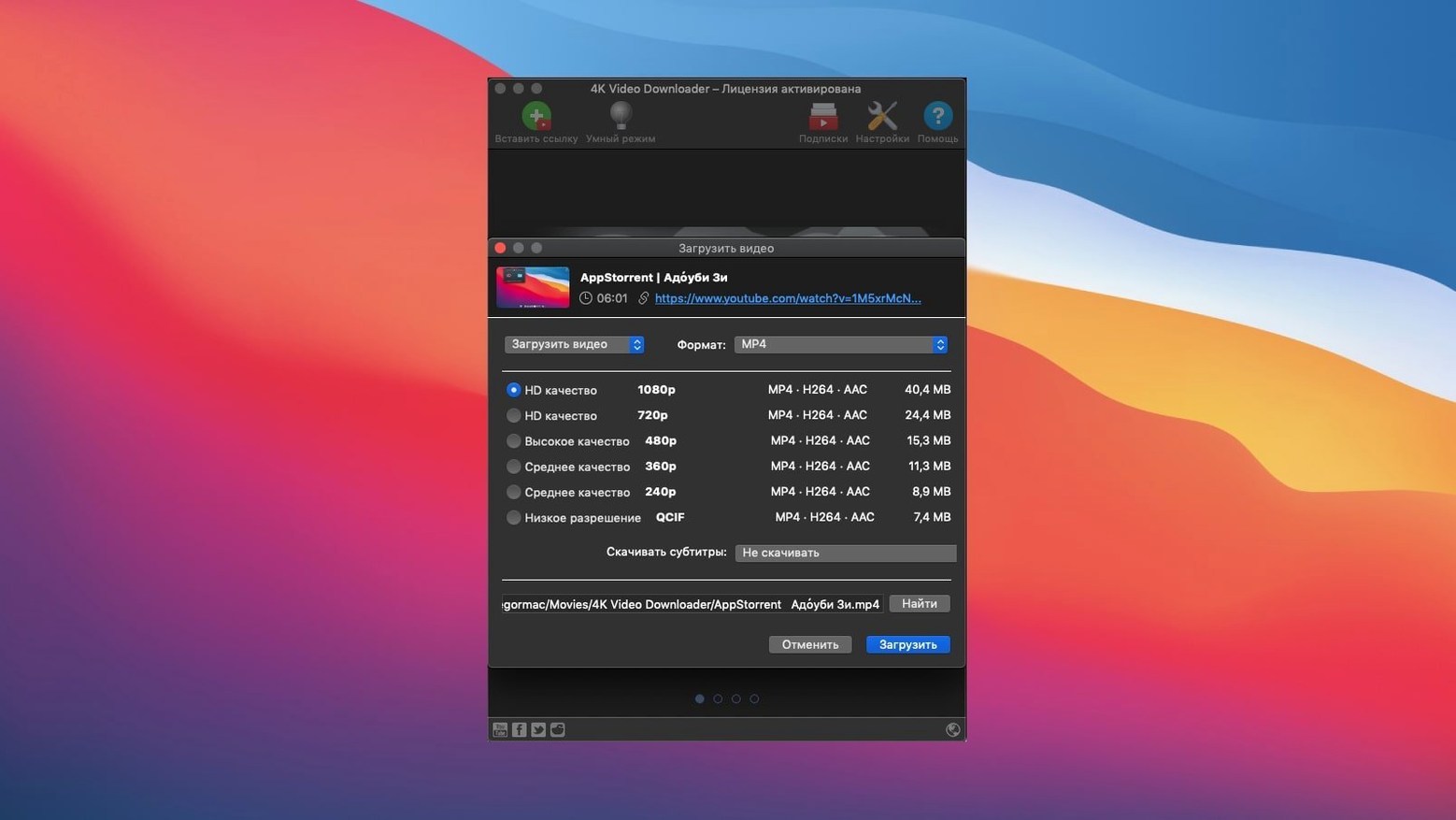
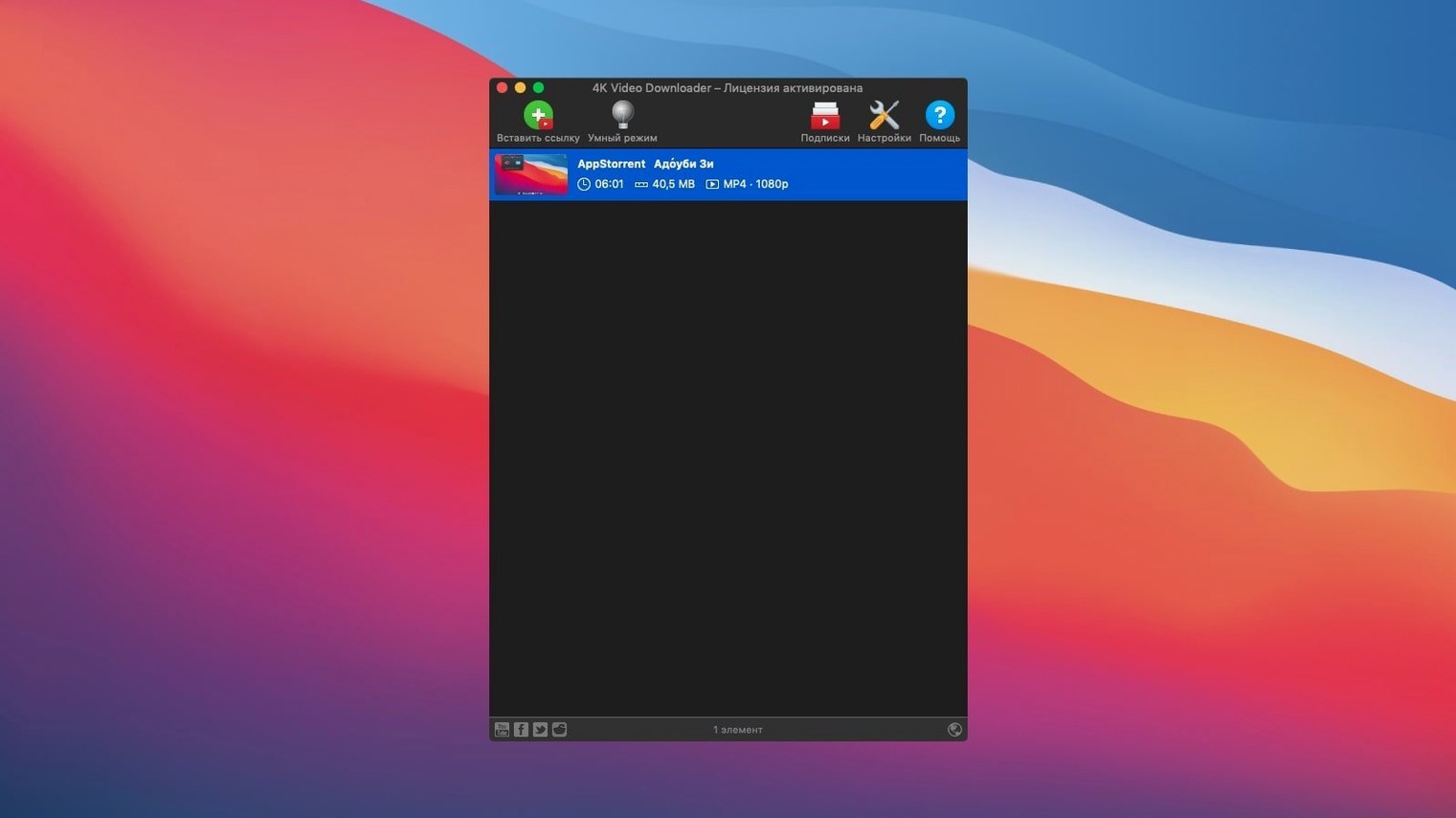
Smart Mode takes the guesswork out of format picking. Set your preferred quality and output once, and the app remembers it for every download that follows. That’s the kind of thinking that fits when you’re pulling clips from a dozen different places in a session. 4K Video Downloader on Mac is a desktop utility for grabbing videos, audio, and subtitles from YouTube plus a healthy list of other sites—Vimeo, SoundCloud, Flickr, Facebook, DailyMotion, and Instagram among them. It handles single links, full playlists, and entire channels without making you babysit the queue.
- Pick your resolution: 1080p, 720p, or proper 4K when the source offers it.
- Output to MP4, MKV, M4A, MP3, FLV, or 3G depending on what you need next—an NLE timeline or a phone library.
- Grab embedded YouTube videos straight from a webpage without hunting for the source URL.
- Pull subtitles alongside the video, which is a quiet lifesaver for archiving foreign-language reference material.
- Save a playlist and the app spits out an M3U file so you keep the running order intact.
It runs on any Mac still on macOS 12 or later. If your workday involves pulling reference cuts, backing up your own uploads, or building an offline library of tutorials and music, this one slots into the research-and-gather step of the workflow cleanly.
Lock In Your Defaults With Smart Mode
Out of the box, 4K Video Downloader plays it safe. A few tweaks turn it from a polite guest into a tool that actually moves at your speed.
First stop: Smart Mode. Flip the switch and lock in your defaults—MP4 at 1080p, or M4A if you're harvesting audio only. Smart Mode means you paste a link and walk away. No dialog, no second-guessing. For anyone pulling twenty clips in a morning, that one checkbox saves more clicks than you'd think.
Next, check the output folder. The stock location is your Movies folder, which might be fine for a laptop, but if you're feeding an edit suite you'll want to point it straight at your media drive or a watched folder that auto-imports into Final Cut. Do it once in Preferences and stop dragging files around later.
Dial in subtitle handling while you're there. The app can embed subtitles into the MP4 or save them as a separate SRT. Embedded works for quick playback; separate SRT files are what you want if you're pulling reference dialogue you'll scrub through in an editor. Pick one and let Smart Mode enforce it.
Also worth a look: the download speed cap in Preferences. It's unlimited by default, but if you're grabbing a monster playlist while trying to upload a cut for client review, drag that slider down to keep some bandwidth breathing. Not glamorous, but practical.
Last thing—enable clipboard monitoring. Copy a YouTube link anywhere on your Mac and the app notices. It's a small convenience that adds up when you're hopping between browser tabs and a messy desktop.
Runs Fine Under Rosetta 2, Not Yet Native
4K Video Downloader 26.3.5 is an Intel app running through Rosetta 2 on Apple Silicon Macs, and it behaves exactly how you'd expect: perfectly fine, but not native. Launch time is a beat slower than a universal binary. Once it's open, the interface stays responsive even with a queue of thirty or forty items stacked up.
Download speed is mostly about the server on the other end, not the app itself. On a decent connection, a single 1080p clip lands in seconds. Playlists chug along methodically—the app grabs one item at a time, verifies it, and moves on. You won't see the kind of parallel downloading some torrent clients pull off, but you also won't see half your files come through corrupted because the app tried to bite off too much at once.
Memory use sits around 200 to 400 MB during active downloads, which is modest on any Mac from the last five years. CPU bumps up briefly while it processes a finished file, especially if you're pulling 4K and it's remuxing into your chosen container. An M1 or M2 handles that spike in seconds and drops back to idle. On an older Intel machine, you'll hear the fans spin up during a long playlist grab, but nothing that grinds the system to a halt.
Stability-wise, the app rarely trips. I've had it running overnight on a hundred-video channel download and found it still chugging in the morning with no crashes. Where it sometimes stumbles is with very long YouTube live streams that have been archived—occasionally it'll fail to parse the format list and you'll need to retry. Not a dealbreaker, just a quirk to know about.
One thing that helps: the app writes files incrementally. If your Mac loses power mid-download, you're only out that one file, not the whole queue. Small mercy, but it's saved me from re-downloading a three-hour playlist more than once.
Grabs Files That Final Cut Pro Actually Wants
4K Video Downloader doesn't try to be a Swiss Army knife. It grabs files and gets out of the way, which is exactly what you want when it's feeding other tools.
The most natural pairing is with Final Cut Pro or DaVinci Resolve. Downloaded MP4s drop straight onto a timeline without transcoding, assuming you picked a resolution and frame rate your project already uses. If you're pulling reference footage, the separate SRT subtitle option means you can overlay dialogue in your NLE as a text track and scrub through it visually. That's a workflow Final Cut editors who work with foreign-language material lean on constantly.
For audio-only grabs, point the output at your Music app library folder or a DAW project directory. M4A files tagged from YouTube won't have perfect metadata, but they import cleanly. Logic Pro and Ableton Live read them without complaint. If you're pulling a SoundCloud set for reference while building a mix, 4K Video Downloader handles that directly—SoundCloud is on the supported list alongside the bigger names.
The M3U playlist files the app generates are a quiet power feature. Drag one into VLC or IINA and you've got an offline viewing queue that respects the original playlist order. Useful for archiving tutorial series or conference talks where the sequence matters.
On the macOS side, the app plays nice with Finder tags and Quick Look. Downloaded files are just regular files—no proprietary wrapper, no database you're locked into. Hit the spacebar to preview, tag them for a project, and move on. That plain-files philosophy also means backup tools like Time Machine or ChronoSync handle the archive without any special treatment.
Where it doesn't fit is as a media player or a library organizer. The app has no preview window beyond a thumbnail, and it won't catalog what you've downloaded. Pair it with something like IINA for playback or stick to Finder folders organized by project. That's the right division of labor.
Skipping Smart Mode Floods You With Dialogs
First one I see constantly: ignoring Smart Mode, then complaining about the dialogs. Without Smart Mode, every single link pops a format picker. One video is fine. Fifty is maddening. Flip the switch, set your defaults, and only override manually when you need something unusual like an MKV for a specific player.
Second: pulling 4K when they don't have a 4K display or timeline. YouTube's 4K encodes often look marginally better even on a 1080p screen thanks to higher bitrate, but the file sizes balloon fast. If you're building a reference library of hundreds of clips, 1080p is the practical sweet spot for storage and scrubbing speed. Save 4K for the shots you'll actually finish in.
Third: not checking the subtitle language before downloading. The app defaults to whatever YouTube thinks is right, and for videos with auto-generated captions in multiple languages, you sometimes get the wrong one. A quick glance at the subtitle dropdown before hitting download avoids the facepalm moment of realizing you pulled Korean auto-captions for a video you needed in English.
Fourth: downloading an entire channel without filtering. Channels with thousands of videos will fill a drive faster than you expect. Use the playlist option or pick specific videos unless you really do need the whole archive. There's no undo on a 200 GB folder appearing in your Movies directory.
Fifth: forgetting the app is Intel-only and wondering why it feels sluggish on an M3. It's running through Rosetta. It works, it's stable, but it's not optimized. Don't blame the app for Apple's transition layer—blame the fact that there isn't a universal binary build yet. Manage expectations accordingly.
YouTube Parsing Tightened After Google's Last Breakage
Version 26.3.5 tightened up YouTube parsing significantly. A few months back, Google tweaked something on their end and a lot of downloaders broke for a week. This build ships with updated extraction logic that handles the current YouTube page structure, including the newer format streams that separate video and audio tracks. In practice, that means fewer "can't parse this link" errors on videos uploaded in the last year.
Playlist handling got quieter improvements too. The app now recovers more gracefully when it hits a private or deleted video inside a playlist—it skips and logs the failure instead of halting the entire queue. If you've ever come back to a stalled download because video 17 of 80 was pulled offline, you'll appreciate that change.
Subtitles saw a small but meaningful fix: the app now correctly pulls manually uploaded SRT tracks on YouTube, not just auto-generated ones. For channels that take the time to upload proper captions, you finally get those instead of the machine-guessed version. That matters for accuracy when you're archiving spoken content verbatim.
On the compatibility front, the minimum macOS requirement has been macOS 12 for a while now, and this build still supports Intel Macs going back to that era. There's no Apple Silicon native version yet—the app remains Intel 64-bit—but it runs under Rosetta 2 without drama. The installer flow hasn't changed: mount the disk image, run the Gatekeeper-friendly opener, press Enter in Terminal to bypass the quarantine, drag the app to Applications, and launch. Same steps, same result.
The interface hasn't been redesigned. It still looks like a utilitarian Mac app from a few years ago, and honestly, that's fine. No one is spending hours admiring the download queue—they're pasting links and moving on. What matters is that the parsing stays current with site changes, and 26.3.5 delivers on that front.
- macOS 12 or later
- Intel (Apple Silicon runs via Rosetta)
Notes from the edit bay · 0
Sign in or get an edit-bay pass to leave a note.
No notes from the edit bay yet. They go up after I read them.