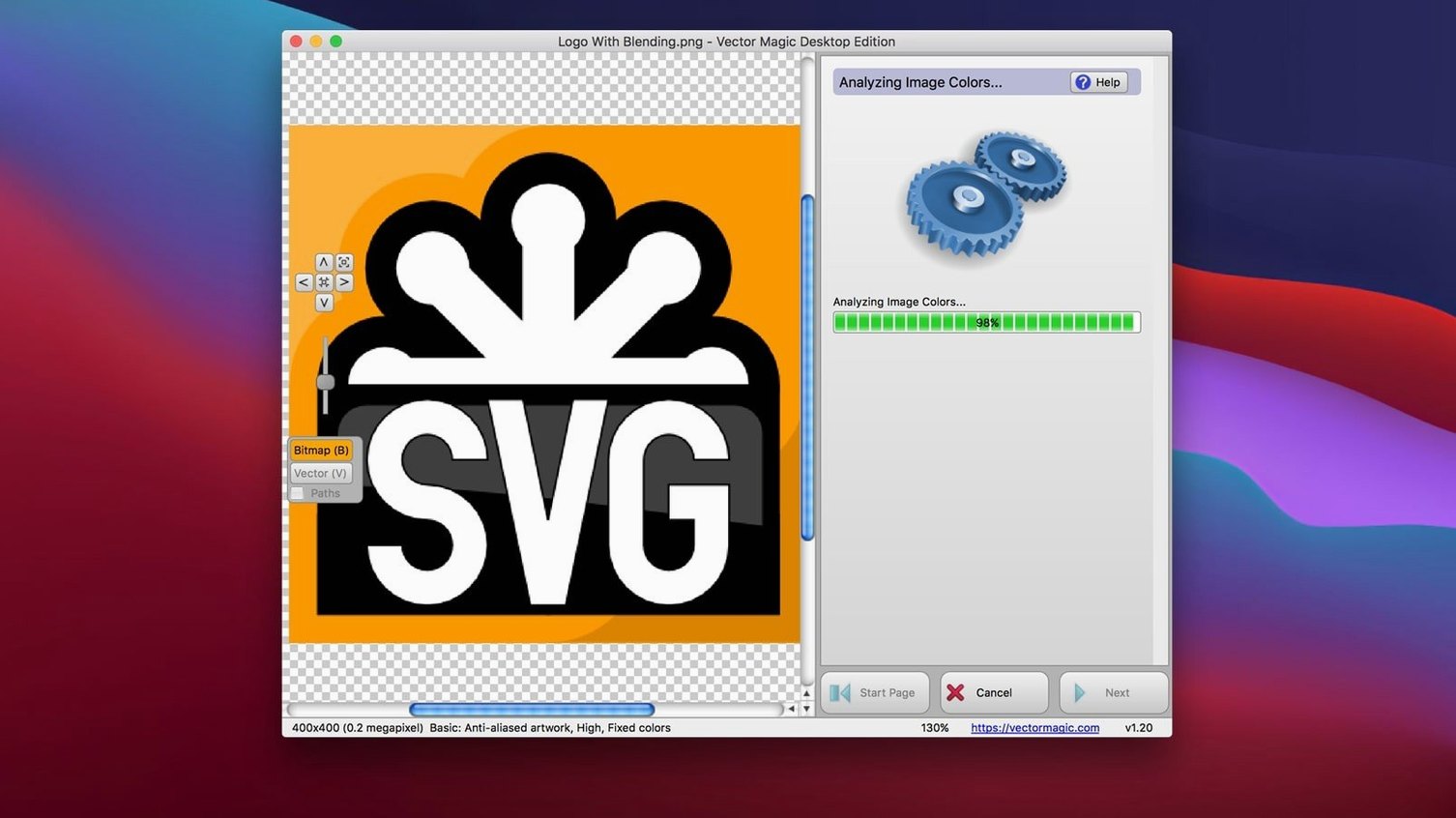
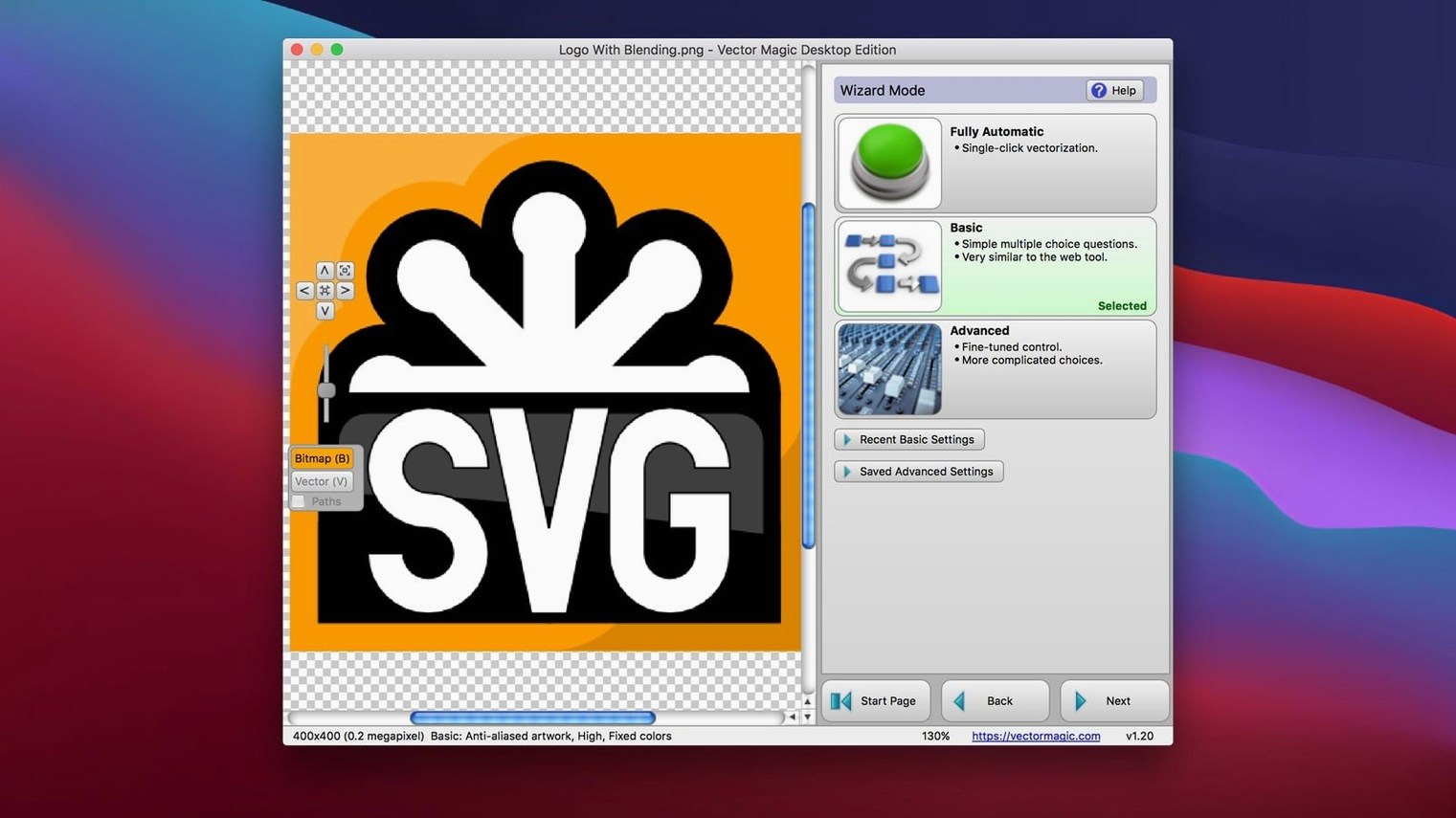
If you've ever traced a logo in Illustrator and cursed the results, you know the pain of automatic vectorization. Vector Magic sits in that same space — raster-to-vector conversion — but it's built to handle the job with a lot less babysitting. The Desktop Edition runs right on your Mac, no browser needed, and hands you vectors you can actually use without an afternoon of node cleanup.
Copy-paste and drag-and-drop straight into Illustrator and CorelDRAW
- Does it play nice with my other tools? Copy-paste and drag-and-drop work directly with Illustrator and CorelDRAW. You're not stuck exporting a file and re-importing it every time.
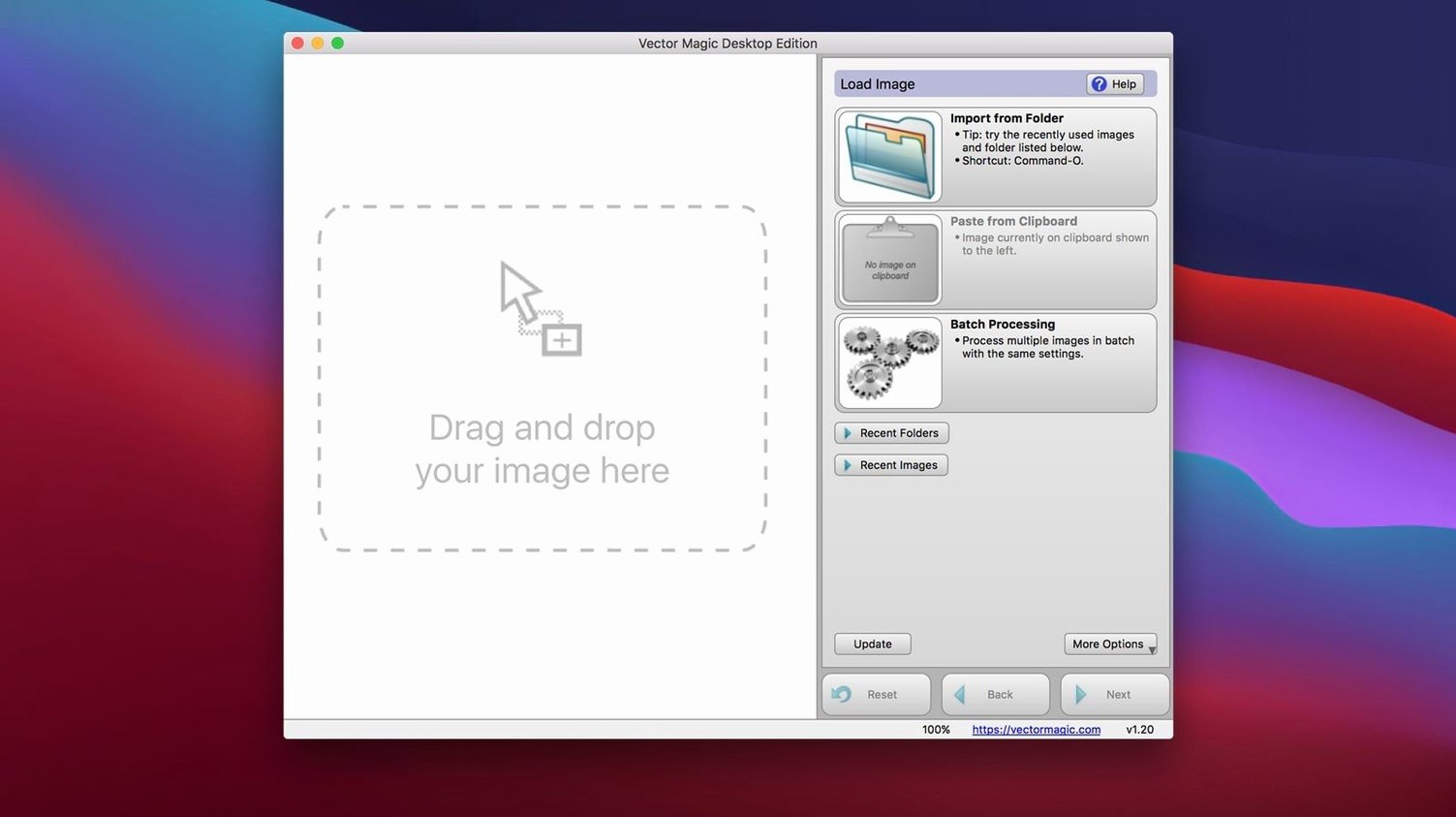
- Can I feed it a folder of images and walk away? Yes, batch processing is built in. Drop a stack of bitmaps and it chews through them sequentially.
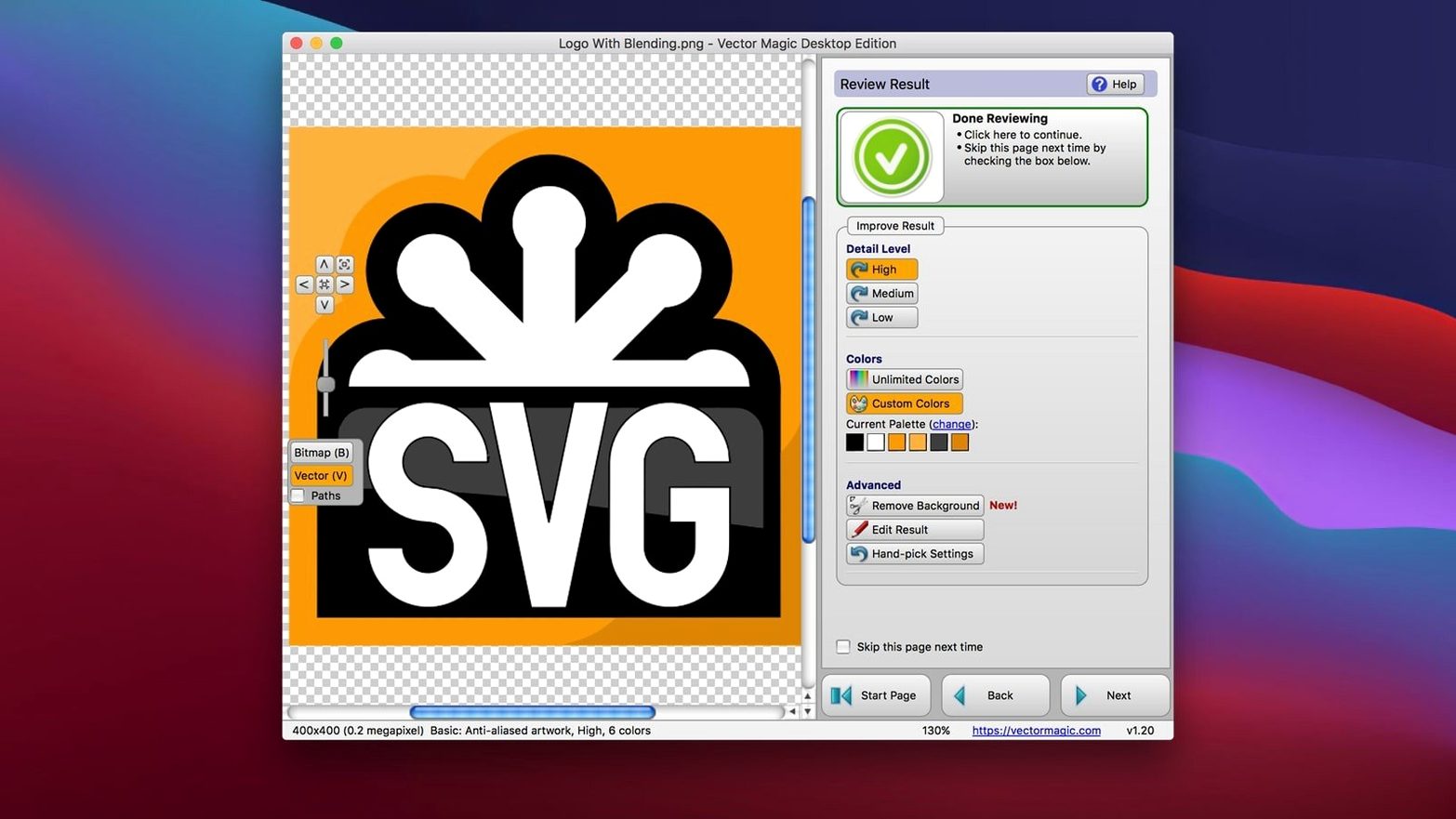
- What if the source image is a mess? The cleanup tools cover the basics — background removal being the one you'll reach for most. It's not Photoshop, but it handles the kind of crud that confuses an auto-trace.
Open it when a client sends a 200-pixel logo for a billboard
This is the tool you open when a client sends a 200-pixel JPG of their logo and expects it on a billboard. The desktop app accepts drag-and-drop, works offline, and caps out at 10 megapixels. That's more than enough for a scanned sketch or a low-res brand asset. The interface is English-only, and the Mac version runs on anything back to OS X 10.7 on an Intel 64-bit machine. It's not a design app — it's a utility that does one conversion and does it without the fuzzy edges you get from a rushed live trace.
Fewer tracing redos than Image Trace, Super Vectorizer, or Inkscape
Three tools tend to show up in the same conversation: Adobe Illustrator’s Image Trace, Super Vectorizer 2, and Inkscape’s Trace Bitmap. They all do the job. The difference is how many times you have to redo it.
Illustrator’s Image Trace is the obvious starting point because it’s already on your machine. It’s powerful when you dial in the presets, but the default results often need serious node reduction. Vector Magic tends to nail the segmentation on the first pass with less pontification. Where Illustrator makes you cycle through a panel of sliders, Vector Magic’s manual mode gives you a live preview as you adjust — you see the shape simplify or the corners tighten before you commit. For a single logo, the time saved is a few minutes. For a batch of icons, it’s the difference between a coffee break and a late lunch.
Super Vectorizer 2 leans harder into color reduction and posterization, which is handy for photographs you’re stylizing into flat art. But its edge detection on text or geometric logos can produce wobbly curves that need cleanup in another app. Vector Magic handles typographic shapes with noticeably straighter lines and sharper corners — that’s where the segment editing saves your afternoon.
Inkscape is the free option, and its Trace Bitmap module can produce decent results on high-contrast artwork. The catch is the single-preview workflow: you tweak settings, run the trace, undo, tweak again. Vector Magic’s instant preview in manual mode cuts that loop down to nothing. If you’re converting one image a month, Inkscape is fine. If you’re on a clock, the desktop app earns its keep.
Why camera photos turn soft: the silent 10-megapixel downscale
The 10-megapixel cap trips up new users who drag in a photo straight from a camera. The app won’t reject the file, but it scales it down silently, and you wonder why the output looks soft. Resize the image to the actual dimensions you need before importing. A 4000-pixel-wide photo of a hand-drawn logo is overkill anyway — crop it tight and you’re back under the limit with no quality loss.
Transparency in the source image causes confusion when the vector output rasterizes a white background you didn’t want. The background removal tool lives under the cleanup options, not in the export dialog. Run it before you hit save, or you’ll be back in Illustrator painting out a white box behind your logo.
Batch processing skips files over 10 MB without much fanfare. The progress bar just moves on. Check your file sizes before queuing up a folder of layered PSDs — flatten them to PNGs first and the batch runs clean.
Copy-paste into Illustrator sometimes lands as a grouped mess of clipping masks. That’s Illustrator’s clipboard interpretation, not a bug in Vector Magic. Use the EPS or PDF export instead for complex artwork — the file lands with cleaner path structures.
Screen printers and sign makers converting napkin sketches to vectors
Screen printers and sign makers live in this app. They receive customer artwork in every format imaginable — phone photos of napkin sketches, low-res JPEGs pulled from Facebook, ancient CorelDRAW files exported as bitmaps. Vector Magic’s automatic mode converts the usable ones fast, and manual mode rescues the borderline cases with the segment editor. The EPS output drops straight into vinyl-cutting software without a format headache.
Presentation designers who build slide decks in Keynote or PowerPoint benefit too. They need vector logos that scale cleanly on a conference-room projector. Dragging a PNG into Vector Magic and pasting an SVG into the deck takes less time than emailing the client to ask for a vector file they probably don’t have.
Illustrators scanning ink drawings get clean outlines without the fuzz. The 10-megapixel cap is plenty for an A4 scan at 600 DPI, and the output strokes need far less node cleanup than a live-trace pass. If your workflow is “scan, vectorize, color in Illustrator,” Vector Magic slots in as the middle step and drops the prep time noticeably.
Feed it five known images before you tackle real work
Mount the disk image and move the app to your Applications folder — standard stuff. Before you tackle real work, feed it five images you know well: a logo with text, a simple icon, a photo with a clean silhouette, a sketch with cross-hatching, and a gradient-heavy graphic. Watch how the automatic mode handles each one, then open manual mode on the sketch and play with the detail slider. That fifteen-minute tour teaches you more than reading the help file.
Next, set up your export presets mentally. EPS for print, SVG for web, PDF for clients who need to preview the result. The app remembers your last-used format, so batch-export a test folder to lock in the muscle memory.
If you work with Illustrator, test the copy-paste path once with a simple shape and once with a complex one. Note which needs a direct file export instead. That one test prevents the “why is my artwork a stack of clipping masks” panic at 4:45 PM.
Finally, drag your most-requested client logo folder into the batch processor and let it run while you make coffee. The offline processing means your internet speed doesn’t matter — the render happens on your Mac’s CPU, and the fans might tell you it’s working.
- macOS 10.7 or later
- Intel 64-bit processor
- Maximum file size: 10 MB
- Maximum image size: 10 megapixels
Questions I actually get
What's the file size limit?
The maximum file you can feed it is 10 MB, and the image itself can't exceed 10 megapixels.
Does it work on Apple Silicon?
The current build is Intel 64-bit, so it runs through Rosetta 2 on Apple Silicon Macs.
Is there built-in help if I get stuck?
Yes, the Desktop Edition includes a built-in help system covering the main controls and cleanup tools.
Notes from the edit bay · 0
Sign in or get an edit-bay pass to leave a note.
No notes from the edit bay yet. They go up after I read them.