
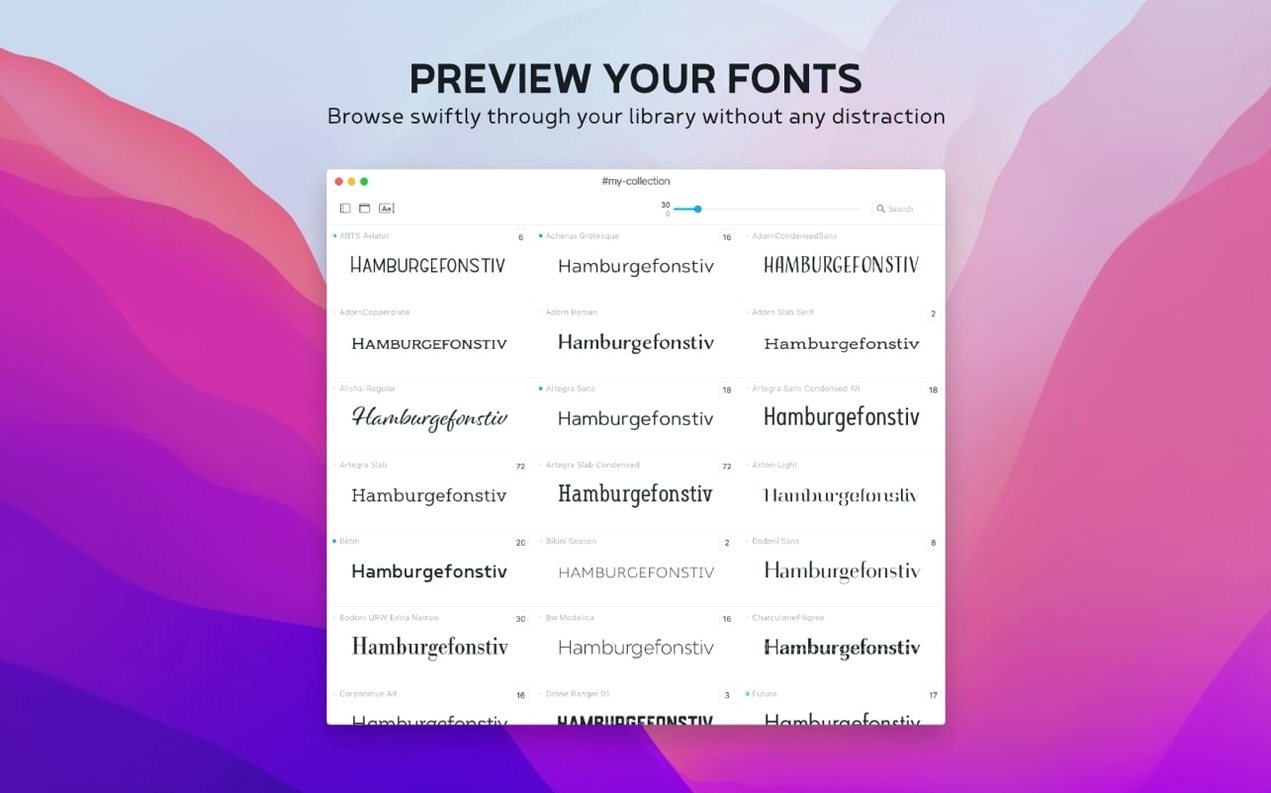
Think of Typeface as the Finder, but built entirely around a font's DNA. It gives you spatial, fast previews without ever feeling like a bloated catalog app.
Live preview — A resizable view that shows a font at any size you drag it to, with your own custom text sample.
Side-by-side comparison — Pick two or more fonts and see them stacked, so the weight and x-height differences become obvious immediately.
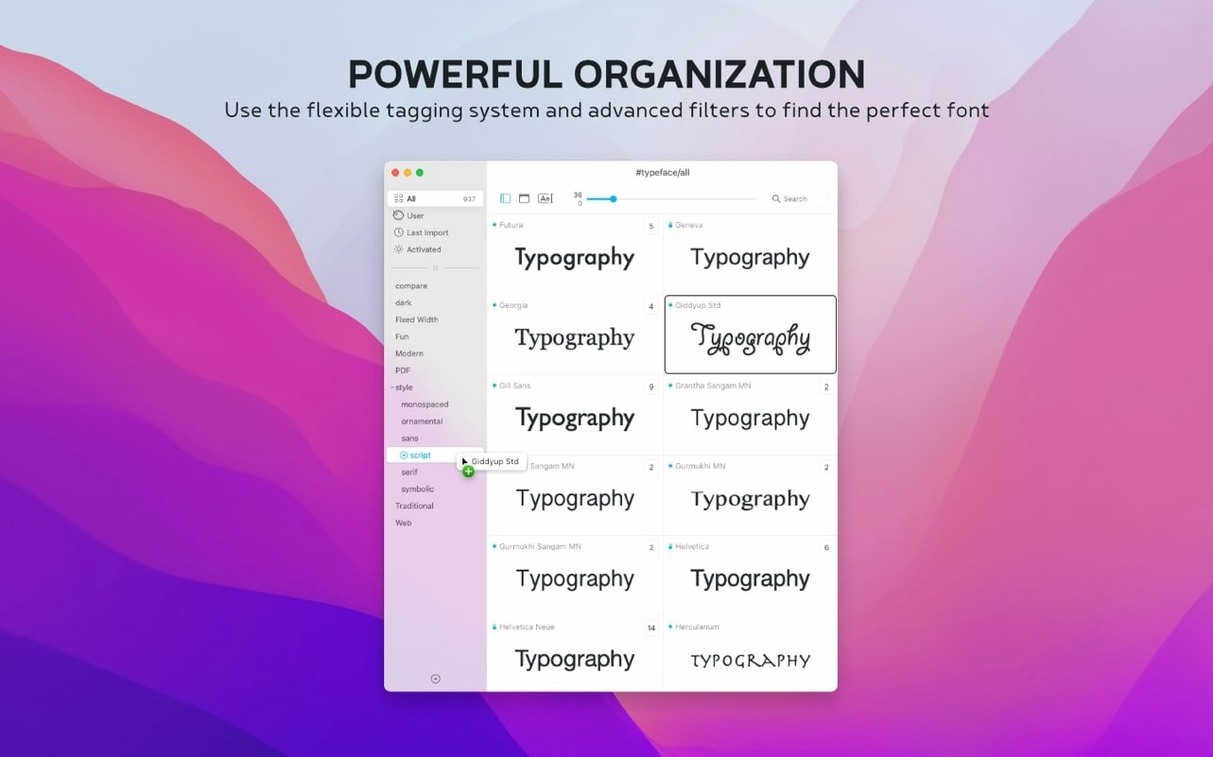
Tags, not just folders — A single font lives in multiple groups. Tags let you build overlapping, non-destructive sets for different projects.
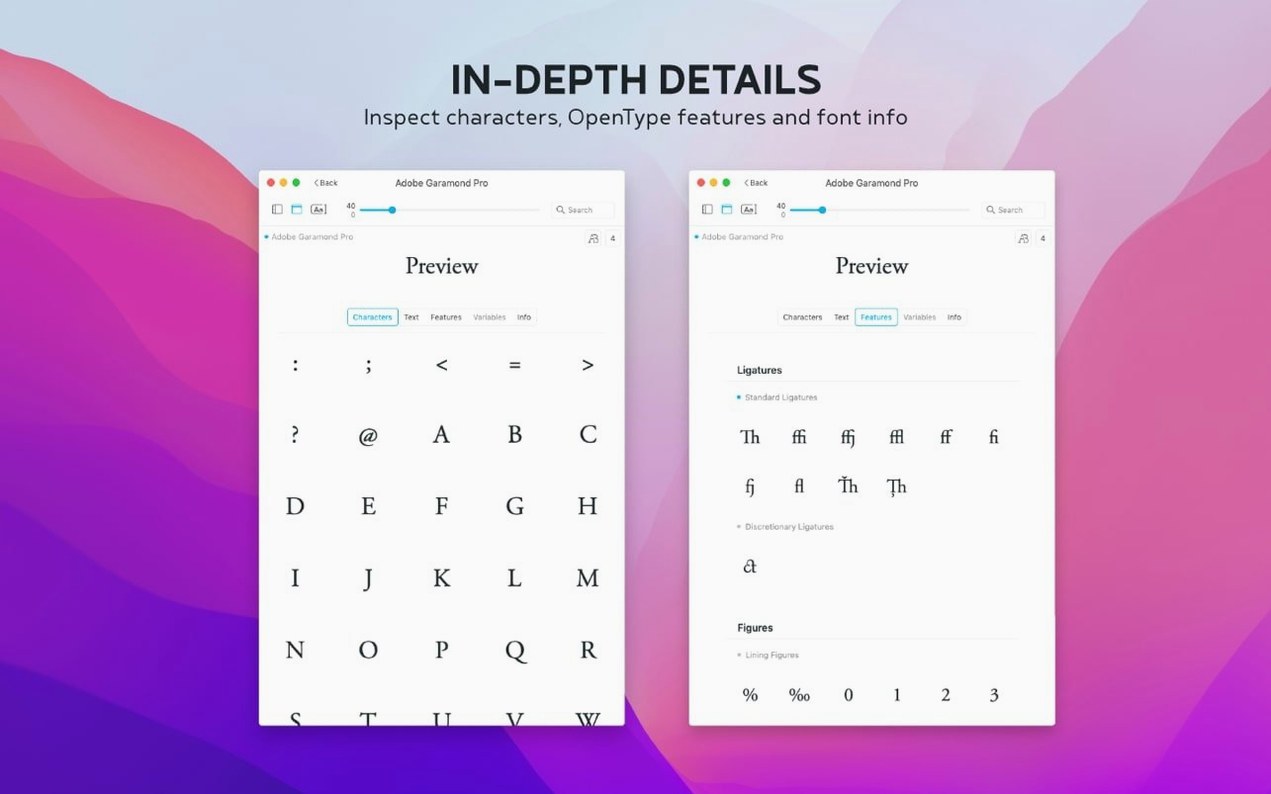
Info tab — Pulls up metadata, copyright history, and now a Notes field where you can log client preferences or pairing ideas.
Activated date sorting — A column that sorts by the last time you activated a font. Useful for tracing back what you pulled for a rush job last Tuesday.
.otc support — It reads OpenType Collection files natively, so you don't have to unpack them first.
Layering Organization Over System Fonts
Typeface doesn't try to replace Font Book or hijack your system font folders. It reads what's already installed and layers its own organization on top. That matters when you're juggling a handful of other tools.
If you work in Final Cut Pro or Motion, you know the built-in title inspector shows fonts in a flat alphabetical list with no preview worth the name. Typeface sits next to it. You find the right weight and personality in Typeface, confirm the name, then jump back to FCP and pick it from the pop-up first try. No scrolling through fifty weights of the same family blind.
With Adobe apps the dynamic is similar. Illustrator and InDesign have their own font previews, but they're modal and slow when you have a few hundred options active. Typeface stays open as a separate space. You can keep a collection called "Client: Meridian" visible while you work, then switch to "Logo exploration" without touching the Adobe font menu at all.
The app also plays well with RightFont or Typeface exports if you're migrating between managers. It imports fonts from other managers without fuss, and the .otc support means those big Noto or Source Han collections come across intact. If you've grabbed a Typeface torrent that turned out to be a single .otc file, you know the satisfaction of dropping it straight in and comparing weights immediately—no unpacking needed.
macOS Monterey and Ventura tightened font validation under the hood. Typeface respects that — it shows you what the system sees, not a parallel database that can drift out of sync.
Matching Client Reference Fonts Under Deadline
You're cutting a title sequence for a musician's EPK. The client sent a mood board with three reference fonts, none of which you own. You have twenty minutes before the rough cut goes out.
1. Grab reference and match. You search the reference font names in Typeface's Google Fonts import. Two are available. You pull them in and tag them epk-options.
2. Find a paid-font alternative. The third is a commercial serif. You scroll through your Library tab, filtering by Serif, and spot something close — a weight you forgot about six months ago. You drop both into the comparison view side by side. The x-height is nearly identical. Good enough.
3. Check character support. The track title has an uncommon diacritic. You click the third candidate, flip to the glyphs tab, and confirm the character exists. No surprises during export.
4. Tag and note. You add a short note in the Info tab: "Pair with opener sans for contrast, good at 48pt." The Last Activated column updates automatically. Next week when you revisit this project, you'll sort by that column and find it instantly.
5. Jump back to the timeline. You know the exact font names. In Final Cut, you type the first three letters and they appear. Done. The export goes out with twelve minutes to spare.
A Specific Workflow: Building a Brand Font Stack
You're defining a three-tier font system for a new brand: display, body, and UI. It has to work across web, print, and motion, and you need to present a shortlist to the client by end of day.
Start broad. You create a collection called "Brand v1" and dump in every candidate you're considering — installed fonts, a few from Google Fonts, and a couple of .otf files a colleague shared over Slack. Forty fonts total.
Filter by role. Tags go on immediately: display, body, ui. Some fonts get two tags because you're not sure yet. Typeface lets you do that without duplicating anything. The collection stays clean; the tags do the sorting.
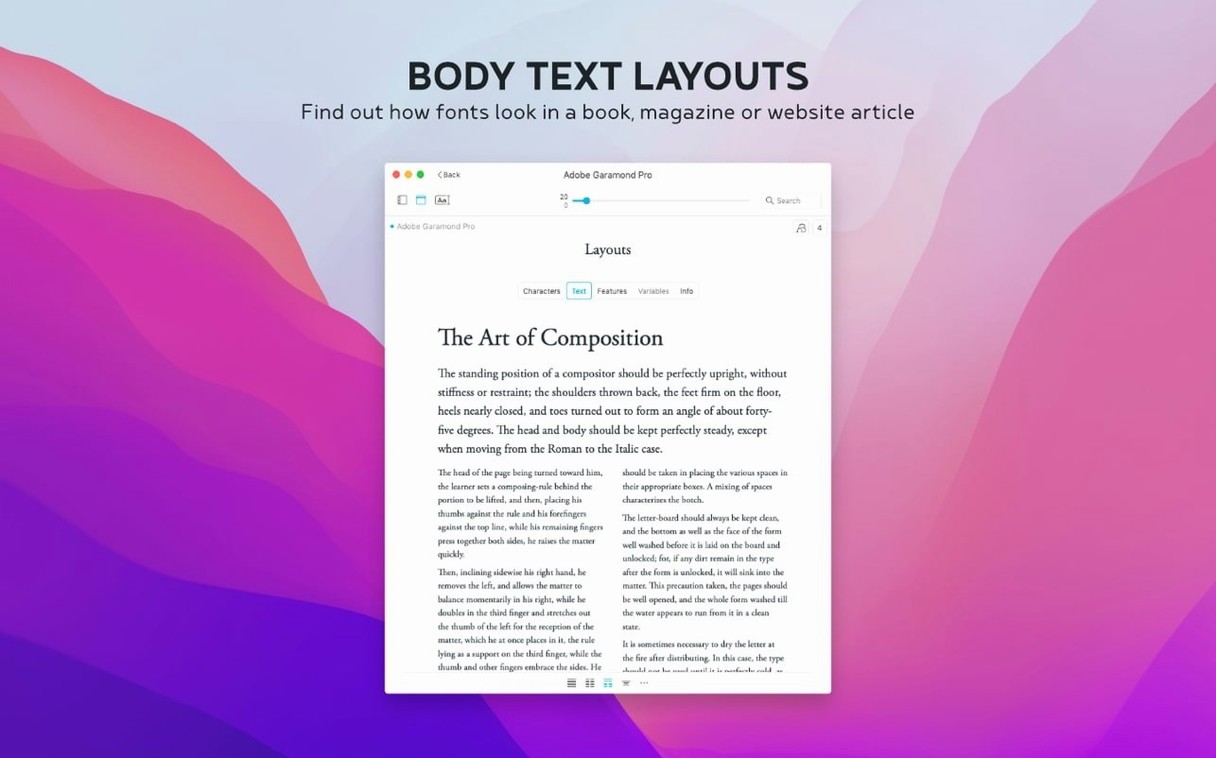
Side-by-side elimination. For the body text candidates, you select four and open the comparison view. You set sample text to a realistic paragraph — product description length, not just "The quick brown fox." Two fonts feel too dense at 11pt. You remove them from the collection.
Metadata check. For the remaining serif body option, you open the Info tab. The copyright field shows an open-source license you can use without attribution headaches. You type "OK for web embedding" in the new Notes field and move on.
Export the shortlist. Three display, two body, two UI options survive. You take screenshots of the comparison view — Typeface's stacked layout makes it easy to grab one image that shows all candidates at the same optical size. That single image goes into the client deck. Meeting's tomorrow at ten.
Embedding Pairing Notes Inside the App
The Notes field seems small on a changelog but it shifts how you work across sessions. Before, you'd keep a separate text file or a Notion page with font pairings and client preferences. Now that context lives inside the app, attached to the font itself. Searchable from the overview.
The Last Activated column solves a real-world annoyance. You know you used a specific weight for a social cut three days ago, but you can't remember the name. Sort by last activated date and it's at the top of the list. No digging through recents menus across five different design apps.
.otc support removed a step that always felt like make-work. OpenType Collections pack multiple fonts into a single file — common with CJK typefaces and big Google font families. Before 4.5, you'd have to extract them with another utility before Typeface could read them. Now you drag the .otc file in and it just works.
Also fixed: search now reaches into the Notes field, so the phrase "use for headers only" typed into a font's note months ago is actually findable. That's the kind of detail that makes the app feel like it's keeping up with how you actually work, not just how a font manager is supposed to behave on paper.
Version 4.5 adds a Notes field right in the Info tab — perfect for jotting down pairing ideas or client-specific rules without leaving the app. You can now search across those notes, and a new Last Activated column lets you sort by what you recently used. Also fixed: .otc font files are now supported.
- macOS 12 or later
- Runs natively on Intel and Apple Silicon Macs
Questions I actually get
Can I assign a font to more than one collection?
Yes. Typeface uses a tag system, so you can add a font to multiple groups without duplicating the file.
Does it work with fonts I've already installed on my Mac?
It's a standalone manager that works alongside your system fonts. You can import from your drive, the internet, or other font managers.
Notes from the edit bay · 0
Sign in or get an edit-bay pass to leave a note.
No notes from the edit bay yet. They go up after I read them.