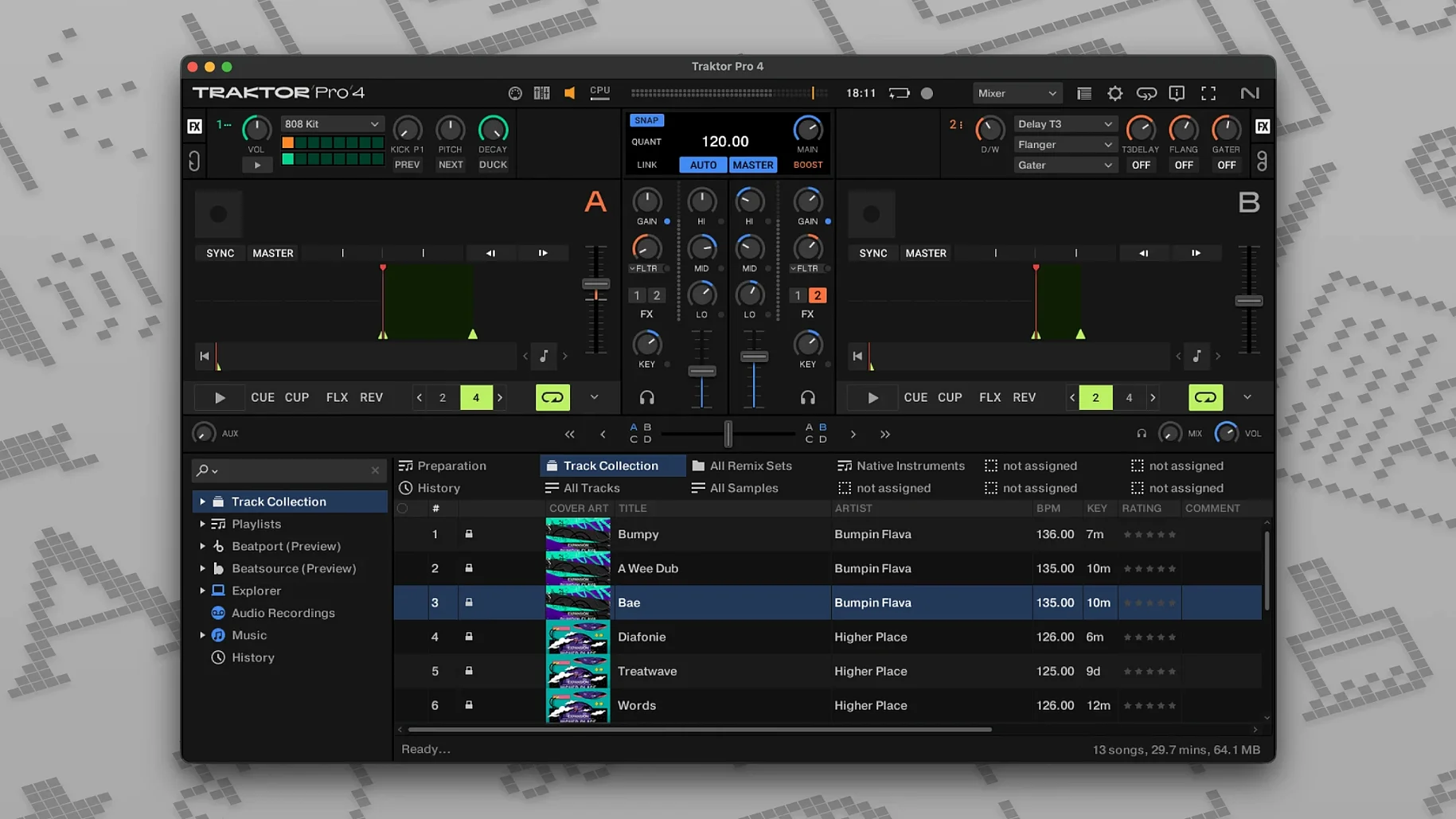
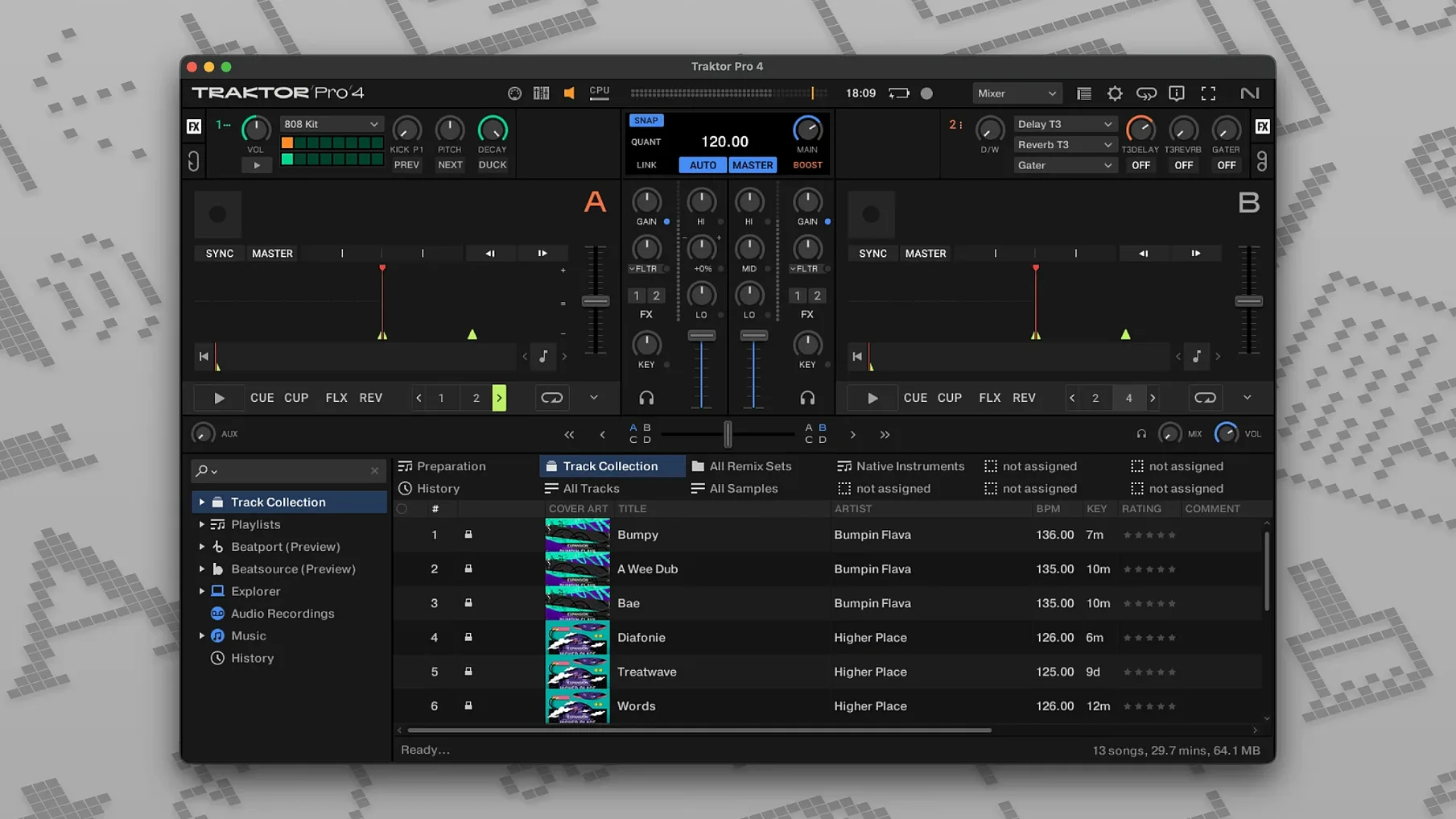
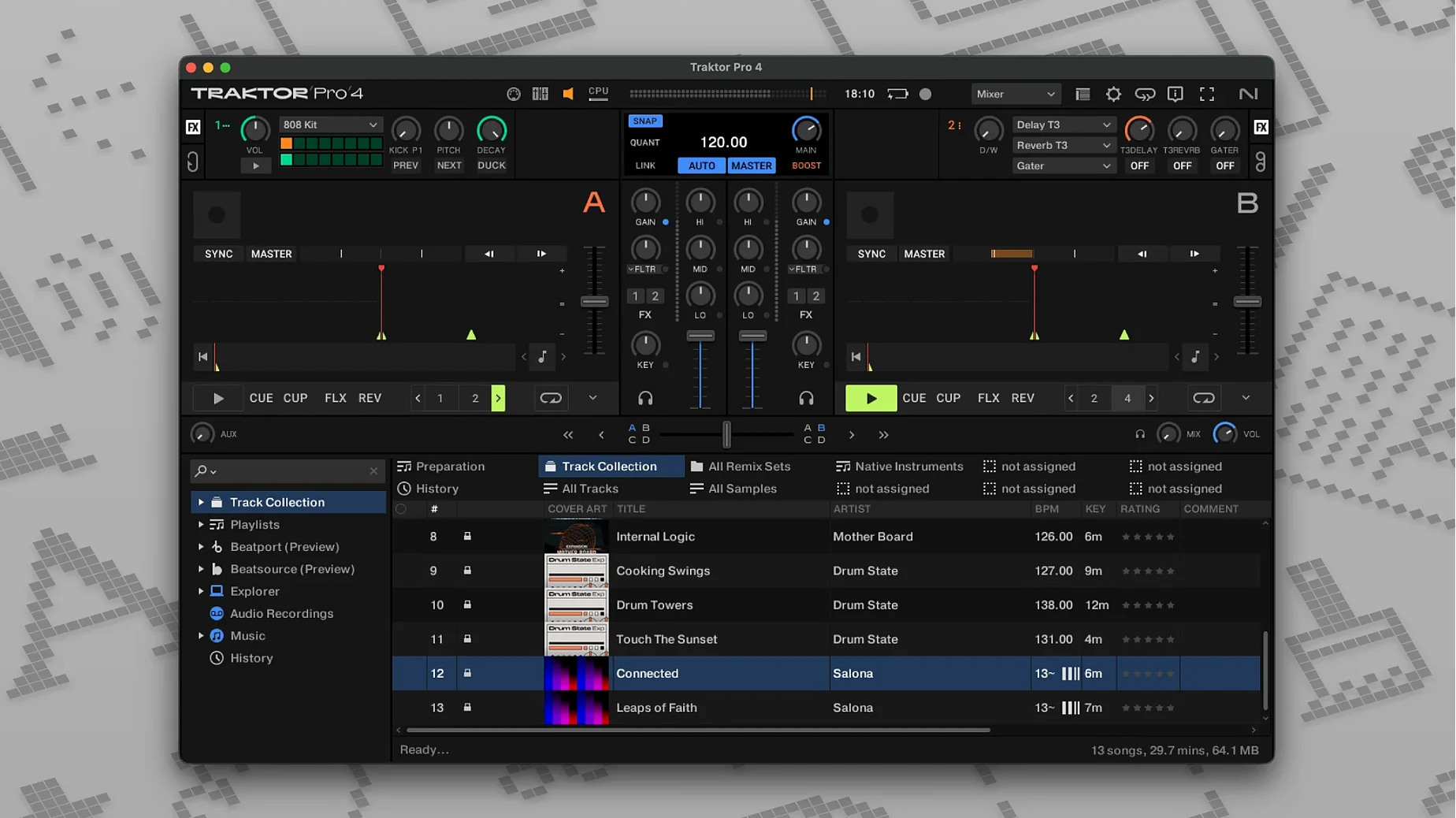
The current build, 4.5.1.21, tightens playback and layout stability under the hood. No marquee features this round — just the kind of release you appreciate when a four-deck set runs clean through the last transition.
Traktor Pro sits between your Finder and your audio interface. Drag a track from a folder, and it lands on a Deck, a Remix slot, or a Stem Deck ready for separation. The software reads the iTunes tags you already organized, so library prep feels like a sorting job you did three months ago finally paying off. Keyboard shortcuts are yours to assign — map a jump, a loop, or a reverse-playback toggle to a single key and keep your hands off the trackpad when it counts.
Where it fits among the tools you already keep open: a four-deck layout mirrors the muscle memory of a hardware mixer, while a custom view strips the screen down to just the waveforms and faders you need. If you route audio through an external interface, Traktor treats it as a straightforward output pair — no hidden aggregate device tricks. Beatport streaming pulls in tracks without leaving the app, which turns a last-minute request into a search bar moment, not a Finder dive.
The Track Deck handles standard playback. Stem Deck splits a track into drums, bass, vocals, and other elements in real time. Remix Deck holds one-shots and loops you trigger like a sampler. Live Input brings a microphone or an instrument straight into a deck slot. All four types talk to each other across the same four-channel mixer, so a vocal from a Stem Deck can ride over a beat from a Remix Deck while a full track plays underneath. That flexibility is the point — not a feature list, but a routing sketch that adapts to how you hear the set.
Opening the Laptop at 9 PM with a Layout Already Waiting
You open the laptop at 9 PM, the room still quiet. Traktor Pro loads your last layout — two Track Decks, one Remix Deck, a Live Input for the mic. The Browser tree on the left already points at the folder you tagged last weekend. No hunting.
First track lands on Deck A with a drag. Waveform paints itself across the strip; you tap the spacebar and the kick punches through the nearfields. Deck B gets a vocal house cut from Beatport streaming — the search bar pulls it in eight seconds, and the stripe loads while Deck A still rides. You nudge the tempo fader until the phase meter stops drifting, then punch a four-beat loop on the incoming track with a single keystroke. That loop buys you thirty seconds to twist the EQ kill on the bass of Deck A, swap the low end, and slide the crossfader right. The transition lands clean.
A third element sneaks in halfway through. You drag an acapella into a Stem Deck, and within a beat the software has the vocal isolated — drums, bass, and instruments muted with a click each. The vocal floats over the blend from Decks A and B while the Remix Deck underneath fires a one-shot riser every sixteen bars. You tap Record somewhere around minute twelve. The WAV file lands on the desktop, timestamped, ready to review tomorrow.
By 10 PM the room is full. The Live Input deck carries a mic signal through a slapback delay you mapped to a knob on the Kontrol — no menu diving, just turn and hear. The set breathes. When you finally fade the last track, the recording sits in the Archive folder alongside the ID3 tags you wrote on the fly. That is the arc: open, load, blend, record, walk away with a file.
Holding the Reverse Key to Spool a Phrase Backward on Release
A handful of moves speed things up in ways the manual barely mentions.
Reverse playback as a performance tool. Map a key to reverse, hold it mid-phrase, and the track spools backward until you let go. It snaps back to forward the instant you release — a quick rhythmic fill without touching a platter.
Double-click the waveform zoom. The stripe zooms to the transient level you need for beat-grid tweaking, then collapses back with the same double-click. No zoom slider drag, no squinting.
Right-click any knob for a fine-adjust mode. The mouse movement scales down, so you can nudge the filter cutoff by half a percent without wrestling sensitivity.
Playhead position as a bookmark. Click above the waveform stripe to drop a cue point without stopping playback. The playhead keeps rolling, the marker sits exactly where you clicked.
Browser column sorting by key. Right-click the column header row and enable Key. Suddenly your harmonic mixing options sort themselves. Combine with the search filter, and you pull every compatible track in seconds.
MIDI Clock over a virtual bus. Traktor sends MIDI Clock to another app on the same machine via a virtual MIDI port. Sync a drum machine plug-in in your DAW to the deck tempo without a physical cable. The setup lives in Preferences > MIDI Clock, and once toggled it just runs.
Stem Separation Now Finishes in the Time It Takes to Beat-Grid
Version 4.5.1.21 lands as a maintenance build, but the 4.5 line brought practical shifts that reshape daily use. Stem separation got faster — the algorithm processes a track in roughly the time it takes to beat-grid it, where earlier versions kept you waiting a few extra bars. The waveform redraw under macOS 12 and later stopped stuttering during library scrolling, a small fix that removes a persistent annoyance when browsing mid-set.
Custom layout persistence tightened up. Previously, switching between a performance layout and a preparation layout sometimes lost the deck-flavor assignments. Now Traktor remembers which deck was a Stem Deck and which was a Track Deck across layout swaps, so your preparation view can hold three Stem Decks for vocal isolation work while your performance view keeps the classic two-plus-one setup. Switching between them no longer requires reassigning deck types each time.
Beatport streaming integration saw under-the-hood reliability fixes. Tracks that stalled mid-buffer in earlier 4.x builds now cache more aggressively, and the waveform renders immediately rather than starting as a flat line. For a DJ pulling requests on the fly, that shaves off the awkward silence.
Also fixed: ID3 tag writing no longer stalls when saving a mix while playback continues; the Loop Recorder no longer drifts by a few samples on Apple Silicon machines; and OSC address patterns stopped doubling up under fast command bursts.
Dense Reverb Tails Leaving Artifacts in the Isolated Vocal
Stem separation sounds phasey on certain tracks. The algorithm leans on spectral processing, and tracks with dense reverb tails or heavily layered pads can leave artifacts in the isolated vocal or drum stem. The fix is not a setting — it is a workflow shift. Use the Stem volume faders to blend the separated parts under the full mix rather than soloing them. A vocal riding at 70 percent over the original track sounds cleaner than a 100 percent isolated stem with artifacts poking through.
Controller mapping conflicts after an update. A keyboard shortcut or MIDI mapping that worked fine in 4.4 can step on a new default assignment in 4.5. Symptoms: a knob that used to control filter now toggles deck focus, or a pad stops triggering a cue point. Open Preferences > Controller Manager, find the mapping entry, and check the Assignment Table for overlaps. Traktor flags conflicts in the table with a small warning icon — clear the newer assignment or remap it to an unused note.
External audio interface not showing up. Traktor expects to see the interface before launch. Plug it in, power it on, wait for macOS to recognize it, then start Traktor. If the outputs still list only Built-in, open Audio MIDI Setup, confirm the interface appears there, then restart Traktor. Hot-plugging mid-session rarely works reliably — the audio engine initializes at launch.
Beatport streaming tracks won't load. The cache folder sometimes grows large enough to confuse the buffer. Navigate to the Traktor preferences, find the streaming cache location, and clear it. The app rebuilds the cache on the next load. Also check that your network does not throttle sustained connections — Beatport streaming pulls long-running HTTP requests, and some hotel or venue networks kill them after a few minutes.
Recording stops unexpectedly. The Record panel has a file-size safety net that cuts recording when the target drive drops below a threshold. If you record directly to the internal drive with tight free space, the WAV stops writing mid-set. Point the record path to an external drive with breathing room, or bump the free-space threshold down in Preferences > Mix Recorder.
Feeding It Your Existing Library Before Reorganizing Anything
Start by feeding it your existing library, not by reorganizing everything. Point the Browser to your main music folder and let Traktor read the iTunes tags it already understands. The collection populates with keys, BPMs, and waveforms without you touching a single metadata field.
Pick one deck flavor to learn beyond the Track Deck. Stem separation is the standout — grab five acapella-heavy tracks and practice isolating the vocal, muting the bass, and blending the result into a simple two-deck mix. The muscle memory for the stem faders settles in faster than you expect, and once it clicks you will reach for it without thinking.
Set up three custom layouts before your first real session: a preparation layout with the Browser maximized and a single deck for auditioning, a performance layout with four decks visible and the mixer strip across the bottom, and a recording layout with the Loop Recorder and Record panel pinned open. Switching between them with a keyboard shortcut becomes second nature by day three.
Map five keystrokes on day one. Loop on/off, reverse, cue point jump, deck focus toggle, and record start/stop. That handful covers ninety percent of the moves you reach for the trackpad to accomplish. The Controller Manager shows every mappable command — scroll the list once to see what is available, then pick the ones that match your mixing style.
Test the recording chain early. Record a five-minute blend, export it as WAV, and listen back on headphones. Check for clipping at the master output, confirm the file lands where you set the path, and verify the ID3 tags wrote correctly. Finding a gain-staging issue on day one beats discovering it after a two-hour set you wanted to post.
If you pulled a traktor pro 4 crack mac build from here, the activation is already handled — you skip the Native Access dance and land straight in the deck view. That same team keeps the ARM and Intel slices running clean on macOS 12 and up, so whether your machine is an M-series laptop or an older Intel rig, the same disk image covers both. People coming from traktor pro 3 mac crack builds will notice the stem separation is the real leap — version 3 never had it, and moving to 4 unlocks a whole new deck type. Some DJs stick with a traktor pro 2 torrent for older hardware compatibility, but the jump from 2 to 4 skips past a decade of under-the-hood audio engine work, and the difference in waveform responsiveness alone makes the switch worth it. If you are searching for a traktor pro torrent that includes the full 4.5.1.21 package, the disk image linked here carries the complete set of deck types, streaming integration, and the latest stem algorithm — no stripped-down repack, just the installer dropped and ready.
- macOS 12 or later
- Apple Silicon or Intel Mac
- Interface language: English
Notes from the edit bay · 0
Sign in or get an edit-bay pass to leave a note.
No notes from the edit bay yet. They go up after I read them.