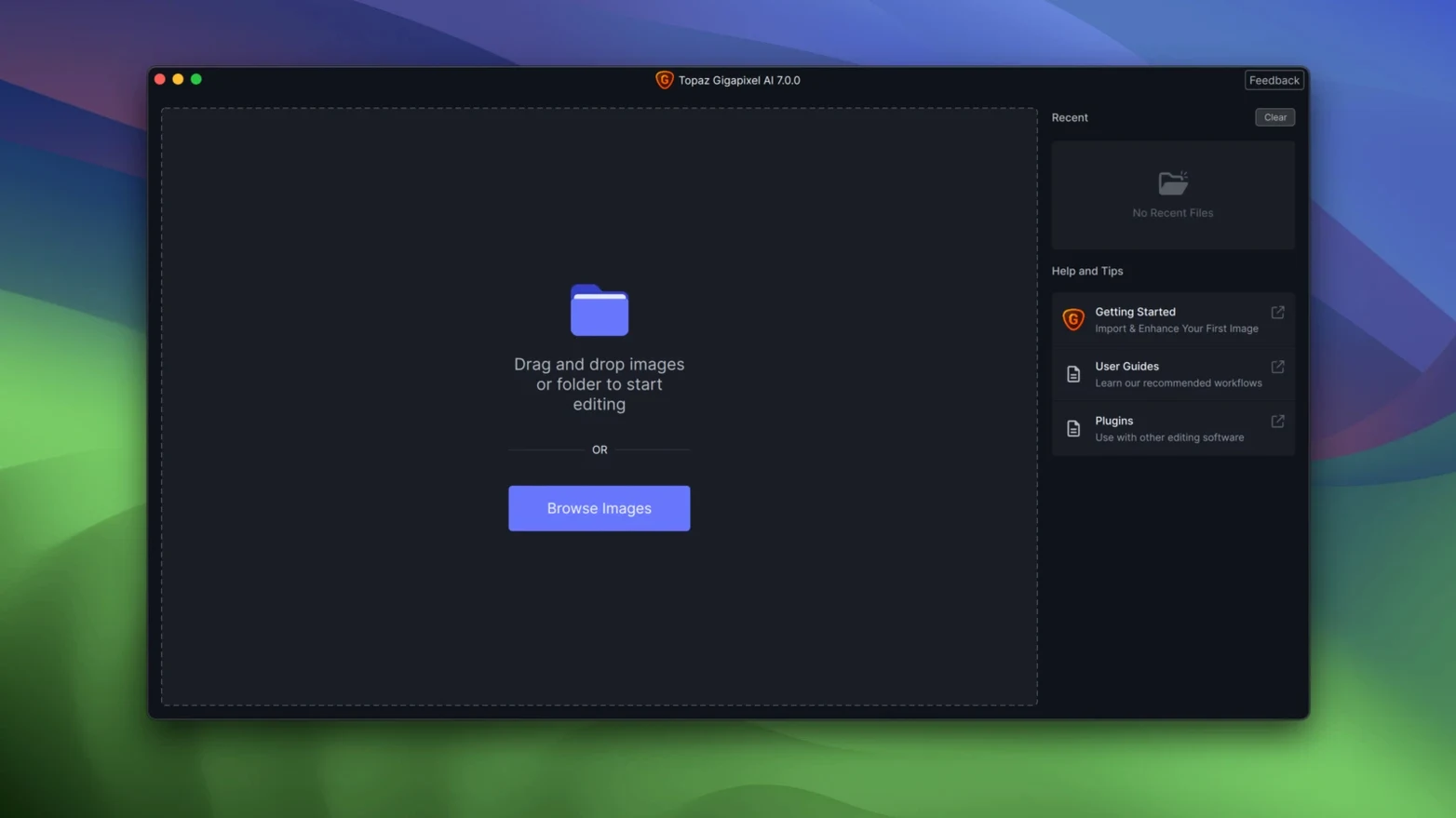
Gigapixel AI 1.3.5 lands on any Mac running macOS 12 or newer, whether it's an M-series laptop or an Intel tower. The installer is a single pkg that sorts out the right architecture for you, so you're not digging through folders to match a chip.
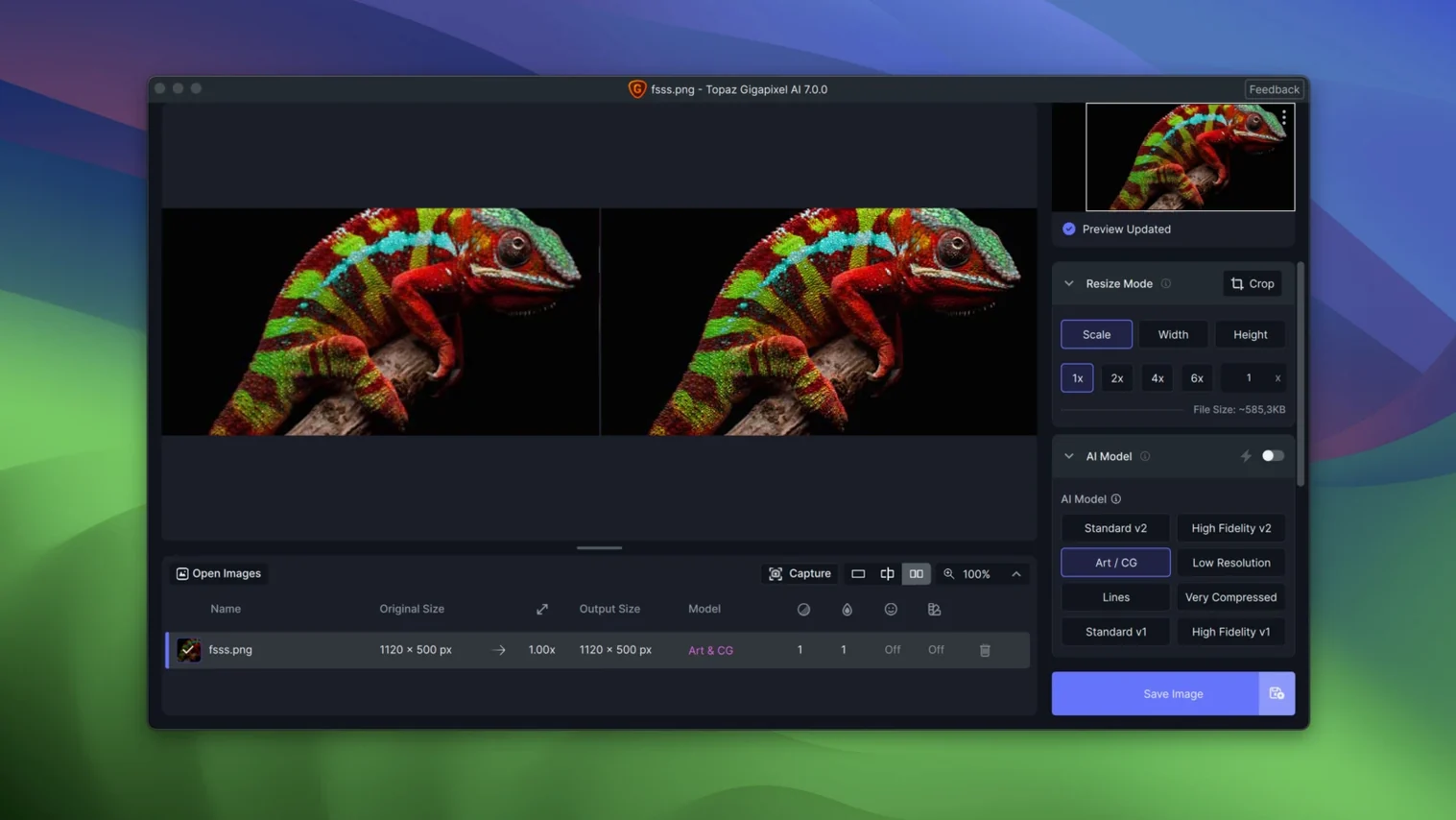
Here's the kind of job it eats for breakfast: a client sends over a 900-pixel-wide product shot pulled from an old web listing. It's soft. The edges look like they were drawn with a crayon. You drop it into Gigapixel, punch in 4x, and tell it to suppress compression artifacts. The AI doesn't just stretch pixels—it rebuilds eyelashes, fabric texture, and the sharp bevel on a brushed-aluminum logo. The preview pane updates in a couple of seconds on an M1, so you can toggle between models before committing to the full render.
Batch processing keeps the pace up when you're dealing with a folder of undersized headshots or scanned film frames. Set the scale, pick a model, point it at a folder, and walk away. It'll churn through the queue while you grab coffee, and you won't come back to over-sharpened halos or plastic skin.
Pixelation and JPEG blockiness fall away without you having to paint masks or mess with sliders for fifteen minutes. It's a single-purpose tool that solves a single ugly problem: the art director wants a billboard, but all you've got is a thumbnail. That's the gap it closes.
A Workflow: Old Archive Photo to Print-Ready Enlargement
Start with a scanned family photo from the 1970s—flat lighting, a little yellow, and the scanner gave you a 1200-pixel-wide file that falls apart the moment you zoom past 50%. The goal is a clean 16-inch-wide print at 300 dpi. Here's how that happens inside Gigapixel AI.
Step one: pre-cleaning. I do this outside the app. Crop the borders, spot-heal the worst dust specks, and neutralize the yellow cast in whatever raw processor you already have open. Save a clean TIFF. Gigapixel's AI models focus on geometry and texture, so give them a file that's already color-ready and distraction-light.
Step two: model selection. Drag the file in. The preview defaults to the Standard model, which is fine for general scenes, but old portraits demand the Face Recovery toggle. Flip it on. Gigapixel hunts for eyes, mouths, and hairlines, then applies a separate reconstruction pass. On 1970s film grain, it pulls back highlights in the iris and sharpens jawlines without turning skin into sandpaper.
Step three: suppress artifacts first. Before dialing the scale, scroll down and set Suppress Noise to medium and Remove Blur to low. Old scans carry a film grain that the upscaler might interpret as detail worth enhancing. Taming that early prevents crunchy, over-textured output.
Step four: scaling and preview checks. Bump to 4x and grab the preview window. Drag it over the eyes, then over a jacket lapel, then into a shadow area. You're not just checking sharpness—you're looking at how grain behaves in the dark zones and whether fabric texture crosses into digital chatter. Switch between Face Recovery on and off for the face crops. If the hair looks too synthetic, dial the model back to Standard for that region later in a masked layer.
Step five: render and post-tweak. Let it write the TIFF. Open it next to the original. You'll likely do a final pass with a slight high-pass overlay or a curves tweak, but the heavy lifting is done. What was a 4-inch snapshot is now a file that can hit a 16-inch print with honest detail, not painterly smudge.
The Output Gap Between Pixelmator, Lightroom, and Upscayl
Three other tools come up when someone asks about upscaling on a Mac: Pixelmator Pro, Adobe Lightroom's Super Resolution, and Upscayl. They each handle enlargement, but the philosophy and output differ enough that you'll pick one based on where you sit in a pipeline.
Pixelmator Pro bakes ML Super Resolution into a full image editor. It works straight from the Image menu—one click, no dialog. The result lands well for quick 2x bumps when you're already tweaking a layout and just need a little more canvas. But it doesn't offer model choice, artifact suppression sliders, or batch queuing. It's a single-button feature inside a broader app, not a dedicated station for forensic enlargement. If Gigapixel is a finishing carpenter, Pixelmator is the multi-tool you grab for a dozen small jobs.
Adobe Lightroom Super Resolution doubles the linear resolution of a raw file right at the enhance stage. It's tied to the raw processing engine, which means it reads the demosaiced sensor data before JPEG compression ever touches the pixels. For a clean raw from a modern camera, the results are excellent, especially on fine foliage and text. The ceiling is 2x, period. No 4x or 6x pushes, no batch across folders of mixed file types, and no help for the already-compressed JPEG a client forwarded from their phone. Lightroom builds upward from a pristine starting point; Gigapixel reconstructs from whatever you throw at it.
Upscayl is the open-source contender. It runs local models and feels snappy on Apple Silicon. The interface is dead simple. For low-stakes enlargements—a game texture, a reference image for a mood board—it's a fine free path. But the model set is smaller, fine-tuning controls are absent, and it sometimes over-sharpens edges into a telltale white halo that's hard to unsee. Gigapixel's Face Recovery and artifact suppression give you knobs to avoid that, especially on portraits and old compressed files that Upscayl will treat with the same heavy hand as everything else.
Switch the Default JPEG to TIFF or PNG Before Your First Batch
The default state works, but a few tweaks right after install save you from re-rendering later.
Output file format. The default is JPEG. Switch it to TIFF or PNG—whichever fits your downstream workflow—before you batch anything. A 4x enlargement is already an exercise in pulling maximum quality from sparse data; you don't want to hand it off in a lossy container.
Scale lock preferences. Gigapixel remembers your last scale setting between sessions. That's convenient until you drop in a file that only needs 2x and accidentally queue a 6x render that takes twenty minutes. I set the scale back to 2x after any large job as a mental reset.
GPU memory usage. Under preferences, you can cap how much of the GPU the render engine grabs. On a Mac with shared memory that also runs After Effects or a browser with sixty tabs, dialing this down by 10-15% keeps the rest of your system responsive while a batch churns. The renders take slightly longer, but you can still work in other apps without beachballs.
Preview quality. The preview pane defaults to a fast, lower-quality approximation. I keep it there for model-swapping speed, but before committing a big render, I toggle the preview to full quality on a critical crop. That tiny extra wait has caught bad model choices more than once.
Duplicate a Queue Job to Run Two Different Models at Once
Right-click a file in the queue and you can duplicate the job with a different model. That means one source image, side-by-side runs—Standard for the background, Face Recovery for the people—without dragging the file in twice. You can then layer the results in Photoshop with a quick mask.
The comparison view splits the preview pane down the middle or in a slider-style before-and-after. The keyboard shortcut Cmd + Shift + C toggles it. I watch new users drag sliders for five minutes before they realize the toggle exists. It's faster for A/B checks and keeps you from trusting the processed look too long without a reality check on the original.
When batch processing, drag a folder onto the app icon in the Dock rather than using the file-picker dialog. It queues every supported image inside, including files nested two folders deep. The app respects the folder hierarchy in the output directory, so you don't come back to a flat soup of 400 TIFFs with no structure.
The scale percentage field accepts math. Type 300% or 4x and it resolves correctly. If you need a specific pixel dimension instead, type 2400w into the width box and it calculates the proportional scale for you. One less trip to a calculator app.
Finally, clicking the model name in the side panel doesn't just select it—it opens a brief description of what the model was trained on. "Lines" is for line art and anime-style graphics; "Low Res" was built on heavily compressed source material. That inline doc has saved me from picking the wrong model on deadline more than any forum thread could.
- macOS 12 or later
- Apple Silicon or Intel 64-bit processor
Questions I actually get
Does Gigapixel AI 1.3.5 work on Apple Silicon Macs?
Yes, it runs natively on both Apple Silicon and Intel 64-bit Macs from one installer package.
Can I upscale more than one image at a time?
Absolutely. The desktop app supports batch processing, so you can queue up an entire folder and let it render.
What kind of image problems does it fix besides low resolution?
It removes pixelation and compression artifacts while preserving genuine detail, so old JPEGs and small web grabs clean up nicely.
Notes from the edit bay · 0
Sign in or get an edit-bay pass to leave a note.
No notes from the edit bay yet. They go up after I read them.