
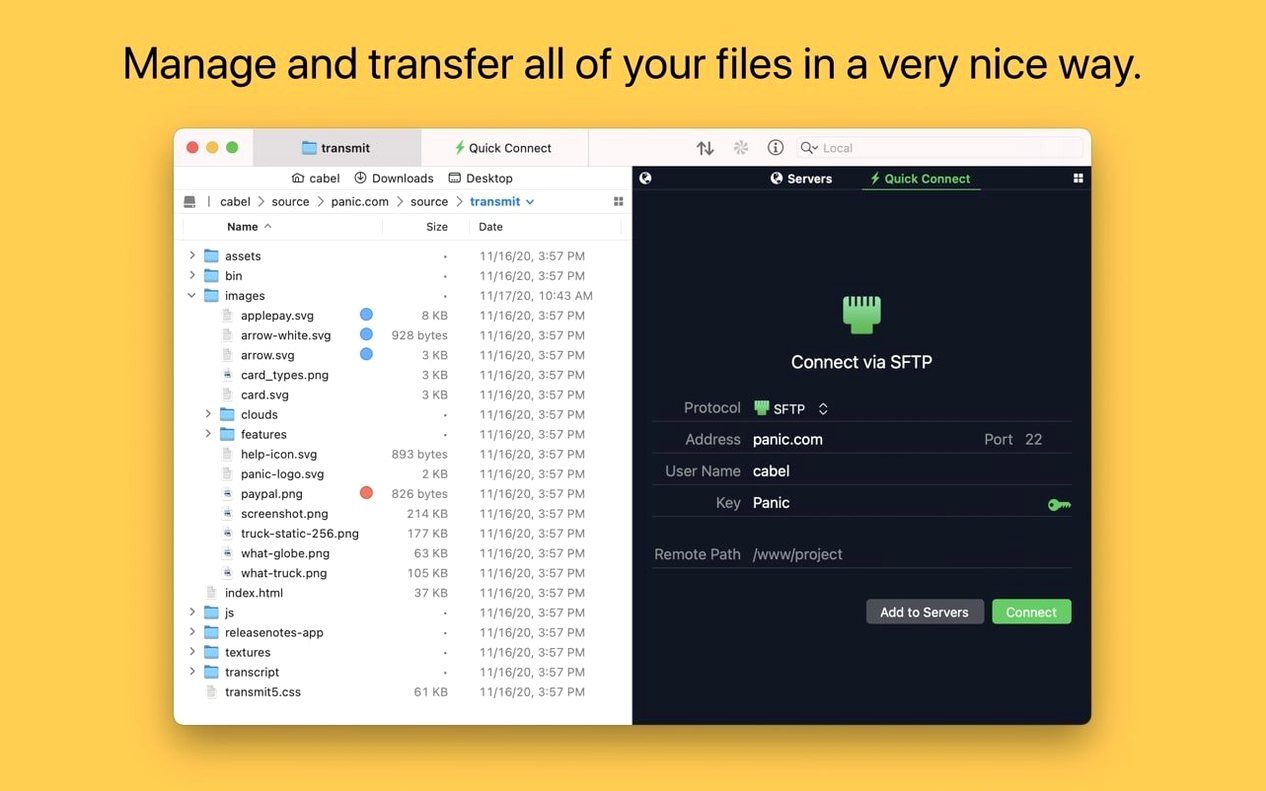
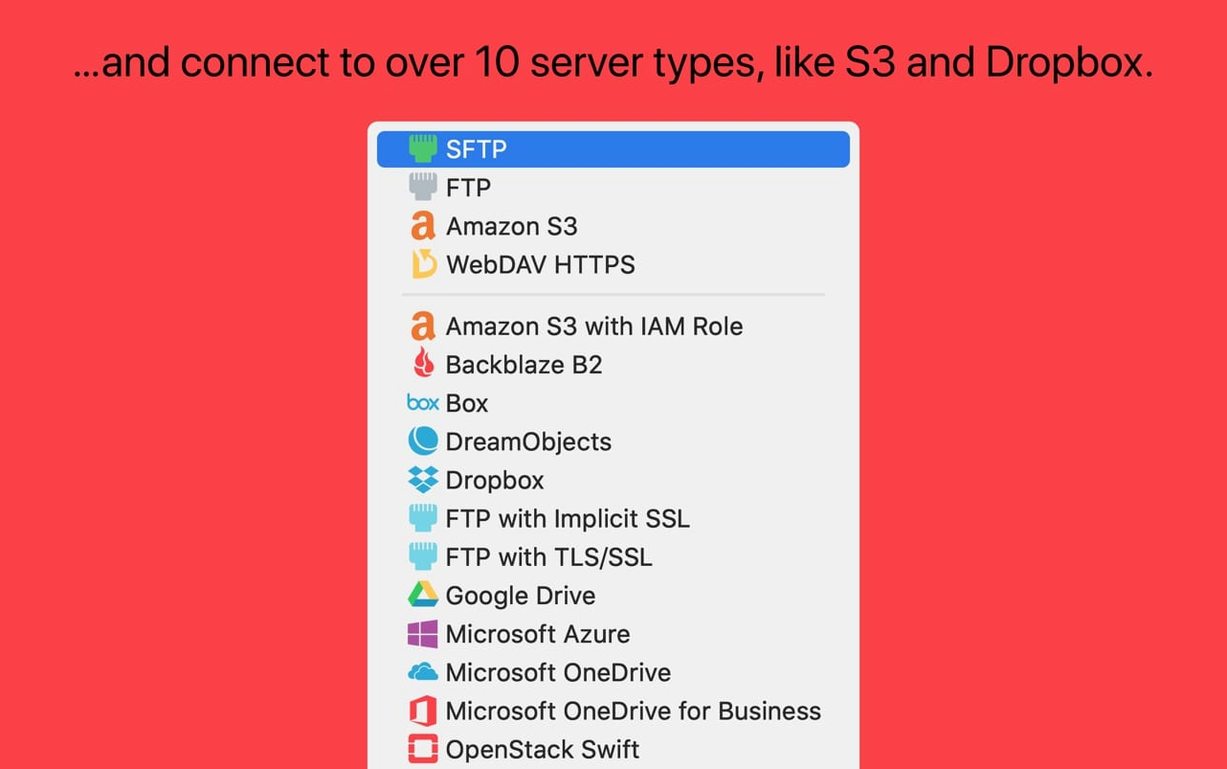
Ten cloud services—Backblaze B2, Box, Google Drive, Dropbox, and Azure among them—sit ready in the connection pane next to standard FTP and SFTP. That breadth matters less than the fact you don't have to juggle five different desktop sync agents to reach each one. Right-click any remote file and you can open its parent directory in Terminal, a quiet nod to anyone whose workflow spills into a command line.
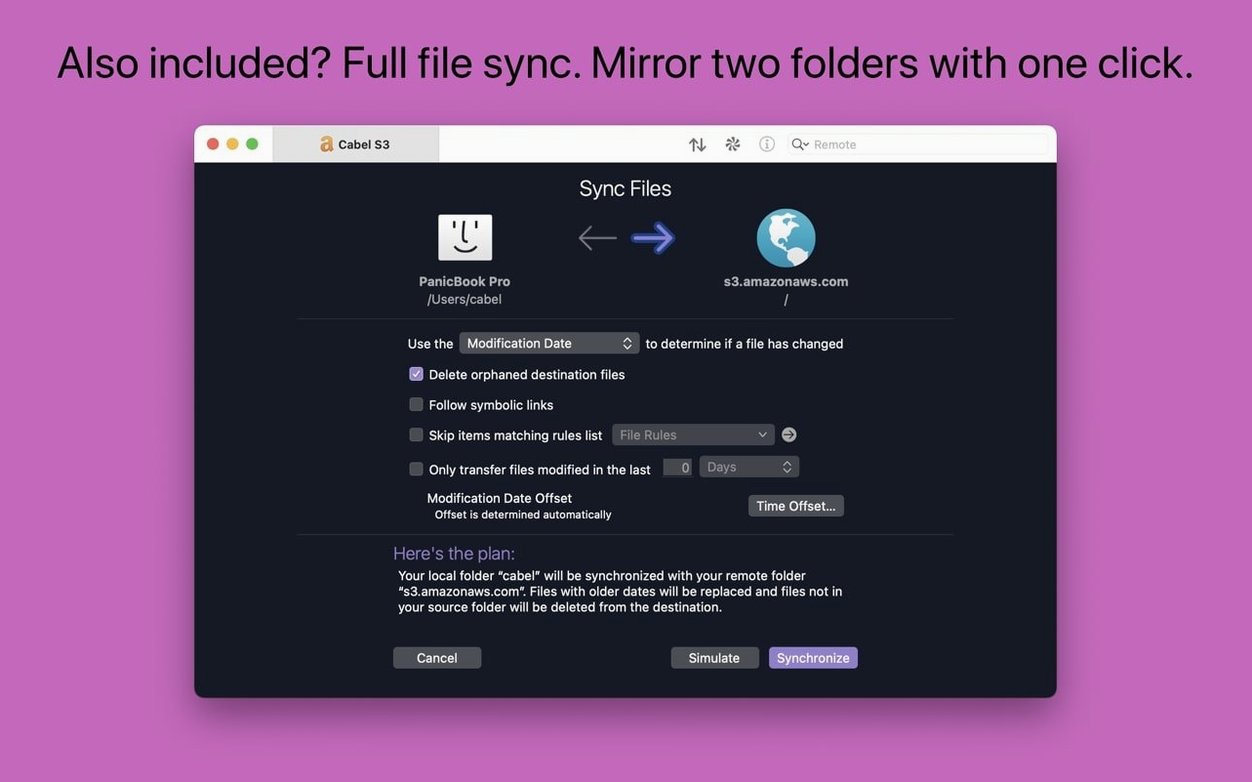
The sync engine handles local-to-remote mirrors without a separate utility. You set the rules for overwrites and deletions, then walk away while Transmit compares folders. For a freelance editor, that turns a backup chore into a background task that runs between renders.
Key management stays inside the app. Generate an Ed25519 or RSA key pair, set a passphrase, and drop the public key onto the server without opening a text editor. The Places Bar holds your favorite local and remote folders in a single clickable list, so jumping from a client's S3 bucket to the project drive on your Mac skips the browser tree entirely.
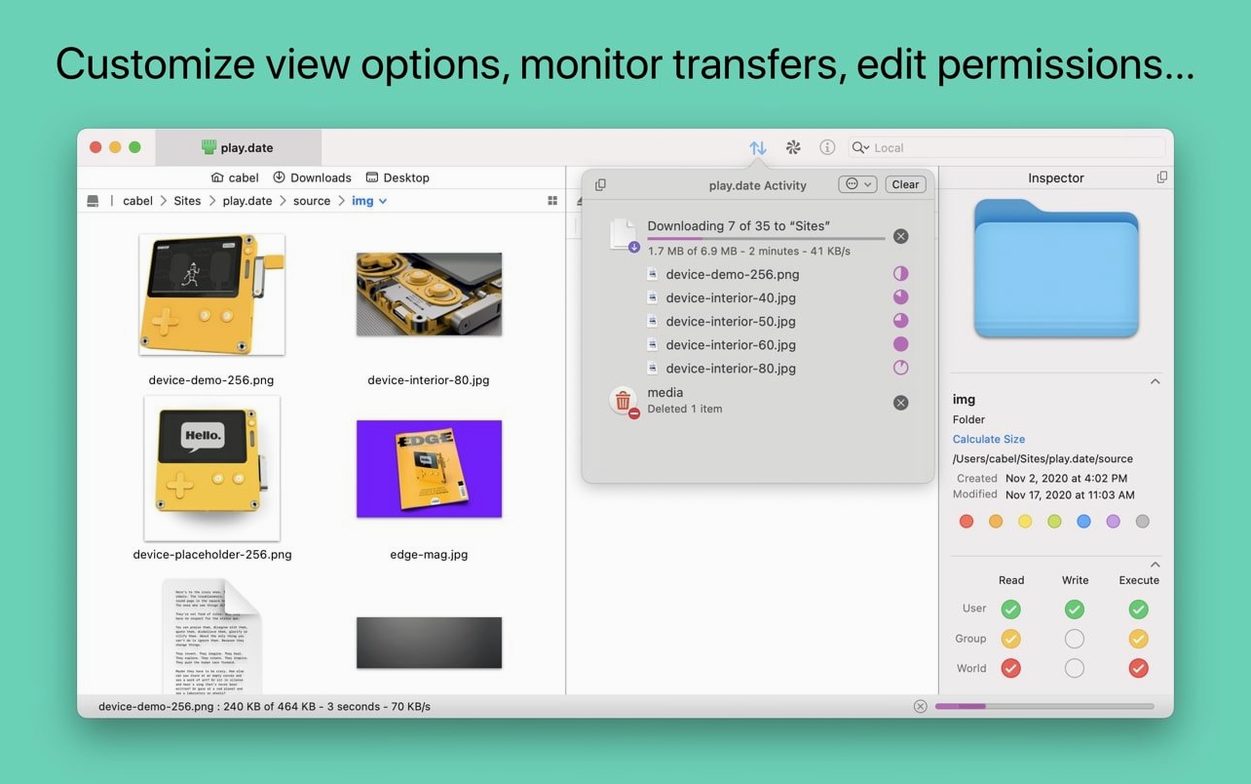
Tags attach colors and labels to transfers in progress, making it obvious which upload belongs to the rough cut and which is the final master. When the render bar is full and the deadline is close, that tiny visual cue stops you from sending the wrong file.
A Session That Moves Like a Friday Afternoon
You grab a coffee, open Transmit, and the Places Bar already has the client’s S3 bucket right where you left it. One click. The left pane is your local drive—scratch folder from a Premiere render—and the right is a folder called deliverables/rough-cut-v3. You select the ProRes, hit the upload arrow, and tag it red so nobody mistakes it for final. While it climbs, you switch to the Google Drive tab in the connection pane, pull down last week’s graphics package, and drop it into the local motion-graphics folder. No desktop sync app spinning beachballs in the menu bar.
Halfway through the upload, you realize you need a fresh key pair for a Linode server the colorist just set up. Cmd+, to preferences, Keys tab, generate an Ed25519 key, paste the public key into an email to ops. The upload hasn’t paused. You drag the key’s fingerprint into a sticky note for later. Before you close the session, you right-click the S3 folder, Open in Terminal, and run a quick ls -la to confirm file sizes match the local render—Transmit’s S3 error reporting already warned you about that 11 GB file last week, but today everything checks out.
What People Actually Ask
Does Transmit watch folders the way a sync agent does? No. It syncs when you tell it to. You set a direction, pick overwrite rules, and run it. This isn’t a replacement for Dropbox’s real-time engine, but for pushing a finished project to a remote server or pulling down assets before an edit, that’s exactly what you want—a deliberate transfer, not a constant background drain.
Can I hand a server connection to someone who doesn’t use Transmit? Sort of. The app stores its own bookmarks, but Panic Sync pushes those between your own Macs. If a collaborator needs access, you give them credentials, not a Transmit file. The key manager is local to your machine, which is why generating keys inside the app feels more secure than emailing a .pem around.
Does it handle the weird S3 multipart stuff with huge video files? Yes. Transmit speaks the S3 multipart upload API natively, so that 50 GB master file doesn’t time out. The 5.11.6 release tightened error reporting for files that exceed an S3 bucket’s limit, which means you get a clear message instead of a cryptic timeout.
Drop Five Real Project Folders Into the Sidebar
Start by dropping five folders into the Places Bar. Not “Downloads” or “Desktop”—pick the local project directories you actually touch every day, plus the top-level bucket on Backblaze or S3 where clients expect deliverables. That turns the sidebar into a one-click switchboard instead of a folder tree you keep drilling into.
Set up a single sync job between a local folder and its remote mirror. Use the “Mirror” direction with delete-after option turned off at first—let it run, check the log, and confirm nothing unexpected vanished. Once you trust it, that job becomes a saved droplet you can trigger from a keyboard shortcut or a folder action.
If you deal with more than two cloud services, take ten minutes to color-code each connection in the tag system. Blue for Dropbox, orange for S3, green for the SFTP into the NAS at the edit bay. When you’re dragging files at 10 p.m., the colors prevent that stomach-drop moment of realizing you sent dailies to the wrong server.
Transmit 5.11.7 lands with a batch of stability fixes and refreshed cloud-handling under the hood.
- macOS 13 or later
- Apple Silicon or Intel 64-bit
Notes from the edit bay · 0
Sign in or get an edit-bay pass to leave a note.
No notes from the edit bay yet. They go up after I read them.