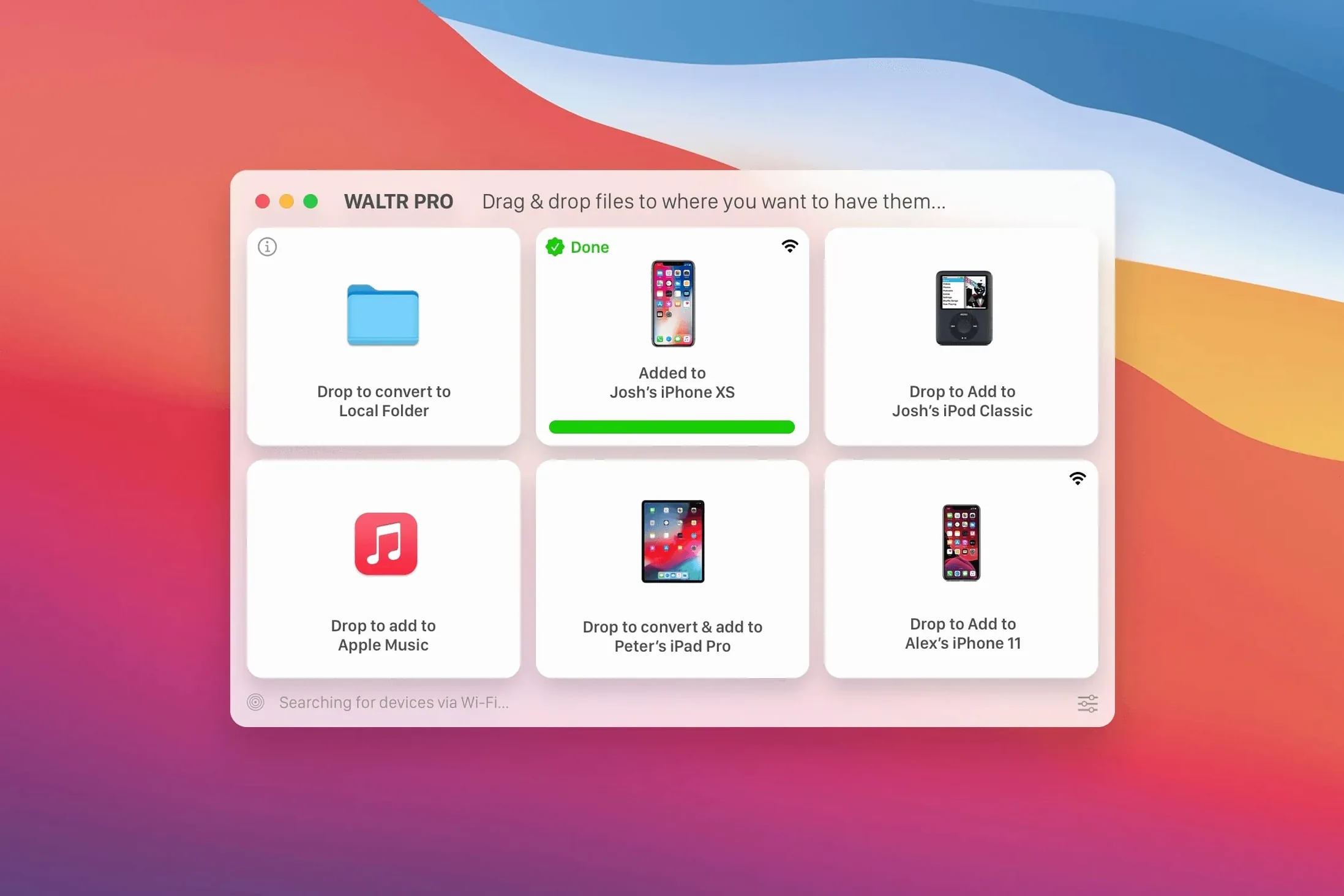
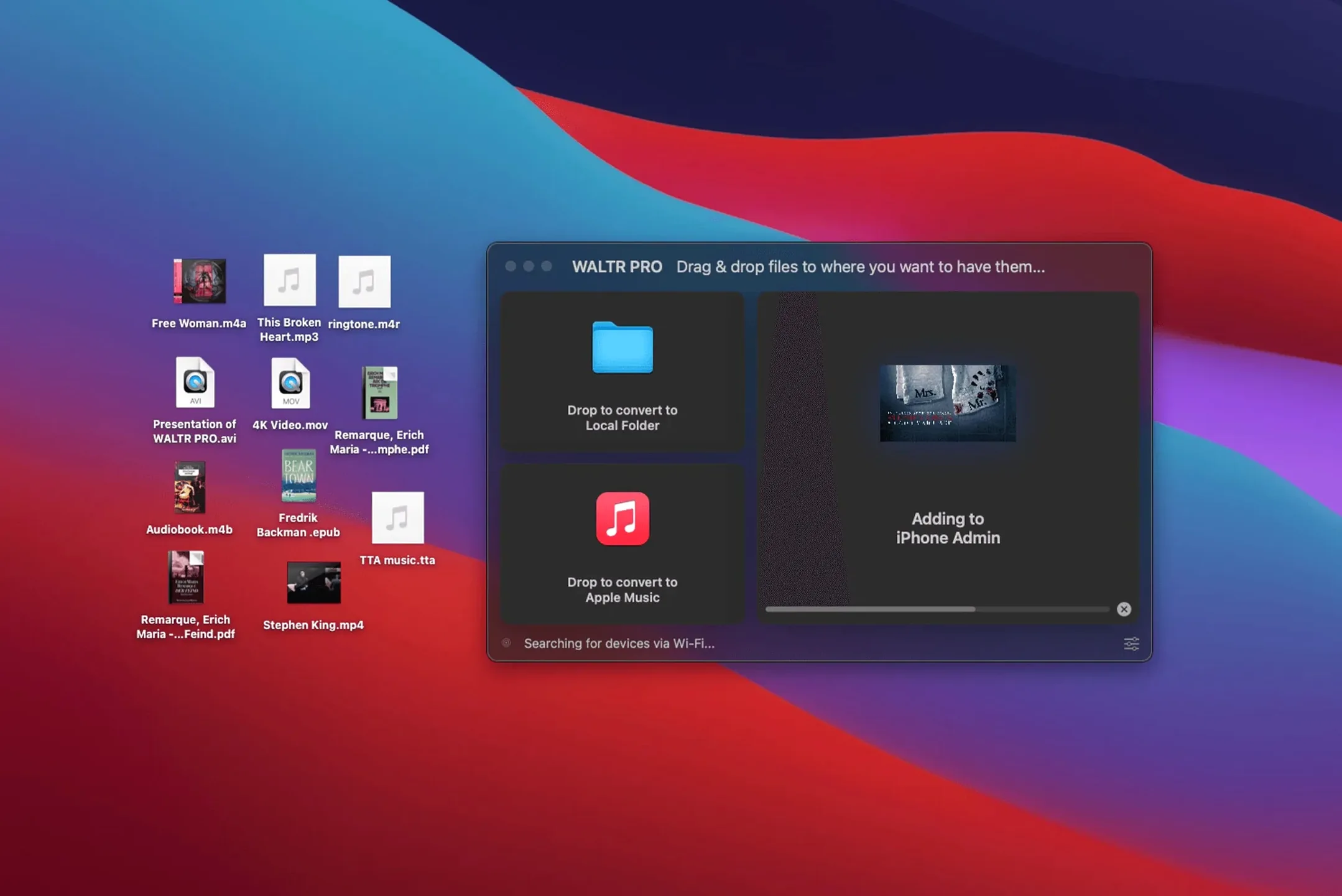
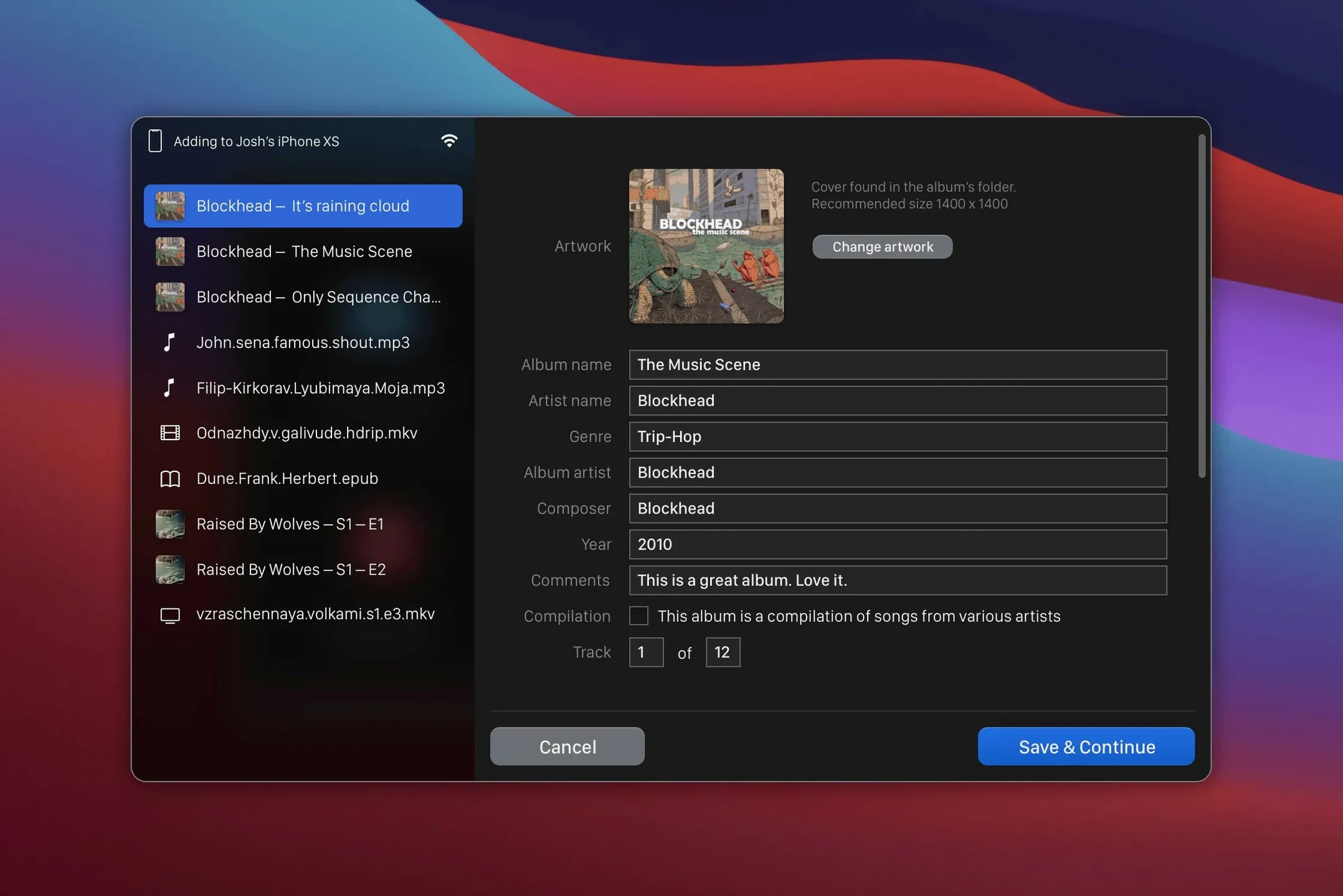
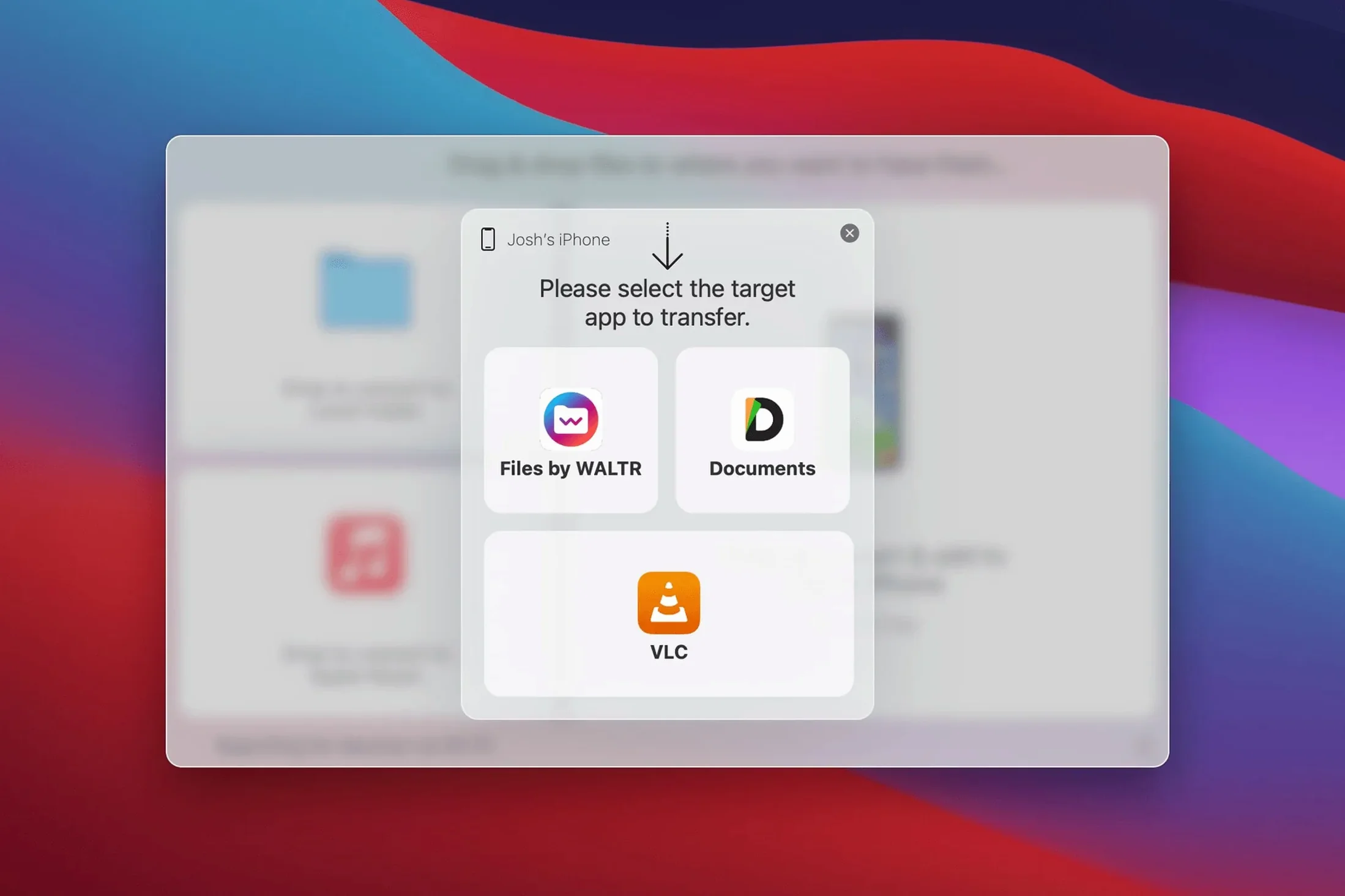
Getting a video file from a Mac onto an iPhone still trips people up when the format is wrong. iTunes (or the Finder) refuses it, AirDrop says no, and suddenly a simple drag becomes a conversion project. WALTR PRO solves exactly that: it reads what the file actually is, wraps it into something the device understands, and pushes it straight into the stock Music or TV app where it plays without a third-party player.
Automatic Wrapping, Not Re-Encoding
The real speed comes from what the app doesn't do. When you drop an MKV, AVI, or FLAC onto the window, WALTR PRO doesn't sit there re-encoding for twenty minutes. It remuxes on the fly—rewrapping the streams into an iOS-compatible container. That means a 4 GB MKV lands on the iPad in seconds, not hours, and the original quality stays intact. For an editor who deals with CUE sheets and FLAC albums, that's the difference between a usable tool and a time sink. The format list covers the usual suspects (MP4, M4A, AAC) plus the ones Apple keeps at arm's length: MKV, AVI, FLAC, CUE, WMA, and M4R ringtones. All iPhones, iPads, and iPods are supported, right back to the original iPod Classic with its 30-pin connector.
Drop Any File, Get Instant Native Playback
This isn't a library manager—it's a pipe. You pull a reference mix, a client's WMA file, or a music video in AVI, drop it onto the app, and it appears in the device's native app, ready for playback. No extra folder structure, no companion app required on the phone. On Apple Silicon Macs running macOS 10.13 or later, it stays out of the way until you need that one weird file on a device right now.
WALTR PRO vs. the Alternatives
There's no shortage of file transfer utilities for macOS, but the field narrows once you demand direct-to-native-app delivery. AnyTrans does the broadest job—it moves media, messages, and backups—and it includes a format converter. The trade-off is weight. AnyTrans wants to manage your entire device, so launching it feels like opening a control tower. WALTR PRO does one thing and surfaces no settings you didn't ask for.
iMazing leans toward backups and device management with a transfer module bolted on. It converts files, but media lands in its own iOS companion app by default, not the Music or TV app. If you need the file to play where the client will actually find it, that extra step matters. WALTR PRO targets the stock apps exclusively—no companion, no sandboxed media library.
The Finder itself handles standard MP4 and M4A fine over USB or Wi-Fi sync. What it won't touch—MKV, AVI, FLAC, CUE—is the whole reason WALTR PRO exists. Think of it as a wedge that opens the narrow pipe Apple gives you, without asking you to switch to a different playback ecosystem.
The Ecosystem It Plays With
WALTR PRO doesn't try to replace Finder syncing, AirDrop, or a professional media library. It slots in between them. A typical setup might look like this: you manage masters in Final Cut Pro or Logic Pro, export to a watch folder on the desktop, and use WALTR PRO to push a review copy straight to an iPhone. The file doesn't sit in a cloud queue or wait for a Photos import—it lands in the TV app or Music app, exactly where a producer taps play during a commute.
It also complements QuickTime and Compressor. Where those tools encode, WALTR PRO wraps. If you've already rendered a ProRes master and need a fast, lossless copy on an iPad for a client screening, skipping the transcode step keeps the pixels intact. And because the transfer runs over Wi-Fi, you don't break your USB-C accessory chain just to hand off a file.
From CUE Sheet to iPhone in Under Forty Minutes
It's Tuesday afternoon and a client sends over a CUE sheet and a single FLAC file for an album review. The tracks need to be on his iPhone before he boards a flight in forty minutes. The MacBook Pro is on the desk, running the waltr pro build that's been living in the menu bar since morning.
1. Double-click the WALTR PRO window to bring it forward. The iPhone appears in the sidebar automatically—same Wi-Fi network, no cable.
2. Drag the FLAC and CUE file together from the desktop into the drop zone. The app reads the CUE instantly, splits the album into tagged tracks, and starts wrapping each one as ALAC.
3. Twenty-three seconds later, the transfer bar disappears. Open the Music app on the iPhone—the album sits under the artist name, cover art and all, ready to play.
Before shutting the lid, a thought crosses my mind: the rough cut of the video podcast sitting in an MKV container on the external drive. It's 2.8 GB. I drag it onto WALTR PRO, it remuxes in about fifteen seconds, and the TV app on the same phone now holds the episode. No conversion queue, no "unsupported format" dialog. Two files, two native apps, under a minute total.
- macOS 10.13 or later
- Intel 64-bit or Apple Silicon Mac
Questions I actually get
Can WALTR PRO transfer FLAC and MKV files to an iPhone?
Yes. It supports formats iOS normally rejects—including MKV, AVI, FLAC, and CUE—by rewrapping them into a compatible container on the fly so they play in the stock Music and TV apps.
Notes from the edit bay · 0
Sign in or get an edit-bay pass to leave a note.
No notes from the edit bay yet. They go up after I read them.