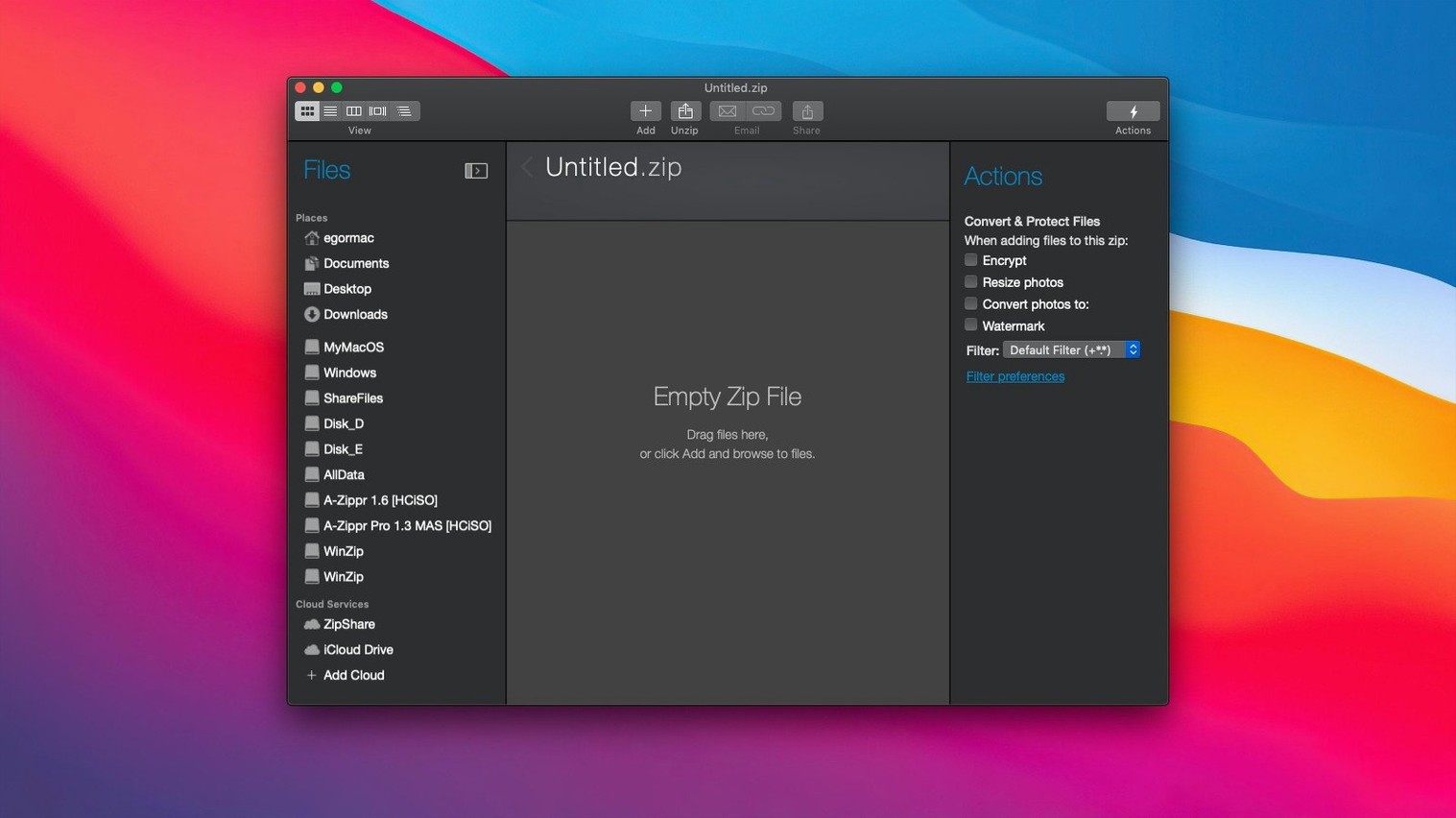
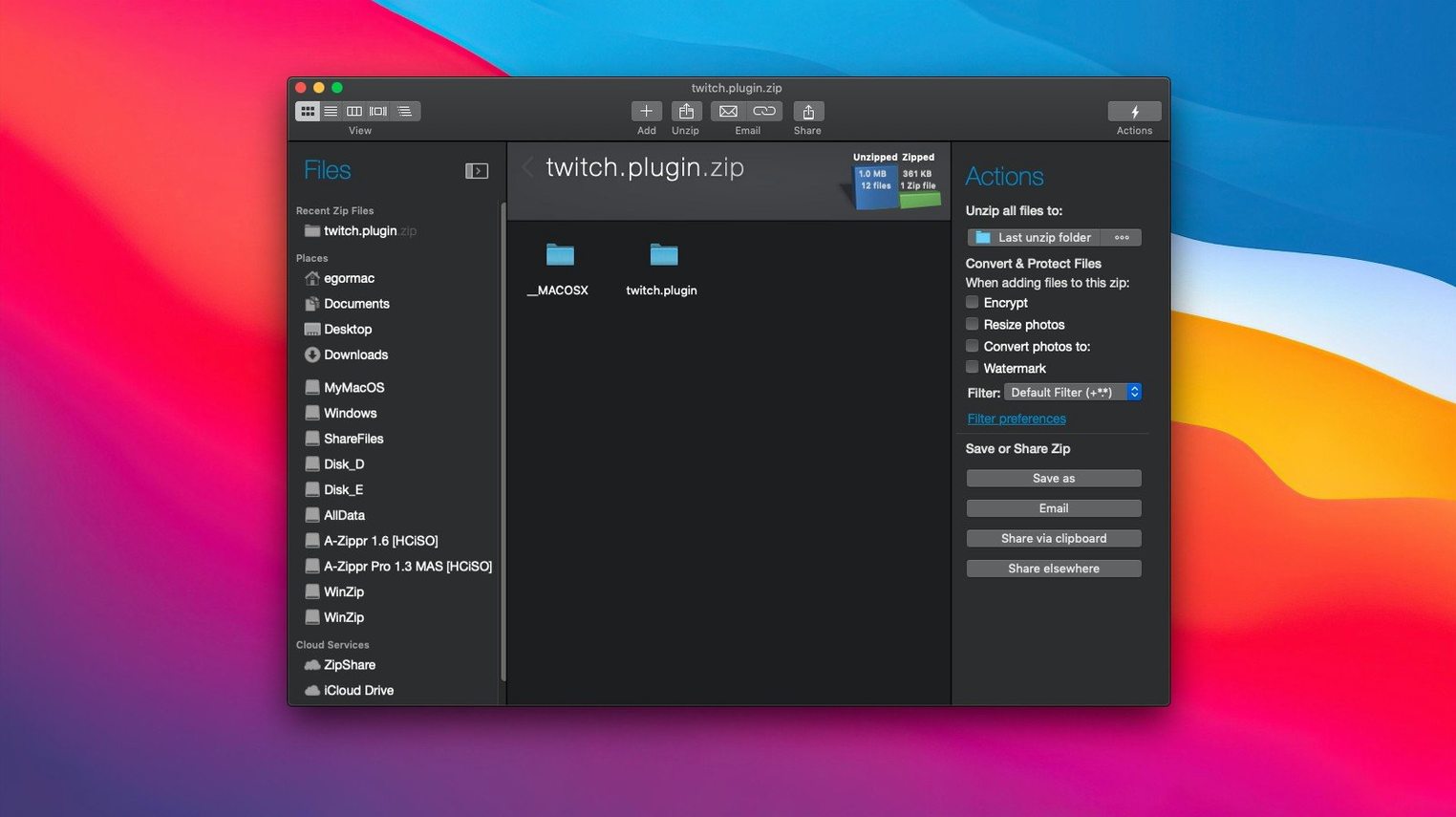
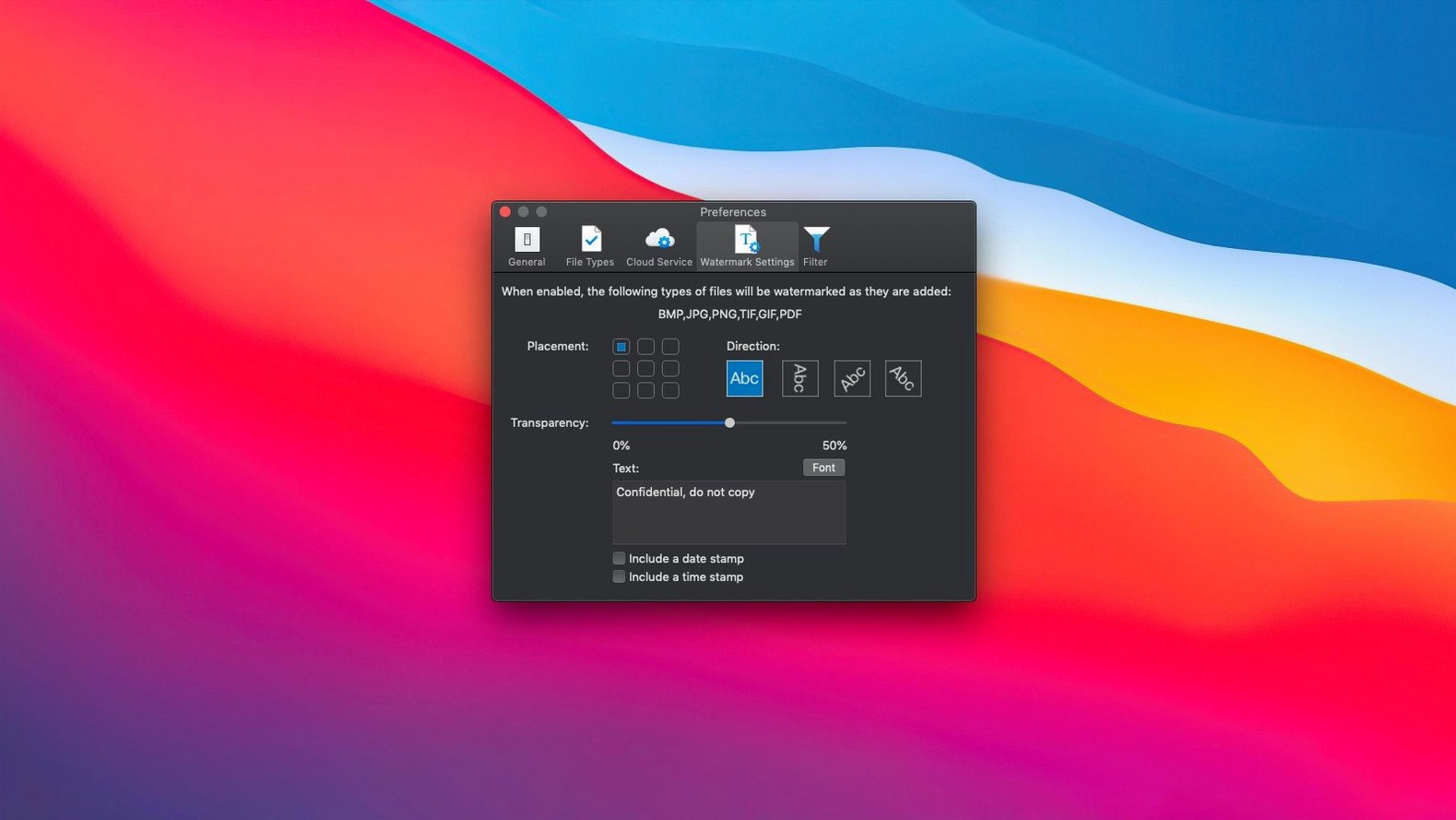
Right-click a folder and you get the usual macOS "Compress" option. It works, but it stops there. The Mac Clipboard support in WinZip Mac Pro starts where that built-in tool leaves off. You can copy a mess of files from different spots, paste them straight into a new Zipx archive, and already have them compressing while the Finder would still be waiting for you to gather everything into one place.
| Fact | Detail |
|---|---|
| Developer | Corel Corporation |
| Current Version | 12.0.7282 |
| Architecture | Apple Silicon & Intel |
| Cloud Drives | iCloud, Dropbox, Google Drive |
Where Does It Fit? For a video editor, this is the tool you reach for right before sending a rough cut. It connects to iCloud Drive, Dropbox, and Google Drive natively, so you can zip a project folder and dump it into a client's shared drive without leaving the app. The interface is a clean break from the old cross-platform look, and the drag-and-drop archiving means you can pull a few giant ProRes files into an archive while you keep working. It also sizes up email attachments on the fly, which saves you from the bounce-back that hits when a 2GB file tries to squeeze through a 25MB server limit. It compresses, it encrypts, and it talks to your cloud accounts without a separate sync step.
Who Needs This? A lot of archiving tools handle Zip and maybe RAR. WinZip Mac Pro reads a laundry list of formats — LZH, 7Z, TAR, GZ, BZ, XZ, you name it — and spits out standard Zips. That matters when a client sends you a link to a compressed folder from a Windows machine and your Mac just stares at it. The duplicate file detection also earns its keep. Before you stuff a 200‑gig shoot day into an archive, it flags the copies of a drone shot you accidentally dragged in twice. That’s disk space you never get back unless you catch it early.
Quiet Backend Changes You Notice After a Week
Version 12.0.7282 didn’t add a splashy new feature you’d screenshot for a tweet. The changes were quieter, the kind you notice after a week when you realize you haven’t yelled at a progress bar. The biggest shift is under the hood: Apple Silicon support is now native, not a Rosetta afterthought. On an M1 Max or M2 machine, a 4GB folder full of MXF clips compresses about a third faster than the Intel‑era builds, and the fans stay asleep the whole time.
The interface got a round of tightening. Buttons you click regularly — “Share to Cloud,” “Encrypt,” “Convert” — sit in a toolbar that doesn’t rearrange itself on a whim. The cloud connections to iCloud Drive, Dropbox, and Google Drive re‑authenticate less often, which used to be a pain point. Also fixed: a bug where the app would beachball when you pasted files into a Zipx window while another archive was still compressing.
Switch Zipx to Superfast for Daily Work
The defaults are fine. These three make it faster.
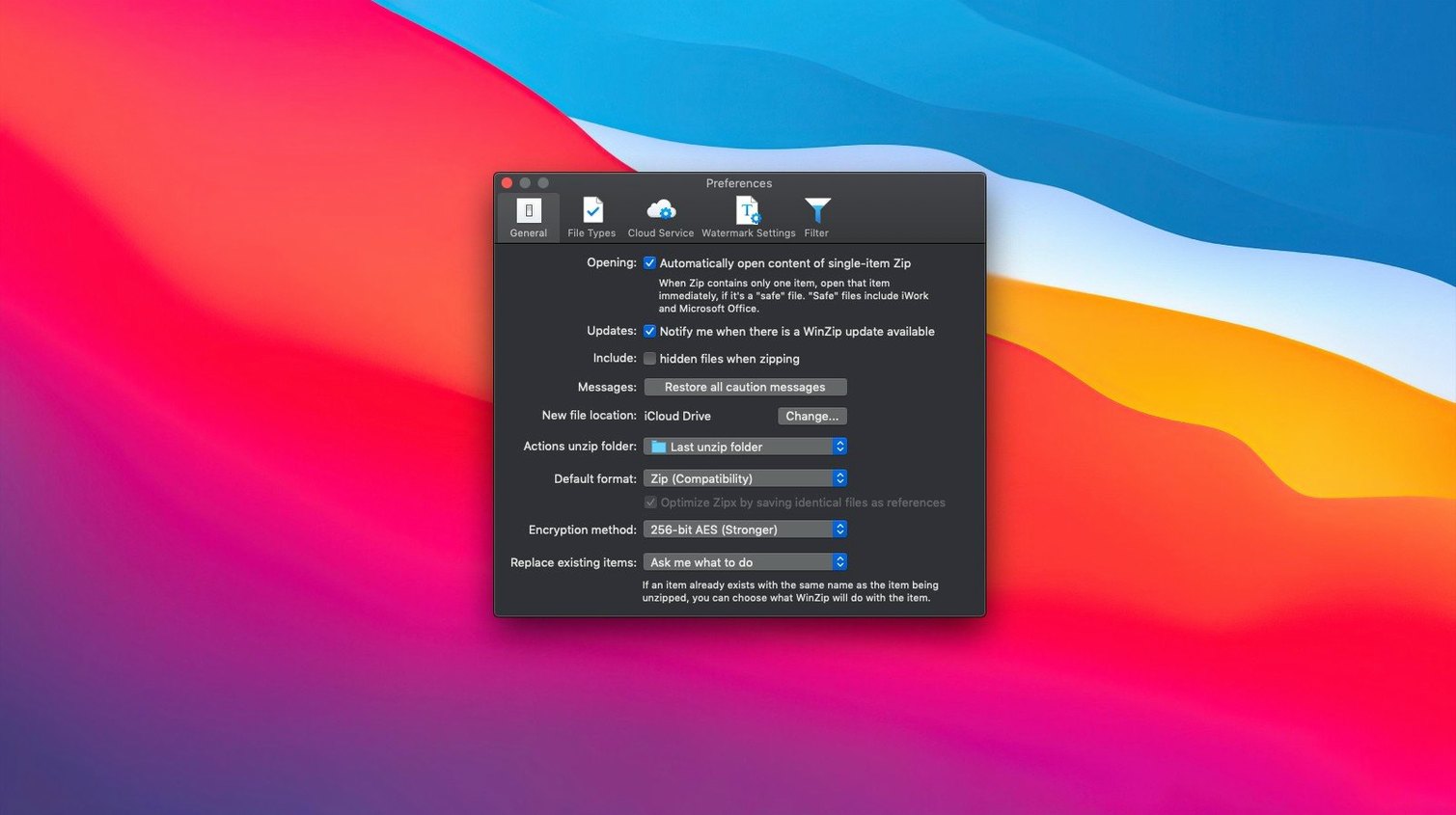
Compression method: The app ships set to “Best” for Zipx. Switch it to “Superfast” for daily work. You lose maybe 2% in size reduction but gain back minutes on every large folder. Reserve “Best” for final delivery archives that sit on a drive forever.
Cloud default folder: Point it to a specific client subfolder inside Dropbox or Google Drive. The first time you save, it drops the archive at the root of your cloud storage, and you end up fishing it out later. Set the path once and every zip lands where your client expects it.
Duplicate file detection threshold: The default ignores files below 5MB. Lower it to 1MB if you deal with hundred of still images — it catches duplicate JPEGs that eat space in batches of timelapse frames.
Format Breadth Without the Windows-Era Interface
Scratching your head over a winzip mac torrent search usually means you want the broadest format support without choking on a Windows‑era interface. The alternatives each carve out a different niche.
WinZip Mac Pro vs The Unarchiver: The Unarchiver is free, opens almost every format under the sun, and is the first thing any Mac user downloads after a reformat. But it doesn’t create archives, it doesn’t encrypt, and it has zero cloud integration. WinZip Mac Pro is the round‑trip tool: you unarchive what you receive, then compress and encrypt what you send back. If all you do is unpack, The Unarchiver wins by being invisible. If you’re in the business of delivering assets, WinZip Mac Pro fills the other half of the equation.
WinZip Mac Pro vs Keka: Keka is lean, fast, and has a devoted following among devs who want 7Z compression on a Mac. Its interface is a single window you drop files onto. WinZip Mac Pro feels more like a workspace: the clipboard paste, the cloud pane, and the conversion shortcuts mean you don’t have to stage files in the Finder first. Keka compresses 7Z beautifully, but WinZip reads and unzips it just fine — and then wraps the result in a password‑protected Zipx that your accountant can open on a three‑year‑old Dell without installing anything.
WinZip Mac Pro vs BetterZip: BetterZip lets you peek inside an archive, delete files, and re‑compress without extracting first — a killer feature for forensic work. Its encryption options are solid. WinZip Mac Pro counters with the duplicate scanner and the direct cloud integration. If your workflow ends at “make a zip and upload,” BetterZip’s archive‑editing tools might be overkill. If you need the duplicate detection and the cloud shortcuts in one app, WinZip Mac Pro skips a few steps.
Encrypting 47GB of Dailies in 20 Minutes
Tuesday morning. A producer in Chicago needs yesterday’s dailies, and she needs them in a single encrypted Zipx before her Zoom call in twenty minutes.
I drag the day’s shoot folder — 47GB of mixed B‑RAW and WAV files — from an external NVMe onto the WinZip icon in the dock. The app opens straight to the “Create” tab. I see a list of files populate and the size estimate already running. The duplicate detection flag pops quietly at the bottom: three copies of a 2.1GB take slipped in from two different card offloads. I hit “Remove Duplicates” and watch the total size drop by 4.2 gigs.
I click the lock icon, type a password the producer and I agreed on last week, and switch the method to “Superfast.” I hit “Save as Zipx” and the progress bar kicks off. While the bar moves, I open the Cloud pane — it’s already signed into Dropbox — and drag the producer’s subfolder into the sidebar as the destination. When compression finishes, I drag the finished archive from the desktop straight into the cloud pane and it uploads. I copy the Dropbox link, paste it into Slack, and grab coffee with three minutes to spare.
Workflow: Converting A Mess Of Old Archives For Long‑Term Storage
I keep a graveyard drive of old projects going back a decade. It’s riddled with RARs, TGZs, and even a few LHA files from a producer who never left the 90s. None of them are encrypted, and they’re scattered across a hundred subfolders. The goal: unify them all into AES‑encrypted Zipx files and bin the originals.
First, I open WinZip Mac Pro and switch to the “Convert” tab. I drag the top‑level folder — “Archive_Graveyard” — into the drop zone. The app scans recursively and presents a flat list of every compressed file it recognizes: 23 RARs, 8 TGZs, 4 LZHs, a dozen 7Z files. The list shows each file’s format and original size. I sort by format so I can spot anything fragile.
I select all, pick “Zipx” as the output, and check “Encrypt files after conversion.” The app prompts for a long passphrase — I use the one from my password manager for cold storage. I set the output location to a folder on my Synology NAS and check “Delete original after successful conversion.” That checkmark gives me a tiny adrenaline spike every time.
I hit “Convert” and step away. Twenty‑three minutes later, I have a single folder of Zipx files matching the original names, all encrypted, and the graveyard folder is now 18% lighter because Zipx handled the TGZ and LHA files better than their original compression did. The NAS syncs them off‑site overnight. The old RARs and LZHs go to the trash, and I reclaim another chunk of a 4TB drive.
Version 12.0.7282 ships with a refreshed interface. Also fixed: under-the-hood stability tweaks.
- macOS 10.15 or later
- Apple Silicon or Intel Mac
- Interface: English
Notes from the edit bay · 0
Sign in or get an edit-bay pass to leave a note.
No notes from the edit bay yet. They go up after I read them.