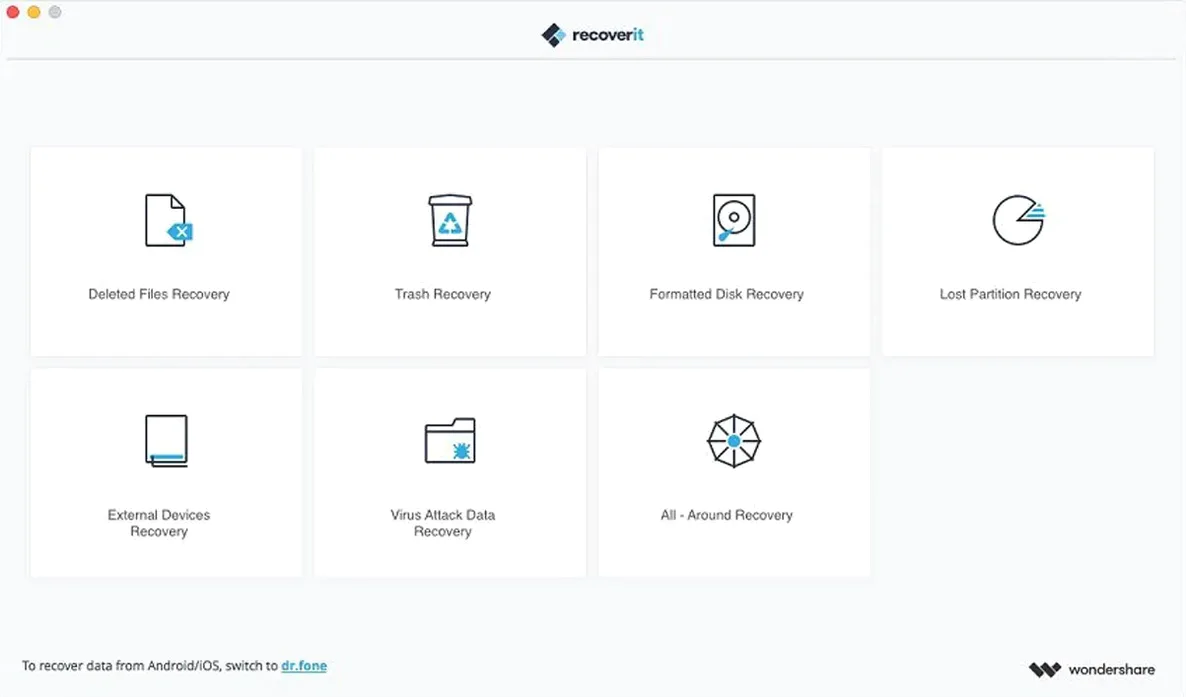
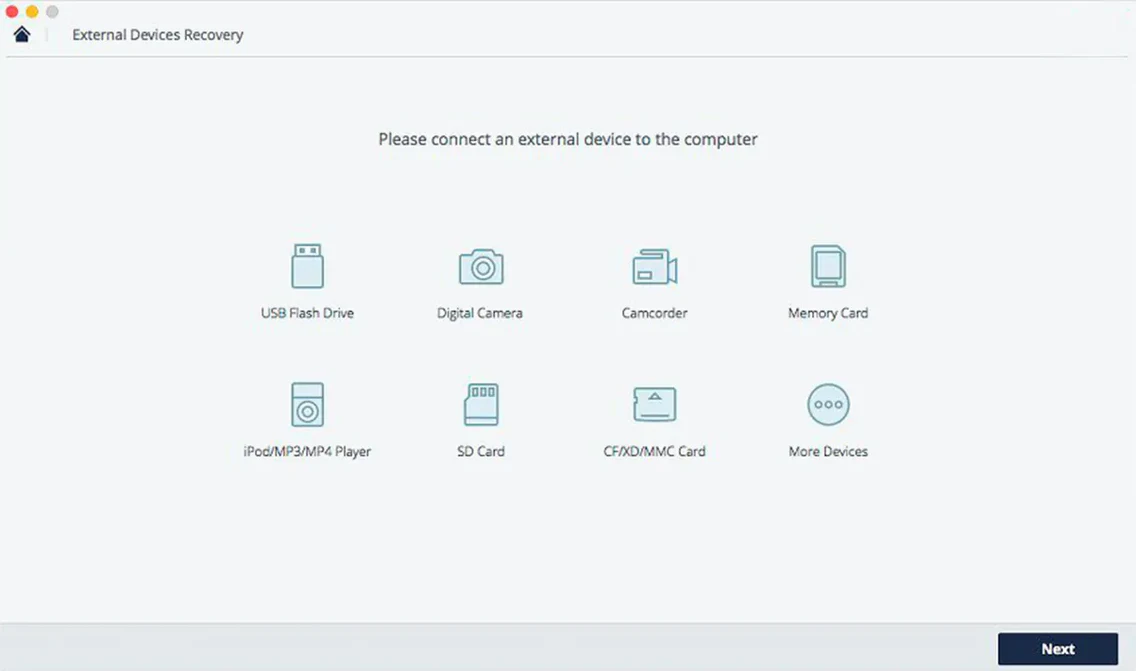
Video editors and photographers with a dead SD card know the panic. Recoverit is built for that moment, pulling files from formatted drives, lost partitions, and trashed folders. It scans internal disks, external HDDs, SSDs, USB sticks, and memory cards. Here's how the current Mac version holds up.
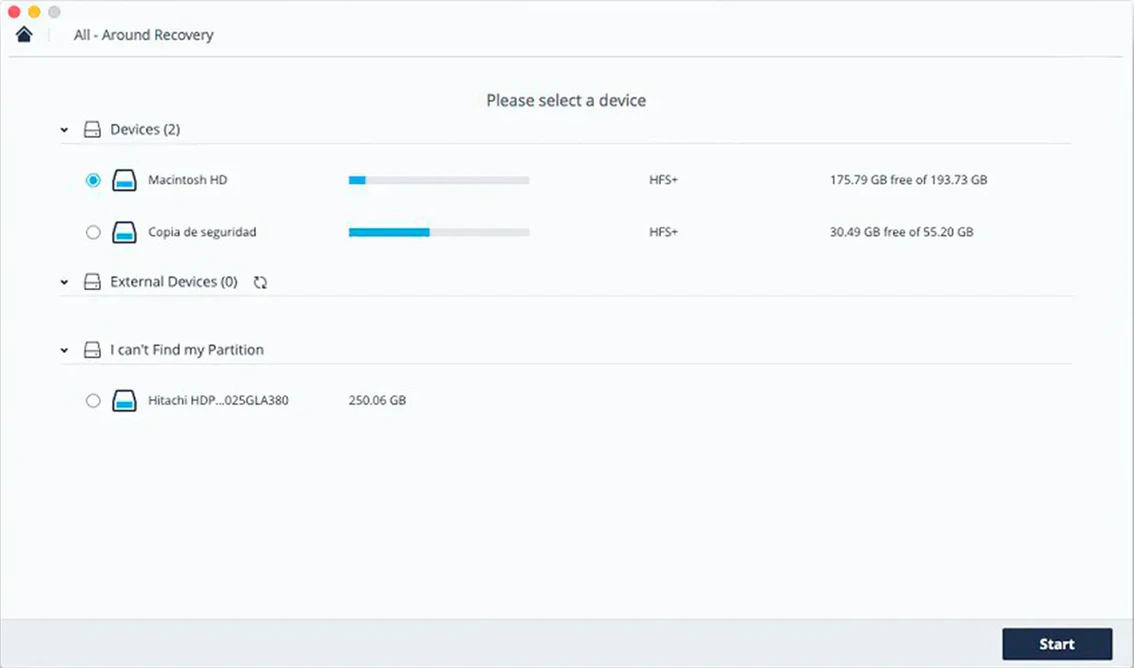
- Scans local Mac volumes as well as external drives and flash media.
- Handles recovery from formatted storage and partition loss situations.
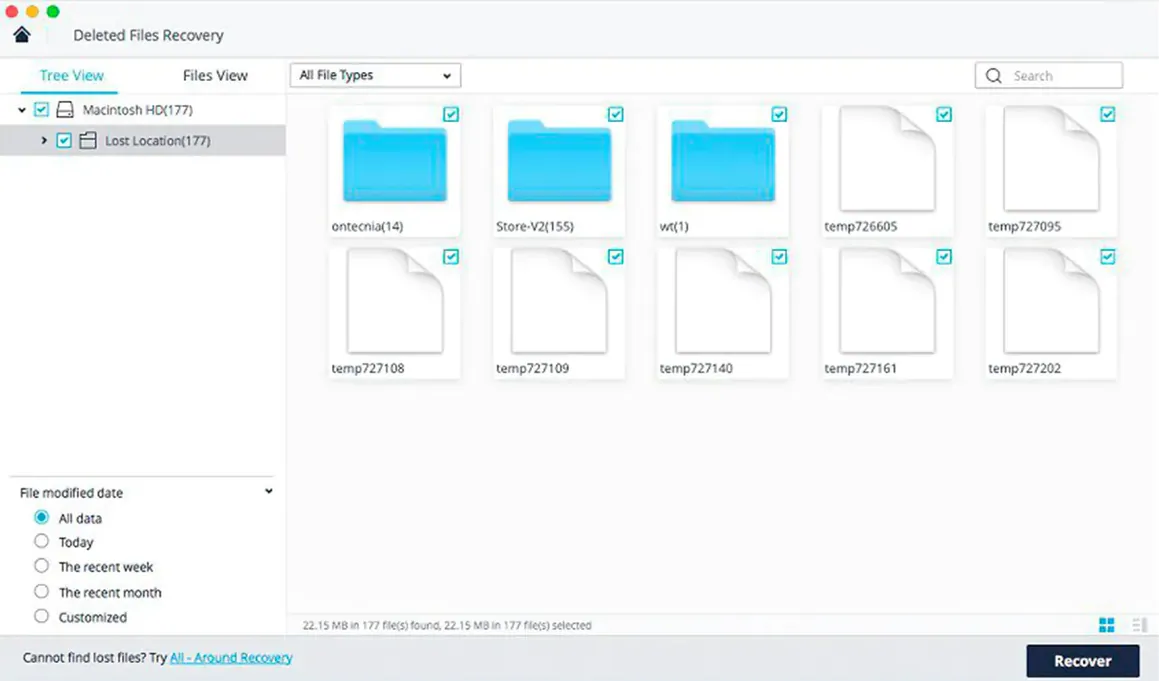
- Lets you preview photos, documents, and video files before committing to a full restore.
- Runs on Intel Macs back to macOS 10.14 Mojave — no Apple Silicon native build listed yet.
- Interface ships in English, German, Spanish, French, Italian, Portuguese, and Japanese.
The feature set hasn't shifted this cycle. If your workflow lives on an older Intel machine with spinning rust or external media, the tool still covers the same ground: scan, preview, recover. Just keep your expectations aligned with the architecture support it actually lists.
The Panic-Button Shelfmate When Time Machine Was Aimed Wrong
Recoverit isn't the kind of app you launch every day. It's the one you remember when Finder shows an empty folder and Time Machine was targeting the wrong drive. I think of it as sitting on the same shelf as Disk Utility and Terminal — a utility you hope to never need, but when you do, nothing else fills the gap.
Time Machine handles versioned backups and full restores, but it won't touch a memory card that was reformatted in a camera. Disk Utility can mount, verify, and erase volumes, yet it offers zero file-level recovery. Recoverit slots in after those tools have done their part or admitted defeat. You run it once Disk Utility confirms the drive is physically present, and before you give up and pay a lab for clean-room recovery.
For video editors, the chain often goes like this: an SD card gets pulled mid-transfer, the camera writes a corrupted directory, and Final Cut Pro shows missing media warnings. Recoverit steps in after the card reader reconnects. It scans the raw storage, finds the clip that Finder never saw, and spits out the MOV or MP4. From there, you relink in Final Cut and keep cutting.
Photographers work a similar path with Lightroom or Capture One catalogs. A formatted CFexpress card looks blank to macOS, but Recoverit's deep scan pulls RAW files back by file signature. The recovered ARW or CR2 files land in a folder, you import them into your catalog, and the job stays on schedule. The app doesn't integrate with photo software directly — it doesn't need to. It just hands back files that macOS treats as normal again.
On the audio side, Logic Pro users who lose a project folder to a botched partition resize get the same treatment. Recoverit doesn't care about file extensions beyond recognizing them. It pulls WAV, AIFF, and MP3 files the same way it pulls PSD and TIFF layers. The output is a folder of recovered data that you drag back into place.
One less obvious connection: Recoverit plays well with Finder's column view during recovery. When you preview a found image, the built-in Quick Look generator handles the rendering. That means no mystery — you see exactly what the file contains before you commit disk space to restoring it. The same applies to documents. A recovered PDF previews through the system's PDF engine, so you can confirm it's the right version of a contract or invoice.
A Granular Progress Bar Instead of a Vague Waiting Game
Version 14.0.20.6 didn't rewrite the recovery engine. What I notice in daily use is a handful of refinements that cut friction during stressful moments. The scan progress indicator got more granular — instead of a vague bar, you now see file type counts ticking up as the engine works. For a photographer digging out of a 256 GB SD card, that means the difference between staring at an unmoving screen and knowing that 47 RAW files have already been found in the first three minutes.
The preview pane loads faster on large video files. Where earlier builds would buffer for ten seconds on a 4 GB MOV, this version pulls the first frames almost instantly. That matters when you're skimming through dozens of recovered clips to find the one take that matters. The thumbnail grid for image recovery also got tighter spacing, so you can scan more files per screen without scrolling.
Also fixed: the occasional crash when switching between scan modes on APFS volumes. Earlier builds could choke if you started a quick scan, canceled it, and immediately launched a deep scan on the same drive. The 14.0.20.6 release handles that transition cleanly, at least on the Intel machines I've seen it run on. The file type filter dropdown now remembers your last selection across app launches, so you don't have to re-select "Video" every time you open the app for a media-heavy recovery job.
The language switching got tighter too. Previous versions would sometimes mix interface strings if you switched from German to English mid-session. The current build reloads the UI correctly. That's a small thing unless you work in a multilingual post house where machines get shared.
Don’t Install It onto the Drive You’re Trying to Save
The most common error I see: installing Recoverit on the same drive you're trying to recover from. macOS writes swap files, caches, and app support data constantly. If the lost files sit on your main SSD and you install the recovery tool there too, every write risks overwriting the very sectors you need. Keep the app on a separate volume — a USB stick works fine — and point the scan at the target drive from there.
Another classic move is continuing to use the affected drive after data loss. Deleted a folder from your external work drive and realized it an hour later? Unmount it immediately. Every new render, every auto-save, every browser cache write can stomp on the space those files occupied. Recoverit can only find what hasn't been physically overwritten yet. The moment you notice the loss, stop writing to that volume.
Beginners also misunderstand the scan modes. Quick scan reads the file table and finds recently deleted entries where the directory record still exists. Deep scan reads raw sectors and matches file signatures — it takes far longer but catches formatted drives and corrupted partitions. Launching a quick scan on a camera-formatted SD card will return nothing, leading people to assume the data is gone. It's not gone; it just needs the deep scan. Switch modes and let it run.
Saving recovered files back to the same drive is another habit that needs breaking. Recoverit warns you, but people click through. Pick a different destination volume. If your external 2 TB drive lost its partition, recover the data to your Mac's internal SSD or another external. Writing recovered files to the source drive is like photocopying a burning document onto the same page.
Finally, ignoring file previews. People check the first three images in a grid and assume all 800 are intact. Scroll through. Open a few videos. Corrupted sectors produce partial files — the preview shows you exactly how much is salvageable. A JPG that previews with a gray bottom third is missing data. You still get the top two-thirds, but you know what you're working with before you restore.
When a Deep Scan Stalls at 99% on a Large APFS Volume
Deep scans on large APFS volumes can stall at 99% for twenty minutes or more. That's not a freeze — the engine is parsing the last allocation blocks and matching fragmented file signatures. Let it sit. If it genuinely locks up past an hour with zero progress on the file count, force quit, reboot the Mac, and run the scan again with fewer file types checked in the filter. Unchecking "Archives" and "Email" often speeds things up on media recovery jobs where you only need images and video.
External drives that don't appear in the device list usually have a mounting issue, not a Recoverit problem. Open Disk Utility and check if the drive shows up at all. If it's grayed out, try mounting it manually. If Disk Utility can't mount it but sees the physical device, Recoverit can still scan the raw block device — look for the disk identifier (like disk4s2) in the app's device list rather than the volume name.
Some users run into Gatekeeper blocks on first launch — the "unidentified developer" dialog. The disk image includes a Terminal command to bypass this. Mount the image, run the script, press Enter, and drag the app to Applications. After that, it launches without complaint. This is standard for software distributed outside the App Store on modern macOS versions.
Recovered files sometimes come back with generic names like "file001.jpg" instead of the original filename. That happens when the directory entry is gone and the deep scan engine is working purely from file signatures. The file data is intact, but the name metadata lived in the overwritten directory structure. Rename them manually or use a batch renamer like Name Mangler afterward. The content is what matters.
If previews show garbled video or blank image frames, the file may be fragmented across non-contiguous sectors. Recoverit's deep scan does its best with contiguous recovery, but heavily fragmented files on a well-used drive sometimes come back incomplete. Running the scan again after a reboot sometimes helps — macOS caches can interfere with low-level reads. On mechanical drives, fragmentation is more common, so temper expectations on old spinning disks that have seen years of writes.
DITs Grabbing Footage from a Just-Formatted Card on Set
Video editors and DITs working on set with multiple card swaps are the core audience. A camera op formats a card between takes, the director wants the previous setup's footage, and there's no cloud backup in the middle of a forest. Recoverit on a MacBook with a card reader is the fix. The deep scan pulls the earlier clips, preview confirms the takes, and the shoot continues. No internet required.
Photographers who rotate through a dozen SD and CF cards get similar mileage. Cards get formatted in-camera, sometimes by accident. The app's ability to recover RAW files by signature means the difference between reshoots and a delivered gallery. Wedding photographers especially — there's no second chance on a ceremony, and a corrupted card at the reception is a business-ending event without a recovery tool on hand.
Music producers and audio engineers fit the profile too. A Pro Tools session on an external SSD that gets unplugged mid-write can corrupt the entire project folder. Recoverit finds the WAV stems, the session file backups, and the MIDI data. The producer rebuilds the session from recovered assets and loses an afternoon instead of a client.
IT staff managing fleets of Macs use it as a last-resort tool when employees delete local files that weren't backed up to the server. The interface being available in seven languages helps in multinational offices where the person running the recovery might not read English. German, Spanish, French, Japanese, Italian, and Portuguese localizations mean the scan button and preview pane are understood without translation guesswork.
Less obvious but equally valid: anyone still running an Intel Mac with a Fusion Drive or spinning hard disk. These machines are more prone to mechanical failure and directory corruption than Apple Silicon Macs with soldered SSDs. Recoverit's Intel-native build matches the hardware these users have. If you're squeezing another year out of a 2019 iMac with a failing internal drive, having wondershare recoverit for mac ready on an external boot volume is a sensible insurance policy.
The common thread is people who can't afford downtime. Freelancers without an IT department, solo operators on tight deadlines, and anyone whose income depends on files that exist in only one place. The app doesn't prevent data loss — nothing does. It just gives you a fighting chance when prevention fails, and that's exactly the capability people grabbing a Wondershare Recoverit Mac torrent want to have on standby.
- macOS 10.14 or later
- Intel-based Mac
Questions I actually get
Can Recoverit pull files back after a full format?
Yes, it's built for formatted storage and partition loss situations across internal and external drives.
Does the Mac version let me see files before I recover them?
Absolutely — you can preview photos, documents, and videos directly in the app before starting the recovery process.
Notes from the edit bay · 0
Sign in or get an edit-bay pass to leave a note.
No notes from the edit bay yet. They go up after I read them.