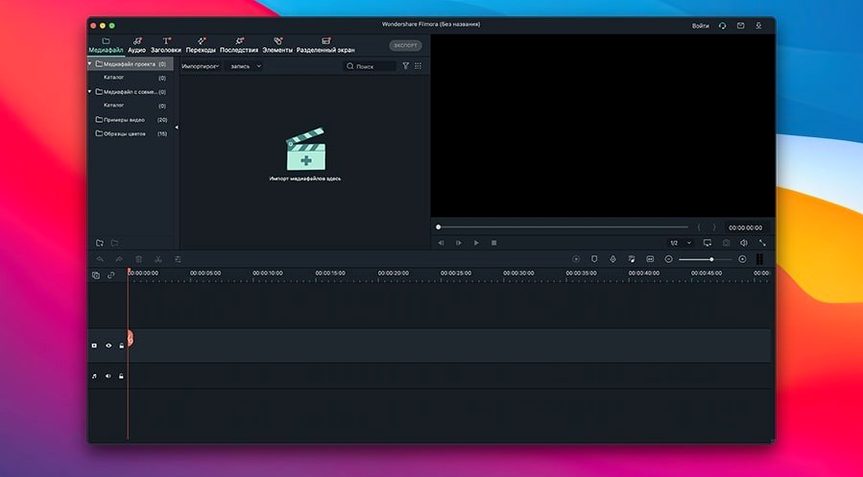
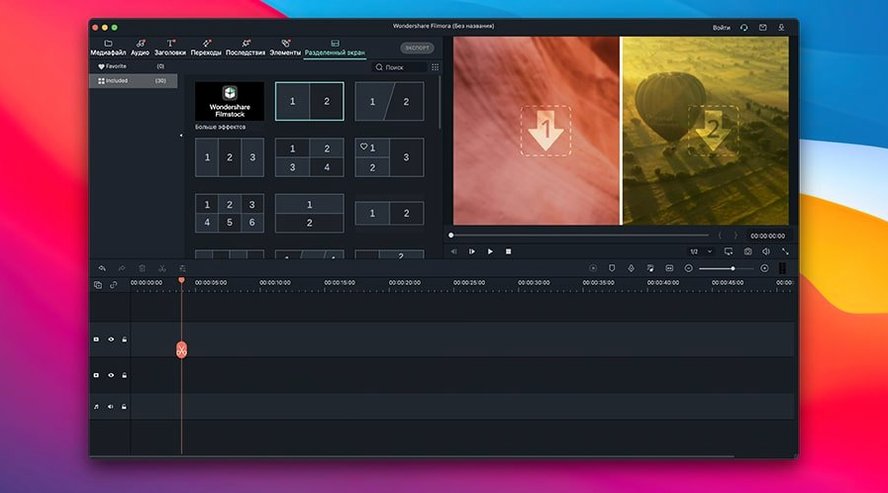
It handles HD footage natively, which is the first thing I check when a deadline is looming and proxies aren't in the plan. I dragged in a 1080p QuickTime master, and the timeline snapped right to it without a transcode dialog in sight. That alone makes the tool useful for quick-turnaround sizzle reels.
| Requirement | Detail |
|---|---|
| macOS | 10.14 or later |
| Architecture | Intel & Apple Silicon |
| Interface | Russian, English, German, Arabic, Spanish, Italian, Chinese, Korean, Dutch, Portuguese, Romanian, Turkish, French, Japanese |
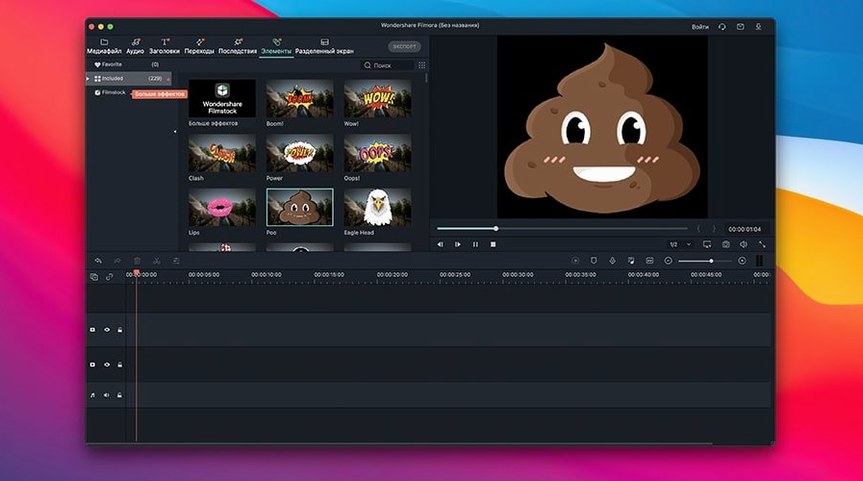
I set myself a simple task: rough-cut a two-camera interview and deliver a clean 30-second social clip. The blade tool is frictionless — just a tap to split — and the ability to save a project and walk away without losing trims is non-negotiable in my world. Rotating a sideways phone clip took exactly two clicks. The built-in transitions and overlays are fine for a corporate talking-head piece, though I tend to keep them minimal. You won't find the deep color grading of a dedicated suite, but you can absolutely cut, trim, split, and ship a polished HD video before the client's coffee gets cold. Where it fits: the space between a one-track quick trimmer and a full NLE — useful when the job is assembly, not mastering.
Mount, Launch, Then Set These Before Your First Cut
Mount the disk image, drag the app into Applications, launch it once, quit it — you already know the install flow. What comes next separates a clean project from a messy one. I learned a few things the hard way in my first week with Filmora.
Set your scratch disk location before you import a single frame. The default dumps everything onto your system drive, and a 30-minute interview at HD bitrates will fill that up faster than you think. Point it at an external SSD and you'll save yourself the "scratch disk full" panic at 2 a.m. The preference is buried under the settings cog, and it takes ten seconds to change. Do it now.
Second tip: build a small test project and export it immediately. Pick a one-minute clip, throw on a title, a cross-dissolve, and some background music, then export to H.264. This confirms your render pipeline works with your hardware. On my M1 MacBook Air, the first export always feels slower than I expect — the engine is warming up shader caches and building previews. Subsequent exports fly. Knowing that rhythm stops you from second-guessing settings mid-deadline.
Lock your frame rate in project settings before editing. Filmora guesses from the first clip you import, and if that clip is a 30 fps phone video but your b-roll is 24 fps, you'll get judder on titles and transitions. I make it a ritual: new project, check frame rate, confirm scratch disk, then import.
From Raw Footage to Finished Clip: One Clean Workflow
Here is a task I run often: take a product walkthrough shot on an iPhone, cut it down to 90 seconds, add lower thirds for specs, and deliver it for Instagram. I'll walk through the whole thing.
Ingest and rough cut. I drag the master clip straight onto the timeline — no transcoding, no proxy generation. I scrub through with the J-K-L keys, which Filmora respects natively. I drop markers at the start and end of each section I want to keep. Then I use the split tool to isolate three clean segments. Blade at marker one, blade at marker two, ripple-delete the dead air in between. Total time: under four minutes.
Titles and text. I pull up the titles library and grab a simple lower-third preset. I type in the product name and a two-line spec block. Filmora snaps the title to a track above the video, and I trim its duration by dragging the edge of the title clip — no dialog box, just direct manipulation. I duplicate the title, slide it to the next segment, and edit the text inline. Text rendering stays sharp at 1080p export, which isn't always true in this price tier.
Transitions and pacing. I drop a short cross-dissolve between the first and second segments, then a harder dip-to-black before the final segment for a cadence change. The transition handles are draggable for duration, and the default half-second dissolve works for social without tweaking. I keep overlays off for this job — the product shots are clean enough on their own.
Audio. The iPhone audio is passable, so I normalize it with the built-in audio tool, pull the background music track in from the library, and duck it under the dialogue by dragging the gain line down on the music track. No keyframes needed for a simple duck — just a straight volume cut across the speaking sections. Quick, audible, done.
Export. I hit Export, choose H.264, set the resolution to 1080p, and pick a bitrate around 12 Mbps. The render bar crawls for about 45 seconds on my machine, then spits out a clip that's ready to upload directly. Instagram doesn't need a mastering suite; it needs a clean file, and Filmora delivers that without overcomplicating the dialog.
When Three Revisions Arrive Before Lunch
Corporate video editors doing internal comms and training clips. The kind of work where three revisions land in your inbox before lunch and nobody cares about 10-bit log grading. You need to cut talking heads, overlay logos, add chapter markers, and export to a shared drive. Filmora handles that stack without the overhead of a full NLE that wants to manage media databases and render caches across six drives.
Social media managers who cut their own content. They are not editors by trade — they are marketers who inherited video duties. They need to rotate a phone clip, add captions, slap on a fade, and export square or vertical. The interface doesn't punish them with timeline modes they'll never touch. Everything lives in one window, and the export presets cover the platforms they actually post to.
Music video editors on a tight turnaround — the ones cutting performance footage for local bands who need a YouTube cut by the weekend. They lean on the split tool heavily, use the built-in LUTs for a quick look, and appreciate that the project file stays intact when they reopen it Monday to tweak a transition. The HD support means a multicam music shoot at 1080p won't choke the timeline.
Beginners who watched a few YouTube tutorials and want to cut their first vlog. The tool doesn't hide basic operations behind panels. Cut, trim, text, music, export — the path is linear and discoverable. They grow into the filters and overlays later, but the first-day experience matters, and Filmora doesn't punish inexperience with a blank, intimidating canvas.
From Six DSLR Clips to Client Rough Cut in 90 Minutes
It's 9:30 a.m. on a Tuesday. I have a client call at 11, and they need a rough cut of a two-minute event recap before the meeting. Raw material: six clips from a DSLR, all 1080p, covering a keynote and some crowd shots. I have not had coffee yet.
I open Filmora and create a new project. The scratch disk is already pointed at my external drive from the setup ritual I mentioned earlier. I drag all six clips onto the timeline at once. They land in a single track, chronological by filename, which happens to match the shooting order. Lucky break.
I scrub through the keynote clip first — it is four minutes long and I need thirty seconds. I tap M to drop a marker at the start of a strong soundbite, then again at the end. I split at both markers, right-click the leftover head and tail, and ripple-delete. The timeline collapses cleanly. I do this three more times across the other clips, building a sequence of moments that tell the event story without narration.
I add a title card at the front: event name, date, city. The title editor lets me center-align and pick a bold weight in about fifteen seconds. I drag a fade-in on the title and a fade-out on the last clip for bookends. Between segments, I drop cross-dissolves — not for style, but to hide jump cuts where I removed awkward pauses. A dip-to-white transition signals the shift from keynote to crowd, a visual cue that costs one drag from the transitions panel.
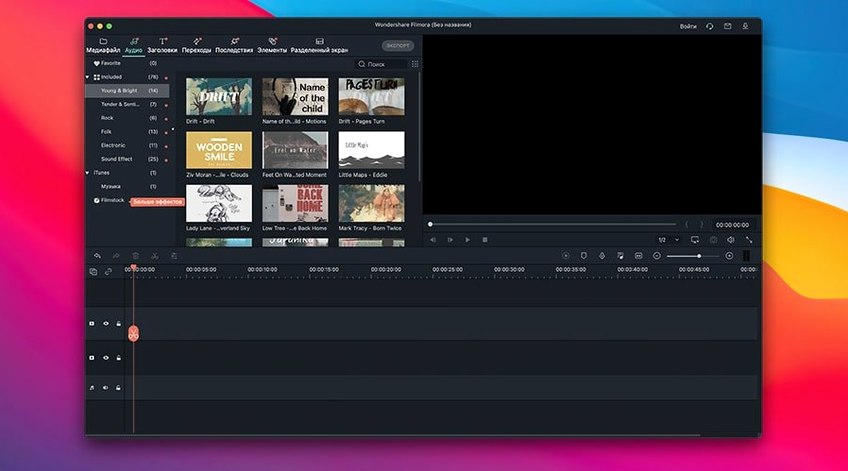
Background music comes from Filmora's built-in library. I filter by "corporate" and grab a track that is inoffensive and loops cleanly. I drop it on the audio track, trim the end to match the video, and pull the volume down to -18 dB so it sits under the dialogue. The whole thing takes ninety seconds of listening and dragging a gain handle.
I hit Export. The client's preferred format is H.264 at 720p for review — small file, fast upload. The render finishes in under a minute. I drag the file into a Slack DM and close the laptop at 10:47. The client has thirteen minutes to review before the call. That is not a theoretical workflow; that is a Tuesday.
The Mixed Frame Rate Trap That Makes Motion Stutter
Ignoring the project frame rate. I see this constantly: someone imports a mix of 24 fps and 60 fps clips, starts editing, and then wonders why motion looks stuttery. Filmora sets the timeline frame rate from the first clip you drag in. If that first clip is slow-motion b-roll at 60 fps, your 24 fps talking-head footage will get frame-sampled in ways you didn't intend. Fix it in project settings before you cut a single frame.
Stacking too many effects on one clip. The effects panel makes it easy to pile on a LUT, a film grain overlay, a vignette, and a blur — all on the same adjustment layer. The preview chugs, and the render time triples. Beginners treat effects like seasoning and end up with an oversalted soup. Apply one look, render a preview, and decide if it needs more. Your export clock will thank you.
Not using ripple edit by default. Filmora can ripple-delete — meaning when you remove a section, the remaining clips slide together automatically. Beginners often use a regular delete instead, leaving a gap on the timeline. Then they manually drag clips to close the gap, which is slow and risks knocking things out of sync. Learn the ripple-delete shortcut and trust it.
Exporting at maximum bitrate for review drafts. A 1080p review cut does not need 40 Mbps. Beginners crank the export slider to "best" and then wonder why the file is 2 GB and took ten minutes to render. For client reviews, 8–12 Mbps H.264 is plenty. Save the high-bitrate pass for the final master. Your upload speed and your client's patience both improve.
Skipping the audio ducking tool. Filmora has a one-click audio ducking feature that lowers background music when it detects dialogue. Beginners manually keyframe volume instead, which works but eats time on a five-minute piece. The auto-ducking is not perfect — it sometimes dips too aggressively — but it gets you 80% there in three seconds. Tweak the threshold, not the keyframes.
Forgetting that projects are self-contained. Filmora saves a project file, but it does not bundle your media. Beginners move or rename source clips in Finder and then open the project to find red "media offline" warnings. Keep your source footage in a dedicated folder and don't touch it until the project is delivered and archived. Old habit from Final Cut 7 days, still applies here.
- macOS 10.14 or later
- Runs on both Intel and Apple Silicon Macs
Questions I actually get
Can I rotate a video that was shot in the wrong orientation?
Yes, Filmora includes a straightforward rotate function that fixes a sideways or upside-down clip in a couple of clicks.
Does Filmora let me reopen a project later to tweak the edit?
Absolutely. You can save a project at any stage and reopen it later to continue cutting, adjusting effects, or swapping out clips.
Notes from the edit bay · 0
Sign in or get an edit-bay pass to leave a note.
No notes from the edit bay yet. They go up after I read them.