Does the cable actually match the spec printed on it?
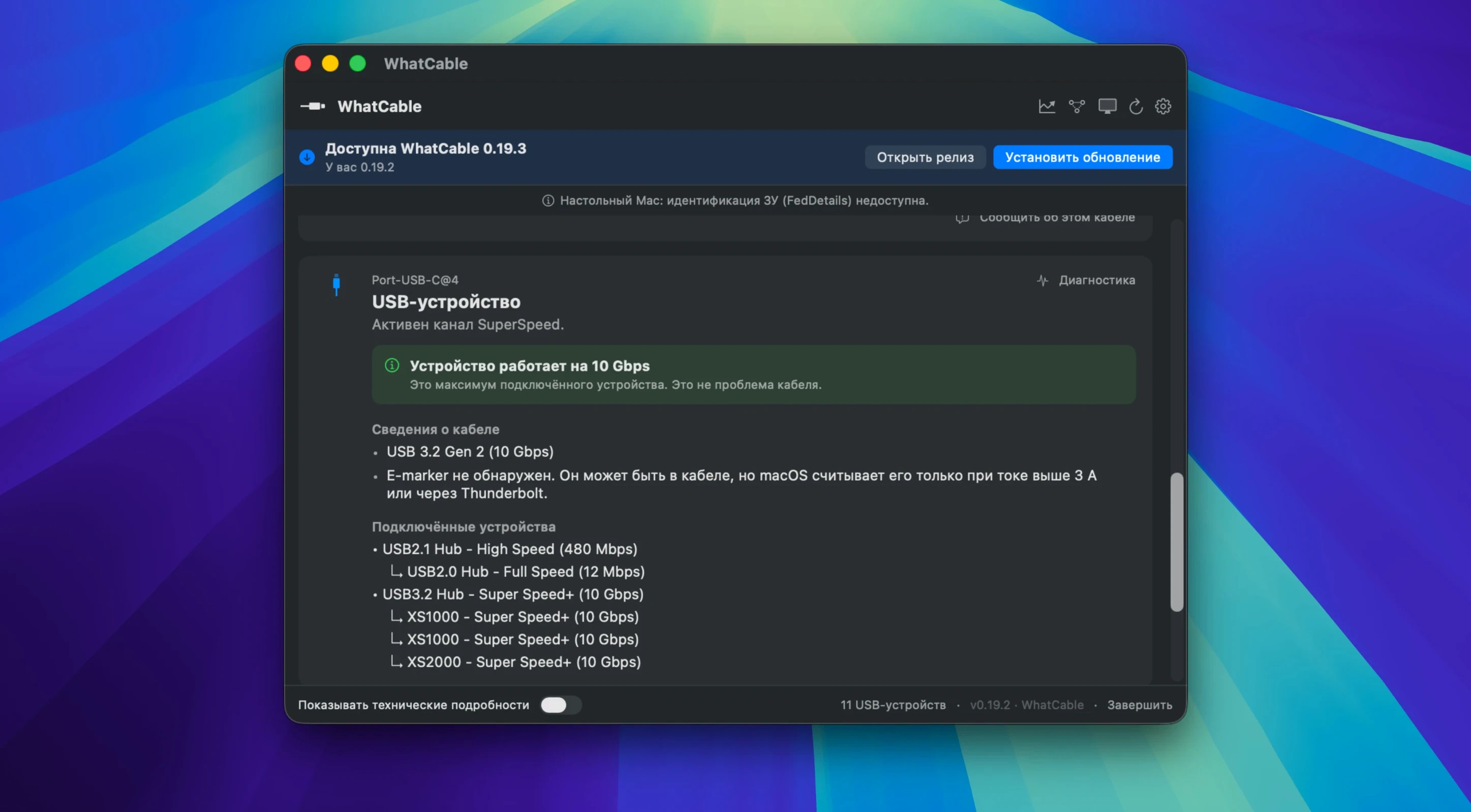
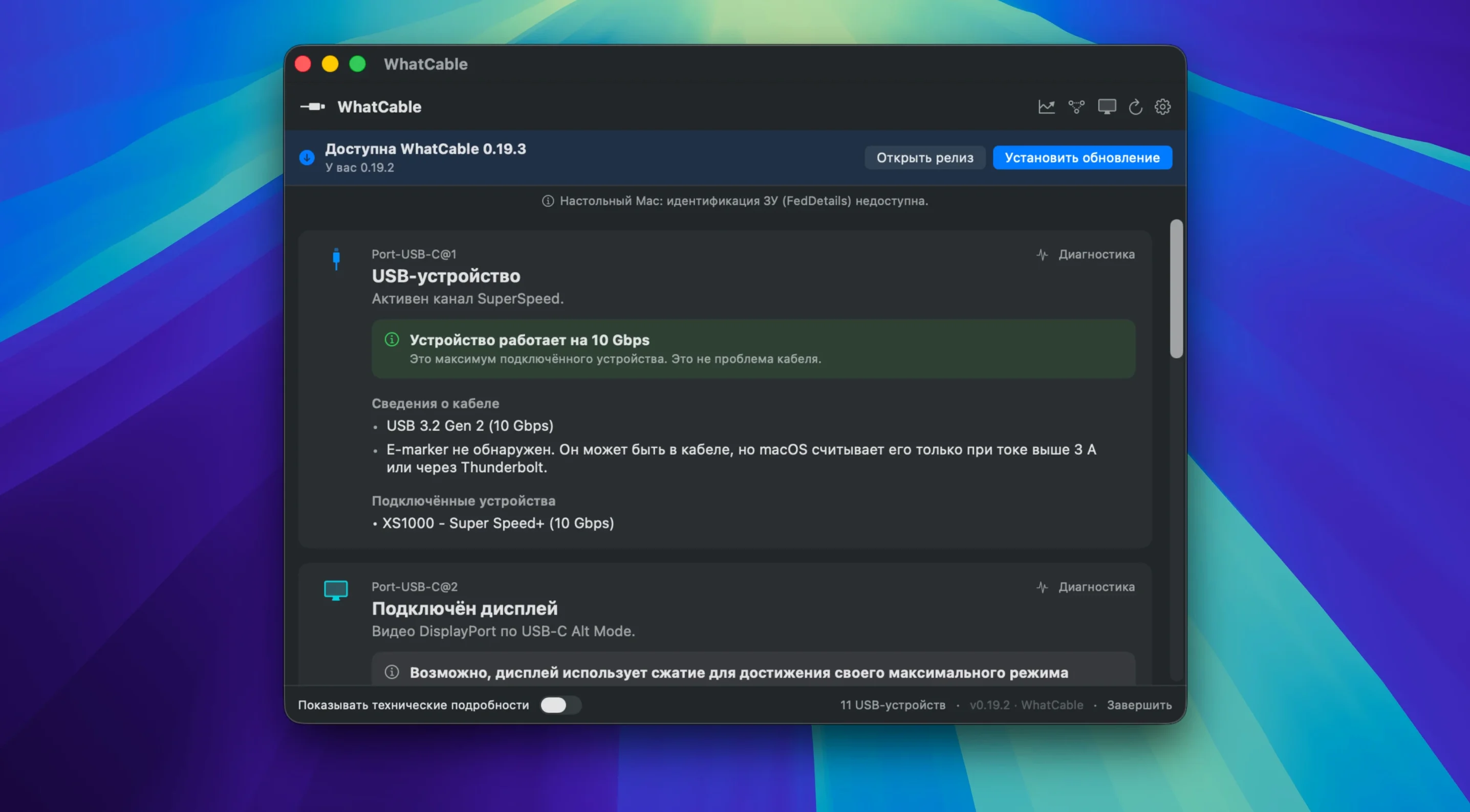
WhatCable Pro reads the e-marker chip inside any USB-C cable and translates that raw data into plain English. You see claimed speed, max current, manufacturer info, and supported USB Power Delivery profiles in one window—no guessing whether a 100W label means anything.
Where’s the bottleneck—cable, charger, or Mac?
Live power measurements in watts, amps, and volts for each port make the answer obvious. If a connection feels slow, the app flags whether a faster cable could improve data speed, so you swap the right part the first time.
Will this cable drive my monitor?
The extended display diagnostics with DP Alt Mode and EDID support tell you whether the cable can push your monitor’s full resolution and refresh rate. No more crawling under the desk because a 4K display is stuck at 30 Hz.
When do I pull a cable from service?
Port health counters track resets, errors, and FET failures over time. If a cable starts throwing faults under load, the numbers back up the decision to retire it—and the JSON export lets you log that data into your own ticketing or inventory system.
Vetting Every Cable Before the Camera Rolls
Video engineers and DITs on set. They live and die by fast offloads and clean monitor feeds, and a flaky USB-C cable can stall a whole crew. WhatCable Pro lets them vet every cable in the kit before the camera rolls.
IT and AV support staff who chase phantom desk setup issues. When a user says "my monitor keeps cutting out," this tool eliminates the cable as a variable in seconds. The negotiation diagnostics compare the Mac, the cable, and the display's capabilities side-by-side, so the mismatch floats straight to the top.
Photographers and audio engineers who carry a tangle of cables in a backpack. They can test every cable on the bench—not just for charging, but for the sustained data throughput their interfaces and card readers demand. The "Saved Cables" feature means they build a personal reference library of the good ones.
Developers and hardware hobbyists who want the raw VDO data and the command-line interface. With --watch mode and JSON output, they script WhatCable Pro into automated test rigs and catch intermittent connection drops across hundreds of plug cycles.
Catch an Underperforming Charger in Seconds
After dragging the app to Applications and launching, open the Power Monitor screen and plug in your main charger with a suspect cable. Watch the negotiated voltage and current. If the amps top out well below the charger's rating, the e-marker in the cable is the snitch—and you just found the bottleneck without touching a multimeter.
Next, connect every USB-C cable in your drawer one by one and hit "Save Cable." Give each entry a clear label like "2m black braided—100W—10Gb/s." Within an hour, you have a cheat sheet for your own gear. The app stores the e-marker data, so comparing cables later is a single click.
Enable the --watch CLI mode in Terminal and let it run while you work. Unplug and replug devices a few times during a render or a data transfer. The live port health counters reveal which connections throw resets or errors under real load—the kind of thing a one-minute bench test misses entirely.
Finally, grab the whatcable pro mac full version and take advantage of the PD contract inspector. Look for "mismatch flags" on any cable that feels warm to the touch during fast charging. A flagged PDO mismatch means the cable is advertising a power profile it can't safely sustain, and that's your cue to retire it before it cooks a port.
Diagnosing Flicker via DP Alt Mode Status
A colorist connects an external reference monitor via USB-C and sees intermittent flicker. She opens WhatCable Pro from the menu bar, selects the port linked to the display, and taps into Display Diagnostics. The DP Alt Mode status confirms the link is active, but the EDID readout shows the monitor's preferred timing isn't being honored. The cable claims 4K60 capability, yet the negotiation diagnostics reveal the connected speed dropped to HBR2. She grabs another cable from the "Saved" list, plugs it in, and the lane speed jumps to HBR3. The flicker vanishes. Total time: under ninety seconds.
An IT tech arrives at a desk with a laptop that won't charge above 30W from a 96W charger. He launches the app, plugs in the charger, and watches the PD contract inspector populate the PDO list. The active voltage sits at 5V with a mismatch flag lit. The cable's e-marker reports a 3A ceiling, but the charger is requesting 4.5A. He swaps the cable for one with a 5A rating from his bag, and the power monitor jumps to 20V at 4.5A. He marks the old cable as faulty in his asset log, exports the JSON diagnostics for the ticket, and moves on to the next call.
- macOS 14 or later
- Apple Silicon or Intel 64-bit Mac
Notes from the edit bay · 0
Sign in or get an edit-bay pass to leave a note.
No notes from the edit bay yet. They go up after I read them.