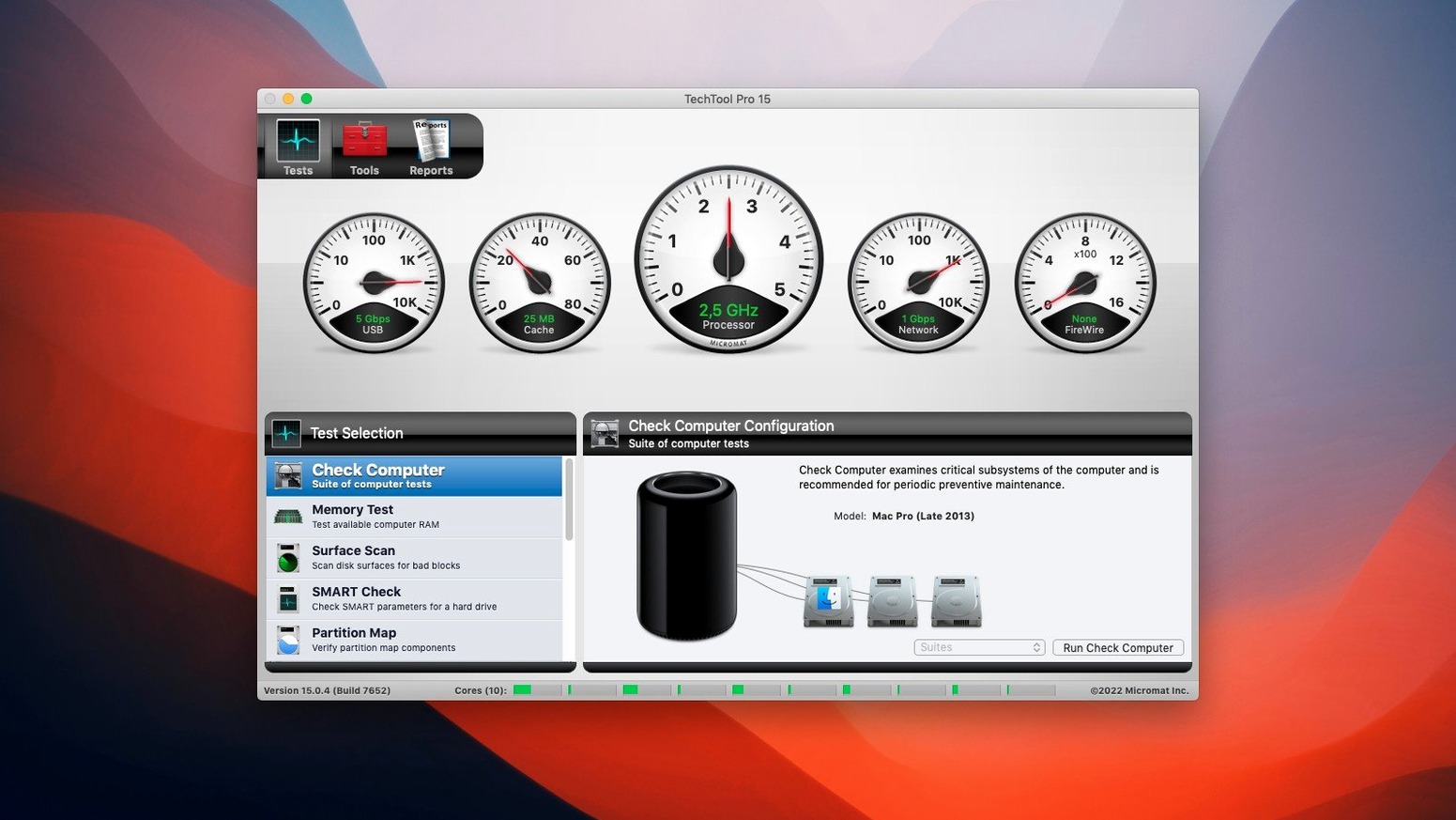
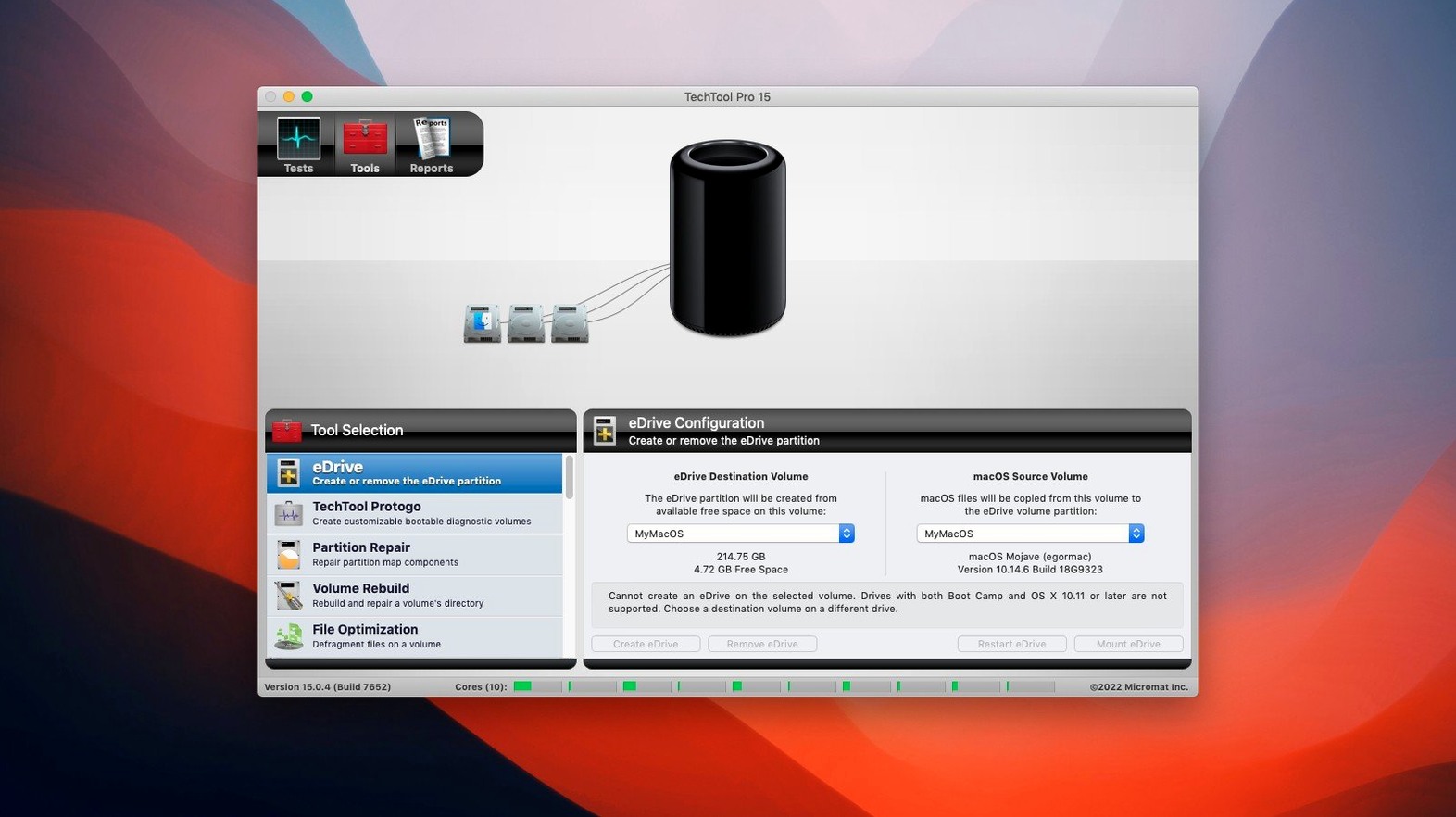
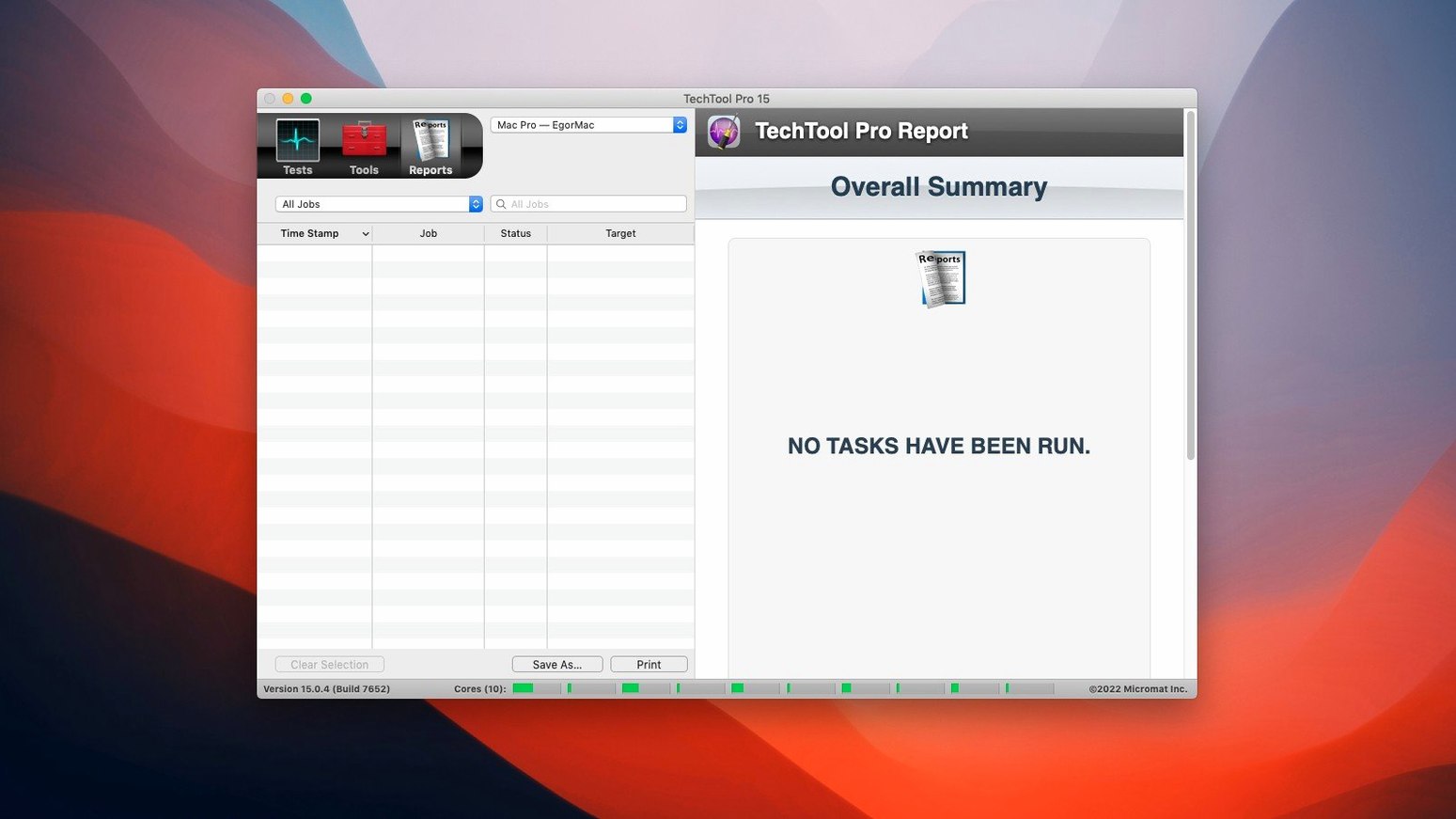
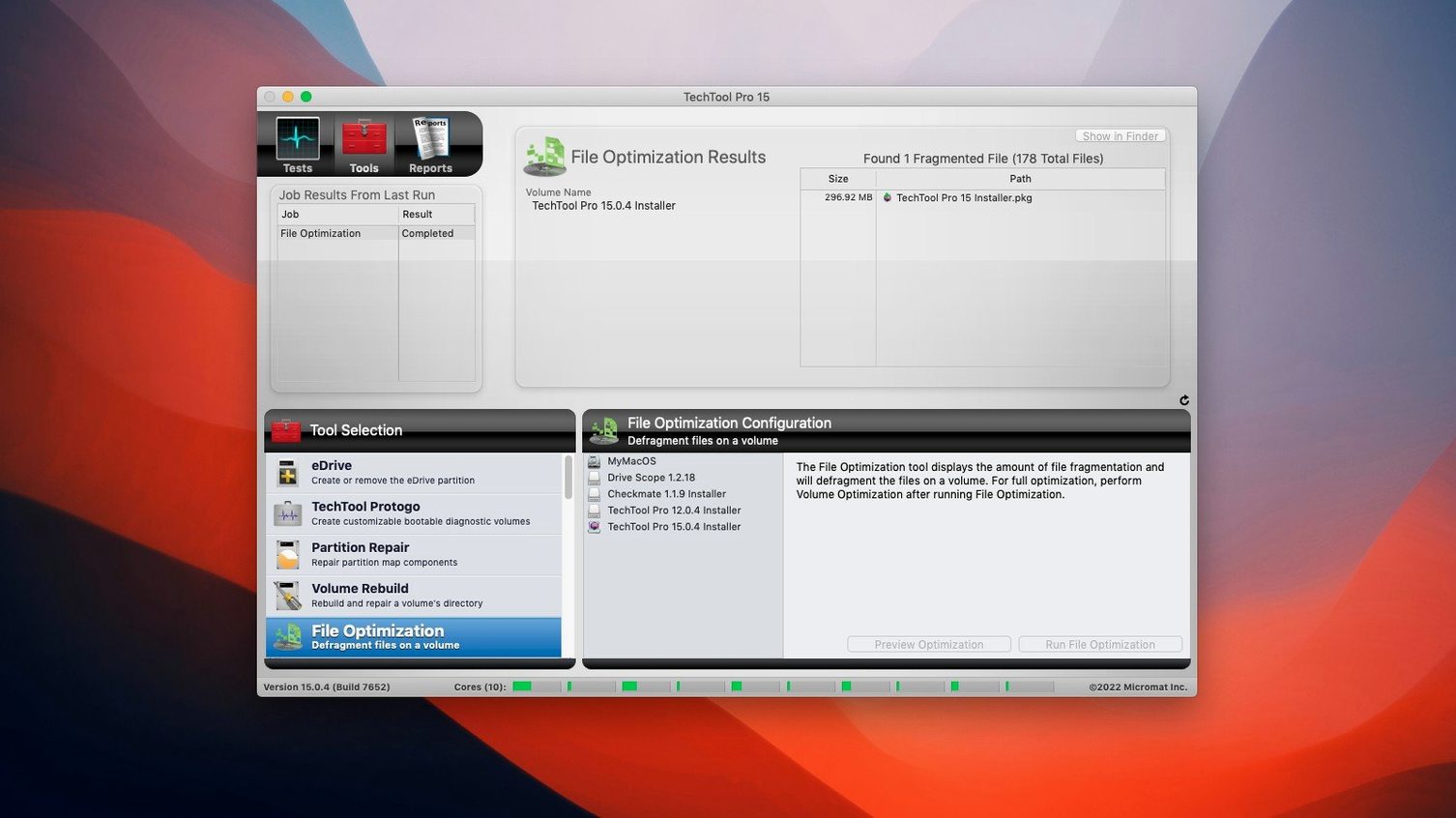
When a Mac acts up right before a render export, you don’t need a mystery—you need an answer. Techtool Pro is the old-guard utility that swaps guesswork for a clear diagnostic path. It checks hardware, rebuilds busted volumes, and hands you a bootable safety net when macOS won’t even start.
The Silent Clone Killer It Squashed
Version 20.1.7 (build 9559) isn’t a flashy feature drop—it’s a fix that matters for anyone moving large media around. The update corrected a Volume Cloning bug where a File Sync clone could fail during verification. That’s the kind of silent failure that wastes a full morning if you’re backing up a project drive. Otherwise, the toolkit stays exactly what working editors rely on: SMART tests that flag a drive before it fails, volume repair that reaches SSDs, permission restoration, and data recovery when a client’s drive shows up blank.
Your Emergency Room on a Stick
Protogo is still integrated, so you can build a custom bootable USB key with just the tests you need. That’s your emergency room on a stick. Techtool Protection hums in the background, watching drive health so you don’t have to. It’s not a daily-use app—it’s the one you’re glad you installed six months ago when something starts clicking.
Flip These Two Alerts Before You Trust It
Out of the box, Techtool Protection is eager but a little quiet. I open its pane first and flip two things: email notifications for SMART failures and a lower free-space threshold than the default. The stock warning fires when a volume dips below 10% free, which on a 4 TB media drive is 400 GB—way too cautious. I drag it to 4% and tell it to watch only the scratch and project volumes, not the system disk. On the backup tab, I point it at /Users/me/Documents and /Users/me/Music; those directories change daily and a snapshot of Logic projects or Final Cut libraries takes seconds, not the full clone I run on weekends.
The monitor agent is also worth a quick audit. In Preferences, uncheck the drives you rotate for offsite backups—no point pinging a disk that lives in a drawer. While you’re there, confirm Protogo sees your fastest USB stick. Building a rescue key now, when everything works, is the difference between a 15-minute fix and a dead afternoon.
A Drive Clone Workflow, Start to Finish
Here’s a Tuesday-morning routine when a client drive arrives with “weird slowness.”
- Plug in the suspect drive and a clean target. Both connected directly to the Mac, no hub. The target is already formatted APFS and at least 20% larger than the source’s used space.
- Run a quick SMART check. Open Techtool Pro, select the source volume, hit the SMART test. Thirty seconds later you know if the drive electronics are lying about its health. If the status says Failing, skip straight to step 4—no further diagnostics needed.
- Surface scan if SMART is clean but the drive feels sluggish. This reads every block and flags bad sectors. On a 1 TB spinner it’s a lunch-break affair. Techtool Pro maps the damaged regions before cloning tries to copy unreadable data.
- Volume Clone with File Sync off. Under Tools, pick Volume Clone, set source and destination, and uncheck File Sync. A block-level clone preserves the exact filesystem structure. The 20.1.7 build fixed the verification crash that used to bite here, so let it finish and confirm the green checkmark.
- Verify the clone mounts and opens a known folder. Eject both drives, mount only the clone, and spot-check a project file. Then put the original in a labeled case—you’re done.
That sequence catches physical failure before it corrupts the clone, and the block-level copy is what you want for a bootable backup or a forensic copy of a dying disk.
When Disk Utility Gives Up, This Takes Over
Techtool Pro doesn’t replace Disk Utility—it extends it. Disk Utility is your quick first-aid: mount, unmount, erase, basic First Aid. When First Aid says “couldn’t unmount” or repairs nothing, you pull up Techtool Pro and run volume repair with the filesystem-specific engine Micromat built. After the repair, open Terminal and run tmutil compare if you’re cross-checking against a Time Machine snapshot; the two don’t integrate directly, but they complement each other—Time Machine handles version history, Techtool Pro handles structural integrity.
On a set, the Protogo USB works alongside a cloned boot drive made with Carbon Copy Cloner. CCC gives you a full bootable system; Protogo gives you a lightweight diagnostic environment with only the tests you chose. Boot from Protogo first, find the problem, switch to the CCC clone if you need the full OS to finish a render or export logs. The two live on separate thumb drives in my kit.
90 Minutes to Rescue a Missing RAID
The colorist walks in and her Mac Pro won’t see the RAID that holds the day’s graded reels. Finder shows nothing; Disk Utility sees the enclosure but not the volume. She’s got a client session in ninety minutes. I plug in the Protogo key, hold Option at startup, and boot into a minimal Techtool Pro environment. A SMART check on each member disk passes—enclosure and drives are physically okay. Volume repair on the missing logical volume takes about eight minutes. It finds a catalog file inconsistency left over from a power dip the night before, rebuilds it, and mounts the RAID. Back to the internal SSD, reboot, and the volume pops up in Finder like nothing happened. She imports the timeline with six minutes to spare.
That’s the scenario where the tool earns its keep: not when you’re browsing a menu, but when you’re standing next to a silent machine and someone’s waiting on it. Techtool Pro fills the gap between a cryptic macOS error and a trip to a data-recovery lab.
- macOS 10.13 High Sierra or newer
- Runs on both Intel and Apple Silicon Macs
Questions I actually get
Can Techtool Pro repair an SSD volume?
Yes. It can repair damaged volumes on both traditional hard drives and SSDs, along with restoring file access permissions on a partition.
Does it include a way to make a bootable diagnostic drive?
It does. Protogo is built in and lets you create a custom bootable USB or external drive with the specific tests your setup needs.
Notes from the edit bay · 0
Sign in or get an edit-bay pass to leave a note.
No notes from the edit bay yet. They go up after I read them.