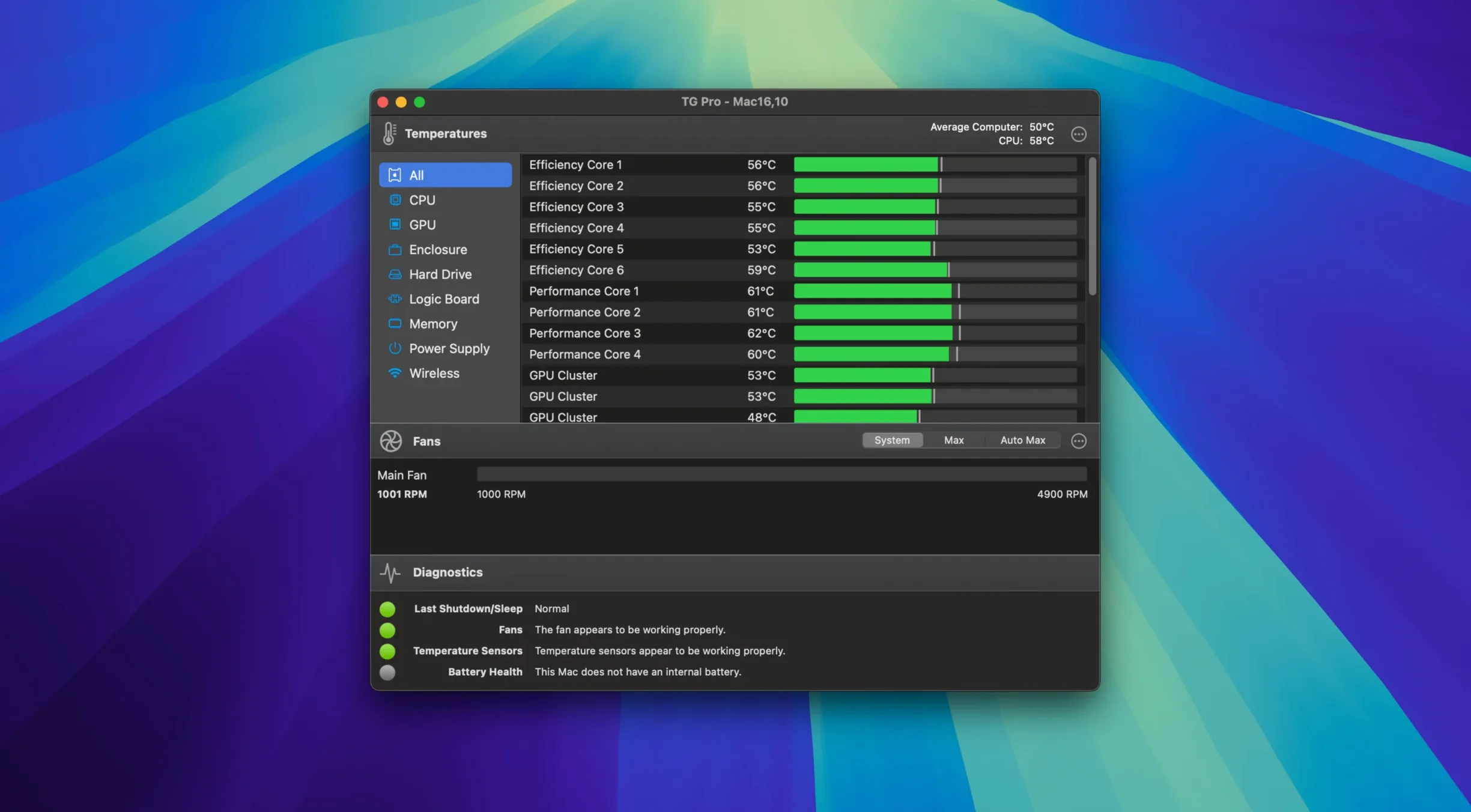
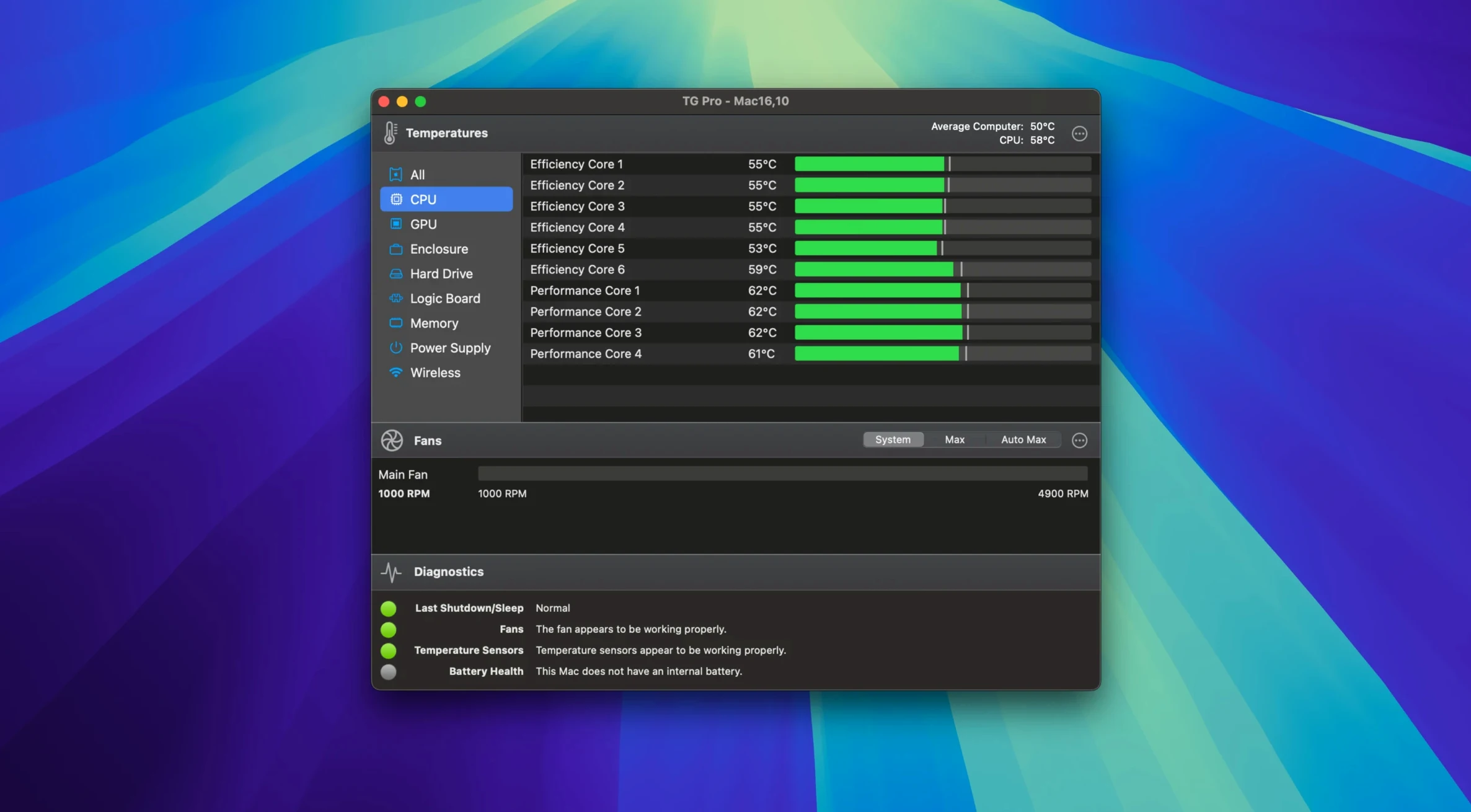
If you've ever opened Activity Monitor to see what's roasting your CPU, TG Pro is the logical next step. It shows you the heat, not just the load, and lets you do something about it. Version 2.103 is a smart entry point, especially for anyone on Apple Silicon. Here's where to start poking around.
- Check your M4 fans. This update adds complete control for M4, M4 Pro, and M4 Max. Open the fan tab and confirm your machine responds to manual speed changes.
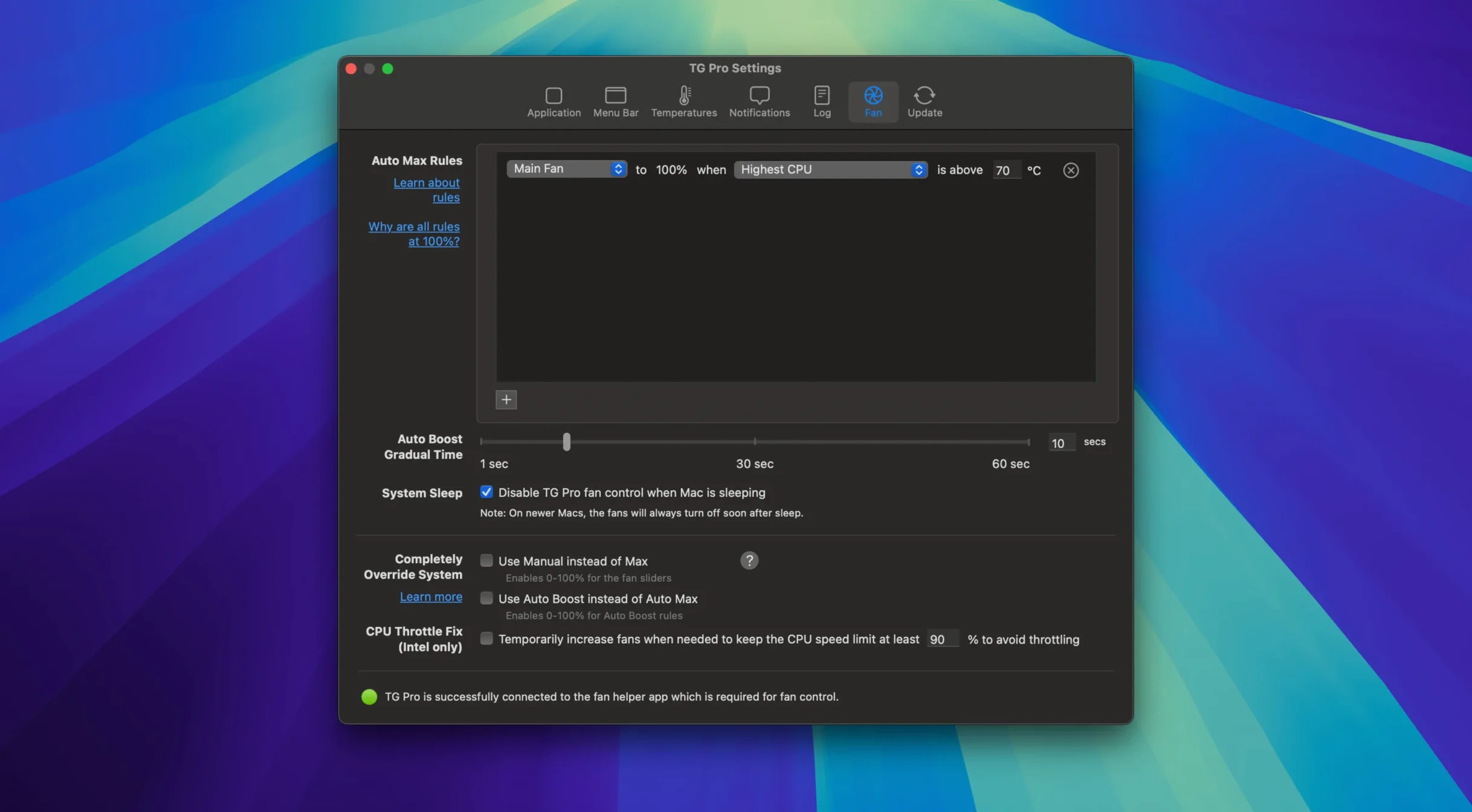
- Set an Auto Boost rule. Tell a fan to ramp up when a specific sensor hits a threshold. The latest build fixed a bug where these rules could fail when you unplugged from power, so now is the time to rely on them.
- Turn on menu bar sensors. Pick one or two critical temps and a fan speed to live in your menu bar. You'll spot patterns without opening the full window.
- Test after a dictation session. The update restores fan control once Siri or Voice Control finishes, a silent fix that saves your machine from getting stuck in a quiet state.
- Enable temperature logging. If you hear the fans spin up at random times, let TG Pro write a log. You'll have a timestamped trail to match with other app activity.
None of this requires deep hardware knowledge. The interface lays out every sensor your Mac reports, and the fan sliders respond immediately. Start with one menu bar sensor and one Auto Boost rule; you'll know within a day whether you need more.
When a Sensor Reads Zero, Check SMC Emulation First
A sensor reading zero or showing "N/A" doesn't mean your Mac is broken. Some sensors only wake up under load, and TG Pro reports whatever the SMC hands it. On Hackintosh setups, flip the preference toggle for third-party SMC emulation and relaunch — missing sensor columns usually fill right in.
If a manual fan slider snaps back to its old position, check that no Auto Boost rule is fighting you. TG Pro prioritizes rules over manual settings. Delete the conflicting rule, or set its floor lower than what you're dialing in by hand. On M-series Macs, certain fan slots don't expose independent control; the app pairs them correctly, so moving one slider moves its twin. That's expected, not a bug.
Menu bar readings that freeze usually trace to a background process conflict. Quit any system monitoring daemons — iStat Menus, Macs Fan Control, even some VPN clients that poll sensors — and restart TG Pro. The logging tab will show a gap in timestamps if the helper process crashed silently. A relaunch fixes it nine times out of ten.
After a macOS update, fan control can feel sluggish for the first few minutes. The system re-indexes drive contents and rebuilds caches, which loads the CPU just enough to confuse the SMC. Give it ten minutes before assuming TG Pro lost its grip.
Auto Boost Rules Finally Handle Power-Source Switches
Version 2.103 didn't just add M4 support — it fixed a power-source switching bug that had been tripping up Auto Boost rules for months. If you'd set a rule to kick in on battery but not on AC, unplugging used to sometimes leave the rule stuck in its last state. That's gone now. Rules transition cleanly the moment your power adapter clicks in or out.
The Siri fix is equally practical. Before this build, finishing a dictation session could leave fans parked at whatever low speed the voice recognition pipeline demanded. TG Pro now reclaims control immediately, so your custom curve resumes without a manual nudge. If you use Voice Control daily, you'll notice the difference within hours — no more random heat spikes after a long dictation.
New installations also get a smoother first-launch flow, with clearer prompts for accessibility permissions. macOS still gatekeeps SMC access behind a security approval, but the helper now walks you through it rather than leaving you guessing why sensors show blanks.
A Workflow for Diagnosing a Noisy Mac
Say your MacBook's fans scream every afternoon around 3 p.m., and you want to know why. Here's a start-to-finish path:
1. Log first, guess later. Open TG Pro, switch to the Logging tab, and start a session. Check "All temperatures" and "All fan speeds." Minimize the window.
2. Wait for the racket. Go about your work. When the fans blast, note the time. Stop the log and export it as CSV.
3. Spot the culprit. Open the CSV in Numbers or Excel. Sort by the column for CPU proximity sensor or GPU die temp. Look for the timestamp that matches your fan spike. The sensor that jumped first is your lead.
4. Build a preemptive rule. Let's say the GPU die hits 78°C right before the fans go loud. Switch to the Fans tab, pick the exhaust fan, and create an Auto Boost rule. Set the trigger sensor to GPU Die, the threshold to 72°C, and the fan speed to 55%. Now the fan ramps gradually instead of the system's aggressive late kick-in.
5. Verify. Enable the menu bar display for both GPU temp and that fan's RPM. Watch the next day at 3 p.m. If the fan starts climbing at 72°C and settles the GPU around 74°C without the full-throttle scream, your rule works. Tweak the threshold by 3–4 degrees if it's still too loud for your taste.
Custom Labels Shrink Cluttered Menu Bar Names
The menu bar display lets you show two sensors side by side with a custom label. Right-click the menu bar icon, choose "Edit Menu Bar Sensors," and rename "CPU Die" to just "CPU" — saves pixels and mental parsing. You can also reorder them by dragging in the list.
Holding Option while clicking a fan slider snaps it to 100% or back to zero instantly. Useful for a quick blast of cooling before a render, no dragging required.
The diagnostic test under the Help menu runs a full sensor sweep and logs the results. If you ever need to prove to Apple Support that your thermal system is fine, that report is better than a screenshot of Activity Monitor. It captures minimum, maximum, and current temps across every sensor in one pass.
For laptops, enable the battery temperature sensor in your menu bar during summer. A battery sitting above 35°C for extended periods degrades faster. TG Pro can't cool the room, but it'll show you when you should move the machine off the sunlit desk.
Some people use tg pro alongside a tg pro license key for long-term logging projects. Others hunt a tg pro license key free option to try everything before committing. Either way, the app's helper runs lean — about 95 tg processes typically stay below 0.3% CPU, so background logging won't skew your readings.
- macOS 10.13 or later
- Intel 64-bit
Questions I actually get
Does TG Pro work on M4 Macs?
Yes, version 2.103 added complete fan control for M4, M4 Pro, and M4 Max chips alongside existing Apple Silicon support.
Can TG Pro alert me if my Mac overheats?
Absolutely. You can set temperature alerts that trigger notifications and optionally log the event so you have a record of when and why it happened.
Will TG Pro control fans on a Hackintosh?
It includes a preference toggle specifically for Hackintosh systems, allowing fan control and temperature monitoring on compatible non-Apple hardware.
Notes from the edit bay · 0
Sign in or get an edit-bay pass to leave a note.
No notes from the edit bay yet. They go up after I read them.