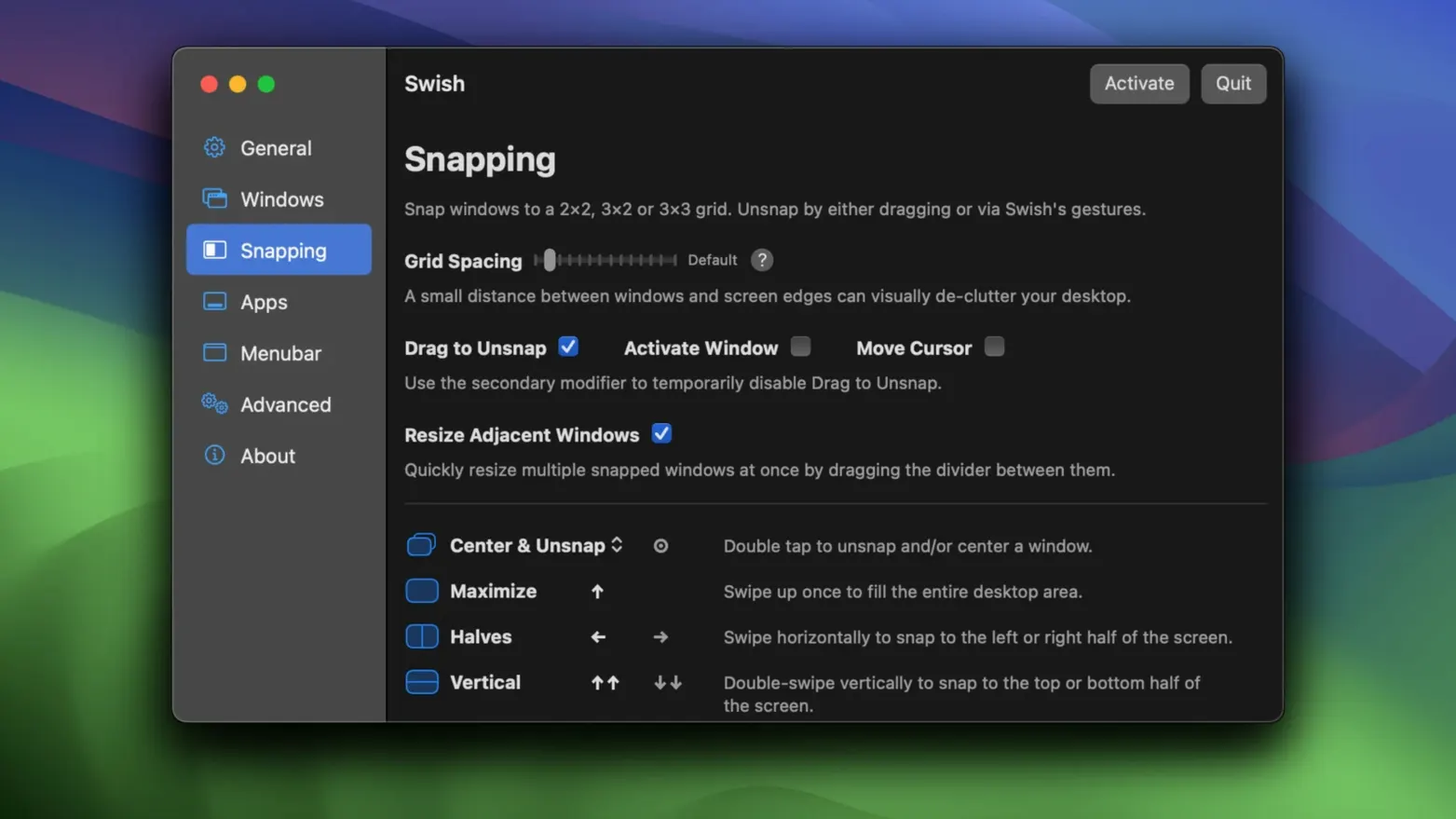
macOS gives you a green traffic light button and the edges of your screen for window management. It’s functional, but it’s slow. Swish swaps that dance for a quick gesture on your trackpad—think of it as a language your fingers already know, just waiting to be assigned.
Start with these three gestures
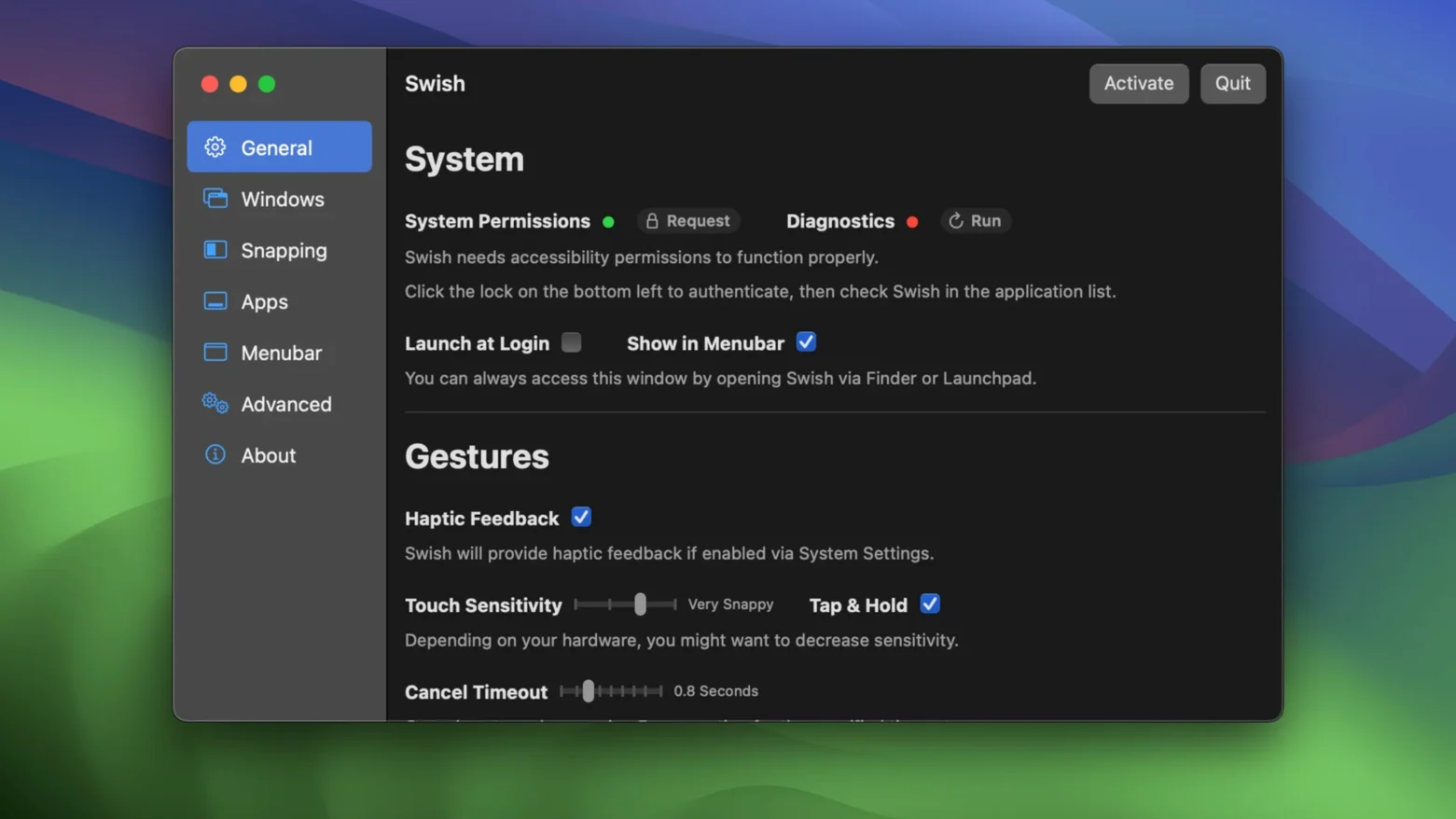
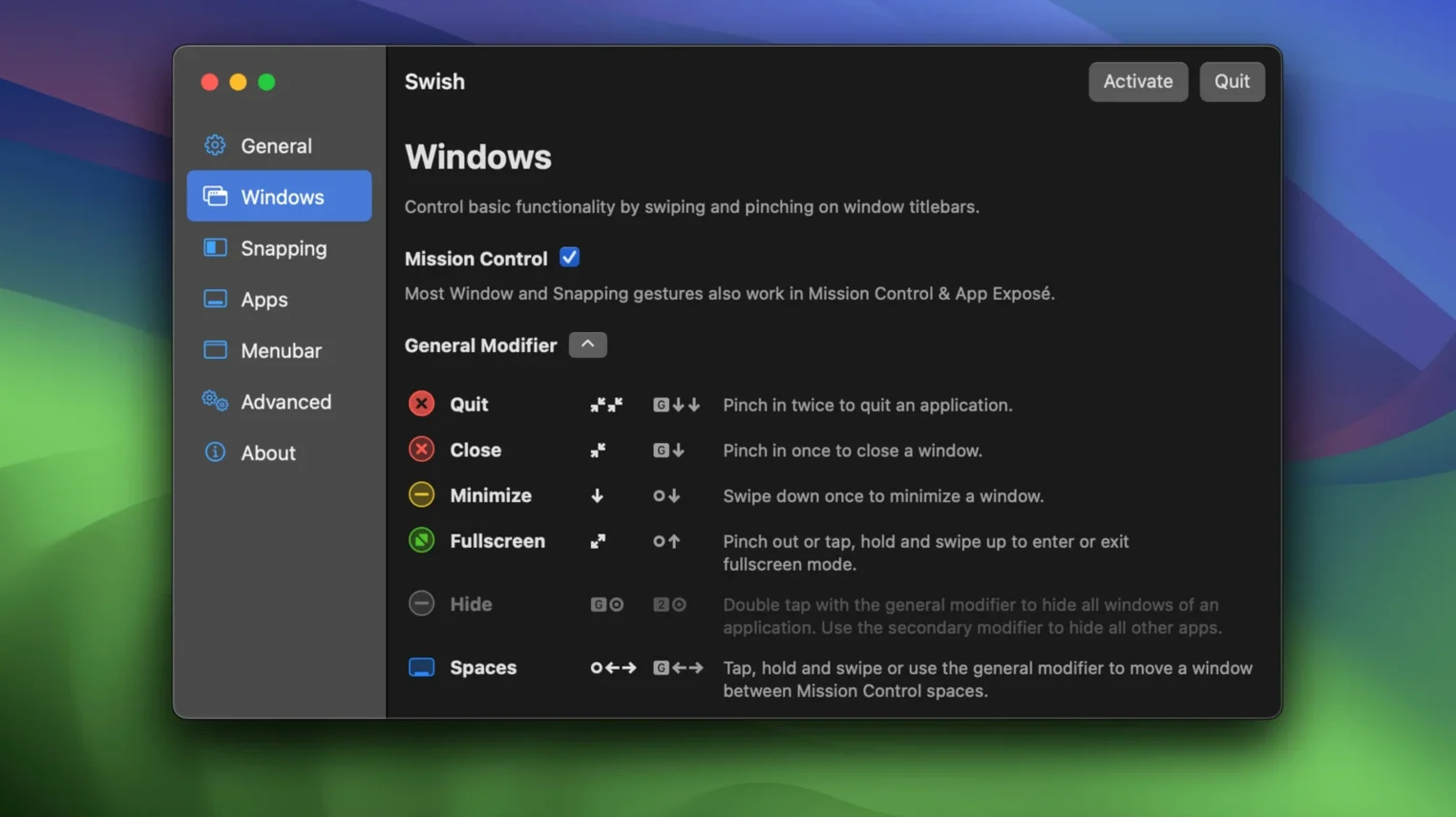
The app ships with 28 gestures for the title bar, dock and menu bar, and you can turn them on or off one by one. When you’re staring at the preferences for the first time, it’s easy to get paralyzed. Here’s where I’d start.
- Two-finger swipe on a title bar. Flick left to snap a window to the left half of the screen, right for the right half. It’s the move you’ll use a hundred times a day, and it instantly feels more natural than reaching for a button.
- Pinch on a dock icon. Pinch outward on any app icon in the dock to open it. It’s a small thing, but it eliminates that moment of hunting for the cursor target.
- Two-finger swipe down on a menu bar item. This one is less obvious but brilliant. Swipe down on the clock to activate Notification Center, or on any menu extra that doesn’t normally respond to a click. It turns a passive part of the screen into a control surface.
Throw windows across displays with a modifier-key grid
If you run two or three screens, the modifier-key grid is what makes Swish mac a permanent install. Hold a key you set and a 2×3 grid overlays any window, letting you throw it to another display with a flick. Moving a window between screens becomes a single motion instead of a drag across bezels.
It avoids conflicts with Mission Control and Stage Manager
Does it fight with Mission Control or Stage Manager? Not really. Swish listens for gestures on title bars, the dock, and the menu bar—areas macOS doesn’t touch with its own trackpad vocabulary. You can disable any gesture that overlaps with your muscle memory, so the two coexist without stepping on each other.
What if I use a mouse half the time? The Magic Mouse gets the same gesture set, and there’s a full keyboard shortcut layer underneath everything. You’re not locked into the trackpad—the snapping grids and screen-moving commands all have key equivalents you can trigger from the keyboard when your hand is already there.
Will it slow down an older Mac? It’s a lightweight utility that hooks into the window server, not a background renderer. On any machine running macOS 12 or later, the overhead is imperceptible. If you’ve ever used a window manager that draws its own animations on top of Quartz, you’ll notice Swish doesn’t do that—it uses the system’s own movement.
A real workflow: landing on a 2×3 grid
Say you’ve got a 27-inch display and a laptop screen side by side, and you’re building a rough cut while keeping bins visible. Here’s how Swish macos full version earns its spot.
Open your NLE on the big screen. Two-finger swipe right on its title bar—window snaps to the right half. Open the bin window, hold your modifier key (I set mine to Option), and swipe down on the title bar. That drops it into the bottom-center cell of the 2×3 grid, leaving the top two cells free for the viewer and timeline. On the laptop screen, pinch on the browser icon in the dock to launch it, then two-finger swipe up on its title bar to maximize it. Total time: maybe eight seconds, and your hands never left the trackpad.
When you need to move the viewer to the laptop screen, hold the modifier, swipe toward the left edge—Swish pushes the window across displays and snaps it into the grid cell you aimed for. No dragging, no green-button long-press, no waiting for the cursor to cross bezels. That’s the kind of speed that compounds across a long editing session.
- macOS 12 or later
- Apple Silicon or Intel 64-bit Mac
- English interface
Questions I actually get
Can I disable a gesture if it conflicts with another app?
Yes, every gesture in Swish can be enabled or disabled individually from the preferences, so you can turn off only the ones that clash.
Notes from the edit bay · 0
Sign in or get an edit-bay pass to leave a note.
No notes from the edit bay yet. They go up after I read them.