
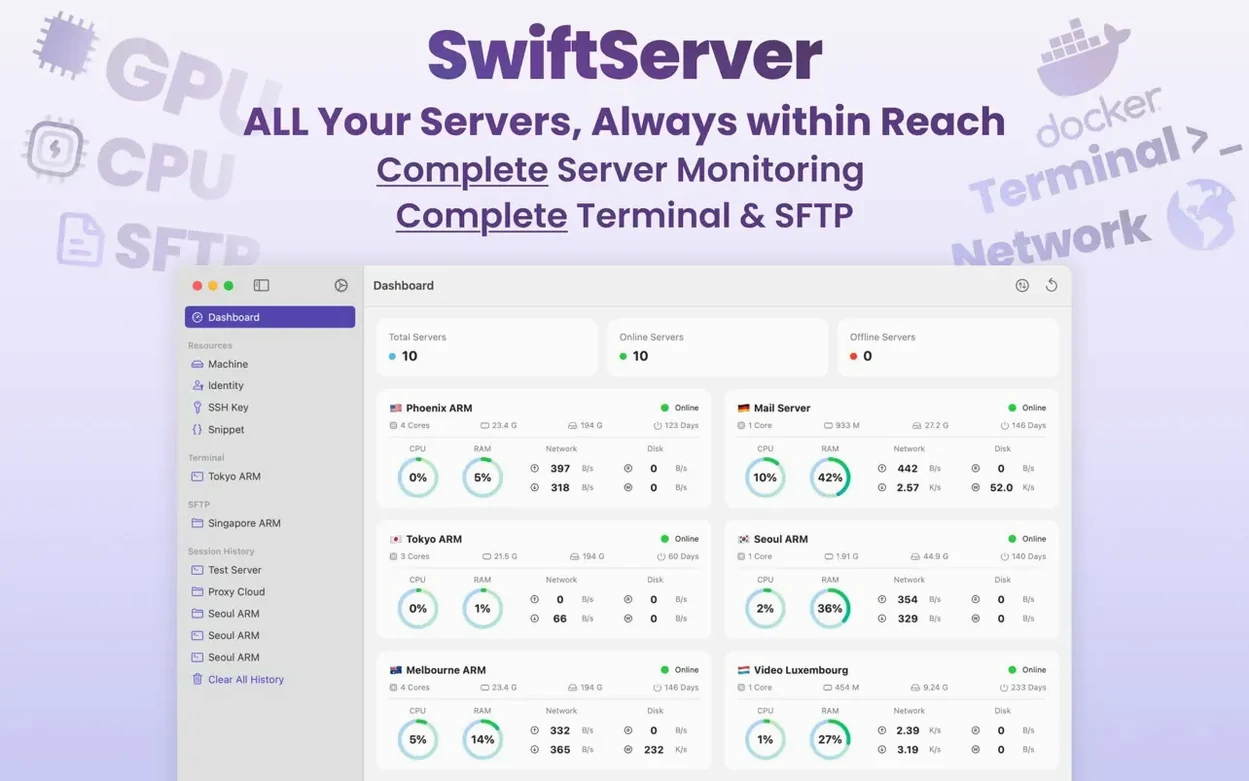
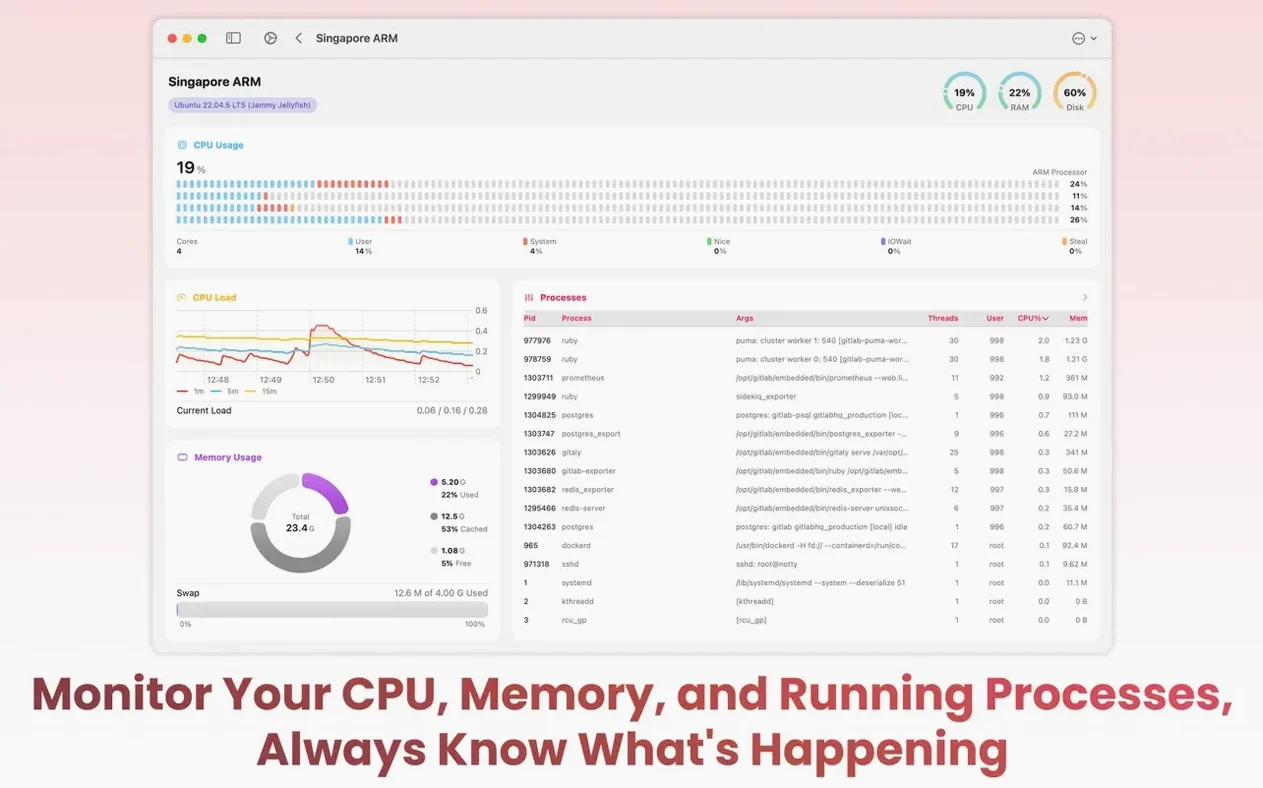
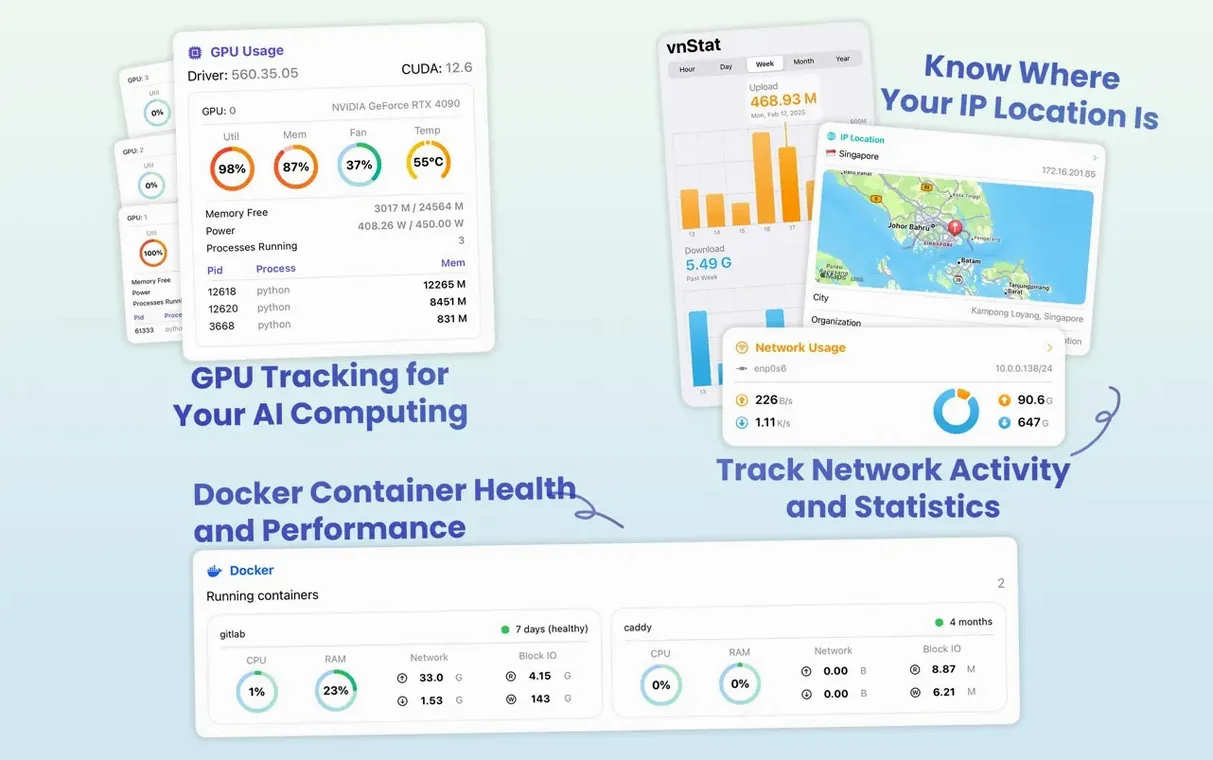
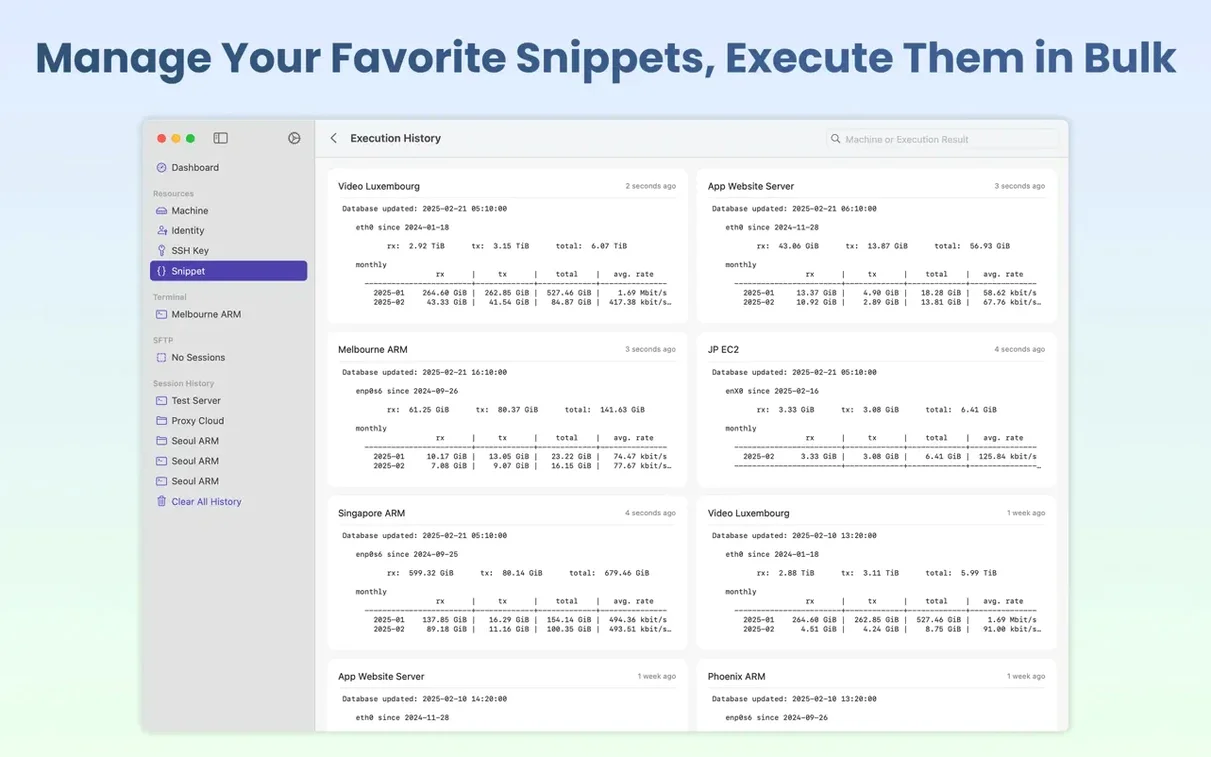
Sysadmins and video editors who babysit render nodes or Linux boxes from a MacBook will feel right at home in SwiftServer. It’s not trying to be a pretty dashboard for beginners. It targets people who live in a terminal but want a faster way to glance at CPU, memory, Docker health, and network throughput without cobbling together five different tools.
One-Click Docker Shell & Logs from Your Menu Bar
- Diving straight into a running Docker container’s shell with one click, new in 2.2.0.
- Reading live Compose logs without jumping to a separate terminal window.
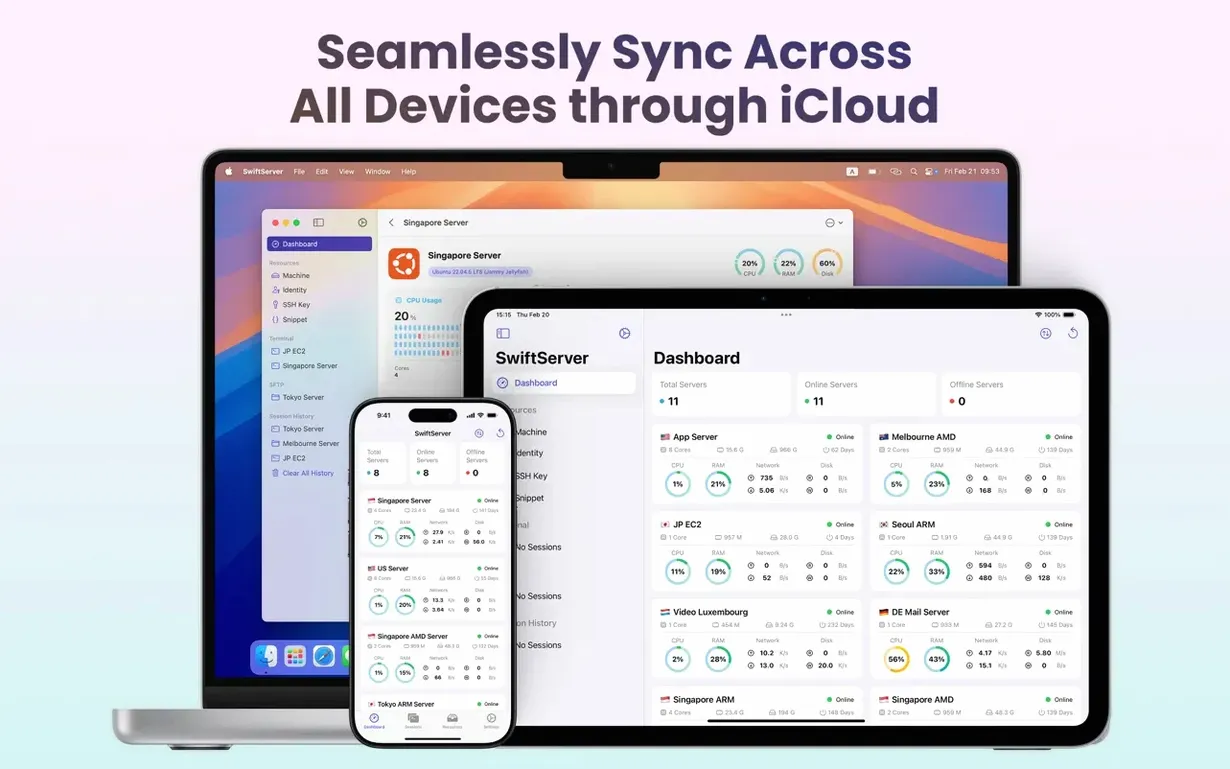
- Keeping an eye on server vitals from the Mac menu bar—CPU, memory, storage, and public IP at a glance.
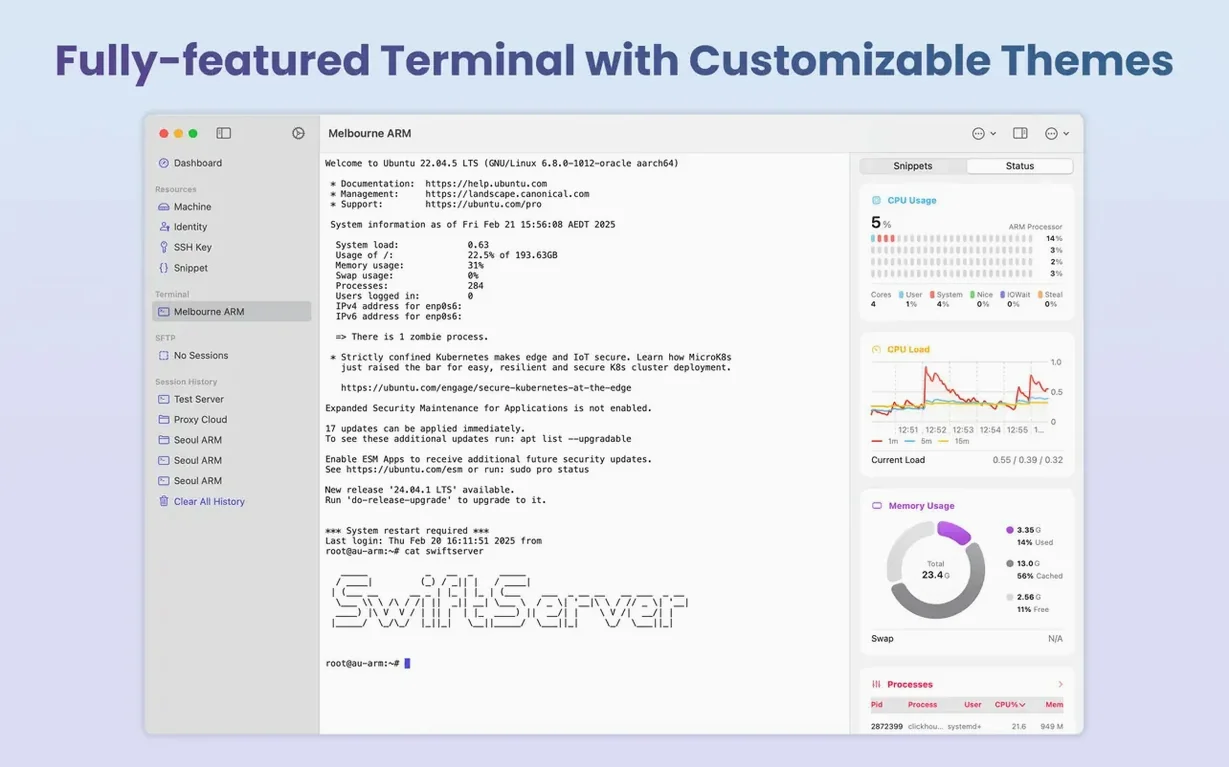
- Running a local terminal on the Mac itself, cutting out the need to launch a separate Terminal.app session for quick commands.
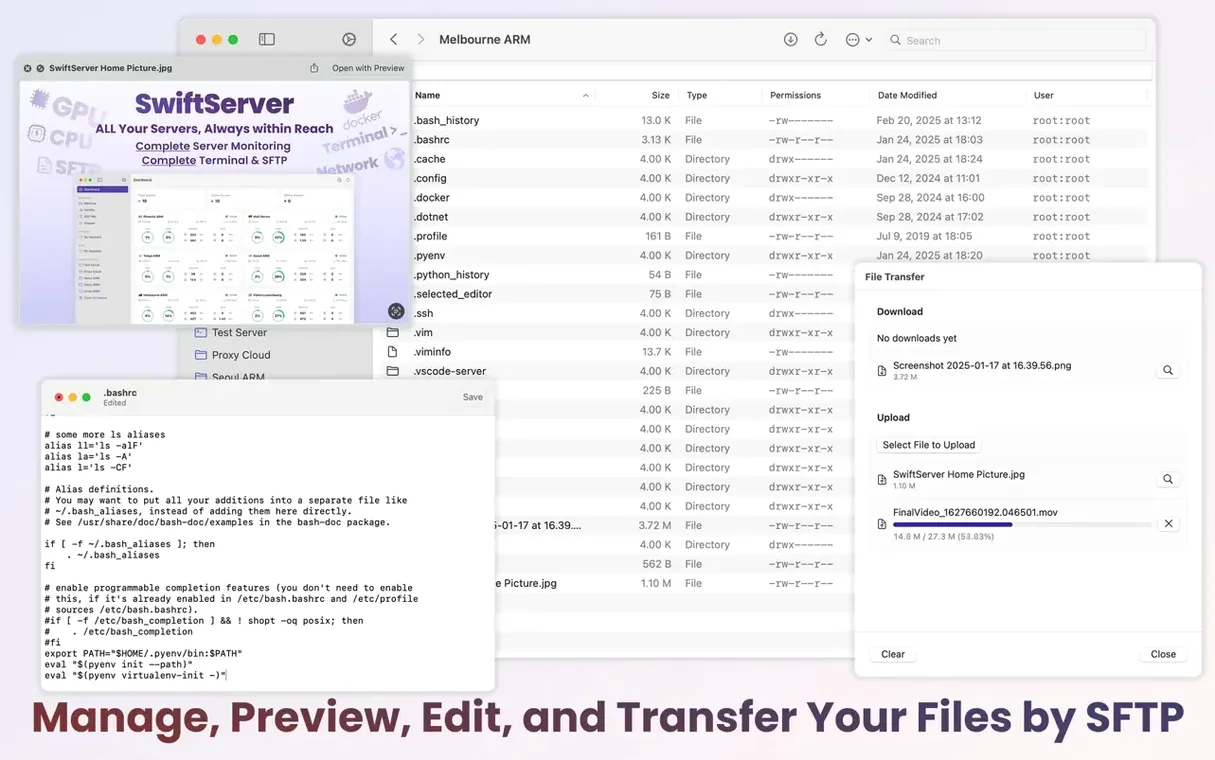
- SFTP file work that handles upload, download, preview, and edits for config files or media assets.
Read-Only SSH Means No Server-Side Changes
- Monitoring relies on read-only commands, which keeps things safe but means you can’t tweak server settings from the monitoring panels.
- The local terminal is new and works well for quick jobs, but it’s not a full iTerm2 replacement if you lean on complex profiles or tmux workflows.
- Docker features assume you already have containers running and accessible; it doesn’t provision or orchestrate new ones.
The Menu Bar Dashboard That Sits Between Terminal and Grafana
SwiftServer slides into a gap between Terminal.app and a full-blown infrastructure dashboard. I keep it open next to Final Cut when I’m pushing renders to a remote Linux box — the menu bar panel shows me whether the machine is throttling without pulling focus. Its read-only monitoring plays nicely with macOS’s own ssh keychain integration, so credentials stay where they belong. For quick file moves, the SFTP browser saves me from launching Transmit just to grab a log or drop an XML preset onto a server. And the iCloud sync quietly keeps host lists identical across my Mac Studio and MacBook Air, which means I’m not re-entering IPs on a coffee-shop connection.
One subtle pairing worth mentioning: the new local terminal coexists with the system shell. If a script needs environment variables I’ve set in .zshrc, I still reach for Terminal.app. But for a fast ping, a top snapshot, or updating Homebrew, SwiftServer’s local terminal is right there inside the same window layout as my remote sessions. That consolidation matters when screen real estate is tight.
Why CPU Graphs Stay Empty Until You Configure SSH
The most common mistake I see is new users treating SwiftServer like an agent-based monitor. They launch it, add a host, and expect CPU graphs to populate. But the app uses read-only SSH commands — no daemon, no install on the target. If the SSH user lacks permission to run top, df, or docker stats, the panels stay blank. Check your remote user’s group memberships before assuming the tool is broken.
Another tripwire: people ignore the pause switch. Streaming live metrics over a flaky hotel Wi-Fi connection can spike latency on the remote machine, especially if you’re pulling Docker container stats from a swarm of twenty nodes. Flipping pause during long renders or database migrations is a small habit that pays off. And a few folks overlook the SFTP editor entirely — they download a config file, edit it in BBEdit, and upload it manually, when SwiftServer can preview and save changes in-place with one fewer round-trip.
Daily Speed and Stability
After two months of daily use, the menu bar panel hasn’t crashed once. Memory footprint hovers around 120 MB with five hosts active and monitoring unpaused — not zero, but reasonable for an Electron-free native Mac app. Launch time from a cold start is under two seconds on an M1 Pro, and restoring a saved session with three terminal tabs and a monitoring split feels snappy. The local terminal addition in 2.2.0 didn’t introduce any noticeable overhead; it’s essentially the same SSH engine repurposed for localhost.
Docker shell access is the standout stability win. Before SwiftServer, I’d type docker exec -it a dozen times a day and occasionally fat-finger the container ID. Right-clicking a container name in the monitoring panel and jumping straight into /bin/bash eliminates that friction and hasn’t dropped a connection yet. Live Compose logs refresh smoothly with maybe a half-second lag on busy hosts — acceptable for real-time debugging, though I wouldn’t pipe production log streams through it at high volume. For the homelab crowd juggling Plex, Pi-hole, and a handful of custom containers, the resource cost is invisible.
Version 2.2.0 brings the terminal home. A new local terminal on Mac joins the menu bar panel for continuous monitoring, so you can check server vitals and run local commands from the same app. Docker gets serious attention: shell into running containers, pull live Compose logs, and restart machines without leaving the window. Also fixed: a pause switch stops monitoring when you need a quiet moment.
- macOS 15 or later
- Apple Silicon or Intel 64-bit processor
- Compatible with Linux, macOS, and Windows servers for remote monitoring
Questions I actually get
Does SwiftServer write or modify data on the servers I monitor?
No. Monitoring uses read-only commands to pull CPU, memory, Docker stats, and network data, so there’s no risk of accidental changes.
Can I use SwiftServer to manage Docker containers directly?
You can’t create or orchestrate containers, but version 2.2.0 lets you shell into a running container and view its live Compose logs.
Does the app support Apple Silicon Macs?
Yes. SwiftServer runs natively on both Apple Silicon and Intel 64-bit Macs and requires macOS 15 or later.
Notes from the edit bay · 0
Sign in or get an edit-bay pass to leave a note.
No notes from the edit bay yet. They go up after I read them.