
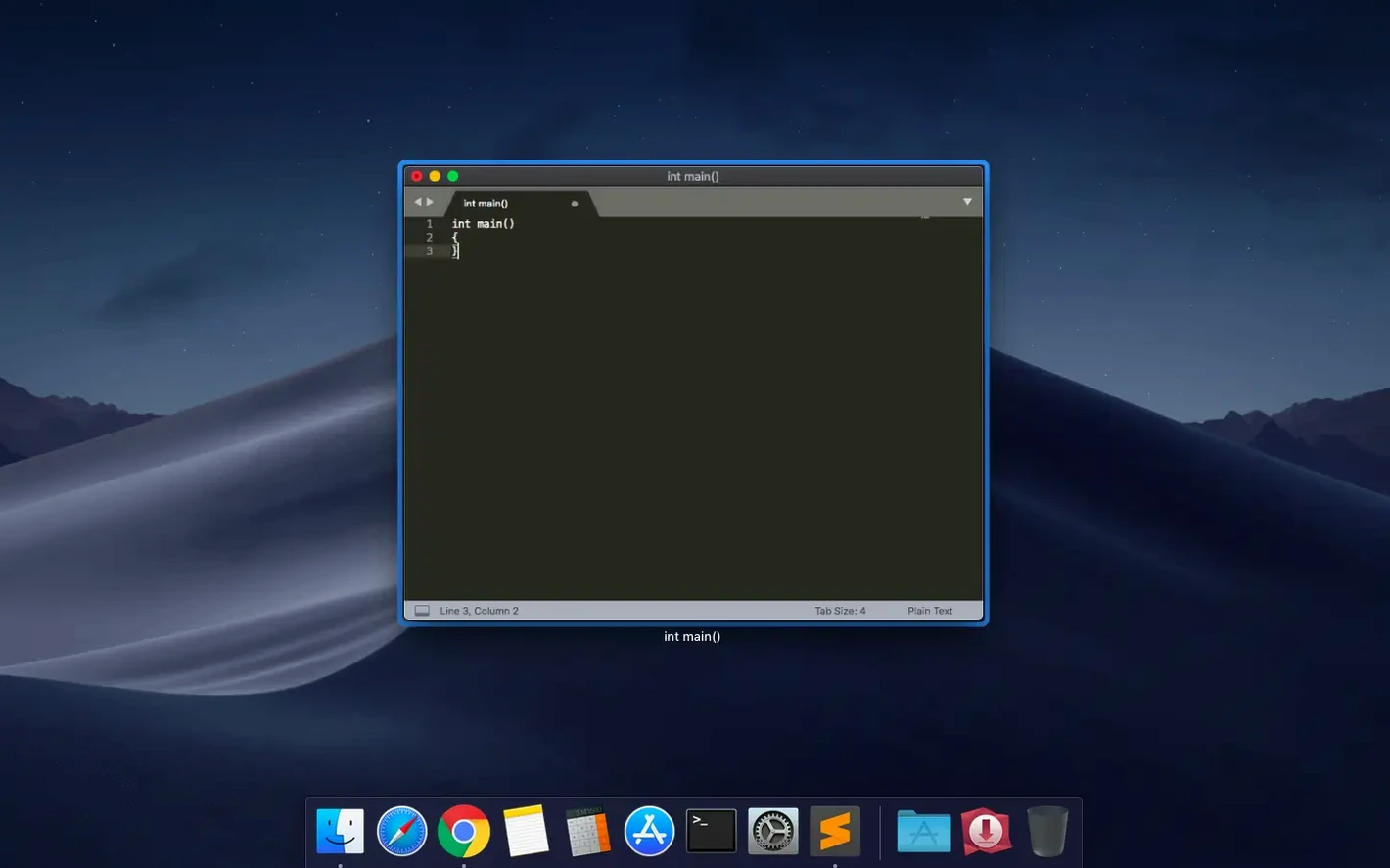
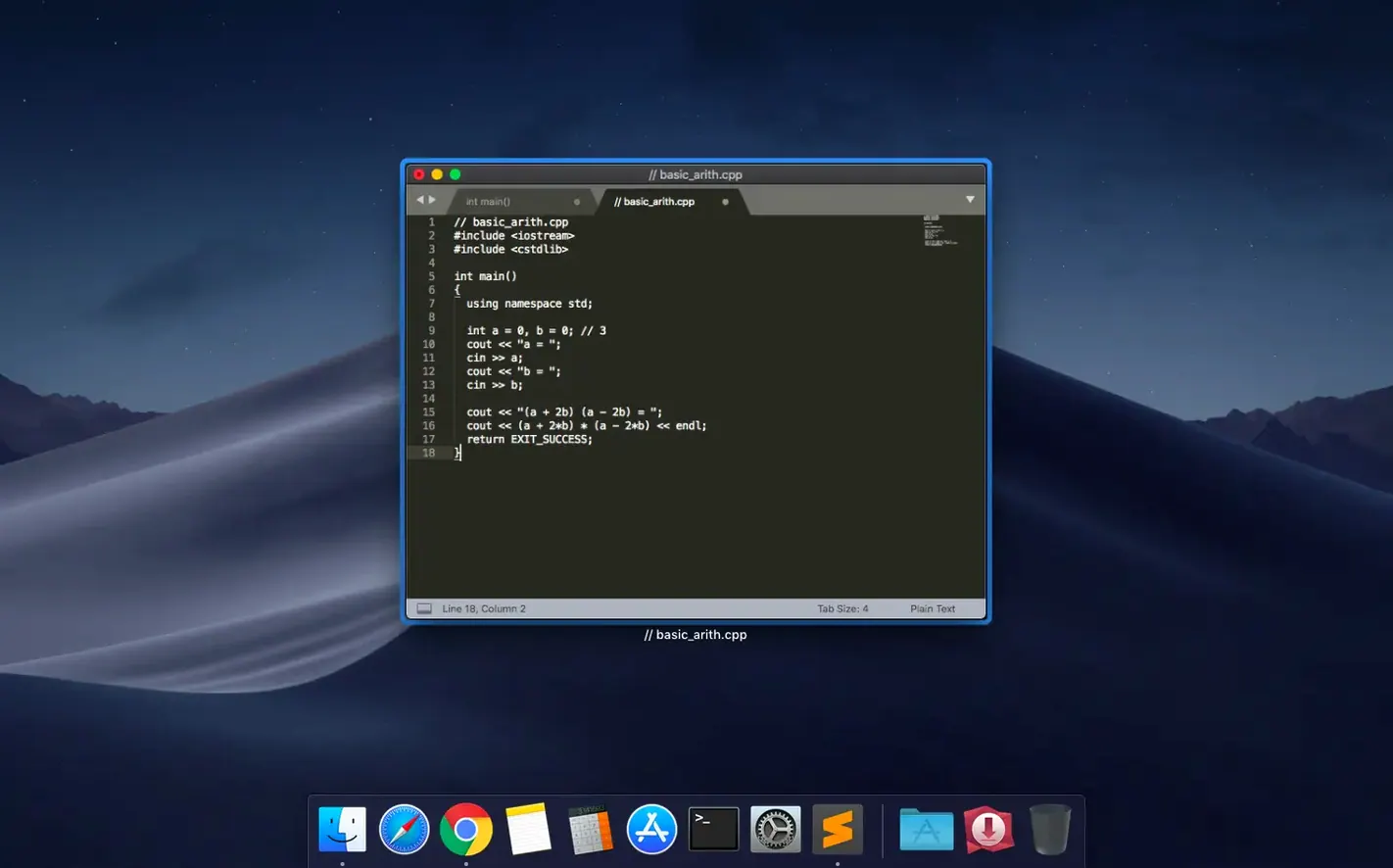
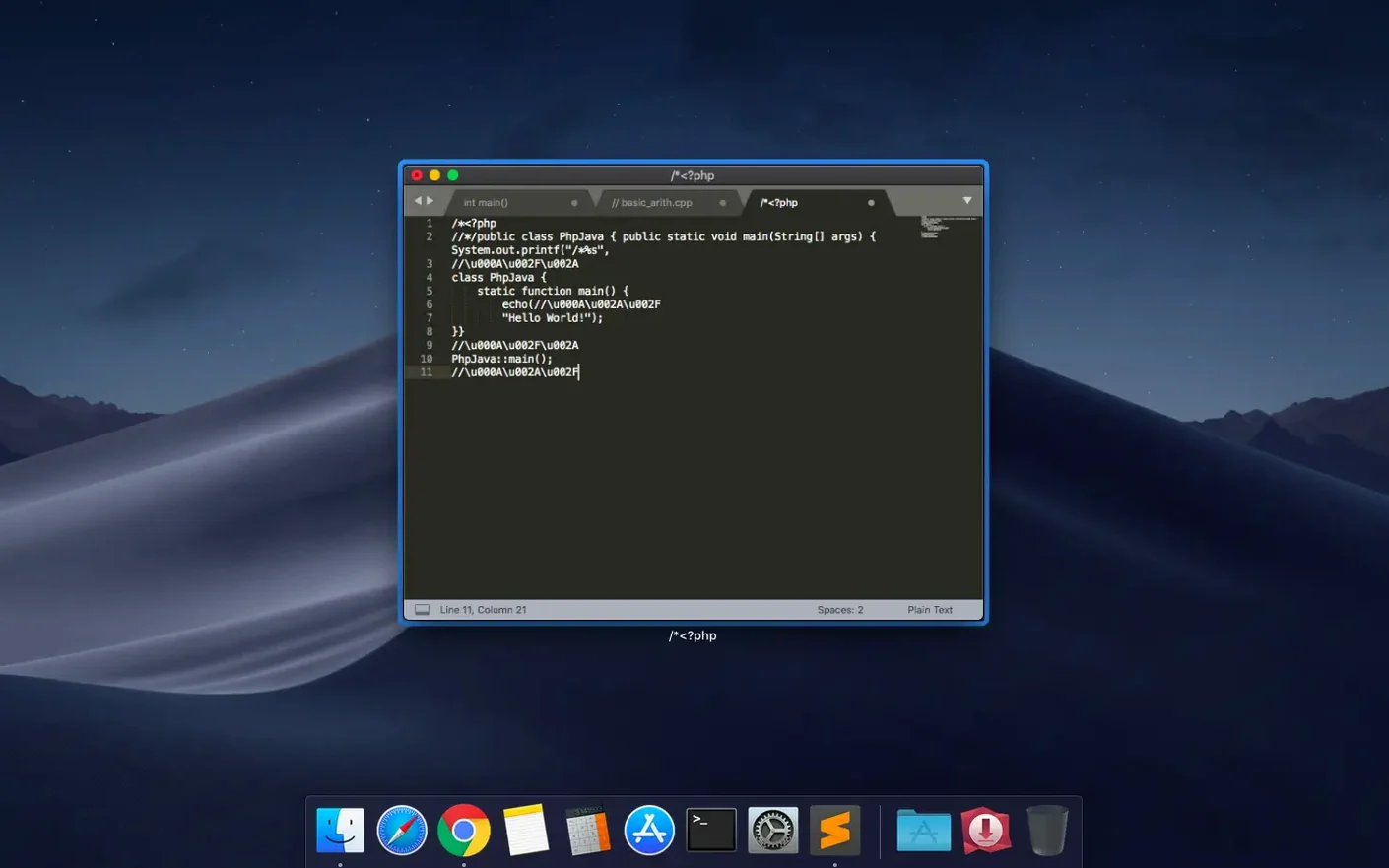
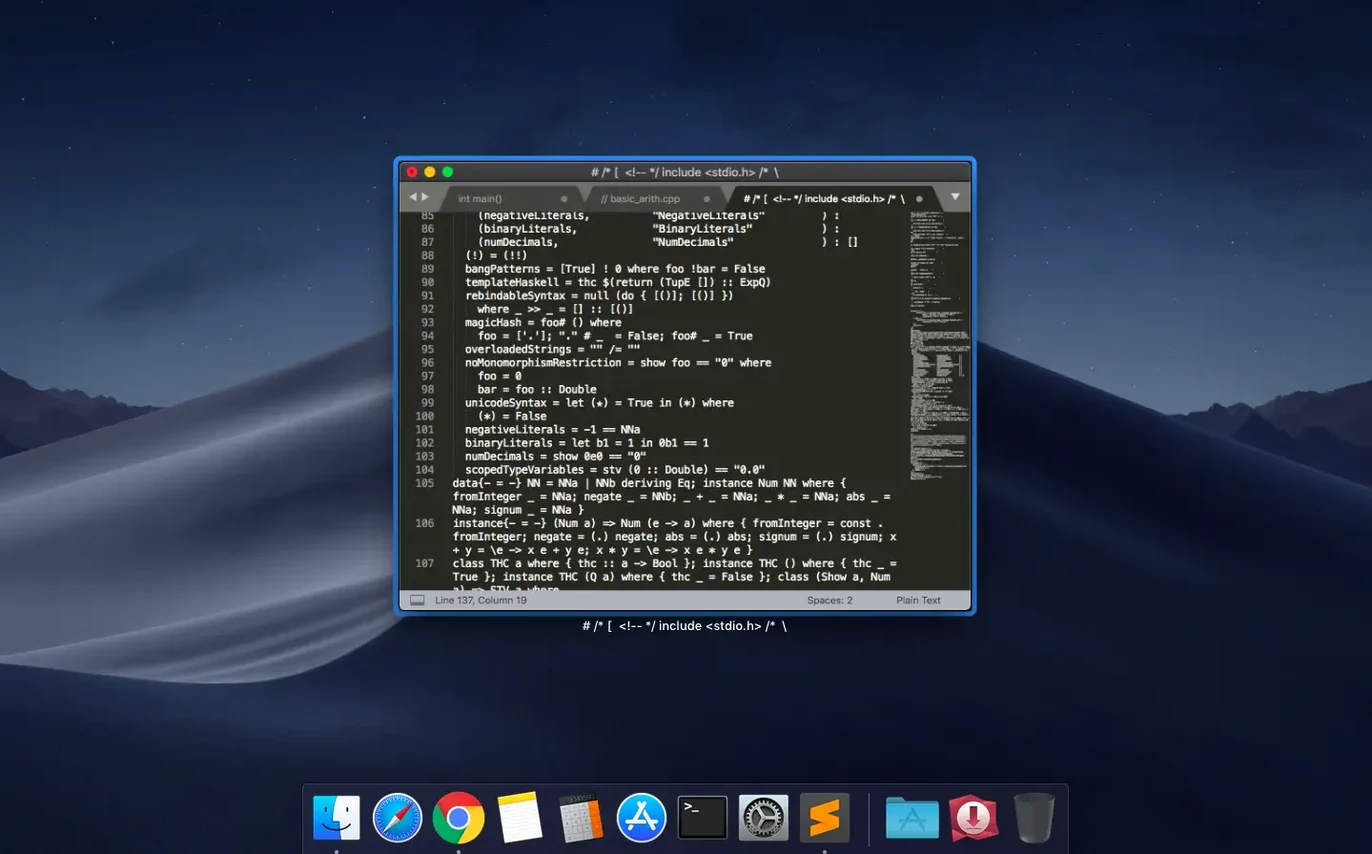
Code editors attract two crowds: people who live in them for twelve hours a day, and people who just need a clean window to write a script, a config file, or a chunk of Markdown. Sublime Text sits comfortably with both. It loads instantly, keeps its UI out of the way, and rewards you with speed the moment you start typing.
| What | Details |
|---|---|
| Current version | 4.0 Build 4215 |
| Released | 2026-09-25 |
| macOS | 10.13 or newer |
| Architecture | Intel and Apple Silicon |
If you are opening Sublime Text for the first time, start with the minimap on the right edge. It looks like a thumbnail of your whole file and makes scrolling through long scripts surprisingly natural. Then place your cursor somewhere and hold Cmd, click a few more spots, and type — multiple cursors are the feature that changes how you think about repeated edits. Column selection works the same way when you need vertical edits. After that, open the command palette with Cmd+Shift+P, type "install", and notice the package manager. You can add themes, linters, and language support without restarting the app. Autocomplete is already working as you type, and syntax checking catches mistakes in languages like Python, JavaScript, PHP, and C++ before you switch to a browser or terminal. If you keep a snippet library for boilerplate code, the built-in snippets panel is worth a look too.
BBEdit’s Workshop vs. Sublime’s Scalpel
BBEdit is the editor Mac users compare everything to. It is older, deeper, and built around a different philosophy — more of a workshop than a scalpel. BBEdit ships with a built-in file browser that feels native to macOS in a way Sublime Text's sidebar never will, and its grep-based search and replace is genuinely industrial-strength. But BBEdit opens slower, its interface density can overwhelm a newcomer, and its multi-cursor support is tacked on rather than foundational. I reach for BBEdit when I need to mangle gigabytes of log files with regex. For everything else — jumping between HTML, CSS, a Python script, and a README — Sublime Text just stays out of my way.
Visual Studio Code is the elephant in the room, and for many developers it has already won. Its extension ecosystem dwarfs everything else, its Git integration is built into the chrome rather than a package, and remote development features are genuinely useful. The trade-off is weight. VS Code is an Electron app, so it carries a browser engine, eats RAM, and startup time is measured in seconds. Sublime Text launches like a text editor should — instantly, on a cold open, with the same responsiveness on a ten-line script as on a 2,000-line file. If you live inside an IDE all day, that might not matter. If you bounce between quick edits, config tweaks, and markdown notes, it very much does.
Nova, from Panic, is the dark horse. It is Mac-only, beautifully designed, and tuned like a sports car for web development workflows. Nova's file browser, remote publishing, and project management feel more cohesive than anything Sublime Text offers without a stack of plugins. But Nova is opinionated. It wants you to work in projects, and it assumes you are building websites or web apps. Sublime Text has no such assumptions — it opens a single file as happily as a folder of Python scripts, and its package ecosystem covers languages Nova has never heard of.
Beginner Mistakes That Will Haunt You
The settings file is plain JSON, and one trailing comma will silently break everything. If your theme or key bindings suddenly stop loading right after you tweaked something, you left a comma on the last line of an object. The Preferences menu writes to this file, but once you start editing it by hand, the comma is the first thing to check.
Another trap: installing packages without reading the command palette. Cmd+Shift+P opens a search bar that does more than install — it runs build commands, changes syntax highlighting, toggles the minimap, and a hundred other things. Beginners install a package, then spend ten minutes hunting through menus for a feature that was sitting in the palette the whole time. Make the palette your first instinct, not your last resort.
Multiple cursors are powerful, but they are also destructive. Beginners drop ten cursors into a file, type a word, and do not notice one of those cursors landed inside a string literal or a comment block. Sublime Text lets you undo, but it is easy to ship a broken commit if you move too fast. Use Cmd+D to select the next occurrence of a word one at a time, not Cmd+Ctrl+G to grab them all at once, until you can see exactly what you are touching.
Bootstrap Package Control Before Touching Anything Else
Install Package Control first, even if you think you do not need it yet. The command to access it is baked into the app now, but the actual package manager still needs that one-time bootstrap. Copy the snippet from the official site, paste it into the Sublime Text console (Ctrl+`), and hit enter. Five seconds. After that, restart the app and Cmd+Shift+P "install" will actually work.
Next, pick a theme you can stare at for hours. The default is fine, but the Package Control repository has dozens. Search for "Theme" in the install list and grab ayu, Dracula, or Material Theme — whichever matches your tolerance for contrast and your terminal color scheme. Change it under Preferences → Theme, and then set a matching color scheme under Preferences → Color Scheme so the syntax highlighting does not clash.
Map the "Goto Anything" shortcut into muscle memory immediately. Cmd+P opens a fuzzy file search that makes the sidebar almost unnecessary. Type a few letters of a filename, hit enter, and you are there. Add @ to jump to a symbol inside the current file, or : to go to a line number. Once this becomes reflex, navigating a project feels like teleporting.
If you write in Markdown, enable spell-check right away: press F6 or search "spell" in the command palette. Sublime Text uses the system dictionary, so it picks up words you have added in other Mac apps. This small toggle saves more embarrassment than any linter.
A Screenwriter's Afternoon with Sublime Text
Consider a screenwriter who also maintains a personal website and occasionally hacks on a Python script to parse Final Draft exports. They do not live in a code editor, but they need one that handles Fountain syntax, HTML, and Python without switching tools. On a Tuesday afternoon, they open Sublime Text with three panes: an .fountain file on the left, the CSS for their site in the middle, and a small Python 3 script on the right. The minimap shows them the structure of the screenplay at a glance — slug lines and dialogue blocks visible as landmarks. They installed Fountain syntax highlighting from Package Control three years ago and have not thought about it since.
They need to change a character name across the entire script. Cmd+D selects each occurrence one by one as they tap the shortcut, and a quick type rewrites the name in thirty places without touching a find-and-replace dialog. The CSS pane needs a color tweak — they drop a cursor into three hex values at once and type the new code. The Python script throws a syntax error, and Sublime Text underlines it before they even save. They fix it, hit Cmd+B to run the script right inside the editor, and watch the build output panel spit out a cleaned CSV. No terminal, no project setup, no waiting.
Build 4215 fixes two annoyances: the vintage M command works again, and the app plays nice with macOS 10.13 and 10.14. Also fixed: nothing else worth mentioning.
- macOS 10.13 or newer
- Intel or Apple Silicon Mac
- English interface
Questions I actually get
Does Sublime Text support editing more than one file at a time?
Yes, it supports one to four panes, so you can view up to four files side by side without juggling windows.
Notes from the edit bay · 0
Sign in or get an edit-bay pass to leave a note.
No notes from the edit bay yet. They go up after I read them.