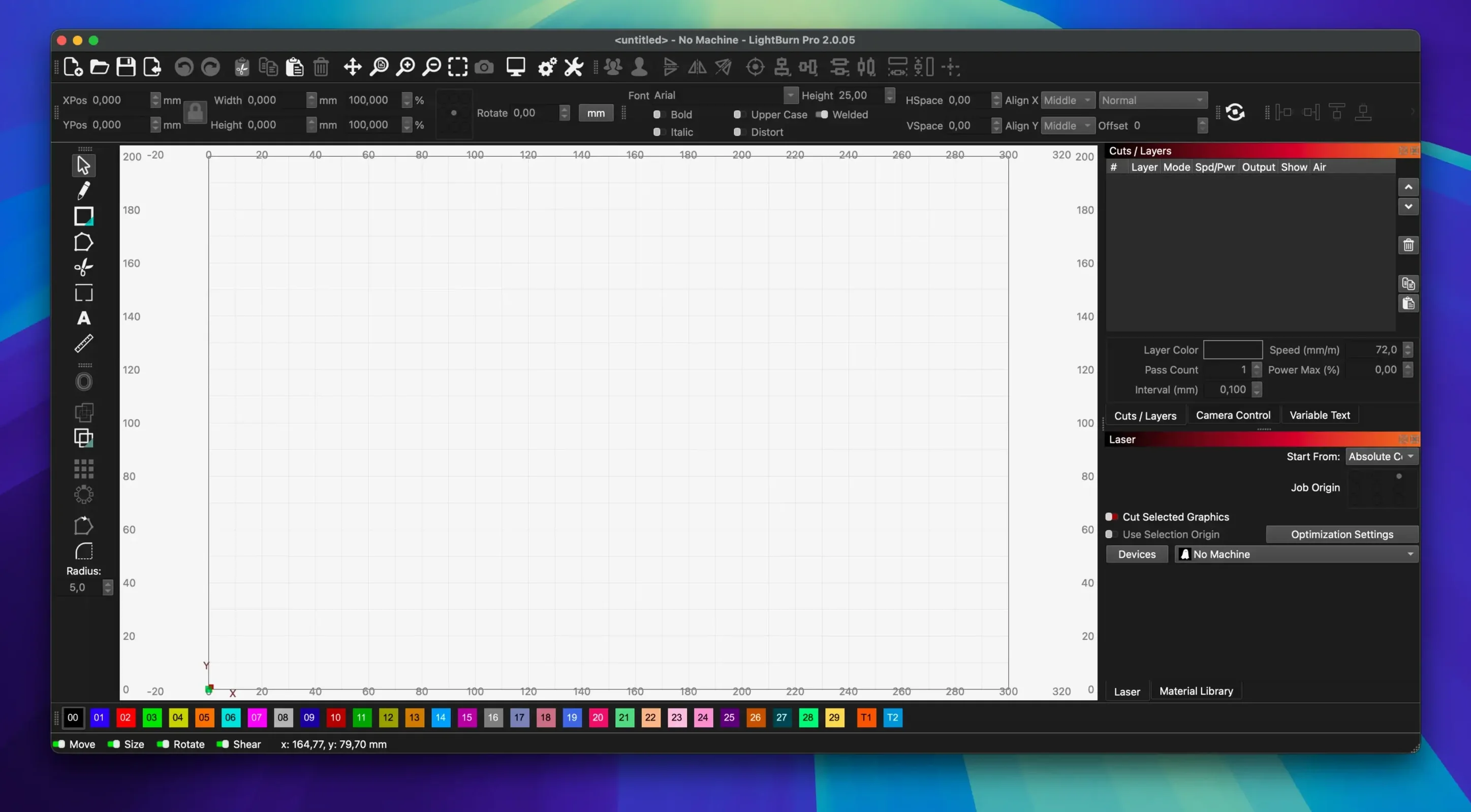
LightBurn is layout, editing, and control software that talks directly to your laser cutter. It’s for anyone with a diode, CO2, or fiber laser who wants one app to design in and then hit Start.
Can It Run on Apple Silicon Without a Native ARM Build?
- Does it actually run on my Mac? Yes, if you’re on macOS 10.13 or later. It’s an Intel 64-bit build, so Apple Silicon Macs need Rosetta. No native ARM version yet, but it runs fine under translation.
- What lasers will it drive? Most GCode, DSP, and galvo controllers. If your machine talks Ruida, Trocen, or GRBL, LightBurn likely knows the dialect. Rotary axes and cameras are supported too.
- What files can I bring in? AI, SVG, DXF, PDF, PNG, JPG. Vector or raster, it handles both, which means you can pull artwork from Illustrator or a quick phone photo and send it to the bed without a conversion tool in between.
- Is this only for pros? Not at all. Hobbyists use it to run a diode engraver on a desk; shops use it to batch-production engrave tumblers on a rotary. The tool scales with you.
Where a LightBurn download for Mac fits your workflow
If you’ve been designing in one program, exporting, opening a second program, and then hoping the controller understands the file, LightBurn collapses those steps. You lay out shapes, set power and speed per layer, preview the path, and send the job. On macOS, the interface is a native window, not a port that feels slightly off. Version 2.0.05 tightens a few rough edges that tripped up SVG imports and rotary jogging. For Mac users on Big Sur or later, this is the build the developer points you to.
Common Snags When You're Under a Deadline
Every laser operator hits a wall eventually. Here are the ones I see most often, and how to get back to cutting without rebuilding the whole job.
SVG imports that crash or come up blank
Version 2.0.05 specifically squashes a crash tied to SVG files containing ungrouped DEF shapes. If you still see nothing after importing, check whether your artwork uses CSS-based styling instead of inline attributes. LightBurn prefers the latter. The quickest fix: open the SVG in a browser or vector app, re-save as a plain SVG (sometimes called "optimized SVG"), and import again. Also confirm your units match — a file designed in millimeters that imports as inches will appear either microscopic or off-screen. You can switch the import units in the dialog that appears when you drag a file onto the canvas.
Rotary jogging backward in CCW mode
Another fix in 2.0.05. If you're running a rotary and the direction feels reversed when you jog counterclockwise, update to this build. If you're already on it and the behavior persists, double-check the rotary setup under Tools > Rotary Setup. The step angle and direction polarity settings often override what the jog buttons imply. Mark your chuck with a pencil, jog a short distance, and measure. Adjust, then save the profile so you're not redoing it next time.
Window title bar vanishing or sitting in the wrong spot
Stored offsets sometimes drift, especially if you've moved between monitors or changed display scaling. The 2.0.05 update handles this cleanly. If the title bar still misbehaves, hold the Option key while launching LightBurn, and choose to reset window positions in the dialog that appears. That's a one-time fix — you won't lose your material library or device profiles.
Apple Silicon jank
Rosetta does the heavy lifting, but on first launch you might see a long bounce in the Dock. That's normal; the translation cache builds during the first minute. After that, startup is snappy. If you notice occasional stutter during complex previews, drop the simulation quality in Window > Preview Options. The render doesn't affect your cut — it's just the on-screen path visualization.
What 2.0 Actually Changed Day-to-Day
Dark Mode landed in 2.0, and in a workshop with mixed lighting, it matters. The screen throws less glare when the room is dim and you're staring at a job preview for ten minutes straight. The Edit Nodes toolbar also arrived with 2.0, which means you can tweak bezier curves and corner points without leaving the main window. For anyone who traces scanned artwork, that alone shaves minutes off cleanup. The Camera Calibration overhaul makes overlay alignment more predictable, especially with wide-angle lenses where distortion at the edges used to throw off placement by a few millimeters. If you use a camera for positioning stock, recalibrating after the 2.0 upgrade is worth the fifteen minutes it takes.
On the Mac side, the jump to macOS 11 support kept the app running on Big Sur and Monterey when older builds started showing their age. If you're on Catalina, you're still fine with 2.0.05 — it reaches back to 10.13. The install is the same DMG routine it's always been: open the disk image, drag the app into Applications, and launch from Launchpad once the copy finishes.
Set Your Machine’s Origin Before the First Cut
Out of the box, LightBurn doesn't know your machine's quirks. A few tweaks make the first cut feel less like guesswork. Here's where I'd start.
- Default start position. Under
Edit > Device Settings, set your preferred origin. Most diode lasers expect front-left; many CO2 machines use top-left. Getting this wrong means your job starts a full bed width off-target. - S-Curve acceleration. If your controller supports it (GRBL 1.1 or later), enable S-Curve in the machine settings. It smooths direction changes and reduces the shudder that shows up as wavy lines on delicate engraves.
- Overscanning. Turn it on for engravings. A small percentage — 2.5% is a solid starting point — lets the laser accelerate before it hits the artwork boundary. Without it, the edges of a filled engraving burn darker than the center because the head lingers during direction changes.
- Material library backup. Before you build a big library of cut settings, go to
File > Export Material Libraryand save the file somewhere safe. The app stores it locally, and a macOS permissions hiccup after an update can occasionally reset it. Having a backup turns a potential disaster into a ten-second import.
Workflow: Engraving a Photo onto a Slate Coaster
Here's a task I run frequently — taking a phone photo and turning it into a clean engrave on a 100 mm slate coaster. No extra software, start to finish in LightBurn.
Step 1: Import and size. Drag the JPG onto the canvas. Use the resize handles to set the image to 90 mm square, leaving a 5 mm border on each side. Hold Shift to keep proportions locked. If the photo is a portrait orientation on a square coaster, crop with the rectangle tool rather than squashing the aspect ratio.
Step 2: Adjust the image. Double-click the image to open the Image Adjust panel. Switch the mode to Jarvis dithering — it produces a dot pattern that reads well on slate. Drop the contrast slightly and nudge brightness until the midtones separate. The preview updates live, so you'll see whether the face or subject detail holds up before you cut.
Step 3: Assign a material preset. Open the Material Library and pick Slate, or create a new entry. For a 5W diode laser, start around 3000 mm/min at 40% power, single pass. Slate engraves fast; you're looking to knock off the surface layer without blowing through the dark substrate. Too slow or too hot, and the detail fills in with white dust that masks the image.
Step 4: Frame and focus. Hit the Frame button to trace the bounding box at low power. Adjust the coaster position until the rectangle sits centered. Run a focus test on a scrap corner if you haven't dialed in the material height yet. A millimeter out of focus on slate softens the dither dots into mush.
Step 5: Preview, then send. Click Preview to watch the toolpath simulation. Look for any gaps where the dither pattern thins out unexpectedly — those show up as dark spots on slate. If it looks solid, hit Start. The whole engrave on a 90 mm tile takes under fifteen minutes. When it finishes, a quick wipe with denatured alcohol lifts the residue and reveals the contrast.
That's the appeal of a single-app pipeline. From photo import to finished coaster, I never left the canvas. For someone who grabbed a LightBurn Mac torrent to test the waters before committing to a full setup, this kind of walkthrough proves whether the tool fits the shop.
Version 2.0.05 is a focused stability release. The main fix stops the window title bar from appearing off-screen when stored offsets are wrong — a nagging issue if you’ve ever lost the top chrome after a disconnect. Rotary jogging direction in CCW mode now behaves correctly, and a crash that hit certain SVG files with ungrouped DEF shapes is resolved.
- macOS 10.13 or later
- Intel 64-bit processor (Rosetta required on Apple Silicon)
- Interface language: English
Questions I actually get
Do I need Rosetta to run LightBurn on an M1 or M2 Mac?
Yes. LightBurn is an Intel 64-bit application, so Apple Silicon Macs must have Rosetta installed to run it.
Notes from the edit bay · 0
Sign in or get an edit-bay pass to leave a note.
No notes from the edit bay yet. They go up after I read them.