
The latest build runs on any Mac with macOS 14 or newer, Apple Silicon and Intel alike. No more kernel extensions — the filtering engine is built for the modern network stack, so it slots in cleanly.
Three things to click first
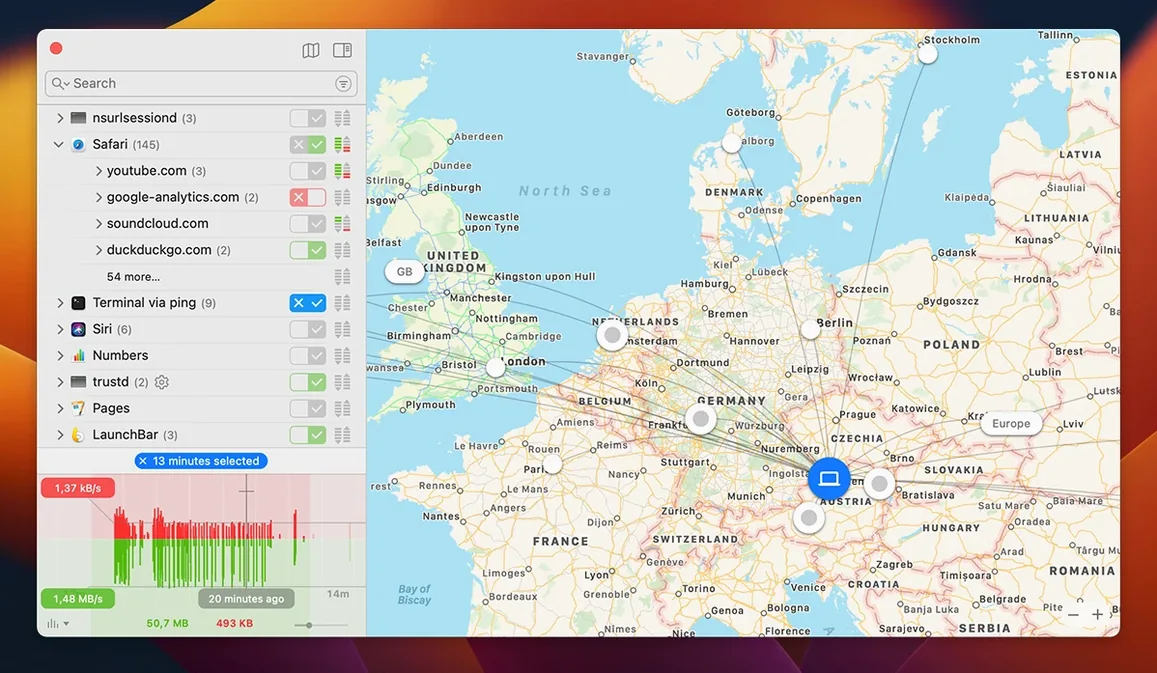
- Open the network monitor. You'll see a live list of apps phoning home, a connection map dotted with servers, and an hourly traffic volume chart. Switch to Quiet Mode while you work — it banks all notifications and lets you decide later, so the dialog firehose doesn't interrupt a render.
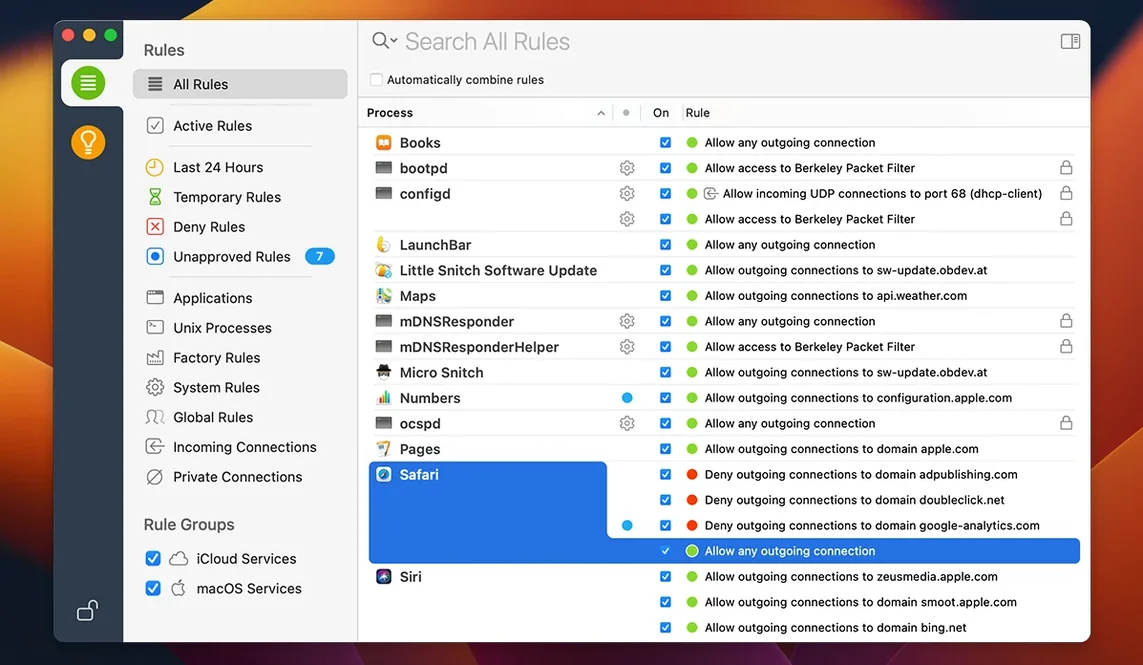
- Create a rule and let it stick. Approve or deny a connection once. Little Snitch remembers the decision and re-applies it automatically. After a few days, your custom ruleset handles background noise without you lifting a finger.
- Check bundle integrity. Version 6.5 now monitors an app's code signature while it's running. If something tampers with a trusted binary mid-session, you'll know.
Per-App Outbound Firewall That Learns
Think of it as a per-app firewall that learns. Unlike macOS's built-in firewall, which draws a line around the whole machine, Little Snitch lets you decide that your FTP client can talk to the studio server but not to an analytics tracker. The command-line interface is there for scripting configs across multiple edit bays, and the encrypted DNS improvements in 6.5 keep DNS queries from leaking in plaintext. For anyone cutting client footage under an NDA, that's not a feature — it's a requirement.
Resolve Phones Home to AWS on Launch
You boot the Mac and launch DaVinci Resolve. Three seconds later, a notification slides in from the right: Resolve wants to connect to a server you've never seen before. It's an Amazon Web Services IP, port 443. The alert shows the process name, the full remote address, and which code signature it's wearing.
You click Show Details. The map pin lands somewhere in Virginia. Not your cloud backup bucket — that's in Oregon. You deny it once, and a temporary rule catches the attempt. If Resolve tries again in ten minutes, the same rule applies. No second interruption.
Later, with a render running, you switch to Quiet Mode. Notifications pile up silently in the monitor. When the deadline's met, you open the list, scan the flagged connections, and decide which ones get permanent rules. A music-licensing app keeps phoning its analytics endpoint — deny forever. The frame.io uploader needs outbound access — allow on local network only. Done in thirty seconds.
By the end of the week, you've trained it. The dialog count drops to near zero, and the rules list reads like a map of your actual workflows, not a generic allow-all blanket.
Inbound System Firewall, Outbound Per Process
Little Snitch doesn't replace the macOS firewall — it sits beside it. The built-in firewall handles inbound blocking at the system level. Little Snitch handles outbound decisions per process. Together they cover both directions without stepping on each other.
For video editors, the real synergy is with cloud-sync tools. Dropbox, Backblaze, LucidLink — each one can be locked to specific ports and server ranges. Your NLE gets unrestricted access to the local NAS over SMB, but the telemetry domains that some plug-ins quietly ping get silenced. No need to unplug the Ethernet cable during a conform.
The command-line tool hooks into shell scripts and launch daemons. If you manage multiple machines — say, three edit suites and a DIT cart — you can push the same ruleset via a configuration profile. Version 6.5's encrypted DNS handling also means your local DNS-over-HTTPS setup won't be bypassed by an app hard-coding its own resolver. The network monitor confirms this: every query shows up with the correct resolver address, not a rogue 8.8.8.8.
Audio folks using Dante or AVB will appreciate that the network monitor graphs traffic per interface. You can separate control-plane chatter from actual audio streams at a glance, which helps when something floods a VLAN.
A workflow: locking down a color-grade session
Here's a real scenario. You're grading a feature in DaVinci Resolve Studio, connected to a reference monitor via DeckLink. The client's footage sits on a Synology NAS. You also have an internet connection for Resolve's cloud project library and the occasional chat message from the director.
Before the session starts, you do three things in Little Snitch:
- Profile the NAS. Open network monitor, filter by Resolve, and copy the IP range your Synology uses. Create a rule: DaVinci Resolve, allow, to 192.168.50.0/24, ports 445 and 139. Nothing else on the LAN gets touched.
- Tighten the cloud link. Resolve's cloud library connects to a known Blackmagic server range. Allow that, deny the three analytics domains Resolve also tries to reach. Confirm in the monitor that the deny counter ticks up silently — the app still works, it just stops phoning the measurement trackers.
- Kill background noise. Safari, Mail, Creative Cloud, and Spotify all go into a profile that blocks everything except localhost while the grade is active. You toggle it on from the menu bar. Notifications stop. The GPU stays focused on the timeline, not on rendering a webpage some background tab decided to refresh.
Mid-session, the director messages you a link to a reference still. You flip Safari back to its normal profile for sixty seconds, grab the file, flip it back. No dialog boxes, no second-guessing. The rules switch instantly because they're tied to profiles, not manual toggling of individual entries.
After the session, you export the ruleset as a backup. If the machine ever needs a wipe, you drop the file back in and everything's exactly as it was. The command-line utility makes this scriptable: littlesnitch export-rules ~/Backups/ls_rules_2025.json and you're done.
Timestamped Proof Nothing Leaked from Your Mac
Freelancers juggling client NDAs. If you handle unencrypted footage before a film's release date, you need proof that nothing leaked. Little Snitch's connection log is a timestamped record of every outbound attempt, allowed or denied. That's peace of mind when a producer asks whether the dailies stayed on your drives.
DITs and on-set technicians running multiple machines in a temporary network. They can lock each Mac to only the IPs required for camera card offload, LUT distribution, and Livegrade communication. Everything else stays dark. The world map view makes it easy to spot when a machine is trying to hop across an ocean for no good reason.
System administrators managing lab environments. The CLI lets them deploy rules across a fleet without touching the GUI. Combine it with a mobile device management profile, and every machine ships with a known-good network baseline. The NAT64 support in 6.5 helps labs testing IPv6-only networks, where some legacy apps still expect an IPv4 address.
Anyone who's ever wondered why their battery drained overnight. Open the hourly traffic volume chart. Sort by total bytes sent. You'll find the app that uploaded 2 GB to a metrics server while the lid was closed. Then you make a rule and it stops.
Undo an App-Breaking Deny Rule
"I denied something and now my app is broken." Open the rules list, find the deny rule you created, and check the Suggestions tab. Little Snitch keeps expired temporary rules visible there. If you denied a connection that turns out to be essential — say, a license check — you can promote it to an allow rule with one click. Version 6.5 fixes a bug where expired rules didn't appear under Suggestions, so they'll show up reliably now.
"My encrypted DNS isn't working right." Some DNS-over-HTTPS setups interact oddly with apps that bundle their own resolver. In 6.5, encrypted DNS handling was improved. If you still see plaintext DNS leaks in the network monitor, check whether the app is bypassing the system resolver. You can force it through Little Snitch by denying direct access to port 53 for that process and allowing only your DoH proxy's IP.
"I switched to a new Mac and lost all my rules." The export function is your friend. Before migrating, run the CLI export command or use the File menu to save your configuration. On the new machine, import it. If you forgot, your old rules are gone — there's no cloud sync, by design. The tool doesn't phone home with your rule data, so the tradeoff is manual backup responsibility.
"The alerts are driving me crazy during a client session." Quiet Mode exists for exactly this. Switch it on from the menu bar icon or set a keyboard shortcut. You can also schedule it: configure a time-of-day profile that activates Quiet Mode during your known client hours. After the session, review the pending decisions in bulk and apply permanent rules to the ones that matter.
"I can't find the little snitch torrent I grabbed." The network monitor shows real-time traffic per process, so if something is seeding in the background, it appears immediately under the process name and the remote peers list. You can deny it per-connection or kill the process outright from the monitor. The same applies to any app that arrived from outside the usual channels — it gets the same scrutiny as everything else on the system.
Little Snitch 6.5 lands with compatibility for macOS 27 Golden Gate and a tighter grip on runtime security. App bundle integrity monitoring now runs continuously, not just at launch, and there's an experimental NAT64 implementation for networks running RFC 6052. Encrypted DNS handling is smarter, too.
Also fixed: inbound connections no longer rely on hostnames, and the traffic chart label now reads "traffic volume" instead of "traffic amount."
- macOS 14 or later
- Apple Silicon or Intel Mac
- Interface: English, German
Questions I actually get
Does Little Snitch still use kernel extensions?
No, version 6 uses a newer filtering engine that replaces the older kernel-extension approach.
Can I set it up without constant pop-ups?
Yes, Quiet Mode postpones all connection notifications so you can batch-approve them when it suits your schedule.
Notes from the edit bay · 0
Sign in or get an edit-bay pass to leave a note.
No notes from the edit bay yet. They go up after I read them.