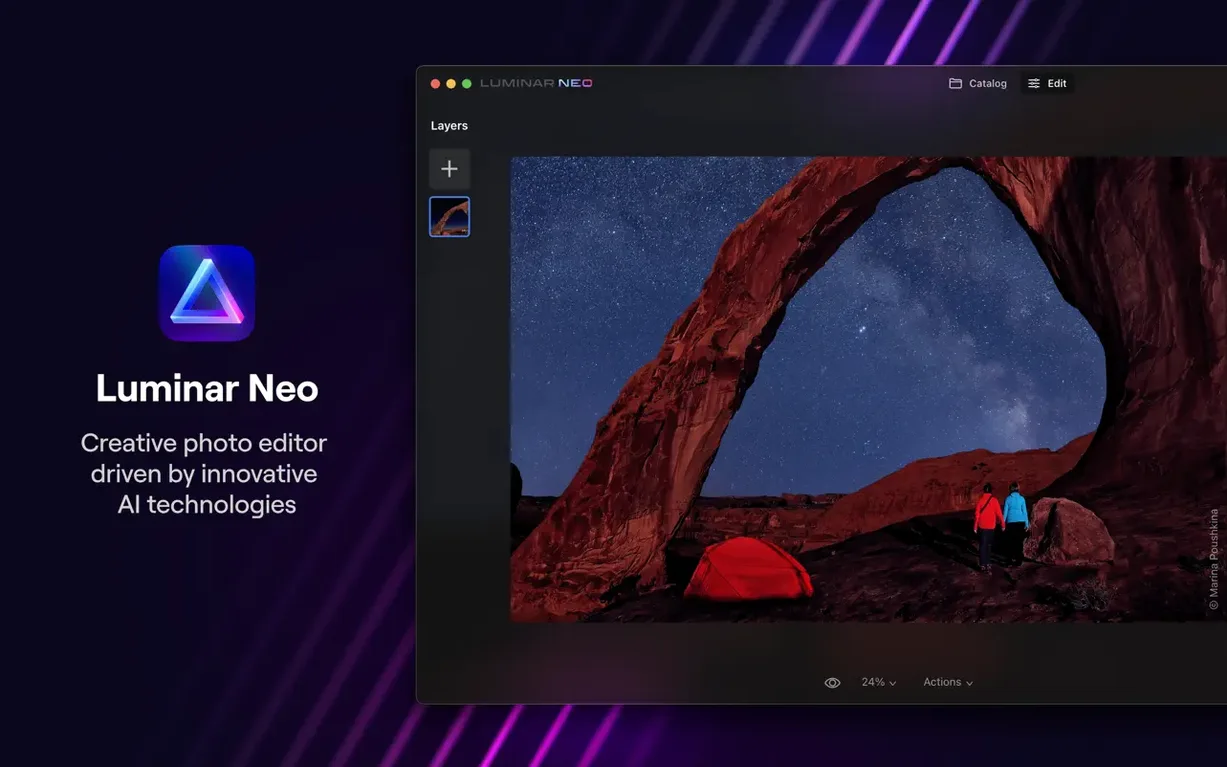
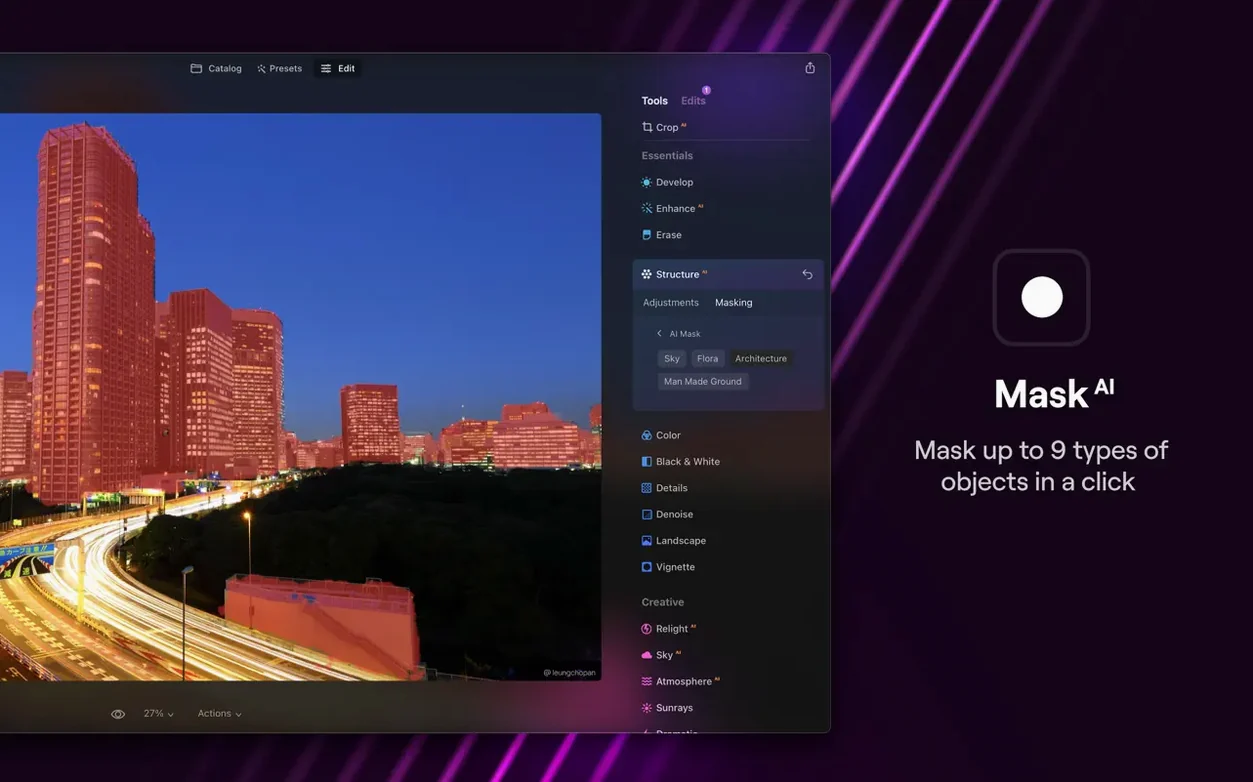
AI Assistant lands right in the Presets and Edit tabs now, so you don't have to dig through a dozen sliders just to get a starting point. Luminar Neo reads the image—figuring out scene depth and what's actually in the frame—then suggests a look. It's a more customizable evolution of the older LuminarAI, built for people who want the machine to do the heavy analysis while they keep creative control.
AI Dust Removal and Sky Swaps Without Manual Masking
- Photographers who want AI to handle dust removal and sky replacements without manual masking.
- Editors who prefer a standalone app.
- Anyone moving on from LuminarAI and looking for more flexible tools.
macOS Ventura Required Next, 16 GB RAM Strongly Advised
- The next release drops macOS 12 Monterey; Ventura will be the new minimum.
- Skylum recommends 16 GB RAM even though 8 GB is the listed floor—performance scales sharply with memory.
- It's a creative editor, not a raw-processing competitor to Lightroom Classic's cataloging depth.
Salvaging 200 Dusty Car Show Shots on a Friday Afternoon
Friday afternoon, a folder of 200 shots from a dusty car show lands on the desktop. The light was harsh, the backgrounds are a mess of parking lot signs, and every chrome detail has a film of Texas pollen. Here's how a cleanup session actually flows.
First move: drag the whole folder onto Luminar Neo's window. The catalog view pops up instantly—no import dialog, no database to manage. I scroll through with the arrow keys, flagging the keepers. The app isn't fighting me for disk space or building previews for ten minutes; it just shows the RAWs as they are.
One shot of a '67 Impala catches my eye. The chrome is perfect, but there's a guy in a neon vest walking through the background and the sky is blown out to white. I click Edit and the AI Assistant fires immediately. It reads the car as the subject, recognizes the blown sky, and within three seconds presents a balanced starting point. Shadows open up on the grille, the highlights pull back just enough, and the colors get a gentle saturation bump. I usually accept about 80% of what it offers, then tweak.
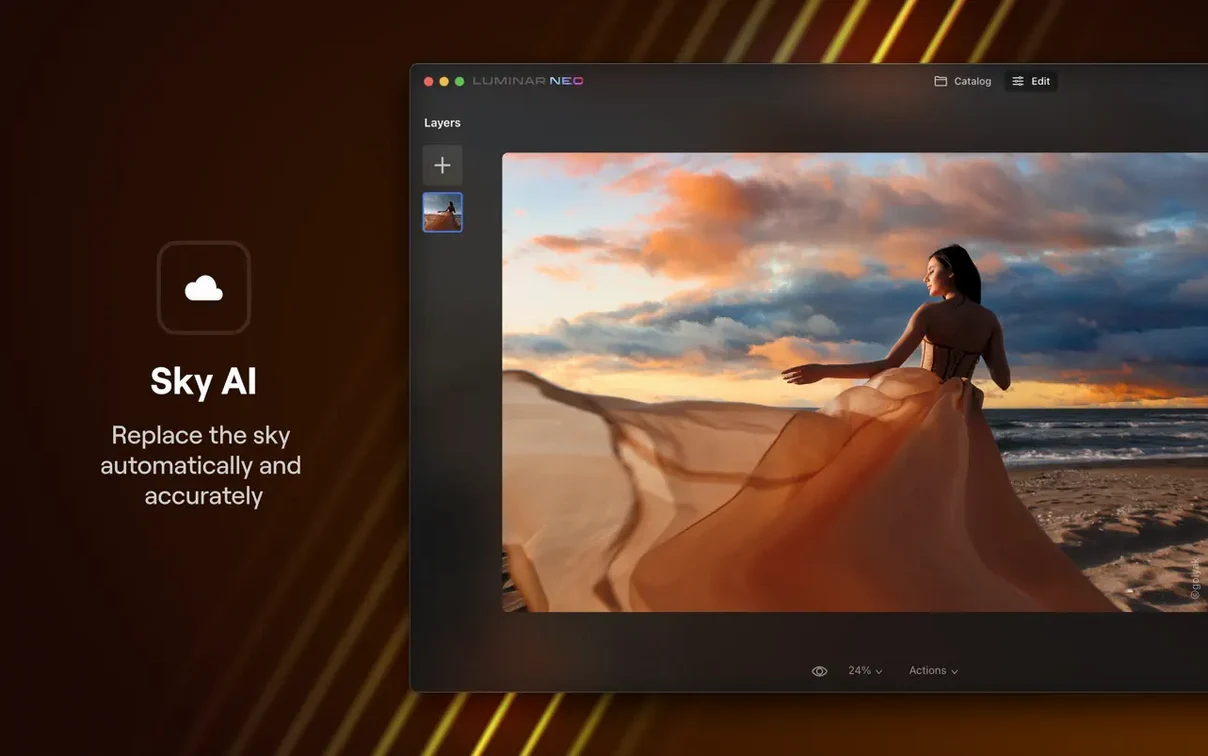
Next, Sky Replacement AI. I pick a late-afternoon blue with a few clouds from the built-in library. The mask snaps to the roofline and the antenna—no brushing required. I dial the sky temperature slightly warmer to match the sun direction on the chrome, drop the relighting slider to -15 so the car body doesn't look cut out, and move on. Total time on this step: maybe 90 seconds.
The background now has a better sky, but the neon-vest guy is still there. Erase tool. I paint over him loosely—messy strokes, no precision—and Luminar Neo fills the space with gravel texture and a chunk of fence it sampled from the surrounding area. Spot removal used to be a round trip to Photoshop. Now it's one tool and a one-second render.
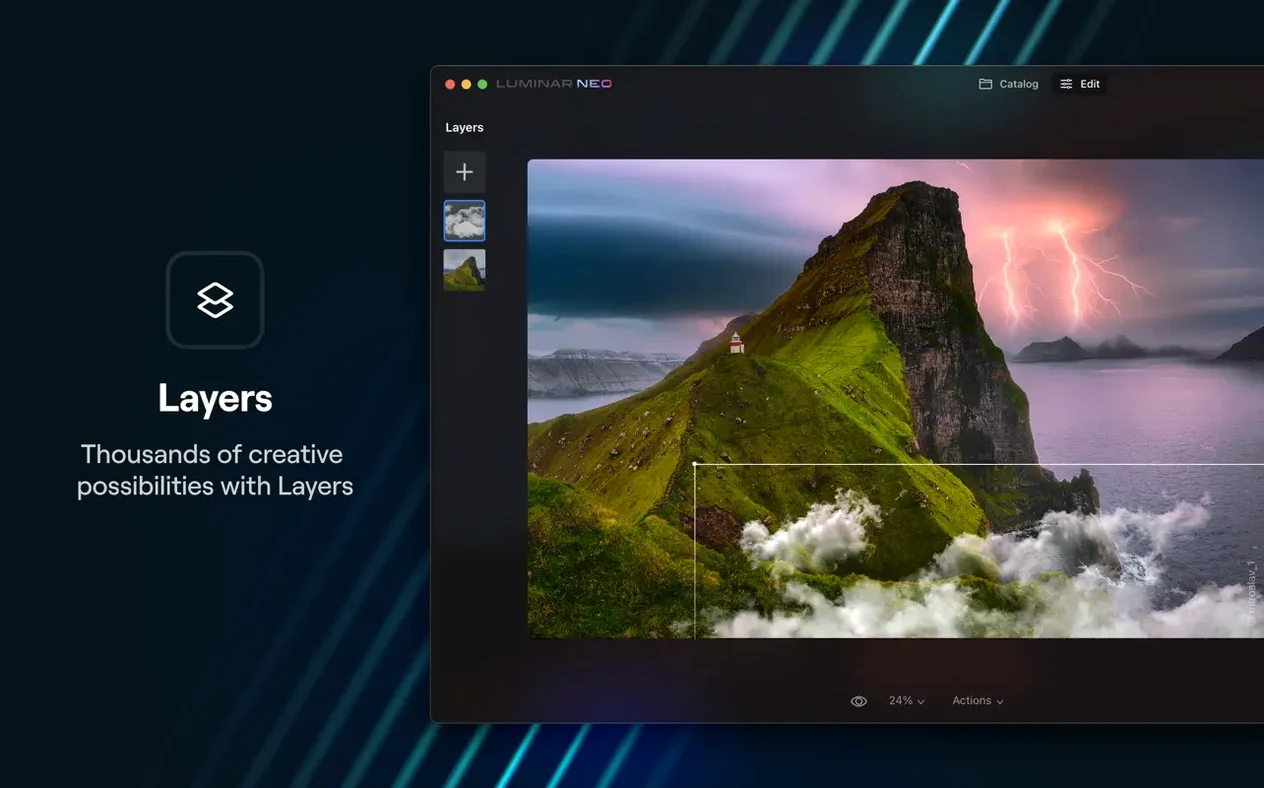
I want the Impala's paint to pop more. Layers panel, add an adjustment layer, set blending to Soft Light. I paint a rough mask over the body with a huge soft brush, then pull up the saturation and clarity on just that layer. The effect stays on the car; the sky and ground stay untouched. Having layers inside a tool that started as a single-image AI editor still feels like getting away with something.
Ten keepers later, I've batch-applied the same preset to a group of similar shots using the Presets tab. The AI Assistant inside Presets now analyzes each image individually and adapts the preset to it—so the yellow Corvette doesn't get the exact same treatment as the blue Impala. That's the part that saves me from the preset-slap look.
Export: TIFFs with Adobe RGB profiles for the client, resized JPEGs for a quick gallery. The render bar moves fast on an M-series Mac; on an older Intel machine with 8 GB, it's noticeably slower, which is why Skylum nudges toward 16 GB. The whole session from folder to delivered gallery runs under an hour.
The AI Assistant Is a Starting Point, Not a One-Click Finish
The most common one I see is treating the AI Assistant like a one-click finish button. It's a starting point, not the final edit. Accepting its suggestion without touching the sliders leads to images that look pleasant but generic—the same subtle HDR-ish pop on every photo. Use it to find the ballpark, then make it yours.
Another trap: cranking Sky Replacement AI to 100 and leaving the relighting at default. The subject ends up with a color cast that doesn't match the new sky, and the horizon line glows. Drop sky temperature until the reflected light on faces and objects starts to make sense, and always check the relighting slider. A subtle touch reads as real; full blast reads as composite.
Beginners also ignore layers for way too long. Luminar Neo's AI tools are so fast that it's tempting to stay in the single-image, global-adjustment mindset. Adding an adjustment layer for local work—brightening a face, darkening a distracting corner—takes 15 seconds and separates a polished edit from a filtered one.
The Erase tool gets misused as well. People paint tiny, precise strokes over a distraction instead of painting the whole object plus some surrounding area. The AI needs context to fill the gap convincingly. A loose, generous stroke works better than a surgical one. If the first pass looks weird, undo and repaint slightly larger.
Lastly, skipping the RAM reality check. On an 8 GB machine with other apps open, Luminar Neo will swap hard during batch exports or heavy layer work. Close Safari and Slack before a long session, and don't judge the app's speed until you've given it some breathing room.
Delivering 40 Vacation Rental Photos Per Property, Same Day
Tanya shoots vacation rentals in Austin—bright interiors, pool views, the occasional awkward bathroom with no natural light. She delivers 30 to 40 finished images per property, same day. Her entire workflow orbits around speed and consistency, and she switched to Luminar Neo from Lightroom because she was tired of spending 20 minutes per shot on window pulls.
A typical job starts with a condo on South Congress. The living room has floor-to-ceiling windows that blow out to white, and the view includes a construction crane. In Luminar Neo, she applies a preset she built for interiors—warm whites, lifted shadows, a slight desaturation of the oranges in wood tones. The AI Assistant adapts it per shot, so the bedroom with different wall color doesn't fight the preset.
For the windows, she grabs Sky Replacement AI but picks a neutral sky with soft clouds—nothing dramatic, nothing that would misrepresent the property. She masks the window panes out of the replacement with a quick brush, which takes under a minute. The crane gets the Erase tool, painted in one broad stroke. The app fills it with sky and a bit of tree line. The result looks like a clean construction-free day, not like a Photoshopped lie.
The bathroom with no windows needs a different trick: a subtle Relight AI adjustment to brighten the near side of the frame without blowing out the white subway tile. She drops a radial mask on the dark corner, lifts exposure 0.4 stops, and keeps the falloff soft. No extra layers needed for this one—just targeted AI with a local mask.
She exports everything as JPEGs at 2048 pixels wide, drops them into a cloud gallery for the client, and backs up the edited TIFFs to an external drive. The entire edit for 35 images clocks in around two hours. The AI is doing the heavy masking work she used to do manually; she's spending her time on taste, not on brush strokes.
AI Assistant Moves Into the Presets and Edit Tabs
Version 1.26.0 brought the AI Assistant into the Presets and Edit tabs, and that shift changes the rhythm of an edit session more than it sounds. Before, you'd pick a preset by name and hope it worked on the image in front of you. A preset built for a sunset beach shot would butcher a tungsten-lit interior. Now each preset gets adapted per image, and the Assistant shows you what it's doing. You're not guessing anymore.
The feel of the Edit tab is faster now. Click an image, the Assistant renders its analysis, and the sliders are already in a reasonable position before you touch anything. It cuts out the blank-slate anxiety of opening a raw file and seeing flat, muddy tones. For batch work, it means less time zeroing out bad auto-settings and more time refining.
Behind the scenes, Skylum has been tightening the engine incrementally. Dust removal and masking accuracy have improved with each release, though the company doesn't always spell out exactly what changed under the hood. What's visible is that edge detection on subjects with messy backgrounds—think hair against foliage—has gotten smarter. The relighting tool respects subject boundaries better than it did six months ago.
The looming change is the macOS version floor. Monterey support ends with the next release; Ventura becomes the minimum. For anyone on an older Mac stuck at Monterey, this version is the last stop. It's stable and fully functional, but the clock is ticking if you're holding onto older hardware.
Search interest in luminar neo mac crack and luminar neo torrent mac spiked around the 1.25.1 release cycle, and the current luminar neo 1.25.1 to 1.26.0 jump has kept that chatter alive. People looking for luminar neo torrent download or a luminar neo cracked mac tend to land on build numbers around these major feature drops, which makes sense—big updates draw fresh attention from users who want the latest AI tools without the subscription friction.
Exporting a Video Frame for Quick Still-Image Polish
Luminar Neo is a standalone editor, not a plugin, so its relationships with other apps are about file handoffs and complementary roles. I run it alongside Final Cut Pro when a video project needs a quick still-image polish—export a frame, clean it up in Neo, bring it back as a reference image or thumbnail. The round trip is faster than round-tripping through Photoshop because there's no document setup, no layer flattening gymnastics.
For photographers who still use Lightroom Classic for cataloging, Neo sits downstream. Cull and organize in Lightroom, then send selects to Neo for the creative edits—sky swaps, relighting, dust removal on scanned film. Export back as a TIFF and stack it with the original raw in Lightroom. It adds a step, but the AI masking in Neo saves more time than the round trip costs.
macOS integration is straightforward but limited. Neo reads and writes to the Photos library if you give it permission, which is handy for casual shooters who dump iPhone RAWs into Photos and want more editing power than the built-in tools offer. It doesn't try to replace Photos; it just shows up as an external editor option in the "Edit With" menu. You can also drag images directly from a Finder window onto Neo's dock icon, and it opens them in a new catalog tab—no import process, no database commitment.
The app respects Apple's color management: it reads display profiles and embedded image profiles without fuss. If you're working on a calibrated P3 display, the colors in Neo match what you see in Preview or Quick Look. That consistency matters when you're bouncing between apps and don't want surprises on export.
For heavy compositing work, Neo won't replace Affinity Photo or Photoshop. Layers are adjustment layers and image overlays, not full pixel-manipulation stacks with blend-if sliders and smart objects. But for the 90% of edits that don't need that depth, Neo handles the creative heavy lifting and hands off a clean file to whatever comes next—compressor, layout app, web gallery generator, or just a folder of finished JPEGs for the client.
AI Assistant is no longer tucked away in a single panel—it's right in the Presets and Edit tabs, ready to analyze an image and suggest a starting point the moment you open it. The whole update pushes for speed: less slider hunting, more immediate results.
Also fixed: the usual under-the-hood stability tweaks that don't make the highlight reel but keep renders from crashing halfway through.
- macOS: 12.0 Monterey or later (Ventura required for future releases)
- Architecture: Apple Silicon and Intel
- RAM: 8 GB minimum, 16 GB recommended
Questions I actually get
Does Luminar Neo work as a standalone app or only as a plug-in?
It runs as a full standalone photo editor for macOS and can also work as a plug-in for Lightroom Classic and Photoshop.
Will Luminar Neo still support macOS 12 Monterey after this update?
Version 1.26.0 supports Monterey, but Skylum has stated the next release will require macOS 13 Ventura as the minimum.
How does the AI Assistant in Luminar Neo actually work?
The AI Assistant analyzes an image to determine scene depth and contents, then recommends edits directly in the Presets and Edit tabs.
Notes from the edit bay · 0
Sign in or get an edit-bay pass to leave a note.
No notes from the edit bay yet. They go up after I read them.