Your MacBook's screen adjusts itself without a thought—dimming as the room darkens, brightening under office lights. Plug in an external display and that intelligence vanishes. Lunar Pro extends the same adaptive logic to every monitor on your desk.
Sync With the Sun First
Skip the sensor setup for now. Open Lunar and let it grab your location. It'll calculate sunrise and sunset times and ride brightness up and down along that curve. Set a minimum and maximum per display so it never dips too low or blinds you at noon. You get the rhythm of automatic brightness without any hardware fuss.
Lock Down Your Exclusions
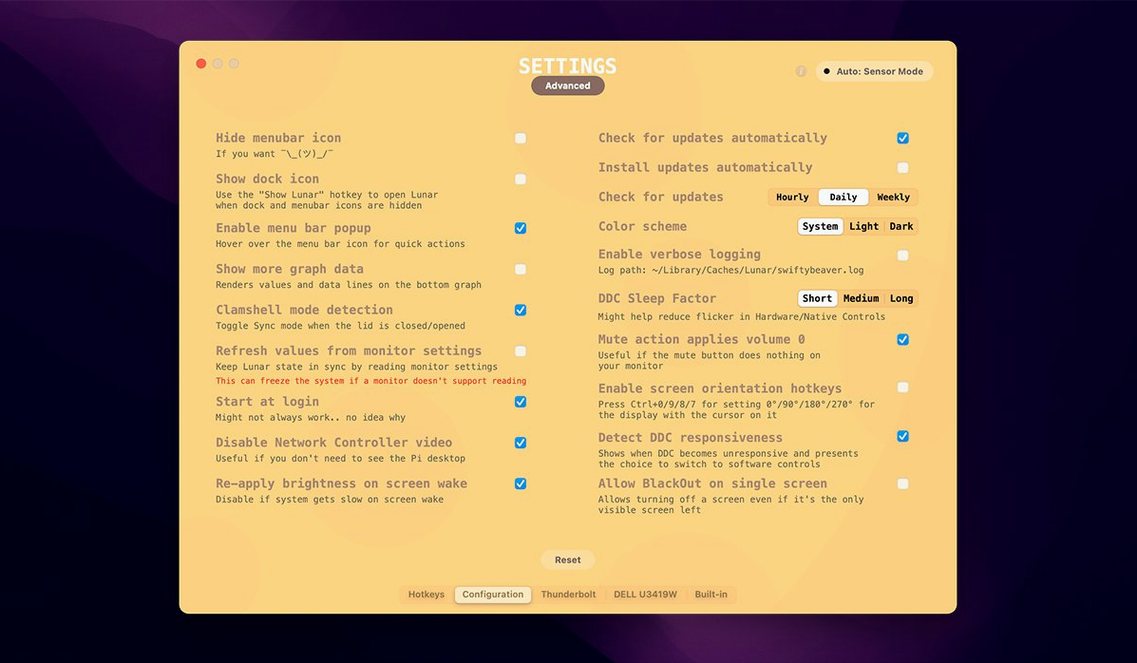
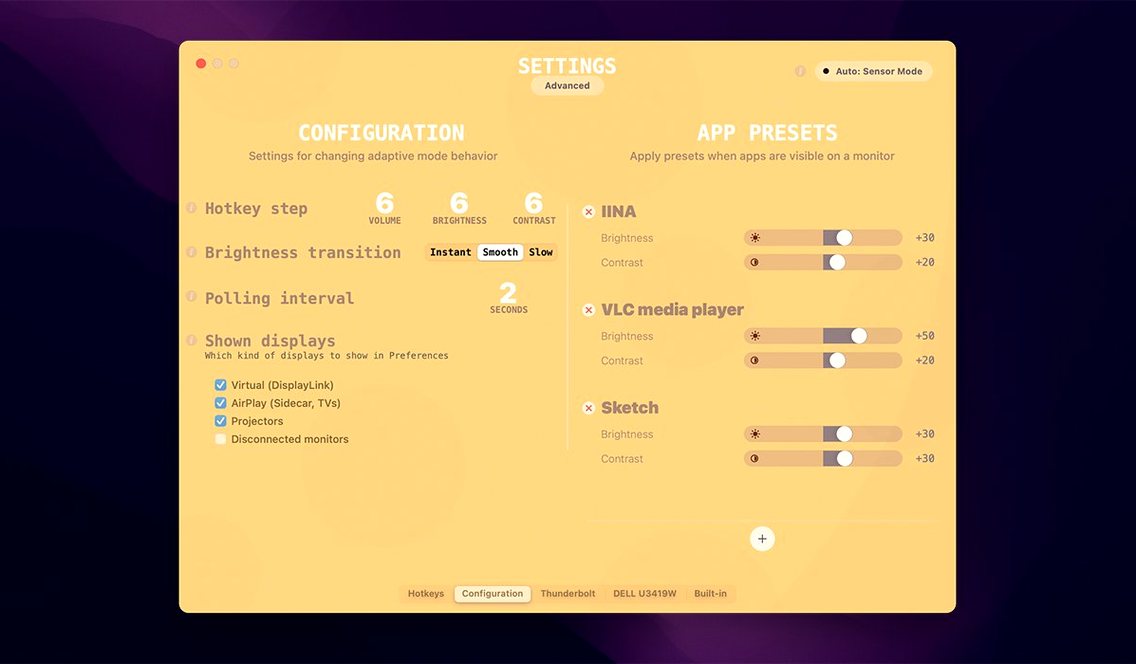
Color work and HDR viewing hate automatic dimming. Head into the app exclusion list and add DaVinci Resolve, Final Cut, or your media player of choice. Lunar backs off the moment those apps come forward. When you're back in the Finder, the adaptive curve takes over again. It's the one setting that keeps the tool welcome on a pro machine.
One Monitor, Sunrise to Midnight
Say you cut in a room with a west-facing window. Morning light is gentle, but by 3 p.m. the sun punches straight through the blinds and washes out your reference monitor. Here's a full adaptive setup with no sensor required.
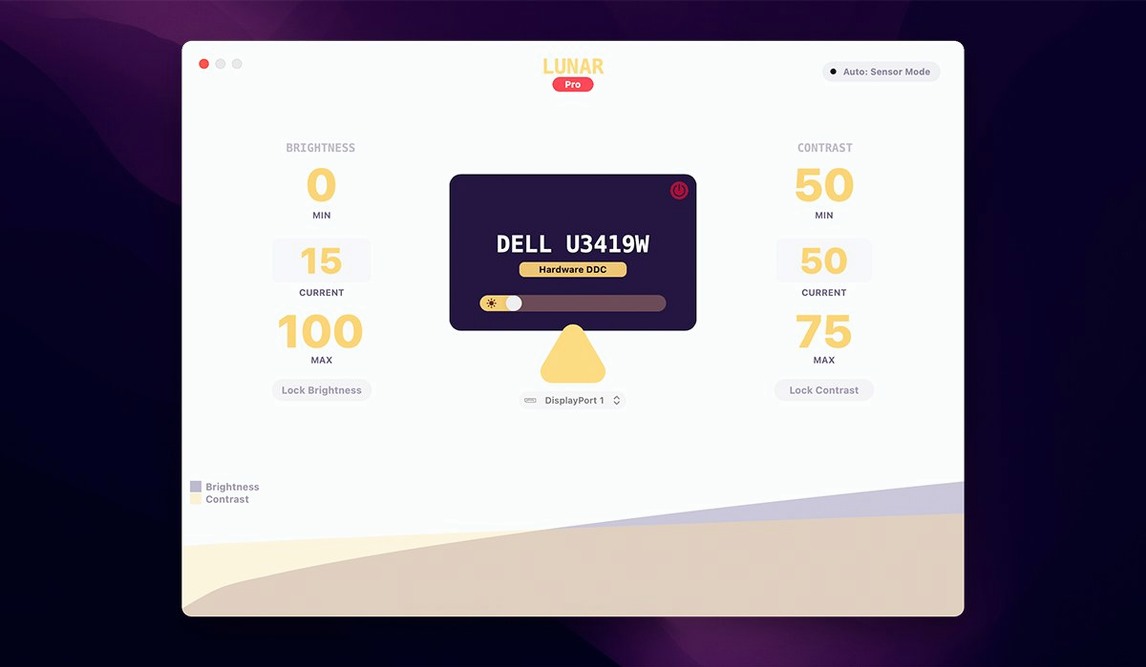
Open Lunar, select your external display from the sidebar, and switch its mode to Sync. Point it at the built-in ambient light sensor on your MacBook. The MacBook already reads the room—you're just borrowing that data for the big screen. Now set the minimum brightness to 15% and cap the maximum at 75%. That window glare won't force the panel to 100% and blow out your shadows; it'll hold steady at a readable but calibrated ceiling. For the evening stretch, flip the display to Location mode instead. Lunar reads sunset for your zip code and pulls brightness down in tiny steps over forty minutes. By the time the room lights go on, the monitor sits at 28%—exactly where your eyes stop squinting.
When you open DaVinci Resolve, the exclusion rule fires: all adaptive logic pauses, brightness locks at your daytime preset, and the render bar gets full priority. Quit Resolve and Lunar resumes the evening curve automatically.
Grading on a Dim Overcast Morning
Tuesday, 9:15 a.m. Coffee down, suite booted. The room is still dim—overcast outside, no overheads on yet. Lunar has the Dell at 34% based on the MacBook sensor reading, and it looks right. You launch Resolve to tackle a grade on a short doc.
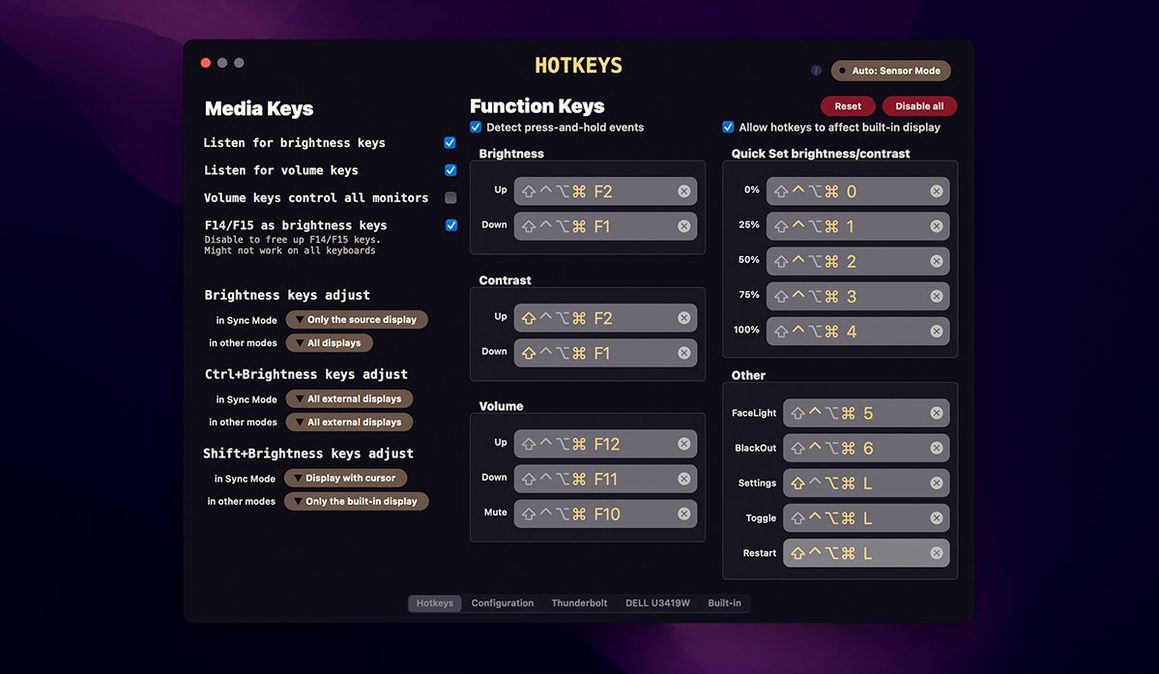
As soon as Resolve hits full screen, Lunar notices the app in the exclusion list and freezes the brightness. No flicker, no ramp. You work for two hours. Around 11 a.m. the clouds break and sunlight flattens the image on screen. You remember you haven't touched the monitor's OSD in weeks. A quick Control-Option-2—your manual hotkey—punches brightness to 62% without leaving the color page. Lunar holds it there because the exclusion rule overrides the sensor. You finish the grade, close Resolve, and the adaptive curve picks up again from wherever the room light now sits.
That pattern repeats all day: automatic by default, frozen during critical apps, quick manual override when your eyes say "nope."
Speed and Weight in the Menu Bar
Lunar lives as a thin menu bar companion. On an M1 Max MacBook Pro it idles at roughly 45 MB of RAM and barely moves the CPU needle—less than half a percent during normal polling. When an lunar pro mac full version syncs brightness across three displays simultaneously, you'll see a quick 2% spike on an efficiency core, then it settles back. No fans, no wake-from-sleep stutter.
Stability is where the DDC protocol usually crumbles—cheap monitors drop commands, and apps crash trying to retry. Lunar handles this with a retry queue that doesn't beachball. I've had it running across a BenQ, an LG UltraFine, and an old Dell for six days straight without a process hang. The only hiccup came when a monitor powered down overnight; Lunar re-detected it within three seconds of waking and restored the correct brightness.
It doesn't fight Night Shift or True Tone. Night Shift shifts color temperature while Lunar adjusts backlight voltage—two different pipelines that don't step on each other. The gamma-based software dimming does clash with f.lux, but the default hardware controls leave the LUT alone. Stick to DDC and everything co-exists quietly.
- macOS 11 or later
- Apple Silicon and Intel Macs
Questions I actually get
Does Lunar Pro work with any external monitor?
It controls brightness and contrast on most external displays connected to a Mac running macOS 11 or later, using DDC/CI commands that the vast majority of modern monitors support.
Notes from the edit bay · 0
Sign in or get an edit-bay pass to leave a note.
No notes from the edit bay yet. They go up after I read them.