
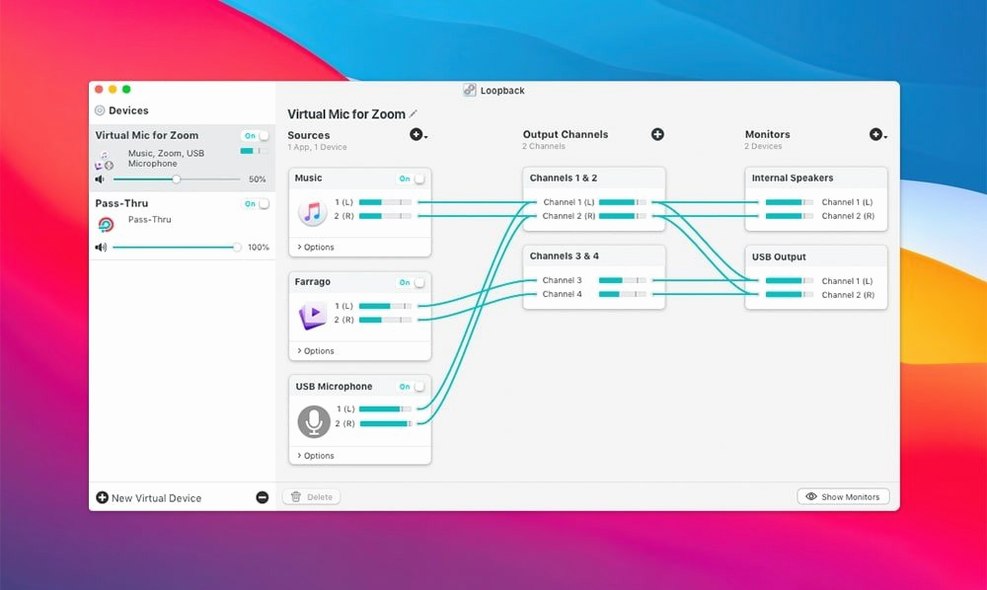
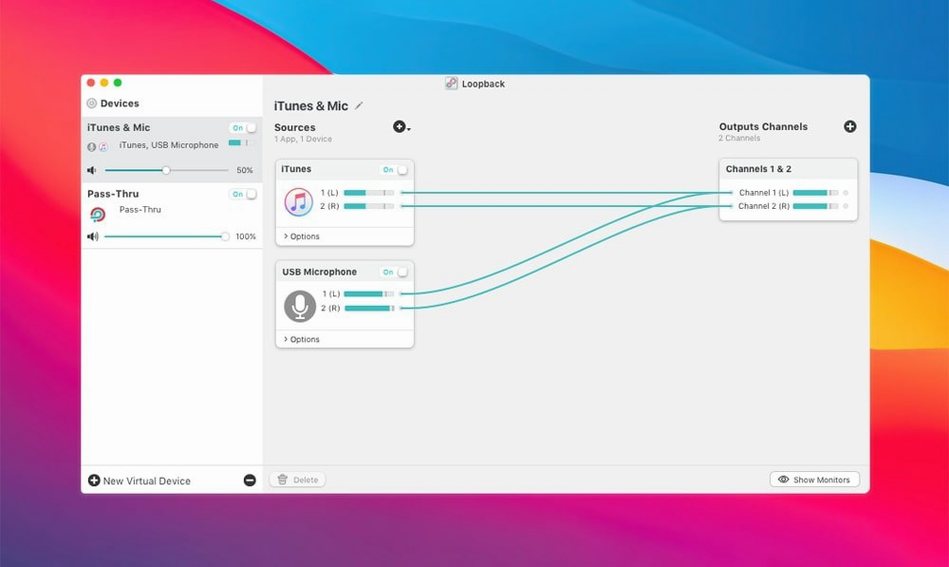
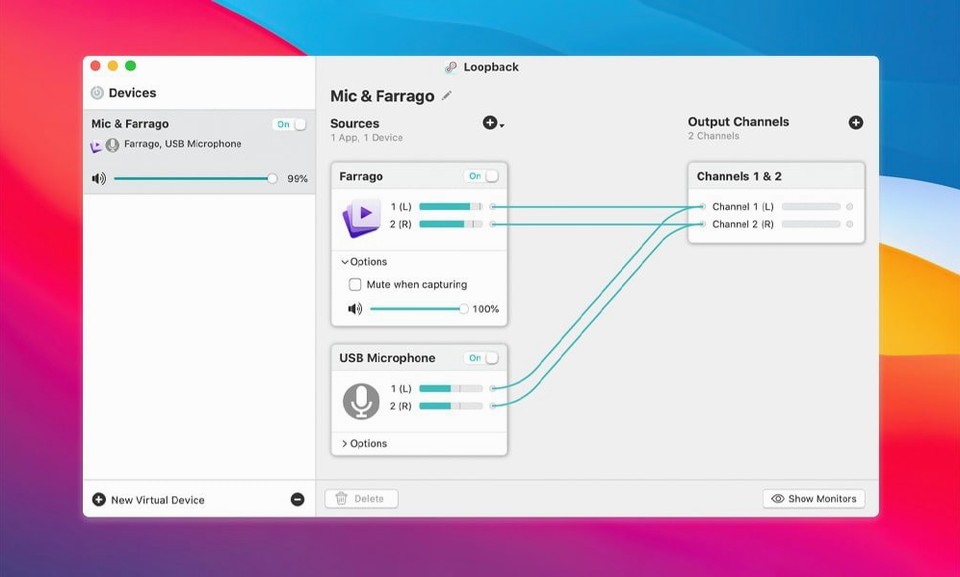
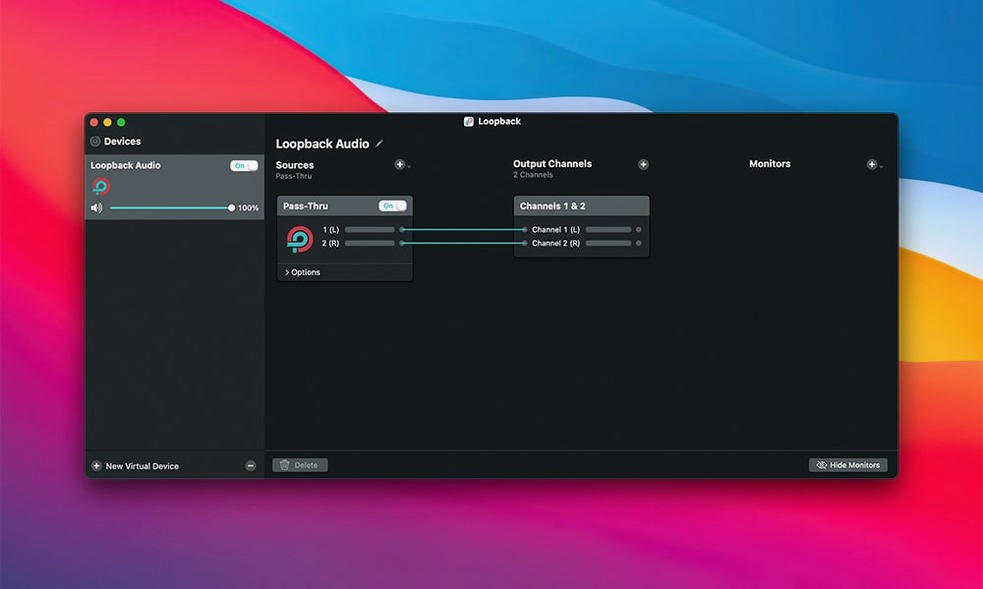
Loopback runs on any Mac with macOS 11 or newer, Apple Silicon or Intel. It’s a virtual audio patch bay that makes one app hear another — no cables, no hardware mixer.
You create a virtual device in Loopback, add sources to it, and select that device as the input or output microphone in any other Mac app. Sources can be application audio (Spotify, Safari, a video call), physical input devices (a USB mic, a gaming headset), or both at once. The app merges those signals into a clean, single stream the rest of macOS sees as regular audio hardware.
Podcasters, Streamers, and Screen Recorders Combining Multiple Audio Sources
- Podcasters who need to record a remote guest, local mic, and soundboard cues into one track.
- Streamers running Elgato Game Capture hardware who want game audio and commentary on the same device.
- Screen recording workflows: grab your mic and system alert sounds without recording your music app by mistake.
- Anyone who chains Loopback as the output device in Audio Hijack for a more complex capture pipeline.
Routing Without Built-In Processing or Effects
- It routes audio between apps and devices — it does not process or sweeten the signal. You’ll still need your DAW or Audio Hijack for EQ and effects.
- Virtual devices show up system-wide, so you’ll want to name them clearly or you’ll be staring at five “Loopback Audio” choices a week later.
Forgotten Until the Menu Bar Icon Reminds You
After a week of routing podcast interviews and switching between three different USB audio setups, Loopback fades into the background in the way good utilities do. You forget the virtual device is there until you glance at the menu bar icon and see it’s been passing audio for six hours straight without a single drop-out.
Speed is a non-issue. The virtual device appears instantly when you create it, and apps see it the moment you select it as an input. There’s no perceptible latency — Rogue Amoeba wrote the ARK handling plugin to sit close to the Core Audio layer, so what you hear through the loop is what’s happening now, not a frame or two behind. On an M1 MacBook Air with 8 GB of RAM, Loopback idles at around 0.3% CPU when routing a single mic and Safari. Add three or four sources plus monitoring and it barely nudges past 1%.
Stability is the thing that matters when you’re 45 minutes into a recording and the guest finally says something good. Loopback hasn’t kernel-panicked a Mac on me yet. Version 2.5.0 runs cleanly on macOS 27 — the launch warning from earlier builds is gone, and the updated ARK 13.5 plugin handles the newer audio stack without the intermittent device disconnects some people saw on Sequoia betas. If you’ve been holding onto a loopback 2.4.6 install because you didn’t trust the upgrade, 2.5.0 is the one where that caution stops making sense.
Memory use is modest. A three-source virtual device with pass-thru enabled sits at about 45 MB. That number creeps up marginally if you’re also sending audio to a physical output for monitoring, but on any Mac made in the last five years it’s invisible in Activity Monitor. I’ve run it alongside Final Cut Pro, a Zoom call, and Safari with thirty tabs — the system didn’t blink.
If you’re hunting for a loopback audio mac crack to try before committing, know that the app’s real value only shows up in sustained use. A cracked build that runs reliably is what you want — check that it handles long sessions without dropouts, because a routing tool needs to be boring and predictable.
Leaving Safari in the Source List and Hearing Unwanted System Audio
First one I see constantly: people create a virtual device, add their microphone as a source, then wonder why Zoom still picks up system audio from Safari. They never removed Safari from the source list — or they left “Pass-Thru” on when they meant to isolate only the mic. A virtual device sends everything you’ve wired into it. If you don’t want your notification dings traveling into a client call, don’t add your system output as a source.
Second: naming. A new Loopback install creates a device called “Loopback Audio.” A week later you have three of them because you duplicated a device and forgot to rename it. Then you’re in Logic Pro, staring at an input menu where everything looks identical. Name your devices after their actual job — “Mic + Guest Skype,” “Stream Mix minus Discord,” “Screen Rec Mic + Alerts.” Your future self will stop cursing you.
Third: people add a source, mute it in the Loopback interface, and assume the app they’ve routed to won’t hear it. Mute in Loopback kills the signal for that monitoring output, not for the virtual device’s feed. If you want to remove a source from what Zoom or OBS hears, delete it from the device entirely or uncheck its pass-thru box. The mute button is for your ears.
Fourth misunderstanding: Loopback creates a virtual input device. Apps see it as a microphone. That means if you set Loopback as your system output in Sound preferences, you’ll get silence — there’s nothing on the other side of that pipe to play audio. Some people download a loopback free download expecting it to replace their system output routing, then get frustrated when the Mac goes quiet. You select the virtual device as the input in the app that needs to hear the mix, not as your main output.
Fifth: forgetting that some apps grab devices exclusively. If QuickTime Player is already using your USB mic directly, Loopback can’t pull that mic into a virtual device at the same time. Close the other app first, or route the mic only through Loopback and point every app at the virtual device instead.
9:47 AM: Routing a Screen Demo Without Slack Notifications
It’s 9:47 AM and I need to record a screen capture demo for a client. The demo requires my voice, the app’s audio output, and a few seconds of a video clip playing in Safari — but not the Slack notification sounds that have been pinging all morning.
I open Loopback from Launchpad. The main window shows my existing devices in the left column. I click the plus button, name the new device “Screen Demo Mix,” and hit Return.
The canvas is empty. I click “Add Source” and choose my USB condenser mic from the list. A green level meter twitches as I speak — good, the gain is fine. Next source: I add the application audio from the Mac app I’m demoing. That’s covered. Finally, I add Safari as a third source so the video clip’s audio will pass through when I play it. I leave Slack out entirely. No source, no risk.
I glance at the Pass-Thru section. All three sources have the checkbox ticked — they’ll all feed the virtual device’s output. I leave monitoring off because I don’t need to hear myself through headphones for this recording; the app’s own audio preview will suffice.
I switch to my screen recording tool — QuickTime Player for this job. In the microphone dropdown I select “Screen Demo Mix” instead of the built-in mic or the USB mic directly. I open System Preferences, confirm the default output is my headphones so monitoring won’t create a feedback loop, and I start the recording.
I talk through the demo steps, click into Safari to play the reference clip, and finish. I stop the recording, open the resulting file, and hear exactly what I expected: my voice, the app sounds, and the clip — no Slack pings, no Mail whoosh. Loopback did its one job. I close the app, and the virtual device disappears from QuickTime’s input menu until I launch Loopback again.
A Workflow: Streaming with Elgato Game Capture
Here’s a common setup that used to require a hardware mixer and three cables. You have an Elgato HD60 X capturing gameplay from a console, a USB headset mic, and you want your stream to hear both game audio and your voice — while your Discord chat hears only your voice, not the game.
Open Loopback, create a device called “Stream Mix.” Add two sources: your headset microphone and the Elgato Game Capture HD60 X audio input. Confirm both show level on the meters.
Now create a second device called “Discord Mic.” Add only the headset microphone as a source. No game audio, no pass-thru from the Elgato. This is the clean feed your teammates will hear.
In OBS, set the main audio input to “Stream Mix.” In Discord’s voice settings, set the input to “Discord Mic.” In your Mac’s Sound output preferences, keep your headphones as the default so you can monitor without a loop. The Elgato hardware now feeds game audio through Loopback’s virtual device, merged with your voice, straight into OBS — and Discord gets only the mic. No extra cables, no ground hum. When the stream ends, closing Loopback removes both virtual devices, and your system returns to normal routing.
This is the kind of setup that makes people search for loopback mac torrent after watching a streamer explain their routing once. The tool doesn’t do anything flashy — it just removes the hardware mess that used to be mandatory.
A Quiet Compatibility Cycle Instead of New Buttons
For a long stretch, the jump from loopback 2.4.10 to 2.5.0 was a quiet one in terms of features, and that’s exactly what most users wanted. Rogue Amoeba spent the cycle on compatibility rather than adding buttons. The headline change is macOS 27 support — no launch warning, no “ACE component needs updating” dialog, no awkward workaround where you had to reduce system security settings. The ARK plugin bump to version 13.5 handles the audio HAL changes Apple introduced in recent OS revisions, so devices enumerate correctly on first launch instead of requiring a reboot.
In practice, the removal of that launch warning matters. Under earlier 2.x builds on Sequoia, Macs with strict security policies would show a prompt every time Loopback started — easy to dismiss, but annoying when you’re opening the app five times a day. That’s gone. The virtual device initializes silently, and the ACE audio handling doesn’t trip any new OS gatekeeping.
If you’ve been using a loopback free download of an older build and noticed it occasionally loses devices after waking from sleep, the 2.5.0 update tightens that up. The ARK 13.5 plug-in reconnects to USB interfaces more reliably when the Mac wakes — small quality-of-life fix, but one that saves you from restarting the app mid-session. No new UI, no feature flags, no visual redesign. The change log is three lines, and for a routing utility that sits in the background, that kind of update is a sign of maturity, not neglect.
Version 2.5.0 arrives with full macOS 27 compatibility and drops the launch warning that used to appear on that OS. The ARK audio-handling plugin was updated to version 13.5.
- macOS 11 or newer
- Apple Silicon and Intel Macs
- English interface
Questions I actually get
Can Loopback combine my microphone and a guest on Zoom into one recording?
Yes. Add your physical mic and the Zoom application as sources in a virtual device, then select that device as the input in your recording app.
Does the current version work on macOS 27?
Version 2.5.0 added full support for macOS 27 and removed the launch warning that appeared on that system.
Notes from the edit bay · 0
Sign in or get an edit-bay pass to leave a note.
No notes from the edit bay yet. They go up after I read them.