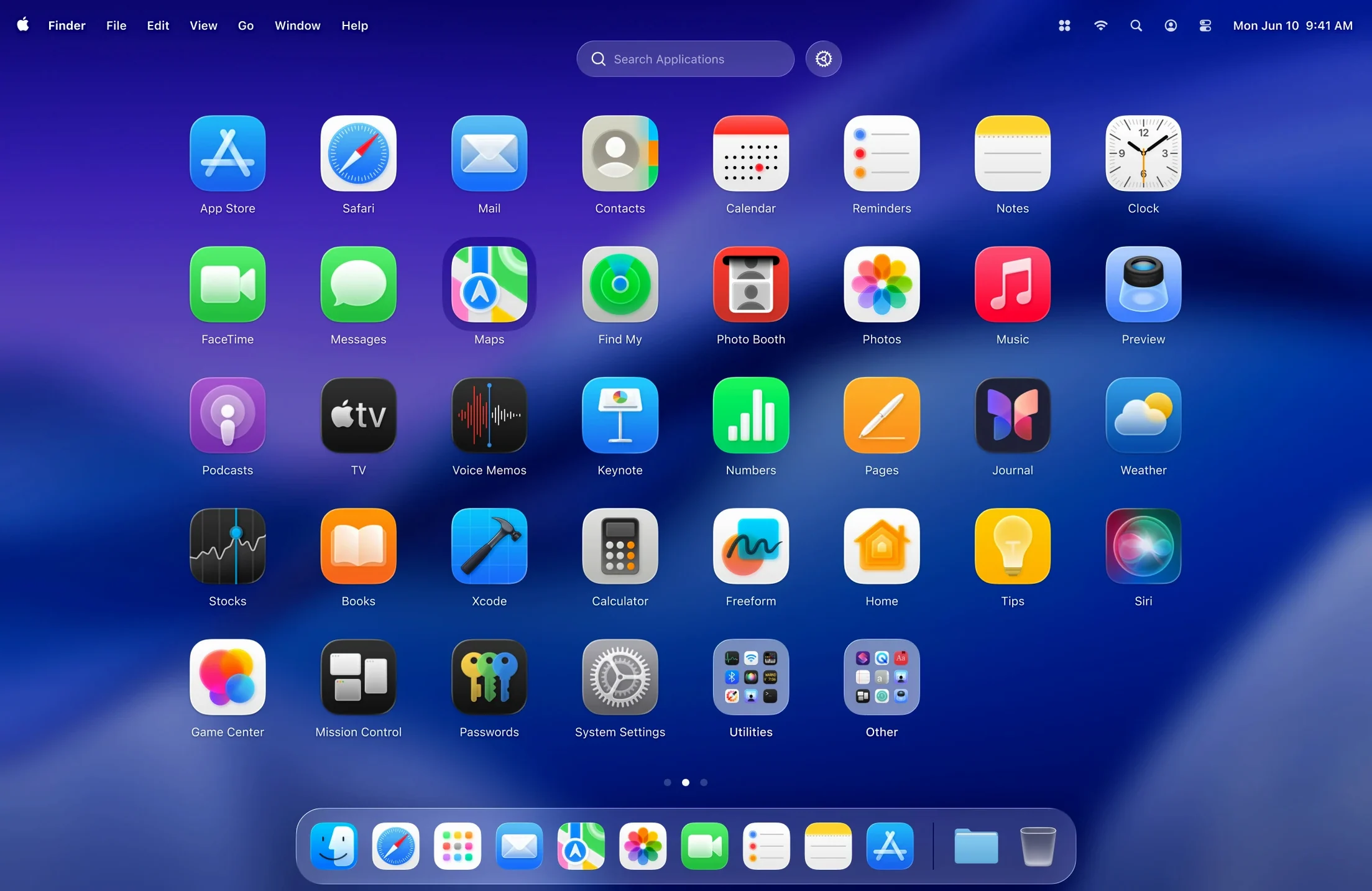
Apple redesigned Launchpad again, and muscle memory took the hit. Apps scatter across pages, the grid feels wrong, and there's no quick way to hide the utilities you never click. LaunchOS steps in to restore the Launchpad you already know how to use—then gives you the controls that should have been there from the start.
1. Pick which apps earn a spot
Not every icon needs to live on your Launchpad. Check the apps you want visible, uncheck the rest. They stay installed, just out of sight. A cleaner grid in ten seconds.
2. Size the grid to your screen
Set the rows and columns that match your display and your aim. Fewer icons for quick targeting, or more per page when you're on a big monitor. The grid snaps to your preference, not a fixed layout.
3. Launch with a gesture
Assign a trackpad or mouse gesture to open LaunchOS. Swipe and go—no dock click, no corner hunt. It's the fastest path from idea to app, especially when a render bar is crawling and you need to jump into a second tool without breaking flow.
4. Remove apps without digging into Finder
Long-press an icon or right-click and choose to uninstall. The app disappears from the grid and from your drive. It's the quick clean-up a deadline day demands—no trip to the Applications folder required.
LaunchOS sits where the built-in Launchpad used to live, but with a layout that stays out of your way. It supports the Liquid Glass effect on macOS 26, so it looks native, and runs on both Apple Silicon and Intel hardware. If you cut for a living, it saves the small frictions that add up across a session.
Long-Press Uninstall That Just Works
Long-press to uninstall is the headliner, and it works exactly the way you'd hope. Hold an icon until the grid jiggles, tap the X, confirm. Right-click does the same thing without the wait. It’s not a Finder-level scrubber, but for quick removals between projects it cuts the friction to nearly nothing. The other addition—Restart—sits quietly in the status bar menu and the right-click context menu. A single click bounces the app back to a fresh state without quitting your whole session. Useful when you’ve been hiding and unhiding apps in bulk and want the grid to repaint cleanly.
Shortcuts and conveniences you might skip past
LaunchOS respects your keyboard even when you’re not thinking about it. Once the grid is open, type the first two letters of an app name and the selection jumps. No search field, no mouse. It’s the old Launchpad behavior, restored and responsive. If you dock the status bar icon, a click opens the grid centered on your current display—handy on a dual-monitor edit rig where the dock lives on one screen and your timeline fills the other.
The gesture trigger deserves a second look. You can bind it to a three-finger swipe or a hot corner through macOS’s own gesture settings, which means LaunchOS launches exactly like the built-in Launchpad always did, except now it opens this grid, with your hidden apps already gone. No relearning required.
60 MB and a Single Bounce on M-Series
The grid paints instantly. On an M-series machine the app opens in a single bounce; on Intel it’s a beat slower, but still faster than waiting for a bloated Launchpad database to rebuild itself. Memory sits around 60 MB at idle, and CPU use is a flat line unless you’re actively scrolling or resizing the grid. I’ve left it running through overnight renders without a single crash or memory creep.
Stability is predictable because the app isn’t trying to patch anything system-level. It reads your Applications folder, applies your show/hide list, and draws a grid. That’s it. No kernel extensions, no background daemons burning cycles. When a macOS point update drops, LaunchOS keeps working because it’s not tied to Launchpad’s internal database, which has a habit of resetting itself after major updates.
No Fight with Spotlight or Alfred
LaunchOS plays nicely with Spotlight and Alfred. You can still invoke either one without conflict—the gesture or shortcut you assign to LaunchOS only fires when you trigger it. I keep Spotlight on Command-Space for file and web searches, Alfred for system commands, and LaunchOS on a trackpad swipe for visual app launching. Three layers, zero overlap.
It also cooperates with Stage Manager. Opening LaunchOS doesn’t disrupt your window groups, and the grid slides over your current desktop without minimizing anything. On macOS 26 the Liquid Glass effect gives the overlay a depth that matches the rest of the system, so it doesn’t look bolted on. If you use the built-in Dock hiding, LaunchOS becomes your primary app launcher—icons stay off the Dock, clutter stays in check, and you still reach everything in one gesture.
For anyone hunting a LaunchOS torrent or LaunchOS crack, the real draw here is that the app works as a clean replacement for a system feature Apple keeps redesigning into unfamiliar shapes. It doesn’t phone home, doesn’t nag, and installs by dragging a single icon to Applications. Once it’s in place, macOS Launchpad becomes a fallback you’ll probably forget is still on your machine.
Long-press or right-click an icon and you can now uninstall the app directly from the grid—no side trip to Finder when you're clearing out bloat between projects. Also fixed: a Restart command now lives in the status bar menu and the right-click context menu, so bouncing the app takes one click instead of a quit-and-relaunch dance.
- macOS 26 or later
- Apple Silicon or 64-bit Intel Mac
Questions I actually get
Does LaunchOS delete apps or just hide them?
Hiding only removes the icon from the grid. The long-press or right-click uninstall option fully deletes the app when you choose it.
Can I switch between languages?
Yes, LaunchOS includes Russian, English, German, Spanish, Italian, Traditional and Simplified Chinese, Korean, French, and Japanese.
Does it replace the original Launchpad?
It's designed to replace the built-in Launchpad workflow, restoring familiar behavior while adding features like hiding apps and changing the grid size.
Notes from the edit bay · 0
Sign in or get an edit-bay pass to leave a note.
No notes from the edit bay yet. They go up after I read them.