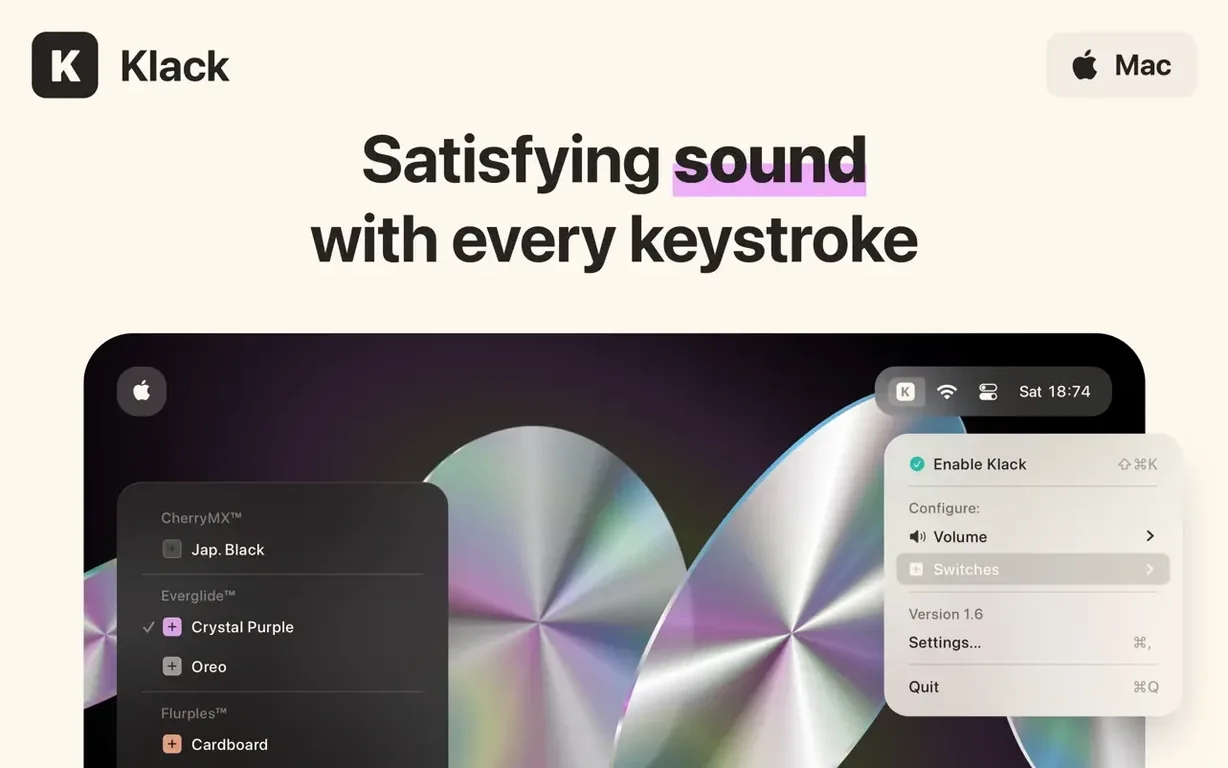
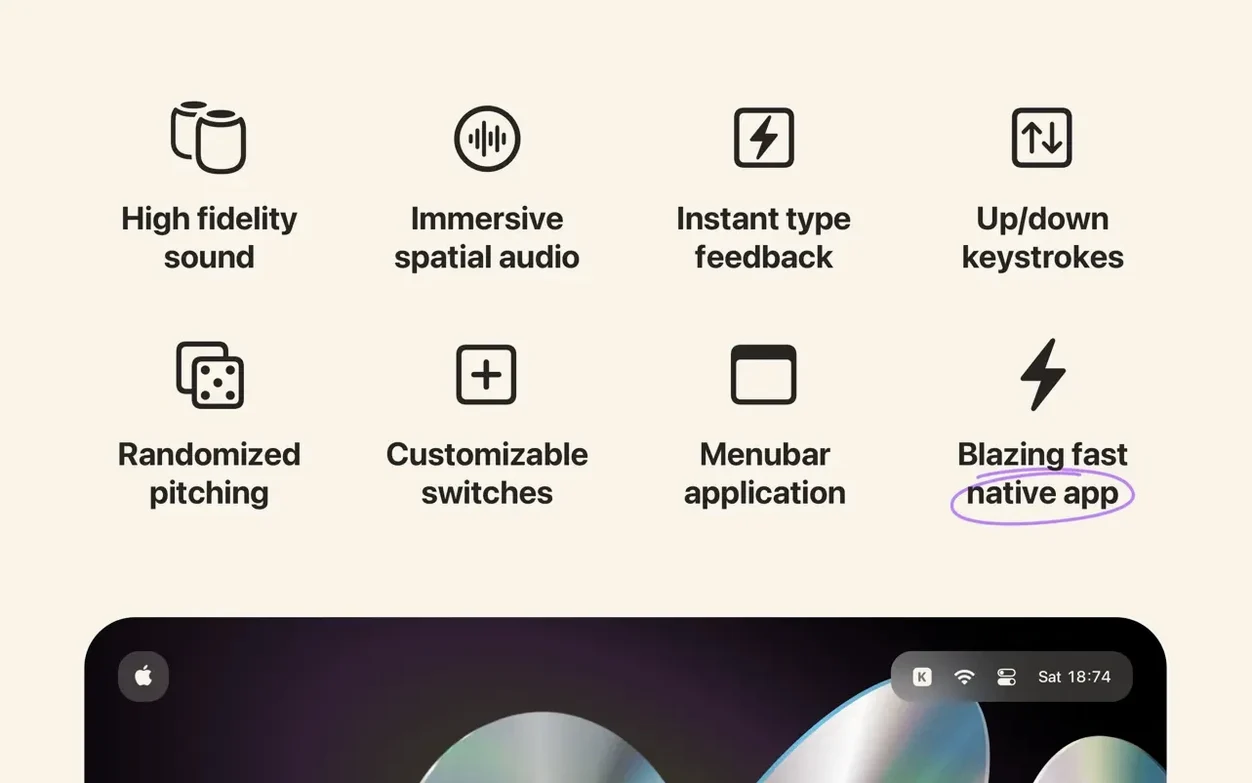
Klack is a menu bar app that plays authentic mechanical keyboard sounds through your Mac’s speakers while you type.
Three Features That Do the Work
- The menu bar hub. You pick a switch profile, dial in the volume, and get back to cutting. No floating windows, no dock clutter — just a click on the icon when you want to switch things up.
- Spatial audio with randomization. Klack doesn’t loop the same sample over and over. It places each keystroke in a stereo field and subtly randomizes the playback so it sounds like a real board under your fingers instead of a robot reading a soundboard.
- Customizable switches. You can mix and match sound packs to find the right tactility for the job — clicky switches for emails, something quieter for late-night timelines.
Mechanical Key Feel on a Silent Laptop
This isn’t a utility that fixes a problem. It’s pure typing feedback for people who miss the sound of a mechanical deck but need the quiet of a laptop keyboard, or for anyone who just wants every keystroke to land with a little more weight. The spatial audio trick genuinely sells the illusion — the sound doesn’t feel glued to the center of the screen.
No Sound? Check Accessibility Permission
Most hiccups with Klack trace back to macOS privacy settings. The app needs Accessibility permission to detect keystrokes system-wide, and if that toggle isn’t flipped, you get silence. Head to System Settings > Privacy & Security > Accessibility and make sure Klack is checked. If it’s already listed but grayed out, remove it with the minus button, then add it back manually from the Applications folder. A quick relaunch usually sorts it.
Another gotcha: sound routing. Klack plays through the default system output, so if you’ve got a Bluetooth speaker or an audio interface selected, the typing sounds go there too. Check your output device in the Sound menu bar module before assuming the app broke. Some users also report that the spatial audio effect collapses to mono on certain external DACs — switching to the Mac’s built-in speakers restores the stereo field immediately.
On rare occasions, the menu bar icon can vanish after a macOS update. That’s usually Bartender or a similar utility hiding it. Check your menu bar manager’s overflow section, or hold Command and drag the Klack icon back into the visible area.
Start Quieter Than Feels Natural
Out of the gate, dial the volume lower than feels natural. The samples cut through clearer than you expect, and a setting that sounds satisfying in a quiet room becomes obnoxious the moment Slack notifications start firing. I settle around 30% on the slider and nudge up from there.
Spend ten minutes auditioning switch packs with actual work — not just typing gibberish into TextEdit. A switch that feels crisp during a quick test can grate after a thousand words. The clicky profiles reward fast typists who bottom out hard; the tactile ones suit deliberate editing passes where you’re moving in short bursts.
If you use an external mechanical keyboard, disable Klack while it’s plugged in. Doubling up real switches with software playback creates a weird phasing effect that spoils both. You can toggle the app on and off from the menu bar in one click, so there’s no reason to live with the overlap.
Also worth knowing: Klack respects Focus modes. If you’re recording a voiceover or in a meeting, set a Focus filter that mutes the app automatically. It’s not a built-in toggle — you configure it in System Settings under Focus > Add Filter > Apps — but the combination keeps the sounds where they belong.
30 MB of RAM and No CPU Load
Klack is built in Swift and stays lean. On an Apple Silicon machine, it idles at around 30 MB of RAM and barely registers on the CPU unless you’re hammering out 100 words per minute. Even then, the hit is negligible — the sound engine loads samples into memory once and triggers them on key events, so there’s no sustained processing spike. I’ve left it running through multi-hour editing sessions with Resolve and Logic Pro open alongside it, and it never caused a dropout or a beachball.
The latency between a keypress and the sound is tight. Not MIDI-tight — there’s a perceptible gap if you’re listening for it — but short enough that your brain accepts the illusion after a few sentences. Spatial audio positioning stays stable and doesn’t drift, which I’ve seen in heavier audio apps that lean on the same system APIs.
Stability has been solid across macOS versions. I’ve run it on both Intel and Apple Silicon machines, and crashes are rare. The one exception: if you quit Klack while a system-level audio change is happening — like plugging in an interface — it can leave the audio engine in a stuck state. A relaunch fixes it every time. No kernel panics, no runaway processes, no background services left dangling after a quit.
Some searches lead people looking for klack macos free or a klack free download mac route. What lands on your machine is a focused, single-purpose utility that doesn’t phone home, doesn’t collect data, and doesn’t clutter your system. It’s refreshingly boring under the hood, and that’s the point.
- macOS 13.1 or later
- Apple Silicon or Intel Mac
Questions I actually get
Does Klack work with external keyboards?
Yes. Klack responds to any key press on your Mac, whether you type on the built-in laptop keyboard or an external one.
Can I use Klack with headphones?
Absolutely. The spatial audio is designed to work over any audio output, so the effect holds up whether you're on speakers or wearing headphones.
Notes from the edit bay · 0
Sign in or get an edit-bay pass to leave a note.
No notes from the edit bay yet. They go up after I read them.