
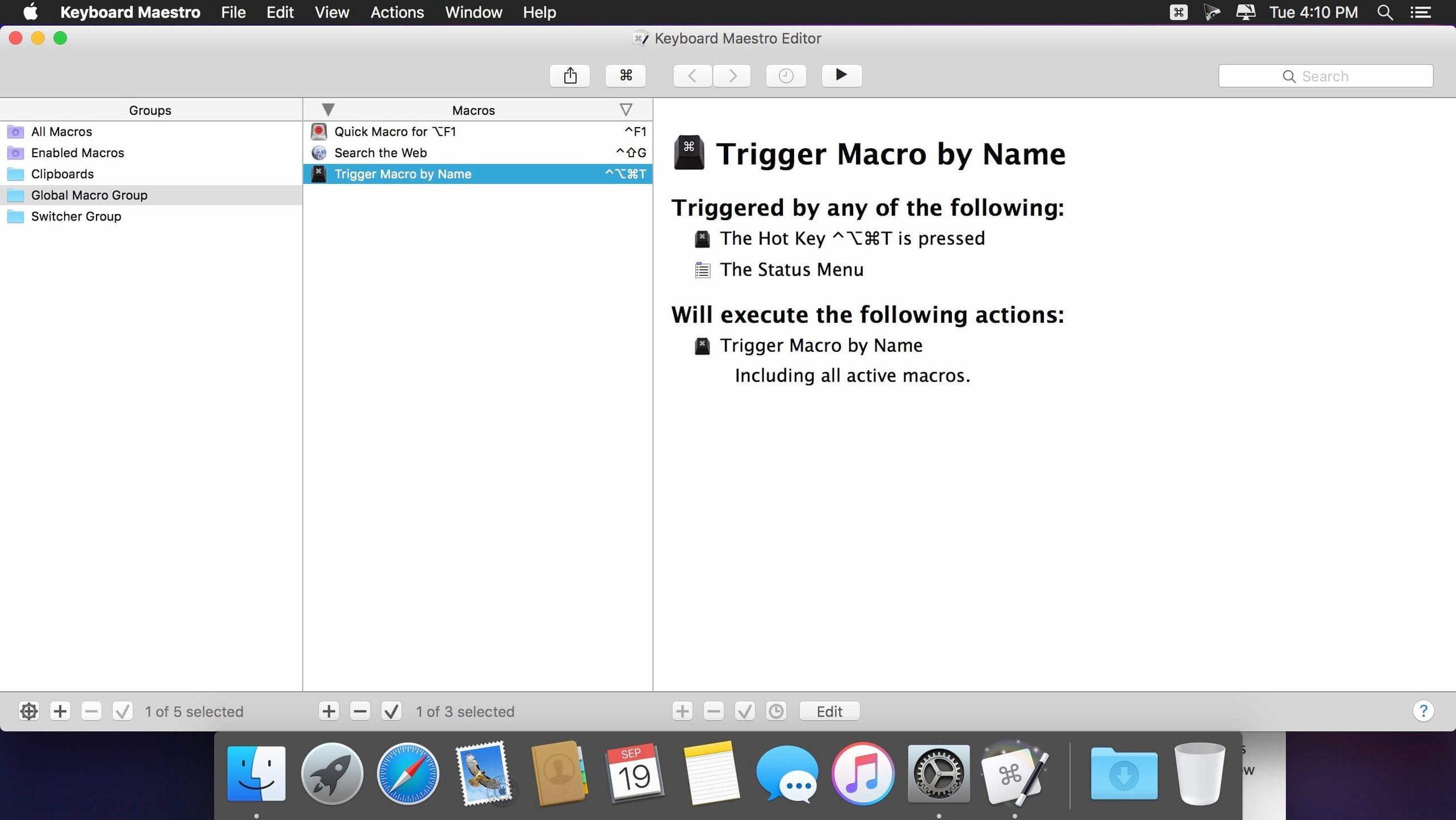
Every macro starts with a trigger. A hotkey, a typed string, a Wi-Fi network change, even a time of day—Keyboard Maestro watches for one thing, then fires off a chain of actions. That chain can be two steps or two hundred. Launch Final Cut Pro, arrange the workspace across two displays, pull up the day's brief, and hide the dock. One shortcut. Done.
It's not trying to replace the tools you already use. Think of it as the connective tissue between them. You can grab incoming emails and save attachments to a project folder without touching Mail's rules. You can visit a handful of reference pages in your browser with a keystroke, right before you start editing. It's the stuff you do every morning, reduced to a single signal.
The action library is deep. Flow control, conditions, and loops mean a macro can make decisions on the fly. If a certain window isn't open, it opens it. If it's already open, it just brings it forward. The latest build sharpens that logic further: Switch/Case actions now show you which path is live, making complex branching way easier to debug.
For anyone working across Ableton Live and other audio tools, this is where it fits. The app doesn't care about MIDI signals directly, but it can manage everything around the DAW. A text expansion snippet for a patch note you type a hundred times a day. A trigger that arranges your Mix window, Scripter panel, and Finder samples folder exactly how you like them. It handles the desktop choreography so you stay in the flow.
Does It Slow the Mac Down?
Does it slow the Mac down? Not in any way I can feel. The engine sits mostly idle, listening for triggers. It's not polling the CPU relentlessly. Where you might notice a hiccup is if you stack a dozen high-resolution image OCR actions back to back—but that's a spike, not a baseline. On both Intel and Apple Silicon, the footprint is tiny. You install it, set a few macros, and forget it's running until a shortcut fires and something useful happens.
Will it clash with Ableton keyboard shortcuts? Only if you set it up to. Keyboard Maestro can intercept global hotkeys, and Ableton Live grabs a lot of them. The trick is to scope macros to specific applications or avoid the key combos Live already owns. For instance, if Live uses Cmd+Shift+T for a new MIDI track, don't assign that globally. Use a different chord, or make the macro active only in Finder. People run both side by side with zero issues once they map around the overlaps.
What if ableton midi keyboard no sound is the thing I'm troubleshooting? That's a routing problem inside Live, not something Keyboard Maestro can fix directly. What it can do is help you bounce between Audio MIDI Setup, Live's preferences, and a notes file faster than clicking around the screen. One macro, three windows arranged, and you're diagnosing instead of navigating.
Clipboard Switcher for Pasting Track Names
The clipboard history switcher sits quietly until you invoke it. Press the hotkey and a panel drops down with the last dozen cuts and copies. I use it when I'm pulling track names from a spreadsheet into Live's session view—copy five cells, then paste them one by one from the history without flipping back. It's faster mentally because you don't lose your place.
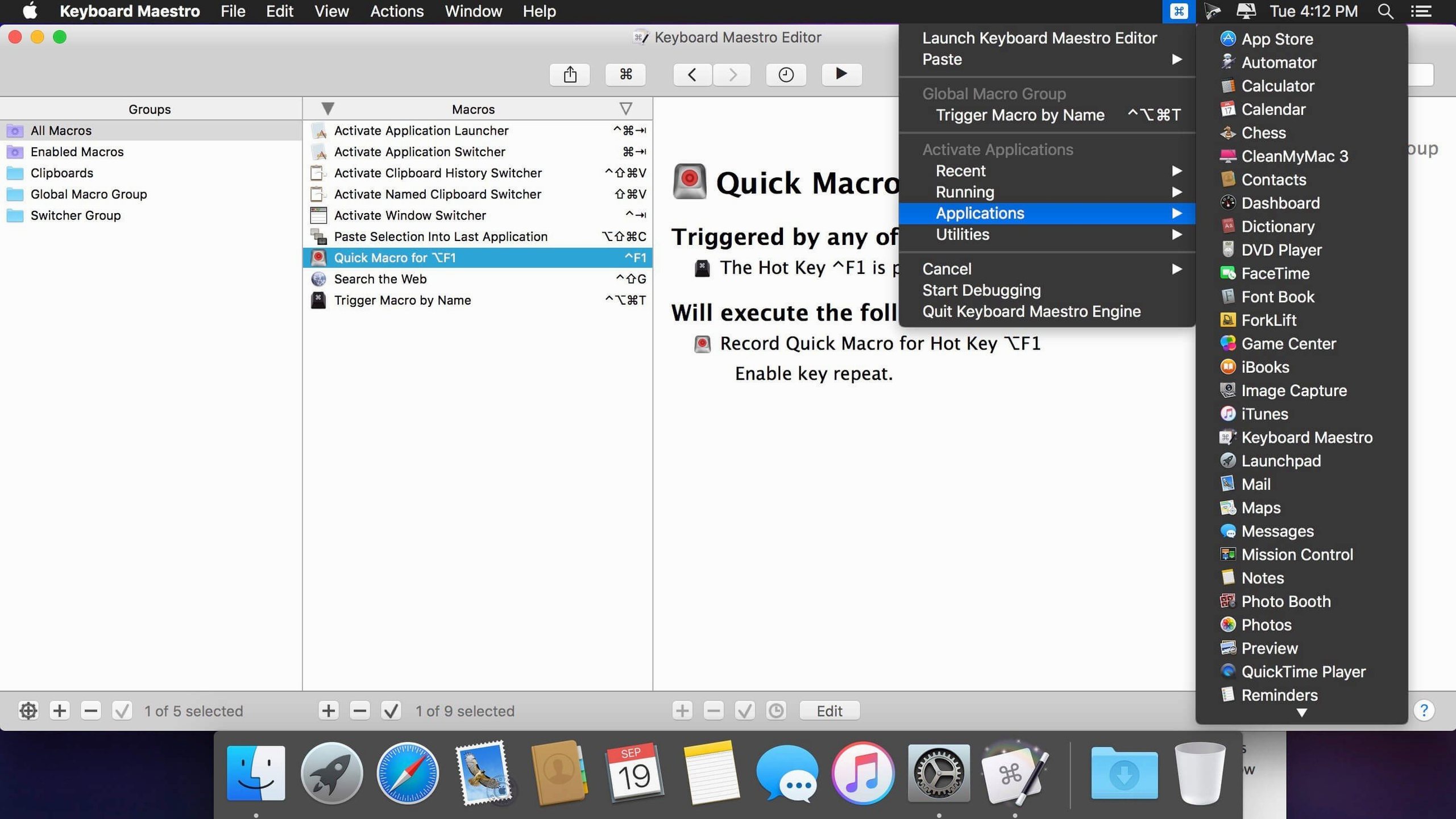
Conflict palettes are another hidden gem. If two macros share a trigger, Keyboard Maestro doesn't just pick one and hope for the best. It shows a small menu so you choose which fires. That's crucial when you're building a library of ableton keyboard shortcuts mac helpers and one of them accidentally steps on a system hotkey. You see the conflict the moment it happens, not days later.
And then there's the search field inside the action list. Start typing "resize" or "move window" and the list filters instantly. No scrolling through a hundred actions. When you're deep in building a macro and you think "there must be an action for this," there probably is—and that search bar finds it in two keystrokes.
Building a Vocal Comp Sheet, Step by Step
Here's a workflow I set up for a producer who comps vocals across dozens of takes. The goal: pull track names, take numbers, and rough timing notes into a clean text file without ever leaving the DAW or touching a mouse.
First, the trigger. I used a typed string—;vcomp—so it fires only when the producer types that exact sequence. The macro starts by copying the selected region in Logic (or any DAW that puts track and time info in the clipboard). Next, it switches to BBEdit, creates a new document, and pastes. A search-and-replace action strips out everything except track name, bar numbers, and the comment field. Then it appends the cleaned line to a running master file on the desktop, closes the temp document without saving, and switches back to the DAW. Total time from trigger to result: under a second. The producer never saw a dialog or typed a filename.
To make it smarter, I added a condition: if the master file doesn't exist yet, create it first and add a header row. That's one If/Then block. The whole macro is twelve actions, and it runs identically on the studio's Intel iMac and the M1 MacBook Air the producer takes to remote sessions.
Insert a Pause When the Next Action Fires Too Soon
Macro works, but the timing is off. Some apps need a beat to register a menu command or a paste. If your macro clicks a menu item and the next action fires before the window is ready, insert a Pause action—half a second usually does it. The Debugger window (with its new tool tips) shows you exactly where the delay happens. Watch the step highlight, see the lag, add a pause, rerun.
Typed string trigger fires accidentally. Happens when the string is too common. If you use ;w for a web launcher and you also type ";w" in a chat message, you'll get the macro when you didn't want it. Add a slight pause requirement—the string must be typed within a short window, or followed by a delimiter like a space. Or switch to a chord that's less likely to appear in prose.
Ableton keyboard MIDI assignments vanish. This one trips people up all the time. Keyboard Maestro isn't stealing your ableton keyboard midi mappings—Live stores those in a different layer. If assignments disappear, it's almost always a control surface script loading out of order or a USB device re-enumerating. The fix is in Live's Link/MIDI preferences, not in Keyboard Maestro. But here's where the macro utility earns its keep: build a one-button reset that opens the right preference pane, toggles the "Remote" switch for your controller, and closes the window. Five seconds instead of five minutes of menu diving.
Switch/Case actions got a smart clarity boost—you can now see which entries are currently true or would execute, right inside the action. Apple Text Recognition is also now available as a condition in OCR actions. Tool tips were added to the Macro Debugger window for quicker troubleshooting. Also fixed: an issue with search highlighting triggers.
- macOS 10.13 or later
- Intel or Apple Silicon Mac
- Interface: English
Questions I actually get
Does Keyboard Maestro work directly with Ableton MIDI signals?
No, it doesn't intercept MIDI data. It automates the macOS environment around Ableton—window management, file handling, text expansion, and launching supporting apps.
Can I use it to fix Ableton MIDI keyboard issues like no sound?
Not directly. A 'no sound' problem is usually a track routing or driver config issue inside Ableton. Keyboard Maestro can, however, run a script to open Audio MIDI Setup or launch a troubleshooting note.
What's the simplest way to start building a macro?
Pick the one repetitive task you did three times today. Create a hotkey trigger, then record your actions or pick them from the built-in library. Start small and add conditions later.
Notes from the edit bay · 0
Sign in or get an edit-bay pass to leave a note.
No notes from the edit bay yet. They go up after I read them.